Obsy Copilot
Obsy Copilot is provided with your Workspace and requires no additional configuration. You can ask questions directly in natural language, or on a specific page, let Obsy Copilot perform analysis or generate content based on the current object, accessible Workspace data, and enabled capabilities.
Obsy Copilot is designed for immediate, user-initiated tasks, helping you complete data queries, analysis, and content creation in the Workspace more efficiently and accurately.
Getting Started
Click the Obsy AI icon in the top navigation bar of the platform. The Obsy Copilot drawer expands on the right side of the page. You can open Obsy Copilot on any page and switch pages or continue using the platform during the conversation. Click the icon again to collapse the drawer.
The top of the drawer provides the entry to Obsy Agent Teams. Click it to enter the corresponding workbench.
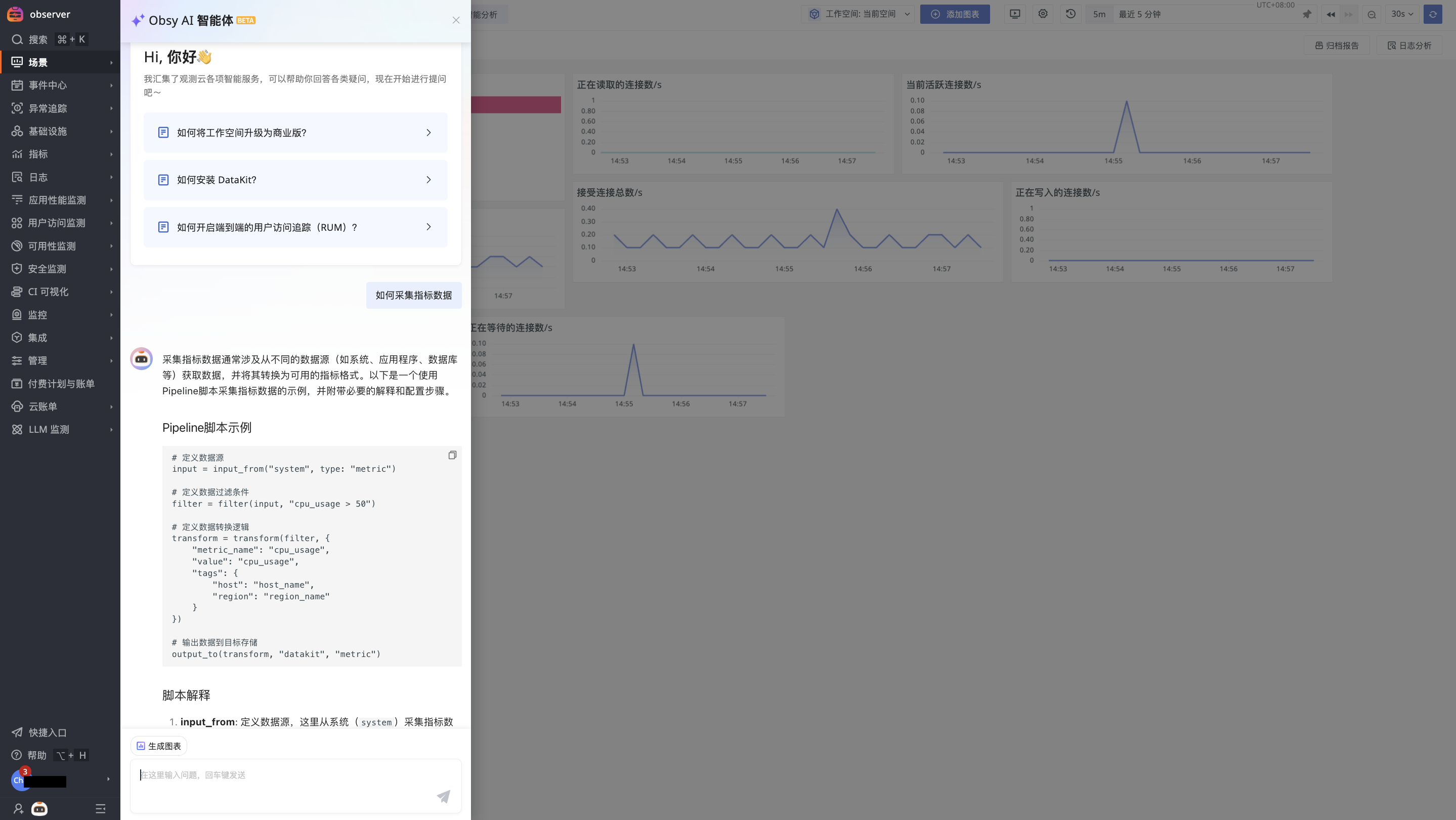
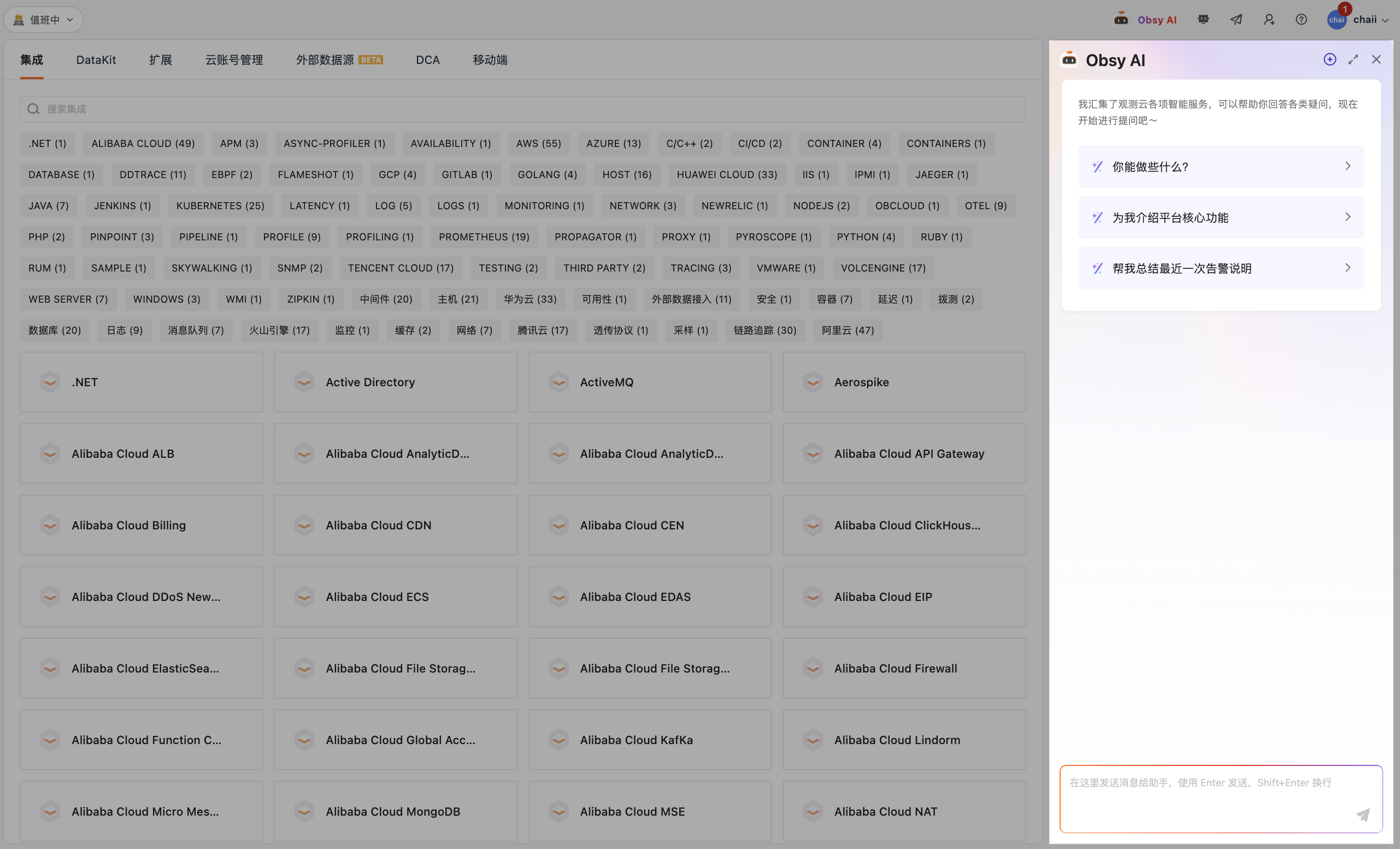
The Obsy Copilot drawer supports the following general operations:
- New conversation: Click
+to create a new conversation that does not inherit the current session context. - History: View, continue, or manage previous conversations.
- Expand or restore: Expand to full screen to view complex content; click again to restore the default width.
- Close: Collapse the drawer. The current conversation content is retained.
Asking with the Current Page Context
When you open Obsy Copilot on a supported page, it can understand your question in combination with the current object, time range, and filter conditions, reducing the need to repeat page information. For example, on an error trace details page, you can ask "Why did this trace fail?", and on the Host list page, you can ask "Which Hosts currently need priority attention?".
We recommend using it as follows:
- First enter the details page or list page you want to analyze, and set an appropriate time range and filter conditions.
- Open Obsy Copilot and describe the phenomenon, risk, or result you want to understand.
- If you switch objects or adjust filter conditions, confirm that the page already displays the new analysis scope before asking.
Page context only takes effect on supported pages and does not expand the current user's data or feature permissions. When the information provided by the page is insufficient, Obsy Copilot will state the missing evidence or ask you to provide additional conditions. For the specific supported scope and usage, see Observability Analysis.
Selecting Model Intelligence
Before sending a question, you can select a model intelligence tier in the input area according to task complexity:
| Tier | Use Cases |
|---|---|
| Auto | Automatically balances response speed and analysis quality based on the task; suitable for most daily questions. |
| Fast | Prioritizes response speed; suitable for simple queries, content organization, and quick confirmations. |
| Standard | Balances accuracy and efficiency; suitable for routine analysis and content generation. |
| Pro | Uses deeper reasoning; suitable for complex troubleshooting, planning, and multi-step analysis. |
If you are unsure which to choose, use Auto. Model intelligence only affects how subsequent questions in the current conversation are handled and does not expand the data, features, or operational permissions accessible to the current user. When you use a higher tier for complex tasks, analysis may take longer and consume more credits.
Selecting the Answer Format
Click Answer Format at the top of the conversation window to choose how answers are presented based on your reading preference:
- Rich Card: Presents answers as structured cards, highlighting the information hierarchy and key points.
- Markdown: Presents answers in Markdown format, preserving the original text structure.
Conversation History
Obsy Copilot saves conversation history so you can continue previous analyses. Click the conversation history icon at the top of the drawer to view the conversation list sorted by last update time.
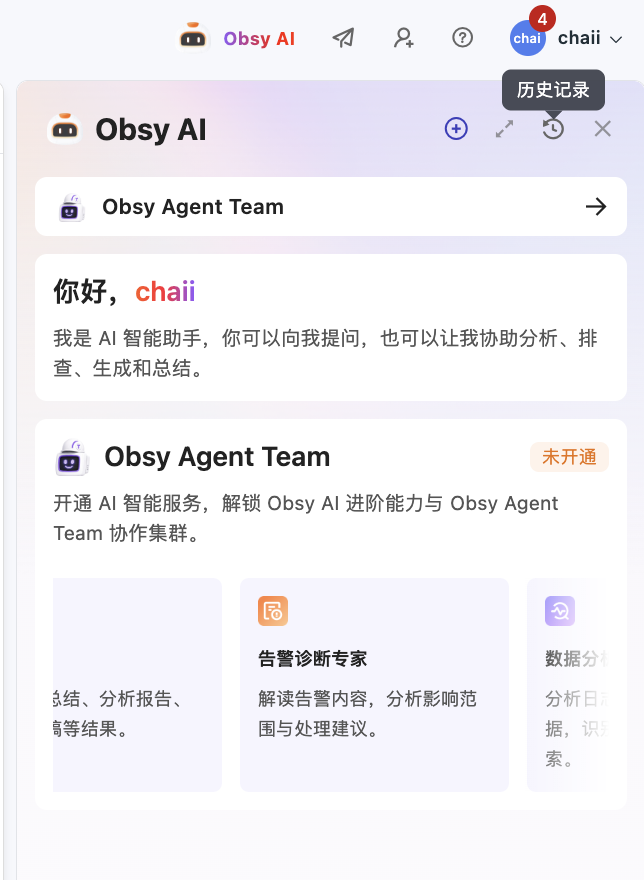
In the conversation history list, you can:
- Click a conversation to restore its existing context and continue asking questions.
- Rename a conversation for easier identification later.
- Delete conversations that are no longer needed.
Note
- Conversation history is isolated by Workspace and user and is visible only to the current user.
- Conversation history is retained for up to 30 days and is automatically cleaned up after the retention period.
Quick Prompts
When you first open Obsy Copilot or create a new conversation, the window displays quick prompts, for example:
- What can you do?
- Introduce me to the platform's core features.
- Help me summarize the most recent alert message.
Quick prompts help you start a conversation. When performing specific tasks, we recommend adding the analysis object, time range, and expected result. For example, instead of only entering "Help me take a look", you can enter "Analyze the current error trace, and explain the most likely failed node, impact scope, and next troubleshooting suggestions".
Capabilities Overview
Obsy Copilot capabilities are divided into the following four categories based on usage goals:
| Capability Category | Included Capabilities | Key Value |
|---|---|---|
| Observability Analysis | Page Analysis and Root Cause Identification, Infrastructure Page Analysis, List and Asset Analysis, Database Query Optimization, Alert Aggregation and Compression, Preliminary Incident Analysis. | Combines the current object, page scope, and observability data to surface anomaly clues, shortening incident assessment and root cause troubleshooting time. |
| Data Retrieval | DQL / PromQL Assistant, Natural Language Search in Explorer. | Converts natural language into query statements or filter conditions, lowering the barrier to using DQL, PromQL, and Explorer syntax and improving data retrieval efficiency. |
| Resource Generation | Create and Modify Dashboards, Generate Pipeline Parsing Rules. | Generates dashboard drafts and Pipeline parsing rules based on business goals and Workspace metadata, reducing repetitive configuration and from-scratch writing effort. |
| Knowledge Services | Create Notes and Runbooks, Product Documentation Q&A. | Organizes analysis results into reusable notes or operating procedures and provides usage guidance based on product documentation, reducing the cost of knowledge organization, retrieval, and sharing. |
The completeness and accuracy of Obsy Copilot analysis results and generated content may be affected by factors such as site version, deployment configuration, user permissions, current page context, and the completeness of observability data collection. When using the results, we recommend verifying key conclusions against raw data and the actual environment, and completing necessary validation before performing subsequent operations.
Usage Recommendations
- When you need to analyze an object, first enter the corresponding details page or list page, and then open Obsy Copilot. This reduces repeated description and keeps the results within the current filter scope.
- Specify the goal, time range, and expected output in your question. When you need queries or configurations to be generated, also provide the data domain, samples, and key constraints.
- Obsy Copilot only uses the data and features that the current user has permission to access. When data, permissions, or necessary context are missing, the results will state the limitations; you should not assume the problem has been fully verified based on the results.
- Confirm the queries, configurations, and remediation recommendations generated by Obsy Copilot before using them in the production environment. Processes involving resource creation remain subject to the permissions and save operations of the corresponding modules.