Dashboard Management
After entering a dashboard page, you can perform management operations using the toolbar at the top and the settings panel on the right.
Card Metadata
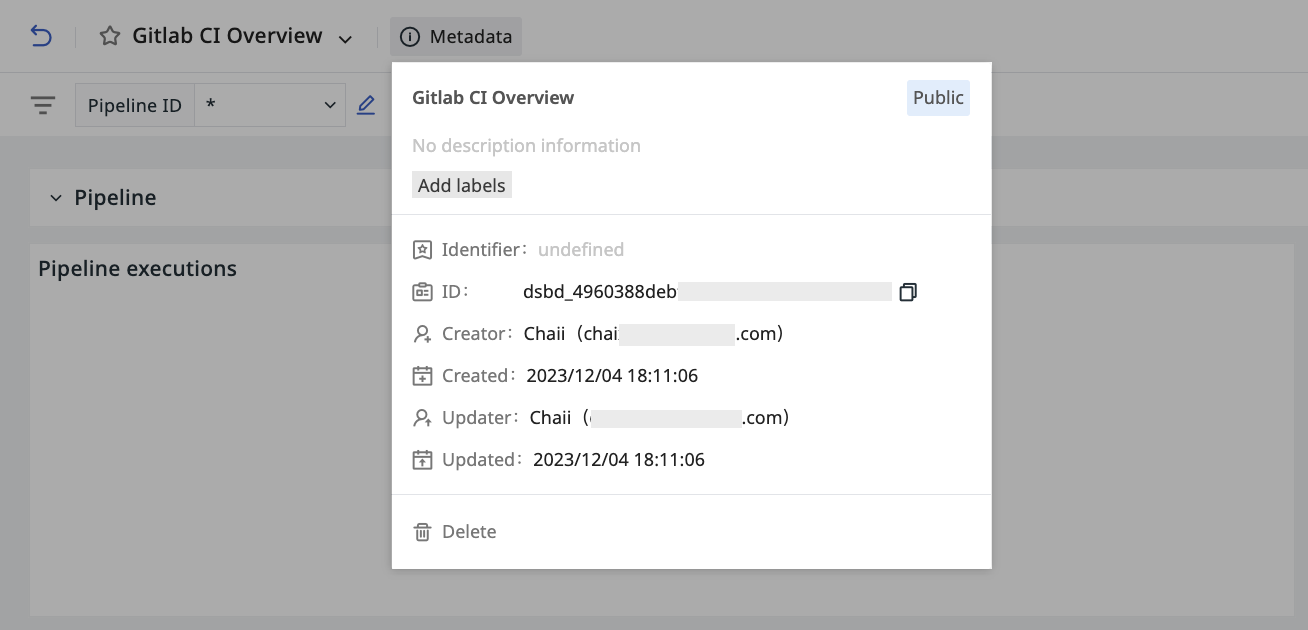
After entering a specific dashboard, view the information shown in the metadata field at the top of the page. You can view and modify the dashboard's ID, name, description, tags, and visibility scope, and you can also delete the dashboard here.
Note
If the current dashboard page is saved as a snapshot and shared externally, recipients who are not logged in cannot view the card metadata shown here.
Obsy Copilot Intelligent Analysis
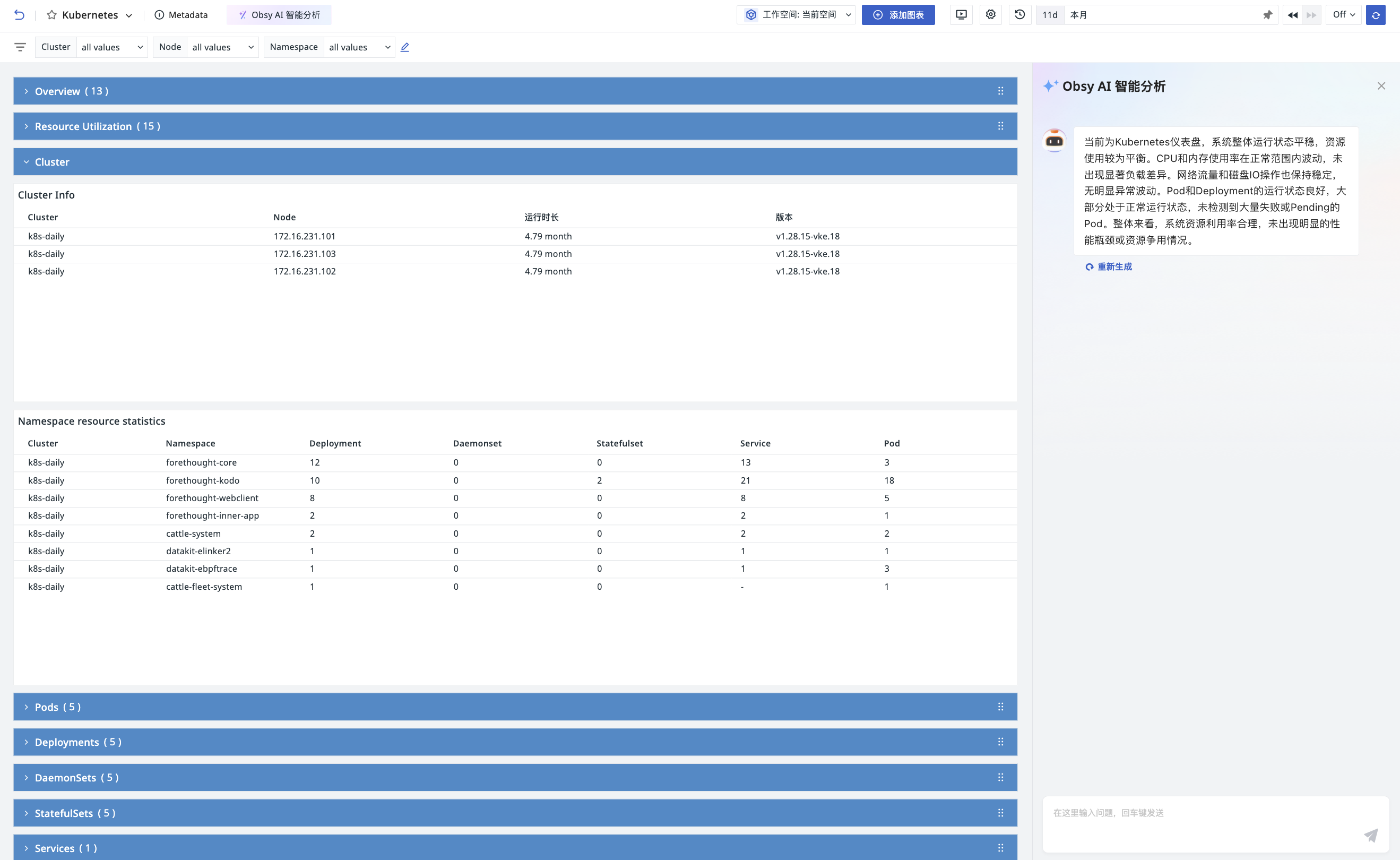
Use natural language queries to quickly interpret multi-dimensional metric views in the dashboard and detect faults.
Note
-
This feature is unavailable when the total number of charts in the dashboard exceeds 100 or the time widget selection range is greater than 3 days;
-
Chart types currently supported by Obsy Copilot Intelligent Analysis include: Time Series Chart, Column Chart, Bar Chart, Top List, Pie Chart, Overview Chart, Table Chart, Map, and Group.
Multi-user Editing Indicator
When two or more members edit the same dashboard at the same time, avatars of other collaborators appear in the dashboard title area. Click an avatar to see which members are currently editing.
Simply opening or browsing a dashboard does not enter the editing state. The system counts the current member as an active editor only after they enter add-chart mode or modify content such as charts, groups, view variables, and dashboard properties; the editing state ends when the member clicks Done or leaves the current dashboard. When the same account opens multiple tabs at the same time, it is counted as only one member.
Note
The multi-user editing indicator is used to identify current collaborators; it does not detect or automatically merge changes made by different members. When multiple people save at the same time, confirm with other collaborators first to avoid overwriting one another's content.
Chart Management
Add Chart
After creating a dashboard, you can add charts. After making your selection, click Finish Adding at the top of the page.
Batch Operations on Charts
Batch operations allow you to analyze, move, copy, or delete multiple charts at once, making it easier to organize dashboard content. Performing these operations requires edit permission for the current dashboard.
- Click Settings > Batch Operations in the upper-right corner of the dashboard; you can also hold Shift and click a chart to enter batch operation mode directly and select that chart.
- Select the charts or groups you want to operate on; selecting a group also includes the charts within it.
-
Choose the operation to perform from the action bar at the bottom:
Operation Description Ask AI After the AI capability is enabled in the workspace, you can start an analysis on the selected charts or groups. Move to Group Select an existing group or Create, then click Move to Group. Copy Copy the selected chart configurations to the clipboard, then paste them in a target dashboard for which you have edit permission by pressing Ctrl+V (Windows) or Cmd+V (macOS). Delete Delete the selected charts after confirmation. When a group is selected, the charts within it are deleted while the group itself remains. -
After completing the operations, click Exit at the bottom.
Refresh a Single Chart
Hover over a data chart and click Refresh in its upper-right corner to re-query the chart based on the current time range and filter conditions. The refresh applies only to the current chart; it does not refresh other charts in the dashboard, nor does it change the global time, view variables, or the auto-refresh interval.
Note
- For composite charts, only the currently selected chart is refreshed;
- For repeated charts, only the current chart instance is refreshed;
- Static charts such as Text, Image, Video, Iframe, Command, and Theme do not show the refresh entry;
- Data charts on shared pages, read-only pages, and pages without edit permission also support refresh;
- If the current chart is still querying, the page ultimately displays the latest results returned by this refresh.
Groups
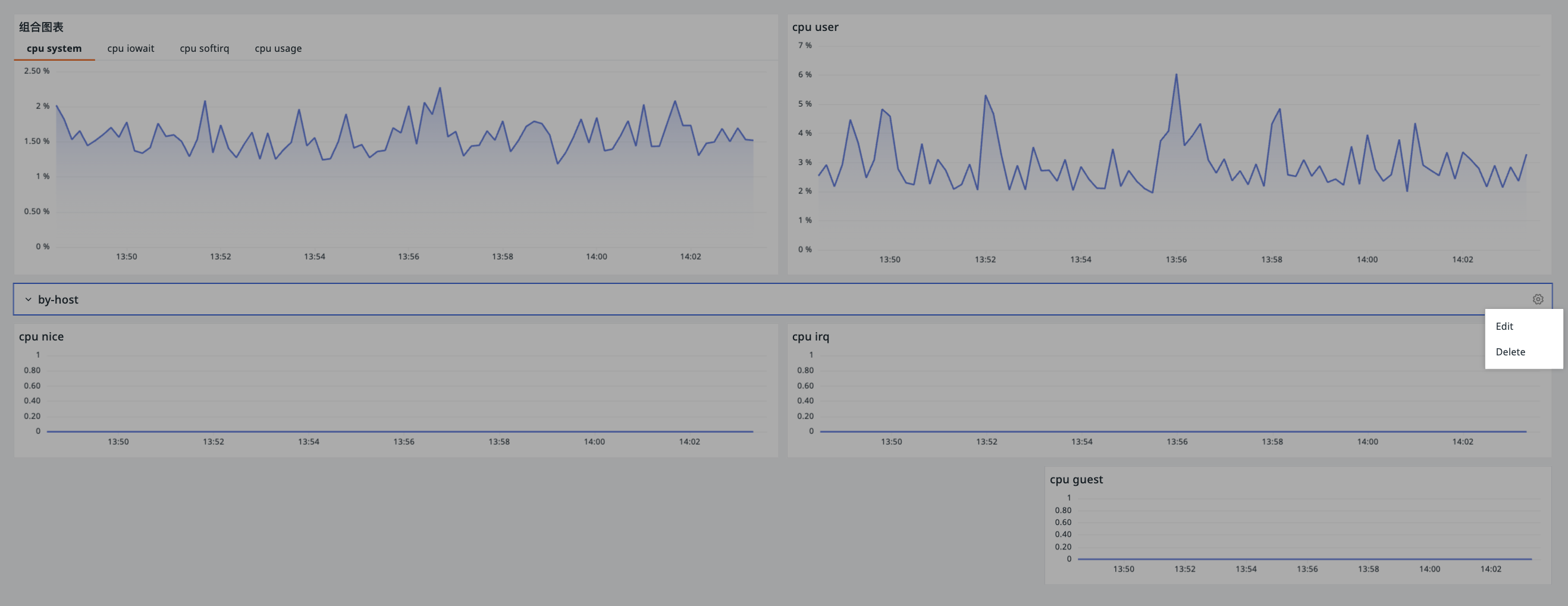
Manage charts by classification:
-
Click to enter Add Chart > Group;
-
Enter a group name;
-
Select the default state of the group: Expanded/Collapsed;
-
Select a group color as needed;
-
Confirm.
To modify a group, hover over it and click the settings button on the right.
Data and Display Controls
Auto Refresh
Quickly get real-time dashboard data. Available intervals: 5s, 10s, 30s, 1m, 5m, 30m, 1h.
If auto refresh is not needed, select Off to disable it.
Note
All dashboards and views share a single refresh configuration.
Filters
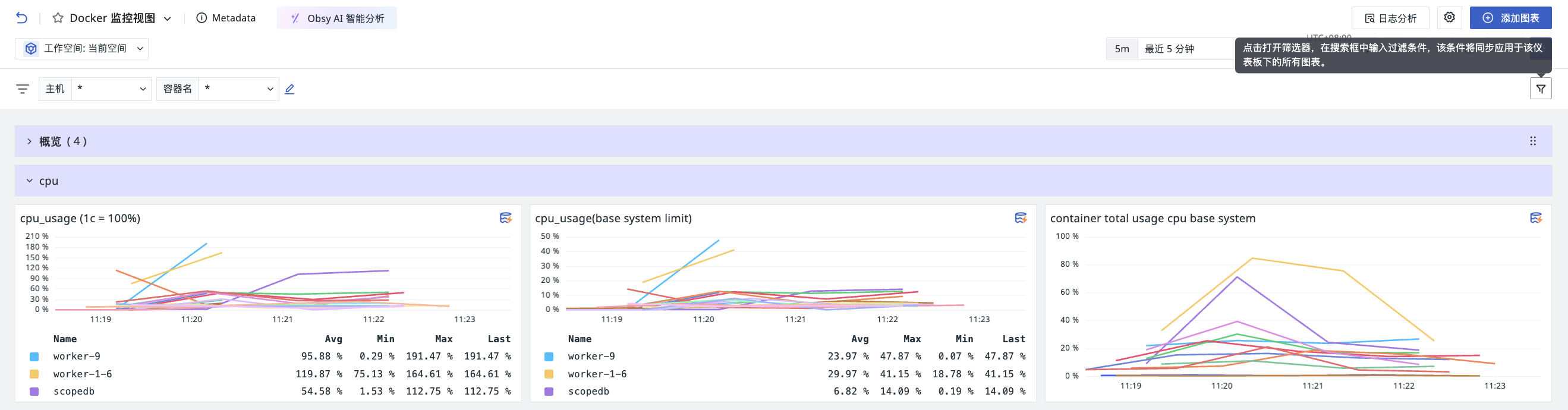
Click the filter to display the search bar. Enter custom attributes and values for global filtering, and all charts will apply this filter condition synchronously.
Use Cases
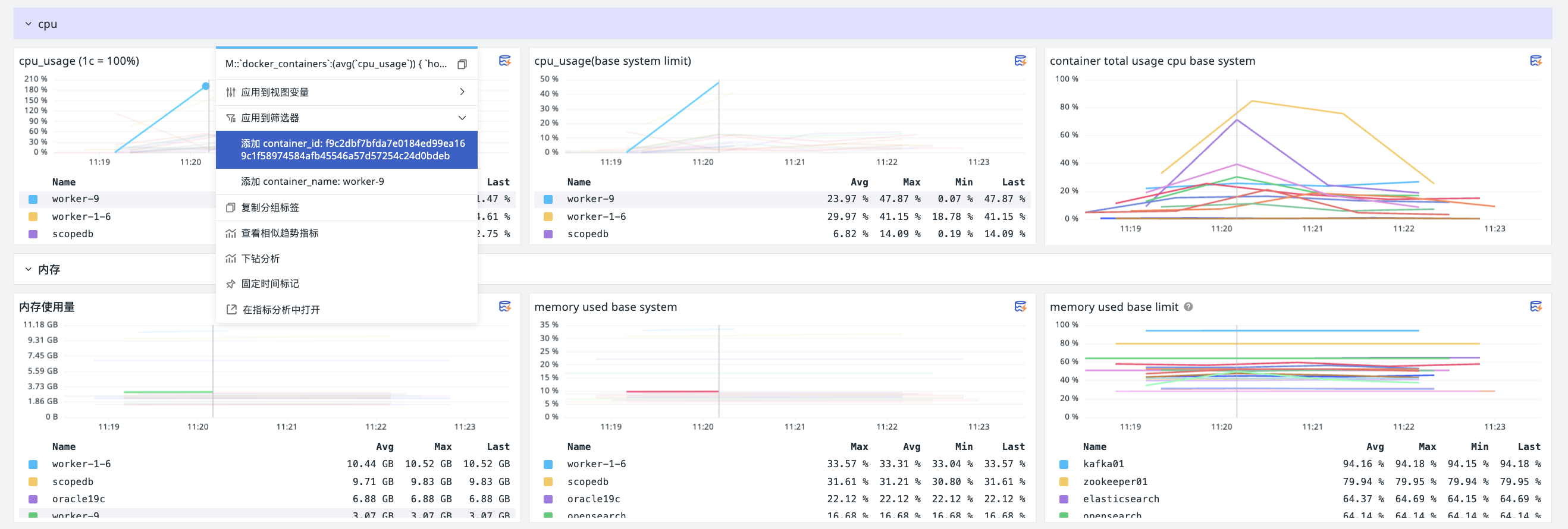
Click a data point on a chart to add tag:value to the filter and run a query. You can click multiple tags in succession to observe how the query trend changes.
Cross-Workspace Query
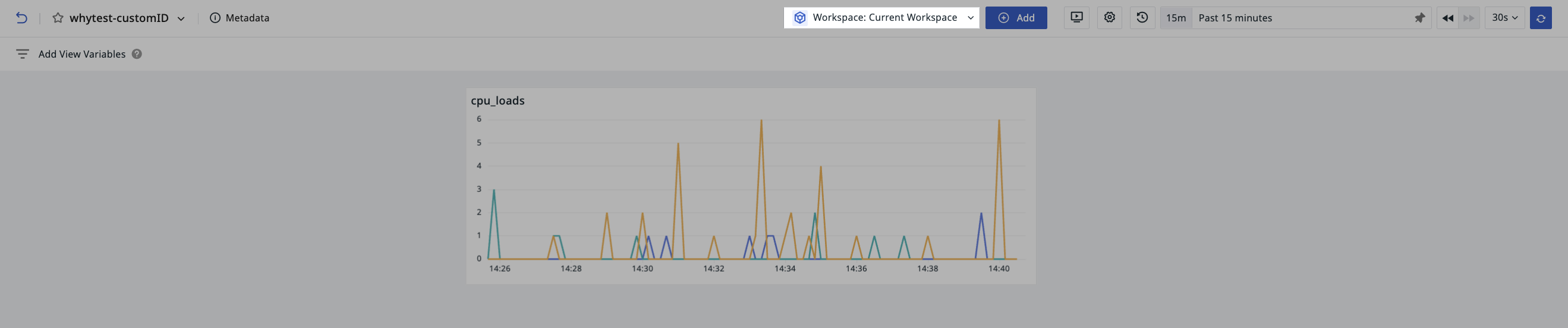
If the current workspace has been granted access to data from other workspaces, you can switch workspaces in the dashboard to view the corresponding chart data.
Note
If a workspace query configuration has been set within a chart, it takes precedence over the global configuration.
Pin
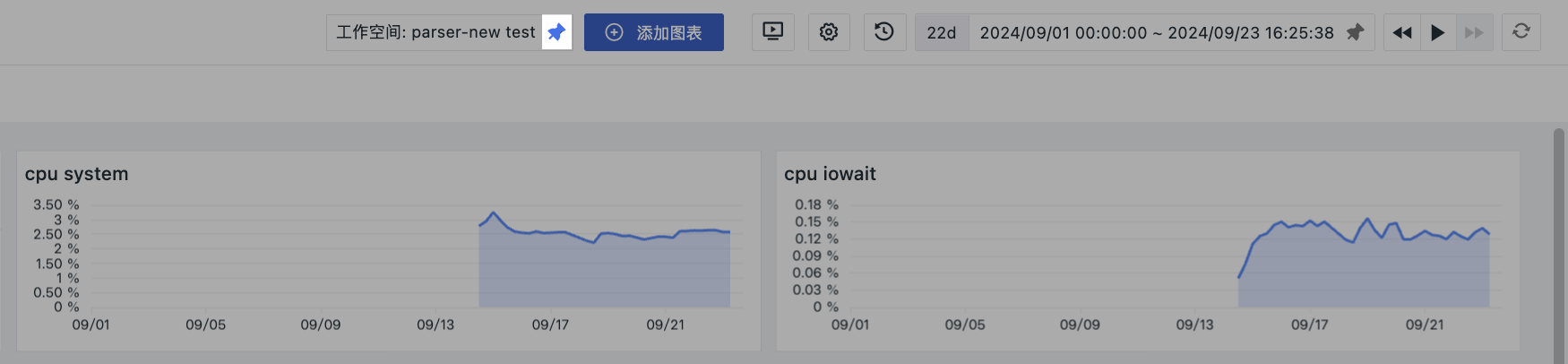
When the workspace you are accessing is authorized to view data from other workspaces, you can pin an authorized workspace to set it as the default query target.
Note
-
Only one workspace can be designated as the default option at a time, so setting another workspace as the default invalidates the previously configured default;
-
After unpinning, the system queries the current workspace by default;
-
Read-only members cannot perform this operation.
Settings Panel
After creating a dashboard, click to perform a series of operations on the dashboard.
Version History
View the operation history of the dashboard within the last three months.
Clone Dashboard
-
Enter a name for the cloned dashboard;
-
Select the visibility scope of the dashboard;
-
Confirm. You can then view the cloned dashboard in the dashboard list.
Save Snapshot
-
Enter a snapshot name;
-
Select the visibility scope;
-
Select a time range. This time range is automatically applied the next time the snapshot is opened;
-
Confirm.
Besides opening the save dialog via the button, you can also quickly save a snapshot with the shortcut (Windows: Ctrl+K / Mac OS: Cmd+K). After saving, you can view it under Shortcut > Snapshot.
For more information, see Snapshots.
Report Records
Click to open the Report Records page. The system lists all reports for the current dashboard on the right and displays the data of the most recent report record by default, allowing you to review archived static data and analyze it.
You can do the following:
-
Filter by report name in the dropdown;
-
Click on the right of a report to share or delete the current report.
Share a Report
-
The report's time range is applied by default and cannot be changed here;
-
Select the validity period after sharing: 1 day, 3 days, 7 days, or permanent;
-
Select a sharing method:
-
Public sharing: any user with the share link can view the workspace data displayed in this snapshot
-
Encrypted sharing: set a share code in the form of a
4-8 digit and lettercombination; only users with both the share link and the share code can view it
-
-
Choose whether to show the top bar. When enabled, the platform introduction is displayed at the top of the shared page;
-
Choose whether to show a watermark. When enabled, a watermark with the sharer's name is displayed in the format "Shared by: Name";
-
After completing the configuration, click Preview Report to preview the result;
-
Finally, create the share.
View Shared Reports
All reports that have been shared can be viewed under Manage > Share Management > Shared Reports, including the report name, sharing method, validity period, time range, and sharer.
On this page, you can do the following:
-
View a shared report;
-
View the share link;
-
Cancel sharing.
Create Report
For configuration steps, see Create Report.
Full-screen Mode
Click the Full Screen button. The system collapses the left and top navigation bars and displays the view in full screen. Press ESC to exit.
Save to Built-in View
Save the current dashboard as a reusable view template:
-
Modify the view name (the dashboard name is used by default);
-
Set a binding rule (for example,
label:*); -
Confirm.
Note
User views cannot have the same name within the same workspace.
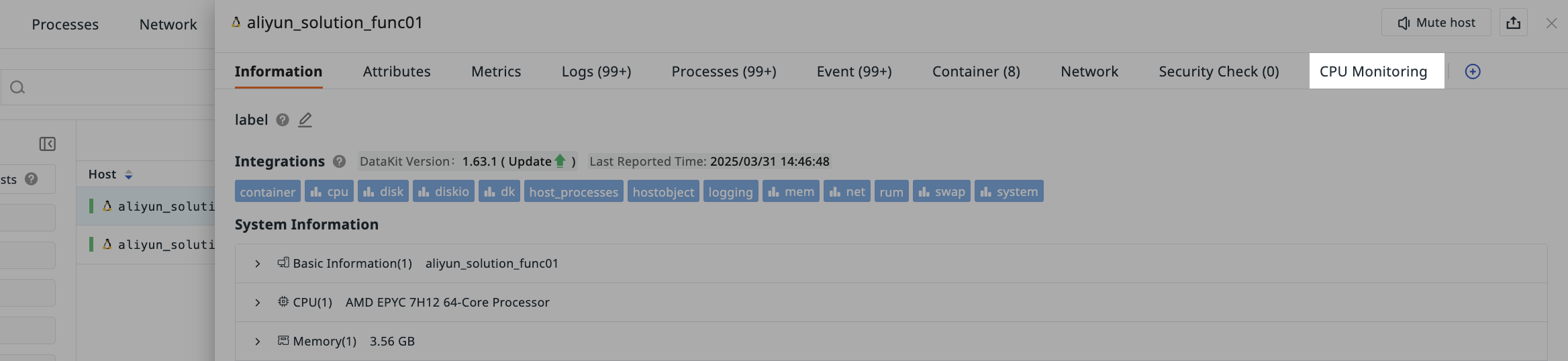
After saving, you can view the saved dashboard view "CPU Monitoring View" under Scenes > Built-in Views > User Views.
In addition, because the binding rule label:* is set, the bound built-in view "CPU Monitoring View" can also be viewed on the detail pages of hosts and containers in Infrastructure where a "Label" attribute has been configured.
Export/Import Dashboard JSON
You can export the current dashboard as a JSON file, or import a JSON file to overwrite the current dashboard. Once overwritten, the dashboard cannot be recovered.
Share Dashboard
Two sharing dimensions are supported:
| Sharing Method | Target Audience | Typical Scenarios |
|---|---|---|
| External Sharing | People outside the organization, public channels | Reporting to people outside the organization, public reports or data display, temporary external collaboration |
| Internal Sharing | Workspace members | Team meetings, internal demos, short-term quick collaboration |
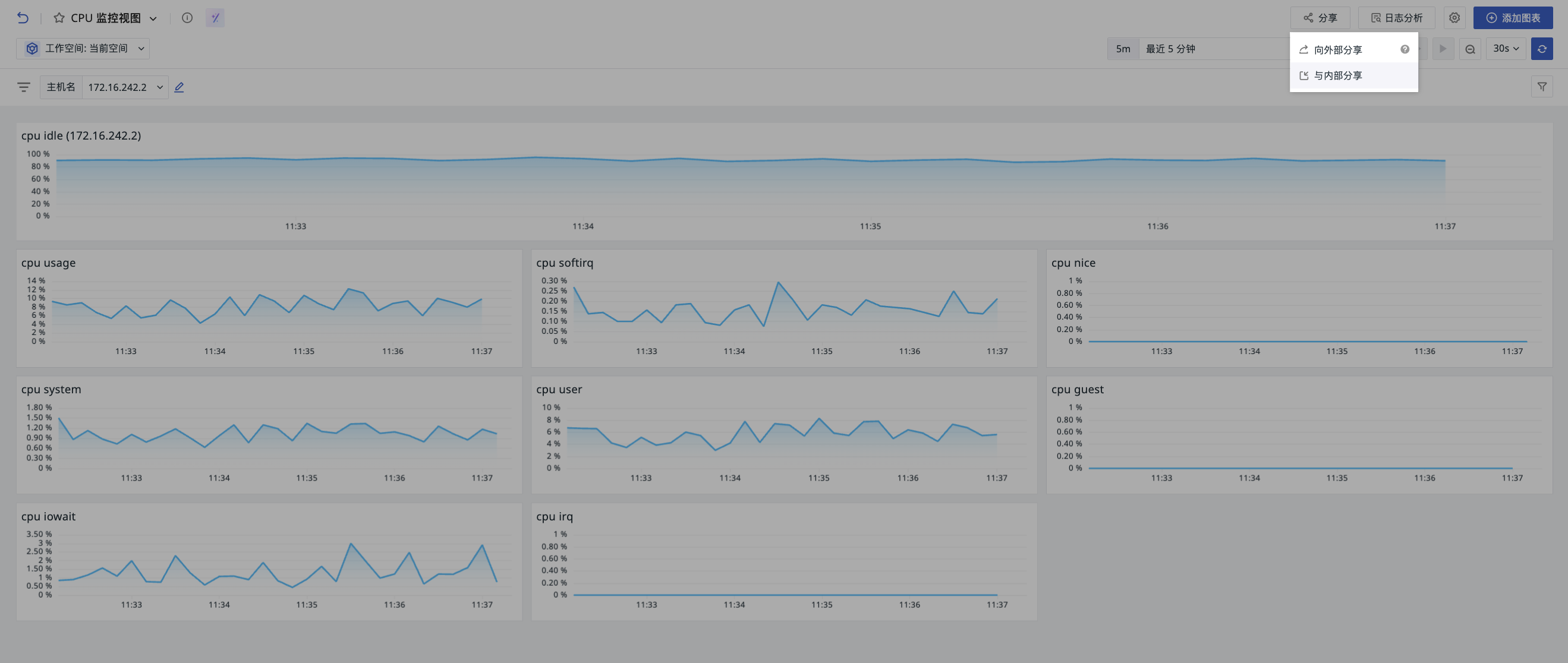
Shared dashboards are stored under Manage > Share Management > Shared Dashboards, where you can view them. You can also click View Shared Dashboard List at the top of the sharing interface to view them.
External Sharing
Configure Sharing
Before sharing the current dashboard externally, first confirm that the dashboard is set to "Publicly Visible". Then complete the following three types of configuration:
1. Basic Configuration
-
Time range: The time of the current dashboard charts is selected by default. This is the time interval within which recipients can view the dashboard after it is shared;
-
Define the share name of the dashboard;
-
Select a validity period: 1 day, 3 days, 7 days, or permanent;
-
Optionally configure the dashboard to be automatically deleted when the share expires;
-
Select a sharing method:
-
Public sharing
-
Encrypted sharing: define a share code. Recipients must enter the share code to view the charts
-
-
More options:
- Choose whether to show the top bar and watermark
- Choose whether to lock view variables. External sharing supports locking view variables so that recipients cannot change filter conditions when viewing. After sharing, the view variable dropdowns shown to recipients display fixed values and cannot be switched.
2. Data Masking
You can configure masking for field values in the dashboard. Enter the fields to mask and the regular expression, then click Preview. Content matched by the regular expression is displayed as * in the current dashboard.
-
Enter the fields to mask (multiple selection supported);
-
Regular expression: use regex syntax for masking.
For more operations, see Field Display Permissions.
3. Access Restrictions
You can choose whether to enable an IP allowlist for access to the shared dashboard.
-
Workspace IP allowlist: follows the IP allowlist configuration of the workspace and cannot be edited under dashboard sharing;
-
Custom input: you can enter a custom IP access allowlist; IPs not on the list cannot view the dashboard.
For more details, see How to Configure an IP Allowlist.
Passing View Variables via Share Links
Adding view variables to the external sharing short link allows the same dashboard to display data by different services, environments, and other conditions, making it easy to embed in business applications or share with different audiences.
- Configure view variables in the dashboard, complete the sharing by following the External Sharing steps, and copy the short link.
- Combine the variable names and values into a JSON object, keeping the variable names consistent with the configuration in the dashboard.
- URL-encode the JSON content and use it as the value of the
variableparameter in the short link. If the link already has query parameters, append it with&.
For example, to set env to prod, the corresponding JSON is {"env":"prod"}. The encoded link is as follows. Replace the example domain and share identifier with the values you actually copied:
Opening the link displays the dashboard data with env set to prod.
Internal Sharing
Configure Sharing
-
Time range: The time of the current dashboard charts is selected by default. This is the time interval within which recipients can view the dashboard after it is shared;
- You can choose whether to save it as a static time
-
Copy the current link directly; you can shorten the link length as needed.
Log Analysis
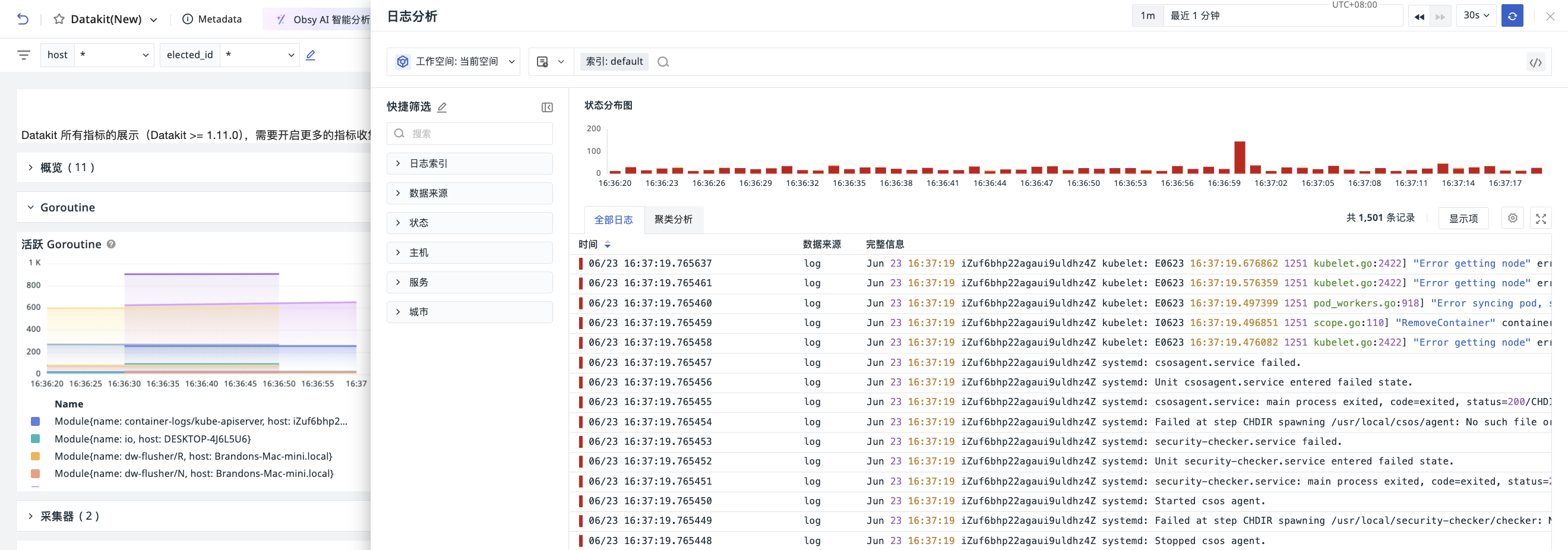
When analyzing views in a dashboard, click Log Analysis to view and analyze related log data in a slide-out page with one click. To view in full screen, click Log Analysis again at the top of the slide-out page to open the full-screen Log Explorer in a new window.
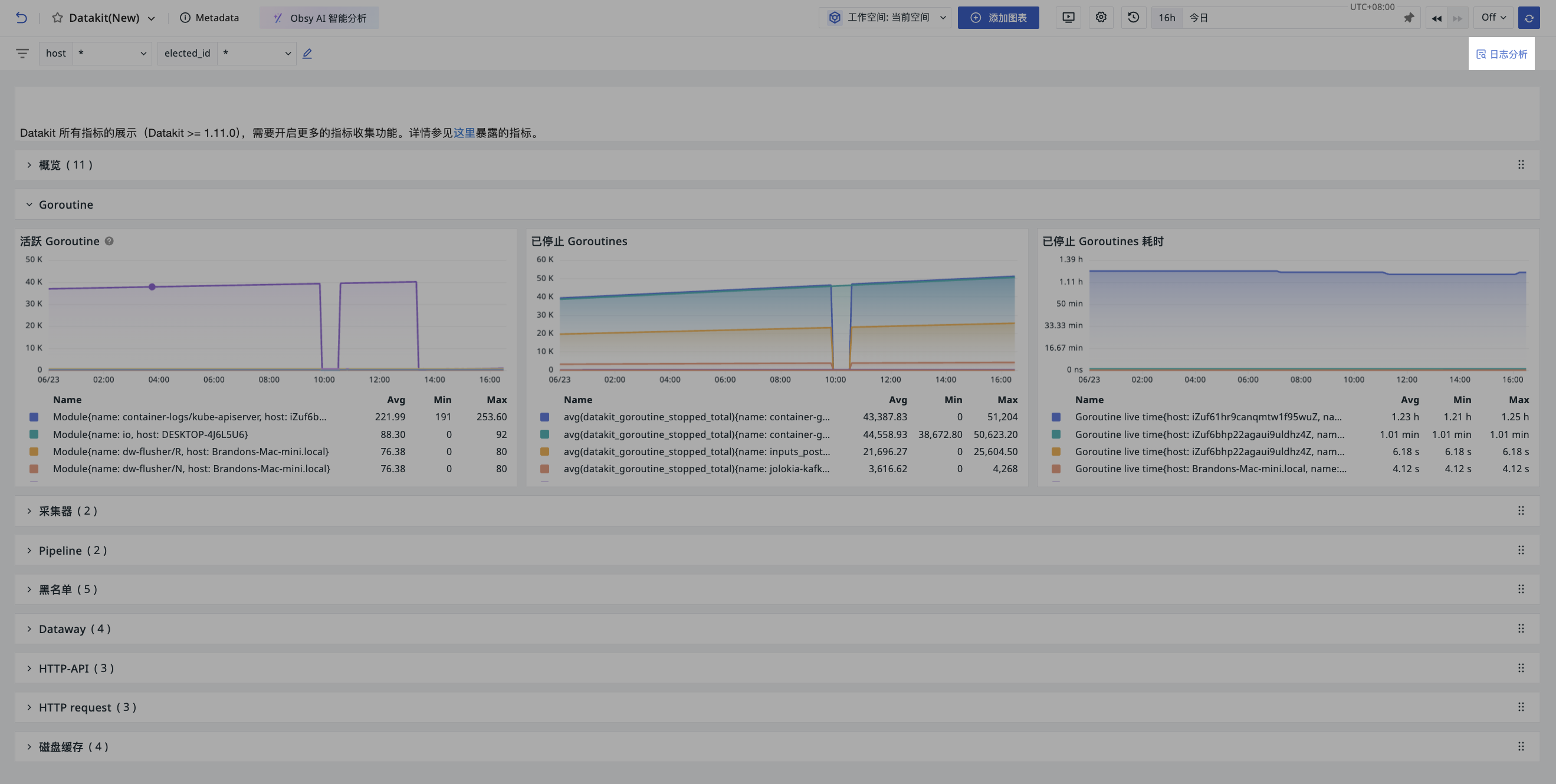
In the slide-out page, the Log Explorer automatically brings in the dashboard's view variables as filter conditions, queries data based on the time range set in the dashboard, and displays log list data in standard mode.
Note
If a view variable in the dashboard is set to *, the Log Explorer does not display the filter condition by default.