Labs
Labs are used to manage new features that Guance is still exploring and gradually opening up, including innovative, interesting, or scenario-specific capabilities. All experimental features are disabled by default. You can manually enable them as needed. Once enabled, the relevant features will become available in the current workspace. Feel free to explore and discover more possibilities.
Feature Entry
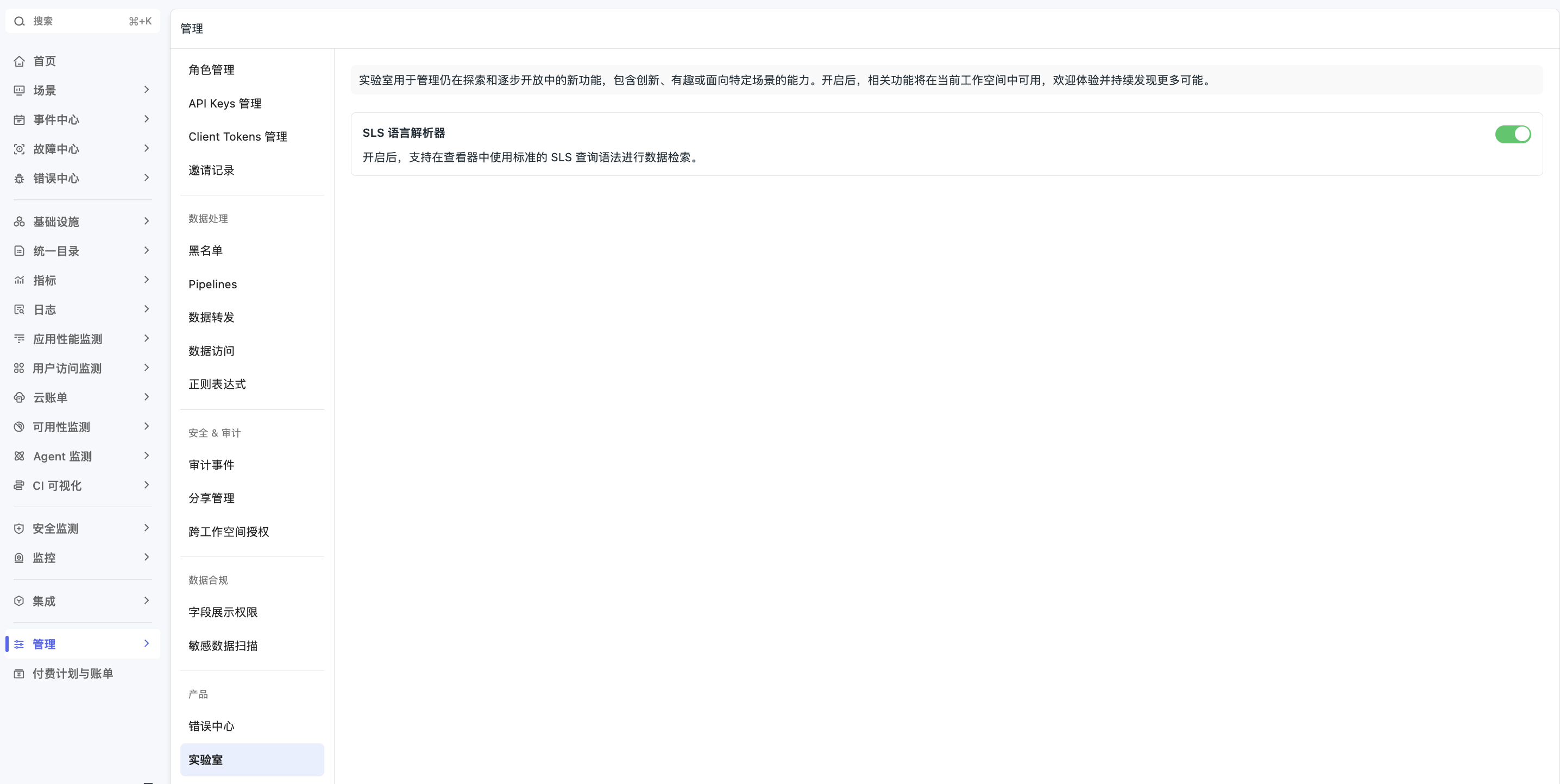
Enter the Guance workspace, click Manage > Labs in the left navigation bar.
Enable Experimental Features
- Go to the Manage > Labs page.
- Find the target experimental feature and toggle the switch on the right.
- After successful enabling, the feature will take effect immediately in the current workspace.
Note
Experimental features are disabled by default and can only be used after being manually enabled within the workspace.
SLS Query Bridge
SLS Query Bridge is the first experimental feature launched in Labs. Once enabled, it supports using SLS query syntax for data retrieval in Log Explorer, monitor configurations, and dashboard chart queries.
Note
This capability is a translation aid, not natively compatible with or directly executing SLS queries. The system translates SLS queries into DQL. Subsequent previews, saves, and actual executions are all based on the translated DQL.
Log Explorer Scenario Example
- Log Explorer before enabling this feature:
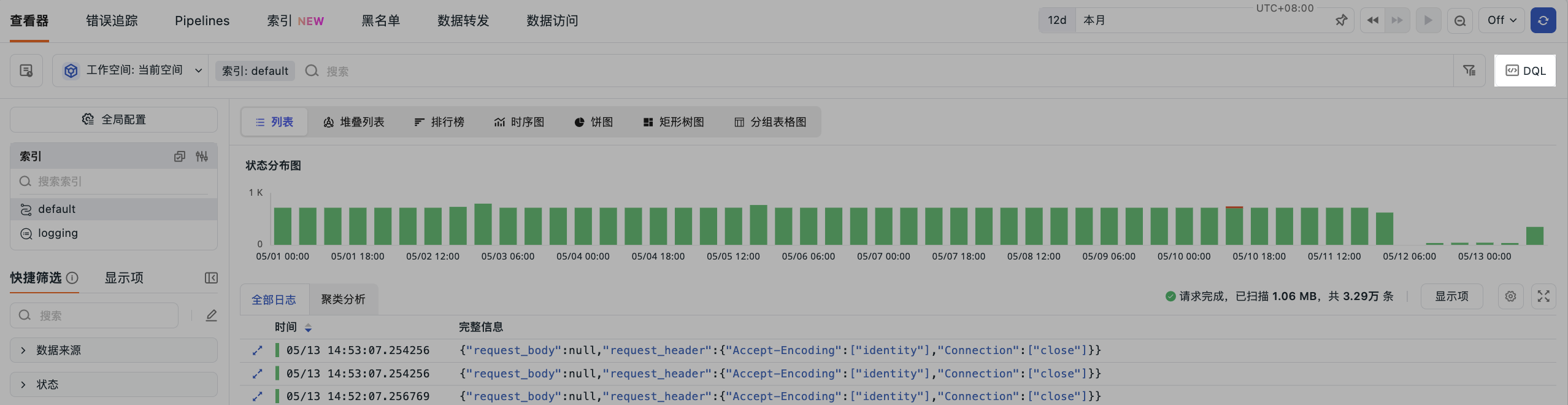
- Log Explorer after enabling this feature:

Query and Execution:
- After entering the SLS query.
- Click "Execute" or press Enter to return the query results.
You can continue to modify the SLS query and re-execute, remaining in SLS mode.

Switch to DQL Mode
The following actions will trigger a switch from SLS mode to DQL mode:
-
Editing DQL statements: Modifying the DQL content displayed below the input box will prompt "You are editing DQL. After execution, it will automatically switch to DQL mode." After executing the query, it automatically enters DQL mode.
-
Using quick filters: After checking conditions in the left quick filters, the filter will not take effect immediately. The system prompts "Only supports synchronization to DQL queries. Continuing will switch to DQL mode." Click "Continue" to apply the filter and switch to DQL mode; click "Cancel" to remain in the current SLS mode.
Monitors and Dashboard Chart Queries
After enabling the SLS Query Bridge, on the monitor configuration page and in dashboard chart queries, when the data source type is selected as "LOG", the query line supports using SLS query syntax.
After entering an SLS query statement, the system automatically translates it into DQL and displays "Final DQL to be executed" below the query line. Click the edit button in this area to switch to DQL editing mode and bring in the current translation result. After switching, the original SLS query statement is no longer retained, and subsequent operations are based on the edited DQL.
Note
This capability is only available when the data source type is "LOG". It is not displayed for other data source types.
SLS Query Notes
When performing log retrieval in SLS mode, please note the following:
- Index selection: You still need to click to select the target index in the left index list.
- Aggregation queries: If the entered SLS query statement is an aggregation query, the system will automatically jump to the Top List to display the results.