Trace Details
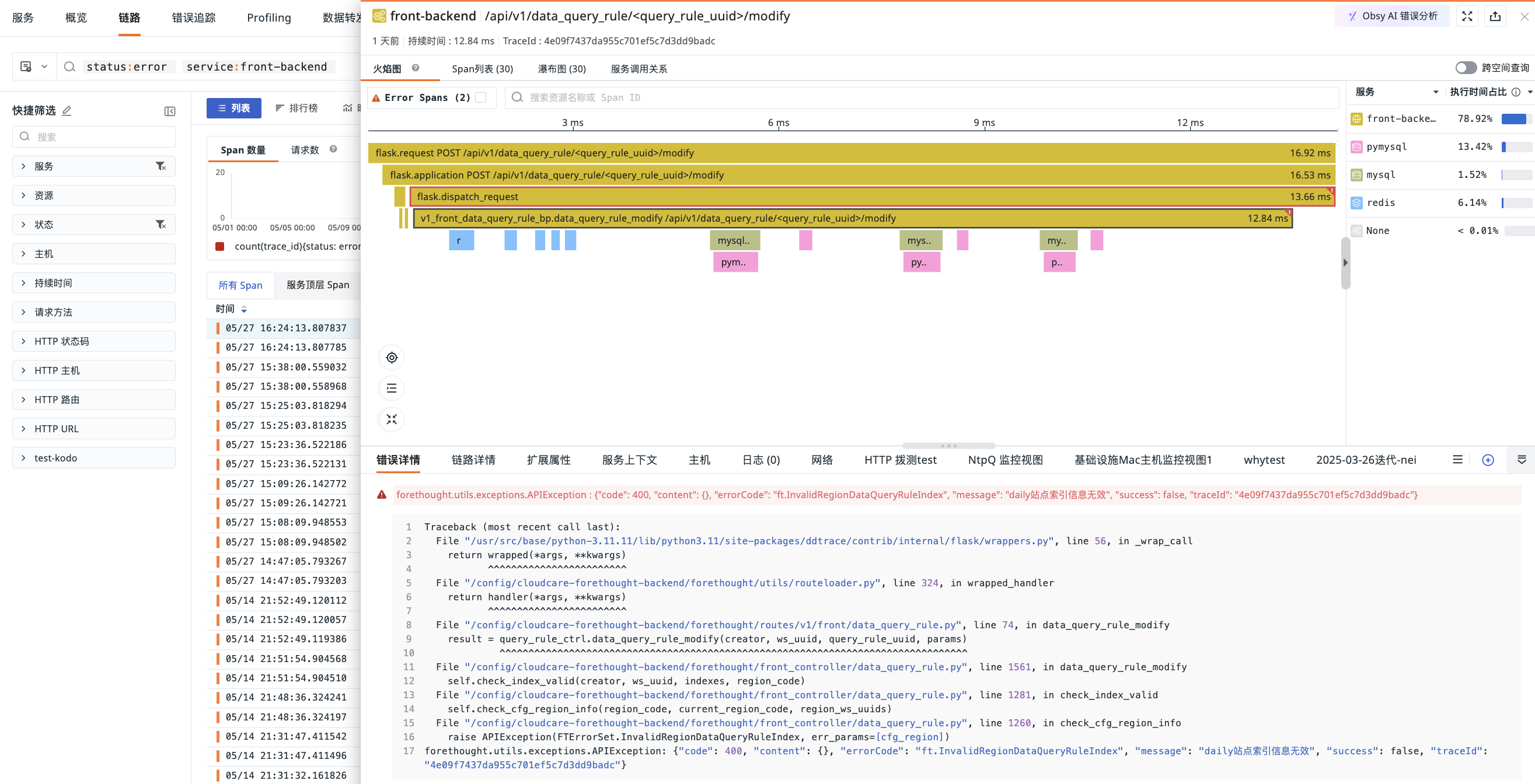
In the Trace Explorer, click any trace to view its details, including relative time, duration, HTTP method, URL, status code, TraceId, Flame Graph, Span List, service call relationships, resource call relationships, and associated logs, hosts, metrics, and network information. For frontend applications (such as browsers), you can also view the request duration breakdown, including the time proportions of queueing, first byte, and download.
When you open trace details, the system displays the Waterfall Chart or Flame Graph first according to the Trace Details Default View setting in Preferences.
When opening a record from cross-workspace query results, the details and associated data are queried against the workspace where the record originated. When switching to the previous or next record, the originating workspace of the new record is used; a service with the same name or the same identifier cannot be used as a substitute for determining the source. If the originating workspace cannot be confirmed, the details entry is unavailable. Refresh and try again. For query scope and permission details, see Cross-Workspace Query.
Note
- The Real User Monitoring (RUM) SDK must be version 2.2.10 or higher to display this data. In cross-origin scenarios, adjust the header configuration accordingly.
For more details, see Web Application Integration.
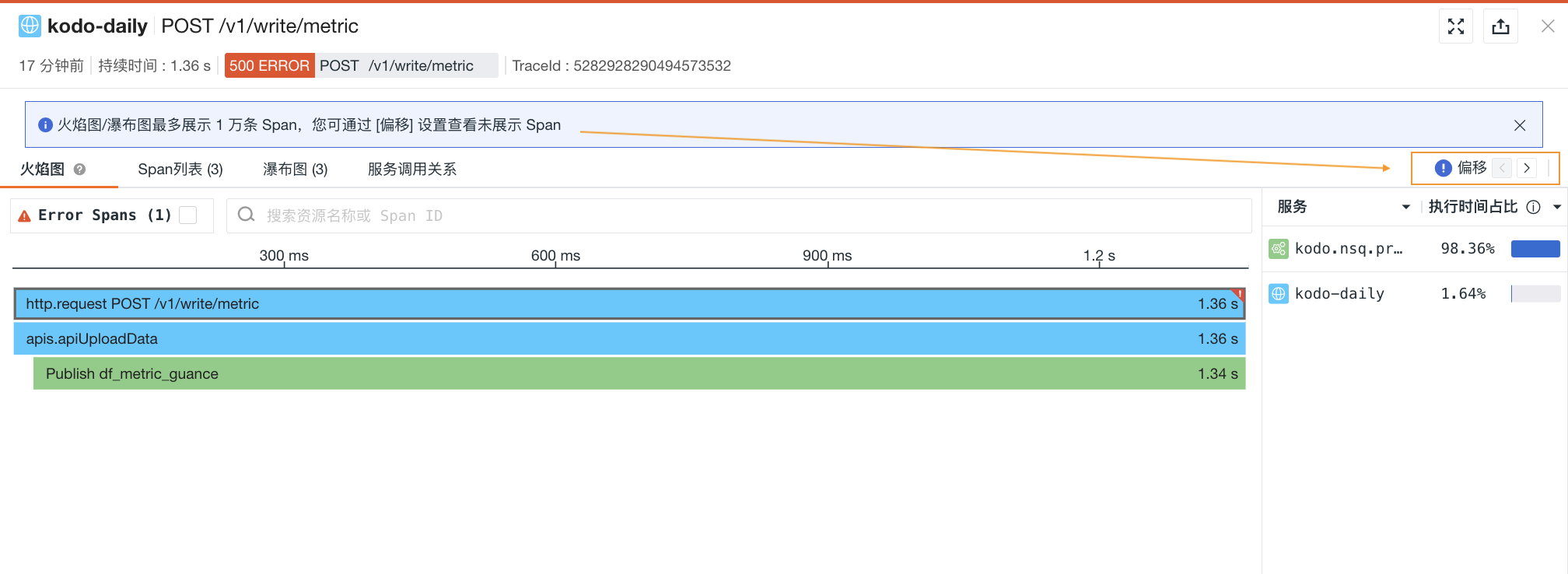
- The Flame Graph, Span List, and Waterfall Chart display up to 10,000 spans. You can use the Offset setting to view spans that are not displayed:
Flame Graph
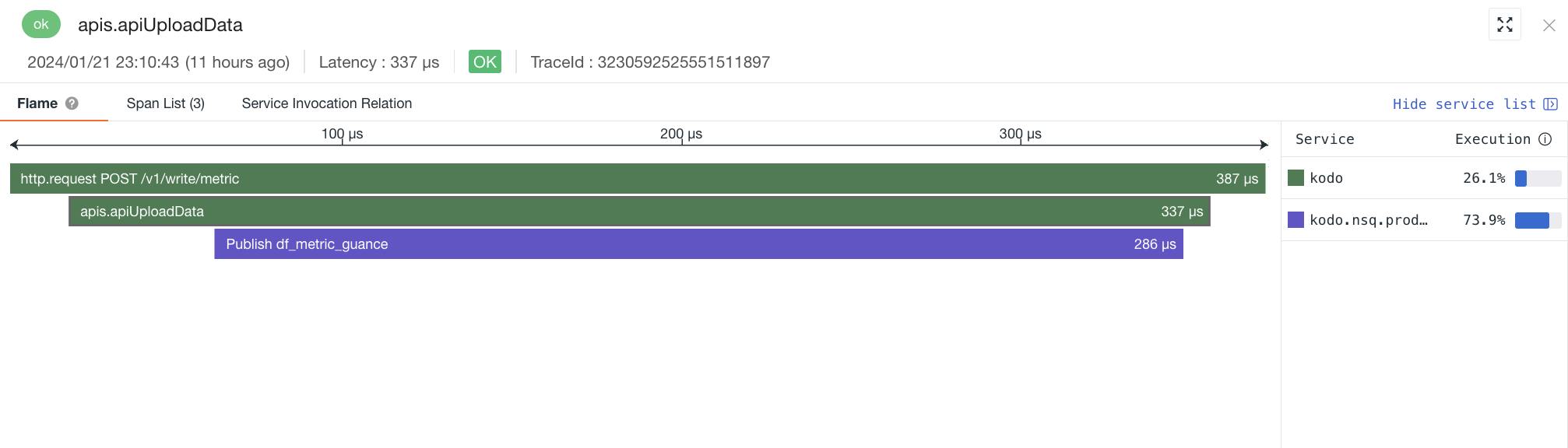
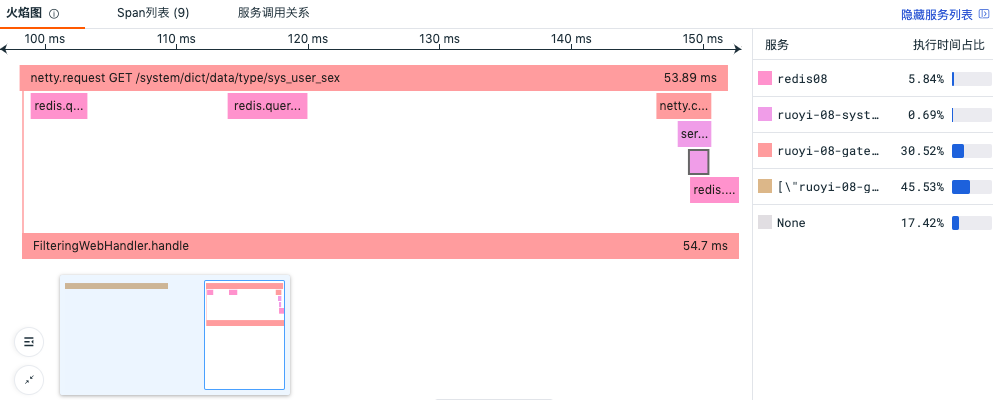
The Flame Graph clearly shows the flow and execution time of each span. On the right, you can view the service list and response times. Click a span to view its JSON content in the trace details, and use the mouse wheel to zoom in and inspect specific information.
For more details, see Using Flame Graphs to Analyze Trace Performance.
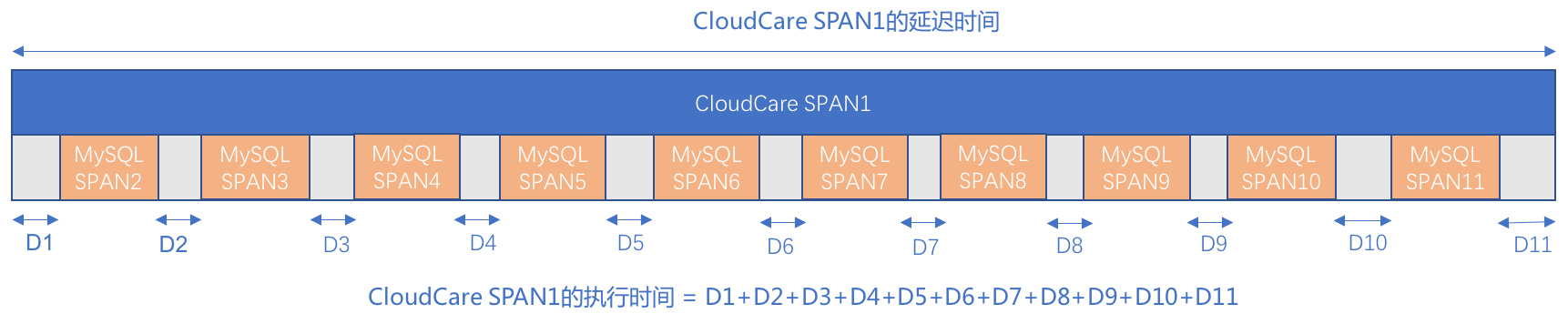
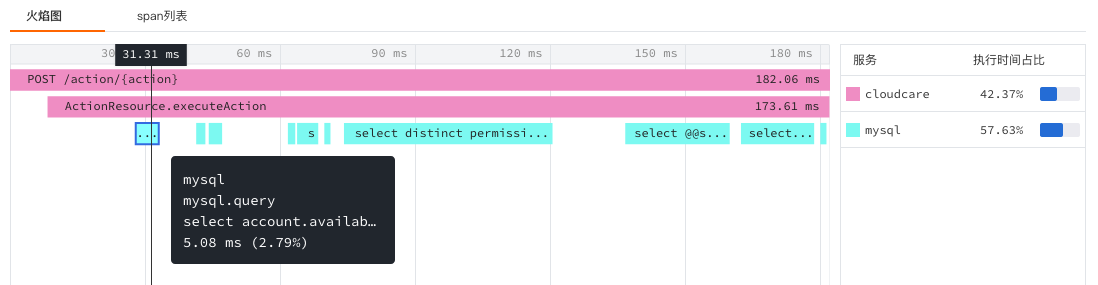
From the flame graph above, this trace involves two services: CloudCare and MySQL. The trace starts with a POST request to the CloudCare service, then executes ActionResource.executeAction, and finally executes MySQL statements. During the execution of ActionResource.executeAction, MySQL statements are executed multiple times. The execution times for CloudCare and MySQL are calculated as follows:
- CloudCare service execution time = D1+D2+D3+D4+D5+D6+D7+D8+D9+D10+D11
- MySQL service execution time = span2+span3+......+span11
For the specific statements executed and their execution time details, refer to the Span List.
The service execution time ratio in the Flame Graph is the proportion of the total time accounted for by each service in this trace. Using the figure below as an example, this trace involves two services, CloudCare and MySQL, with execution time ratios of 42.37% and 57.63% respectively. The CloudCare service has 2 spans, and the MySQL service has 10 spans.
- MySQL service execution time ratio calculation: sum of all span execution times / total duration of the current trace.
How to calculate: In the figure below, the MySQL service has 10 spans in total. Click each span to obtain its execution time. As shown in the figure, this span has an execution time of 5.08 ms. Repeat for the remaining 9 spans and add their execution times together.
- CloudCare service execution time ratio calculation: (total duration of the current trace - MySQL service execution time) / total duration of the current trace
How to calculate: In the figure below, the CloudCare service spans the entire current trace. Apart from the MySQL service execution time, the remaining time is the CloudCare service execution time (see the part highlighted in red). You can also view the execution time and execution time ratio of each span directly in the Span List.
In the Flame Graph, whether a service is called synchronously or asynchronously, you can clearly track the performance details of each trace. For example, the flame graph clearly shows which requests are asynchronous, along with their start time, end time, and total time spent.
Span List
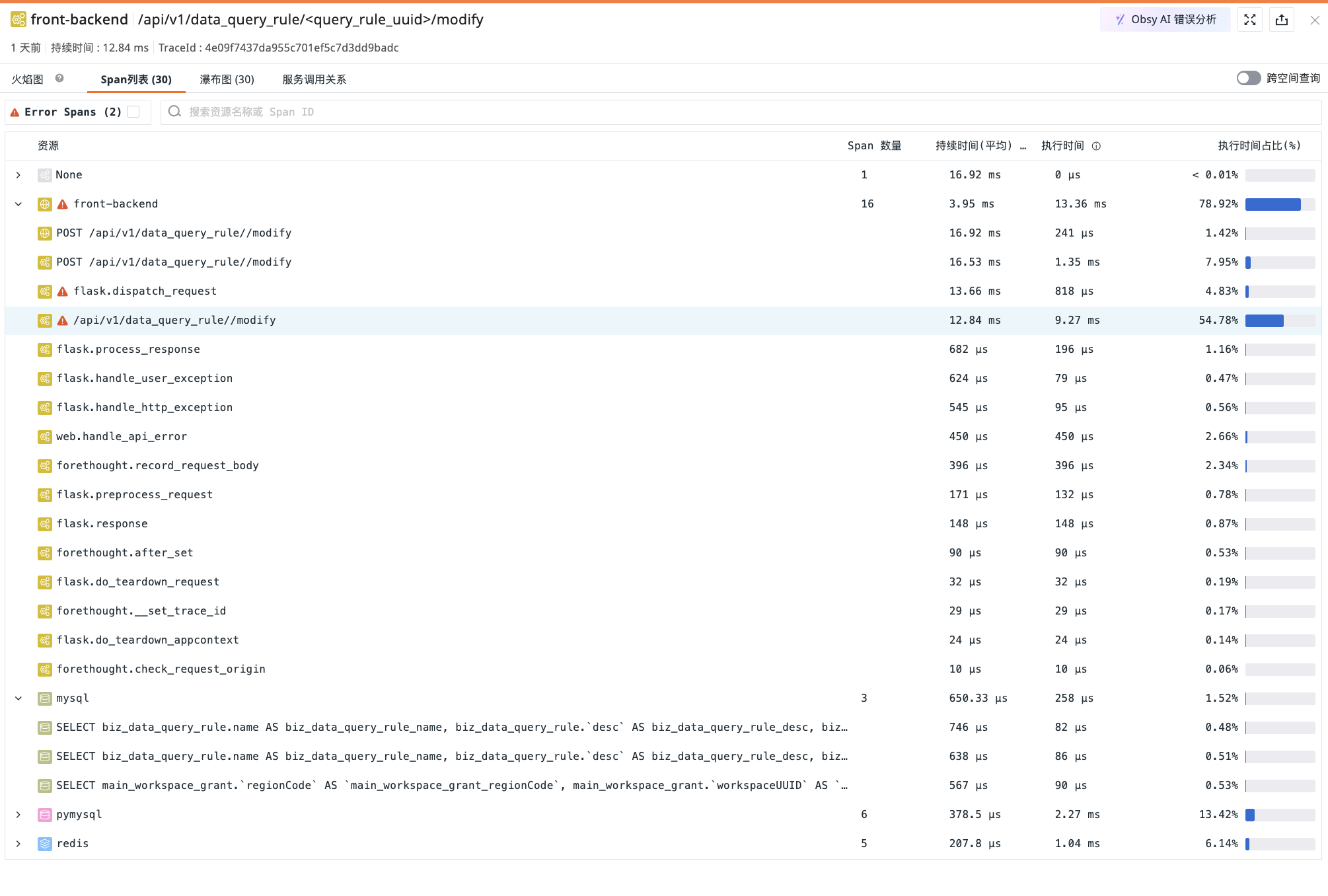
- Displays the resource name, count, duration, execution time, and execution time ratio of all spans in the trace.
- Enter a resource name or Span ID to search and match.
- Click any span to view its JSON content in the trace details, with the Flame Graph synchronized.
- If there are errors, error indicators are displayed.
- Click Error Spans to directly show the results that match the filter.
Waterfall Chart
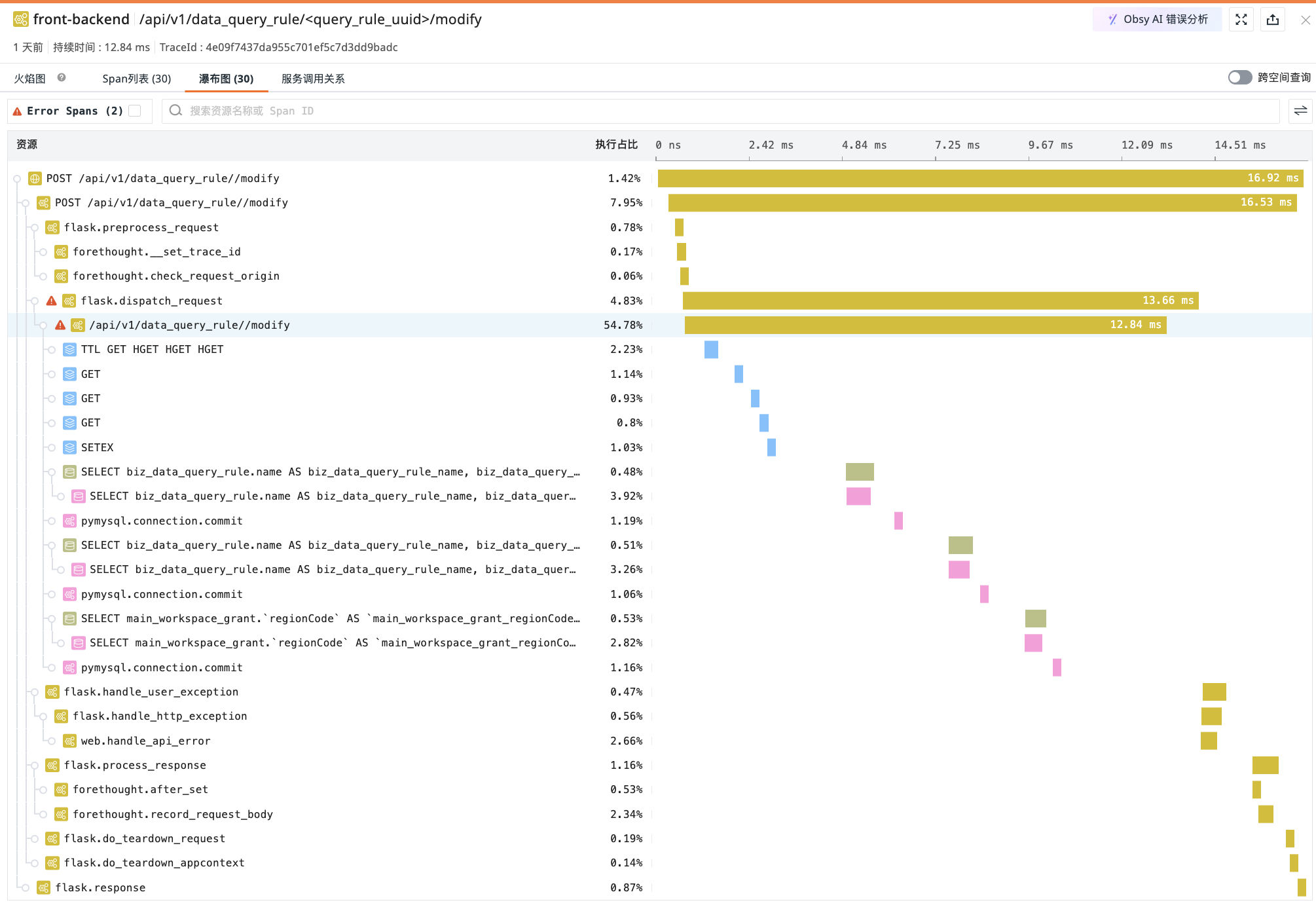
View the parent-child relationships between resources.
The Waterfall Chart displays span data in the order of start time. The list on the left shows span data along with the execution time ratio of each resource. On the right, the waterfall chart is displayed chronologically.
- Enter the resource name or Span ID of a span to search and match;
- Collapse or expand the resources on the left with one click;
-
Click to switch the execution time format;
-
Click Error Spans to directly show the results that match the filter.
Service Call Relationships
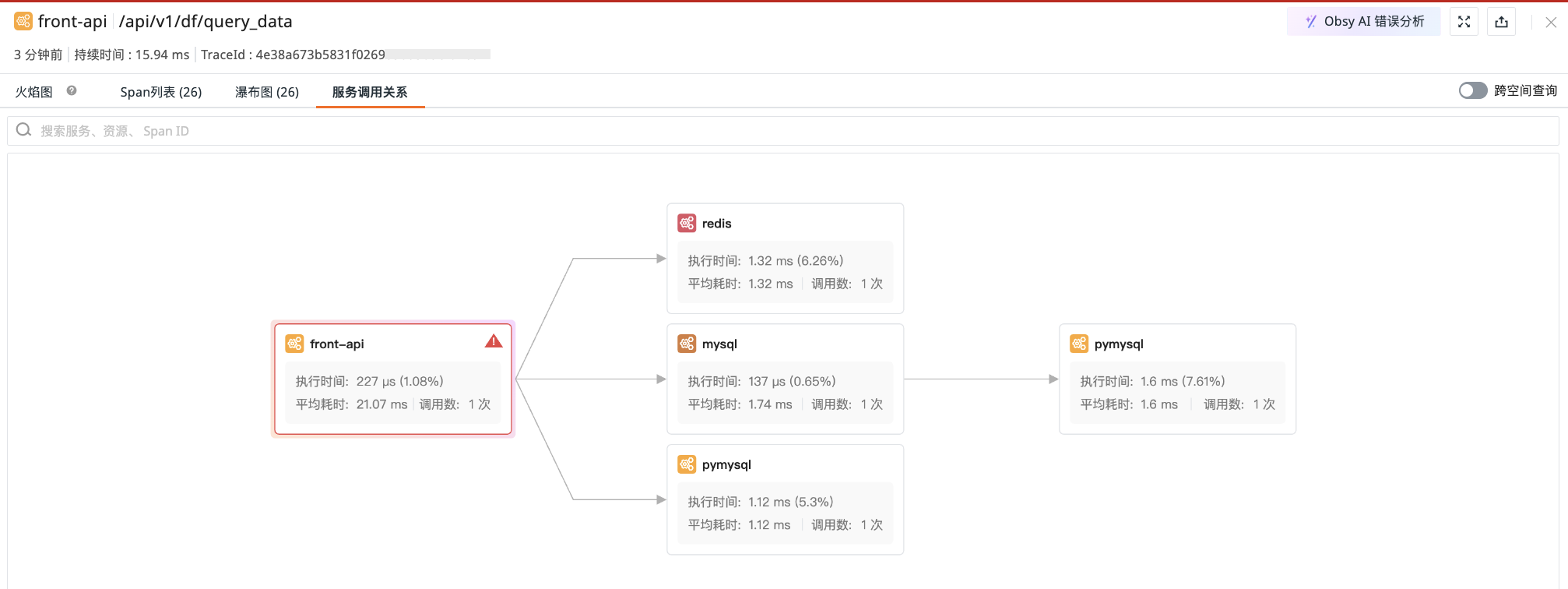
Provides an overall view of the call relationships and call counts between different services, along with the execution time, average duration, and call count of each service.
Click any service node to view its details:
-
Service operations and resources: lists the specific operations included in the service (such as API endpoints, methods, etc.) and related resources.
-
Error status tracking:
-
If the service has errors, the error details are displayed directly.
-
Click to view the parent span of the service, allowing you to trace the upstream caller.
-
Note
The color of each service shown here is determined by the error result of the corresponding service as counted in Trace Details > Flame Graph.
Uninstrumented HTTP External Services
When a trace passes through an HTTP external service without instrumentation, the system identifies the service based on upstream and downstream span information and generates a virtual Gateway node in the service call relationships.
The call relationship may appear as:
- When a unique caller can be identified:
Caller Service → Gateway → Downstream Service; - When a unique caller cannot be identified:
Root → Gateway → Downstream Service.
The following conditions must be met simultaneously for a Gateway node to be generated:
- The downstream span is an HTTP Server Span;
- The
parent_idof the Server Span is valid and not0; - The corresponding parent span is still not found after a supplementary query;
- The span contains a recognizable external service address.
A Gateway node is not generated when only an HTTP Client Span exists.
The virtual Gateway has no standalone span, so call count, duration, and error count are not calculated; related metrics are displayed as -, and the node is shown in a neutral state.
Warning
The virtual Gateway is shown only in Service Call Relationships on the trace details page; it is not displayed in the Waterfall Chart or Flame Graph.
The Root Span is queried separately as a supplementary query using trace_id and parent_id=0. It may take up to approximately 6 hours for the data to be fully identified. When a single trace exceeds 10,000 spans, misidentification may still occur if the parent span is not included in the query results.
Resource Call Relationships
In the trace details, select a span and then switch to the Resource Call Relationships tab to the right of Service Call Relationships to view the upstream and downstream call relationships of the service and resource to which the span belongs.
The relationship diagram shows the aggregated call relationships of the resource within the selected time range; the scope is not limited to the current trace. Resources with the same name are distinguished by their owning service. When cross-workspace querying is enabled, only workspaces that the current account has permission to access are queried.
An independent time widget is provided in the upper-right corner of the diagram. Adjusting the time range updates only the resource call relationship diagram, without affecting the outer list or other detail tabs. Auto-refresh is disabled by default; manual refresh re-queries the currently selected interval.
After switching spans, the system updates the central resource and re-initializes the time range based on the start time of the new span. When switching tabs within the same span, the adjusted time range is retained.
The relationship diagram highlights the central resource node and provides node instance information, legend, zoom, fit-to-canvas, and fullscreen operations. When entering or exiting fullscreen, the current resource, time range, and query results are retained.
If a span lacks the necessary service or resource fields, the page shows the reason why the query cannot be performed. If no call relationship data is available, adjust the time range and try again. If the query fails, retry as prompted.
Quick Actions
Action |
Description |
|---|---|
| Fullscreen View / Restore Default Size | Click the fullscreen icon in the upper-right corner of the trace details to expand the trace Flame Graph horizontally; click the restore default size icon to restore the details page. |
| Locate Current Span | Click to zoom the view and locate the current span |
| Expand/Collapse Minimap | Click the expand/collapse minimap icon on the left side of the trace details. Use the minimap to quickly browse the Flame Graph by selecting ranges, dragging, and scrolling. |
| View Global Trace | Click the global trace icon on the left side of the trace details to view the entire trace in the Flame Graph. |
| Double-click a Span | Enlarges the span in the center of the Flame Graph, allowing you to quickly locate and view its context-related spans. |
| Click Service Name | Highlights the corresponding spans. Click the service name again to restore the default selection of all spans. Click a service name to quickly filter and view the spans of the corresponding service. |
Extended Attributes
-
In the search bar, enter a field name or value to quickly search and locate.
-
After selecting the field alias option, you can view the alias after the field name; choose as needed.
-
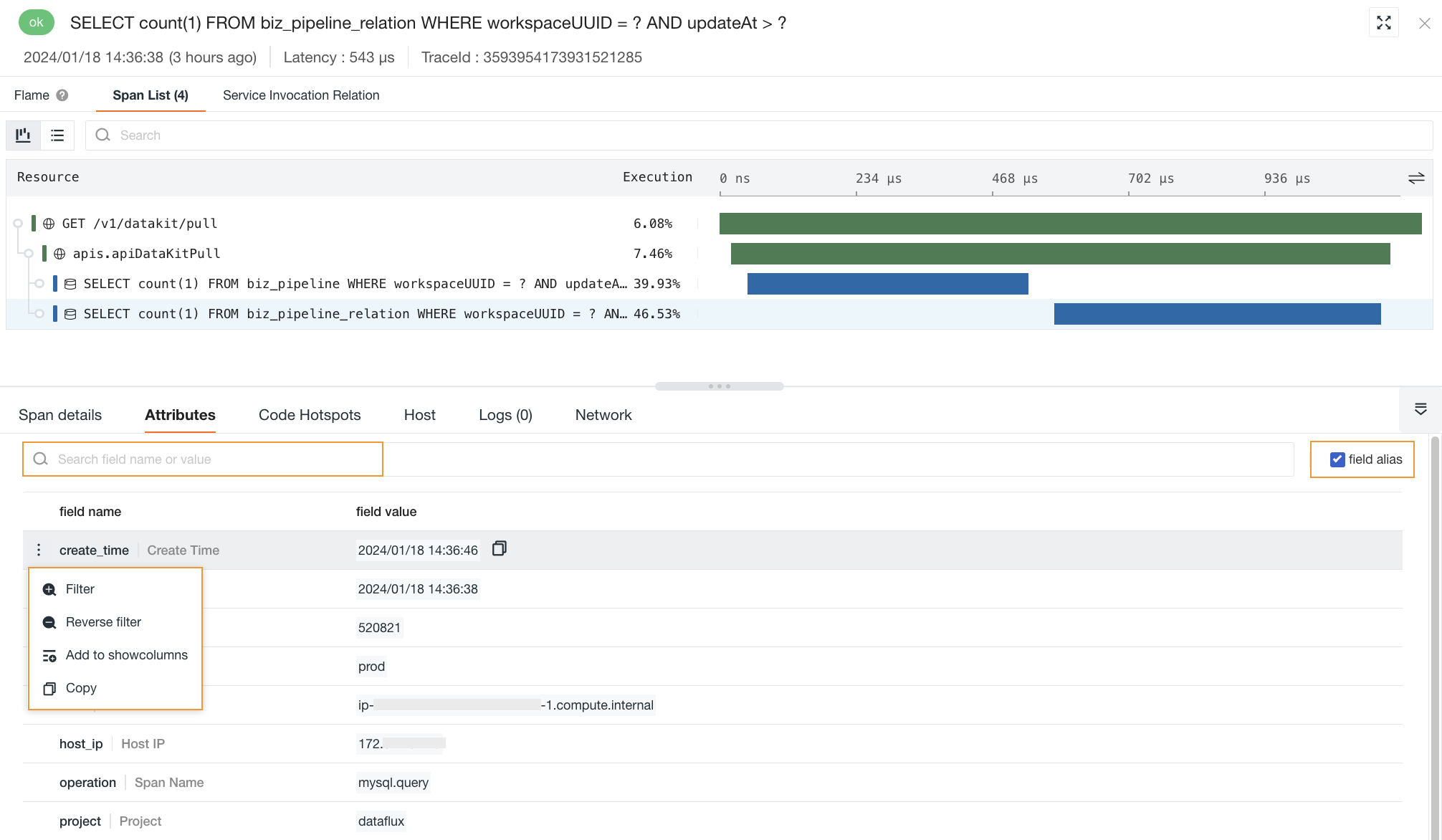
On the trace details page, you can view the field attributes related to the current trace under Extended Attributes:
Field |
Description |
|---|---|
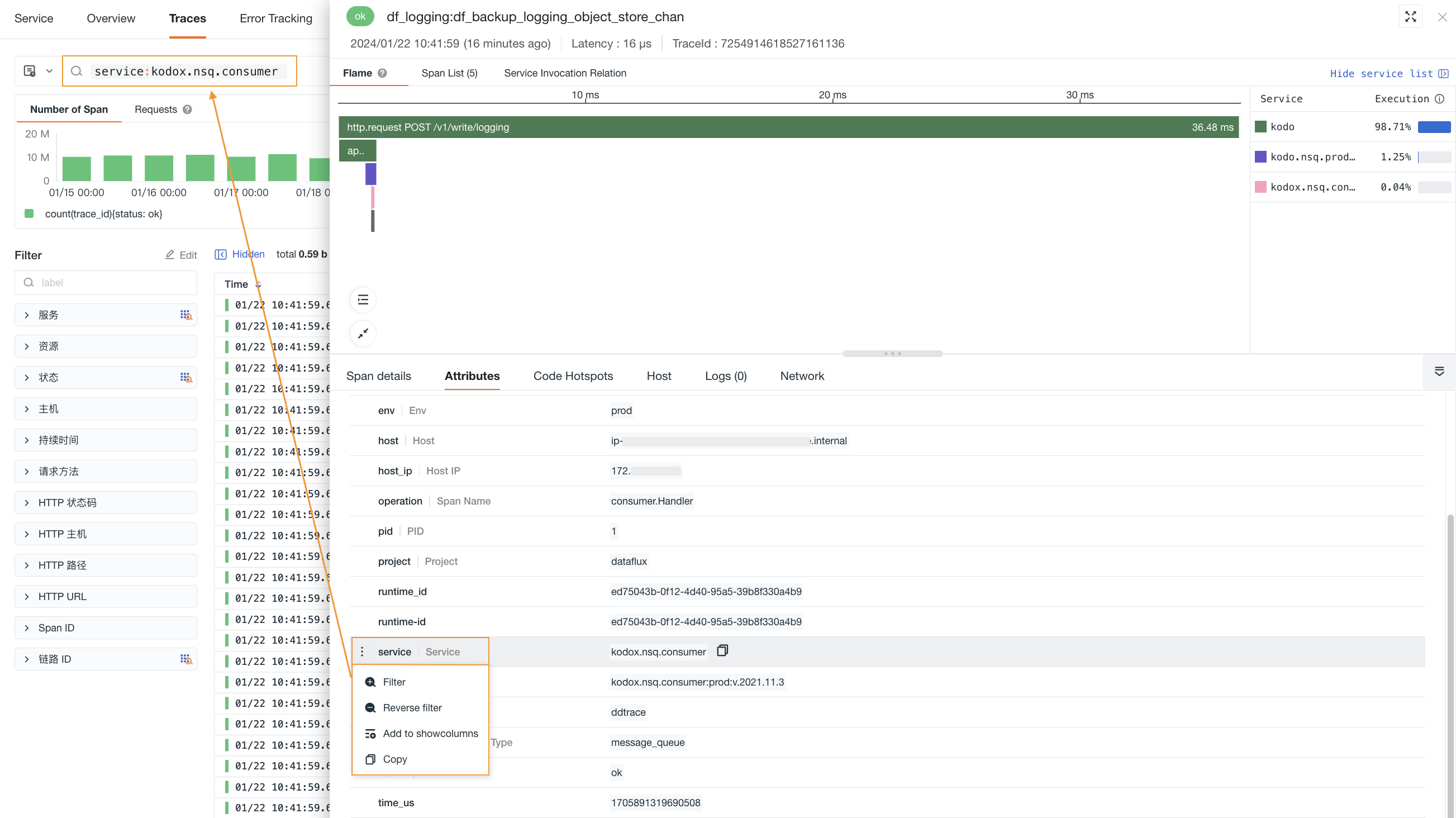
| Filter by Field Value | Adds the field to the explorer to view all data related to that field. You can filter the trace list in the Trace Explorer by this field. See Figure 1 |
| Inverse Filter by Field Value | Adds the field to the explorer to view all data except that field. |
| Add to Display Columns | Adds the field to the explorer list for viewing. |
| Copy | Copies the field to the clipboard. |
Some fields do not support filtering, aggregation, or similar operations
In Guance, some fields use full-text indexing and do not support operations such as filtering and aggregation. The full-text indexed fields are as follows:
| Category | Fields |
|---|---|
| Objects, Resource Catalog | message |
| Logs, Backup Logs | message |
| Security | message / title |
| Network | message |
| Traces | error_message / error_stack |
| Events | message / title / df_message / df_title |
| RUM Errors | error_message / error_stack |
| RUM Long Tasks | long_task_message / long_task_stack |
Figure 1
Error Details
On the trace details page, if the current trace contains errors, select the error span filter in the sidebar. The system automatically highlights all error spans. Click any highlighted span to view its associated error stack, logs, and other details.
For more details, see Error Tracking.
Service Context
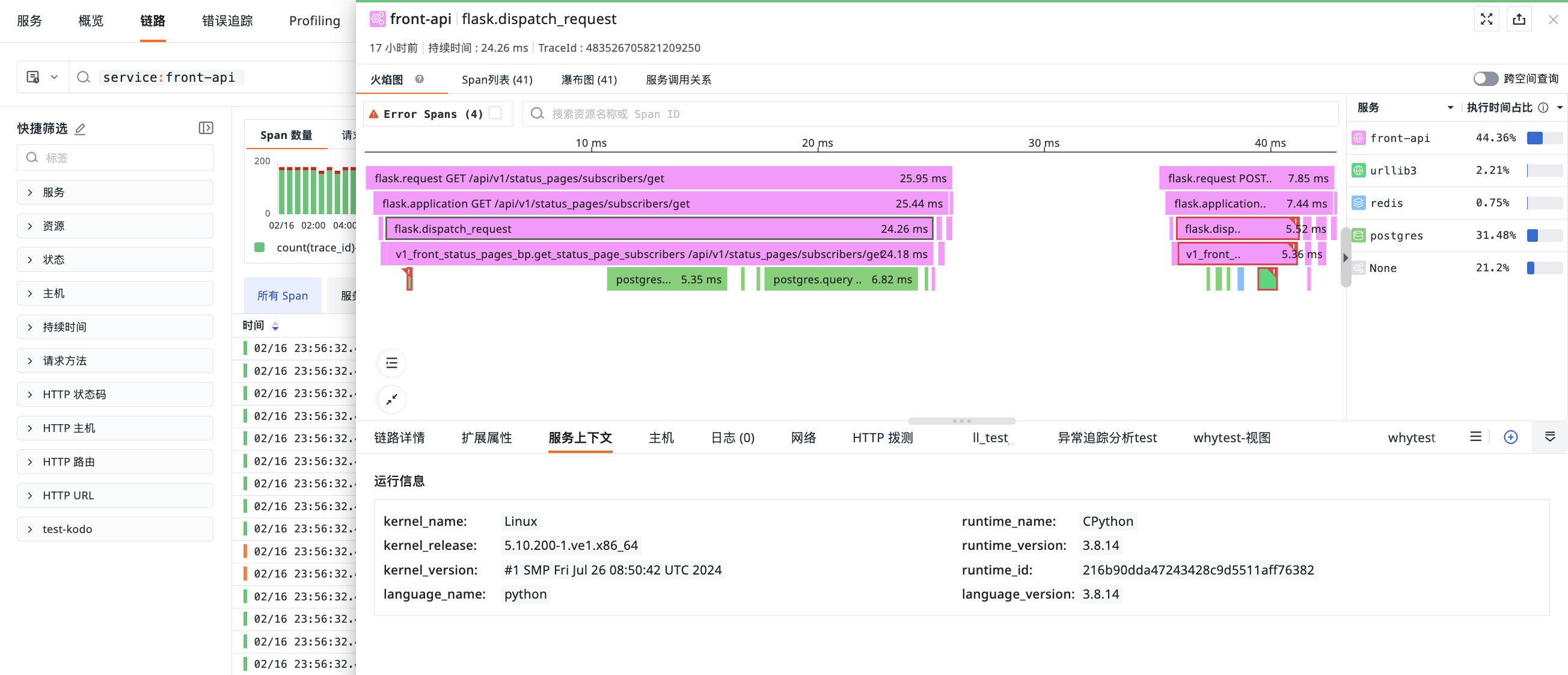
You can quickly view the current service's runtime information, service dependencies, and integration information by retrieving the object category under the Infrastructure Resource Catalog and selecting the latest object based on create_time.
Related Analysis
You can use Logs to view log data associated with all services in the entire trace (join field: trace_id). You can customize the displayed columns. To view more detailed log content, click the log content to go to the log details page, or click the jump button to open the log page.
The system matches the log index mapping based on fields such as service, env, and version of the current trace, and automatically selects the corresponding log index. The previous “Match Service” configuration of the index continues to take effect according to the service field mapping.
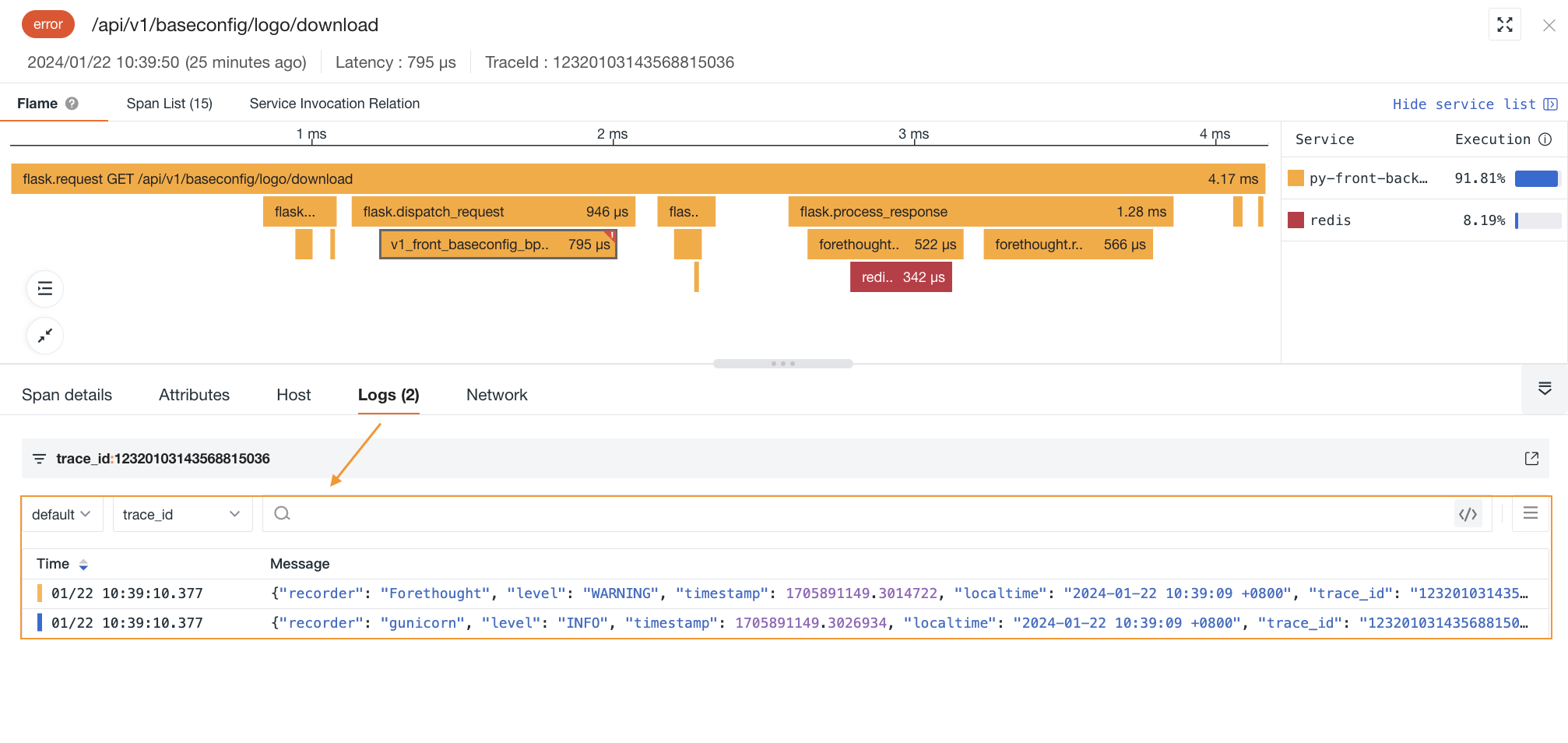
If you have Admin or higher permissions, you can customize the join fields. Click the settings button to the right of the join fields, select the fields to associate in the dialog that appears, and use operations such as manual entry and drag-and-drop reordering. Confirm to complete the configuration.
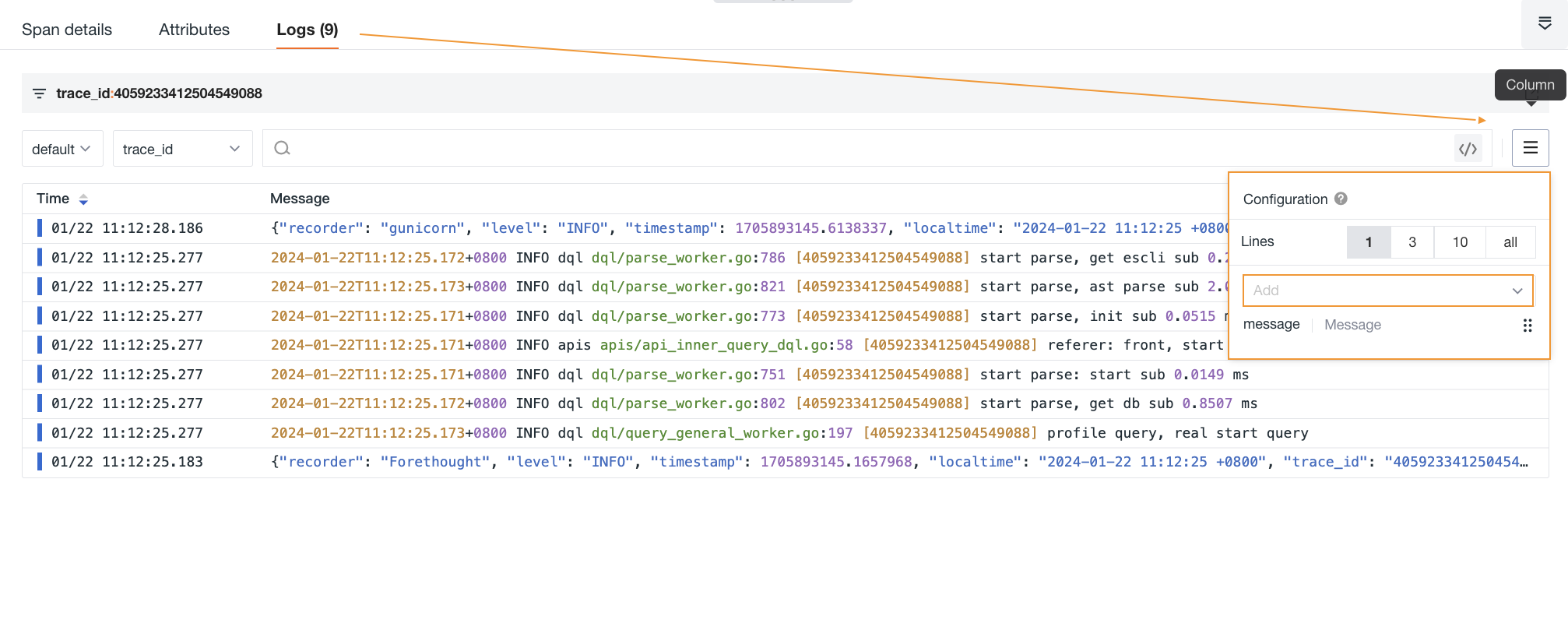
Note: The custom fields for associated logs and the custom fields configured in the Service List related analysis affect each other. If custom fields are configured in Service List, they are displayed here as well.
When the application uses the ddtrace collector with both APM distributed tracing and Profiling data collection enabled, the system provides span-level correlation for viewing code hotspots, including execution time, method, and execution time ratio.
Click View Profile Details to go to the Profile details page and view more related code.
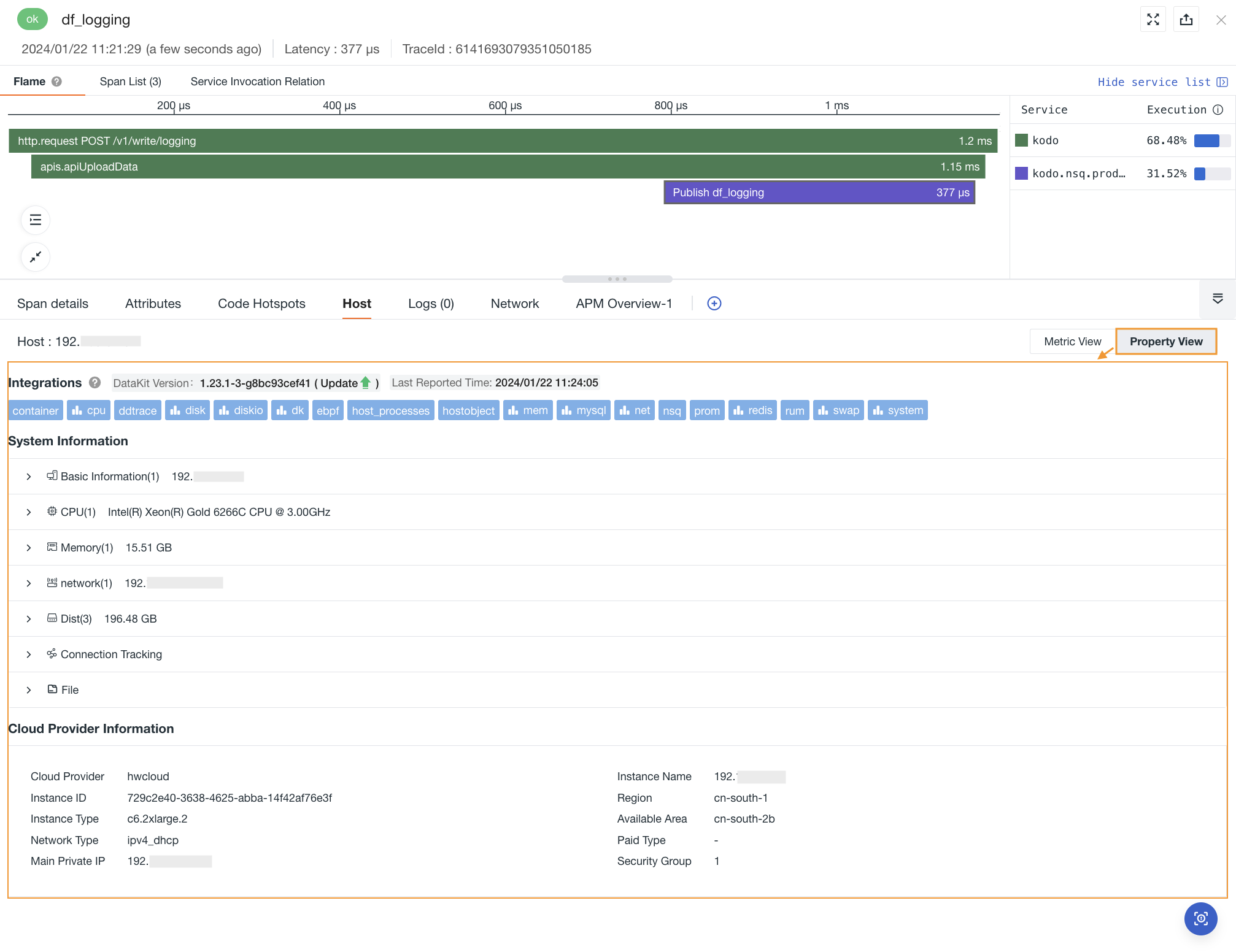
On the trace details page, you can use Hosts to view the metrics view and attribute view of the related host (join field: host).
- Metrics view: View the performance metrics of the related host from 30 minutes before the trace ends to 30 minutes after the trace ends, including CPU, memory, and other performance metric views.
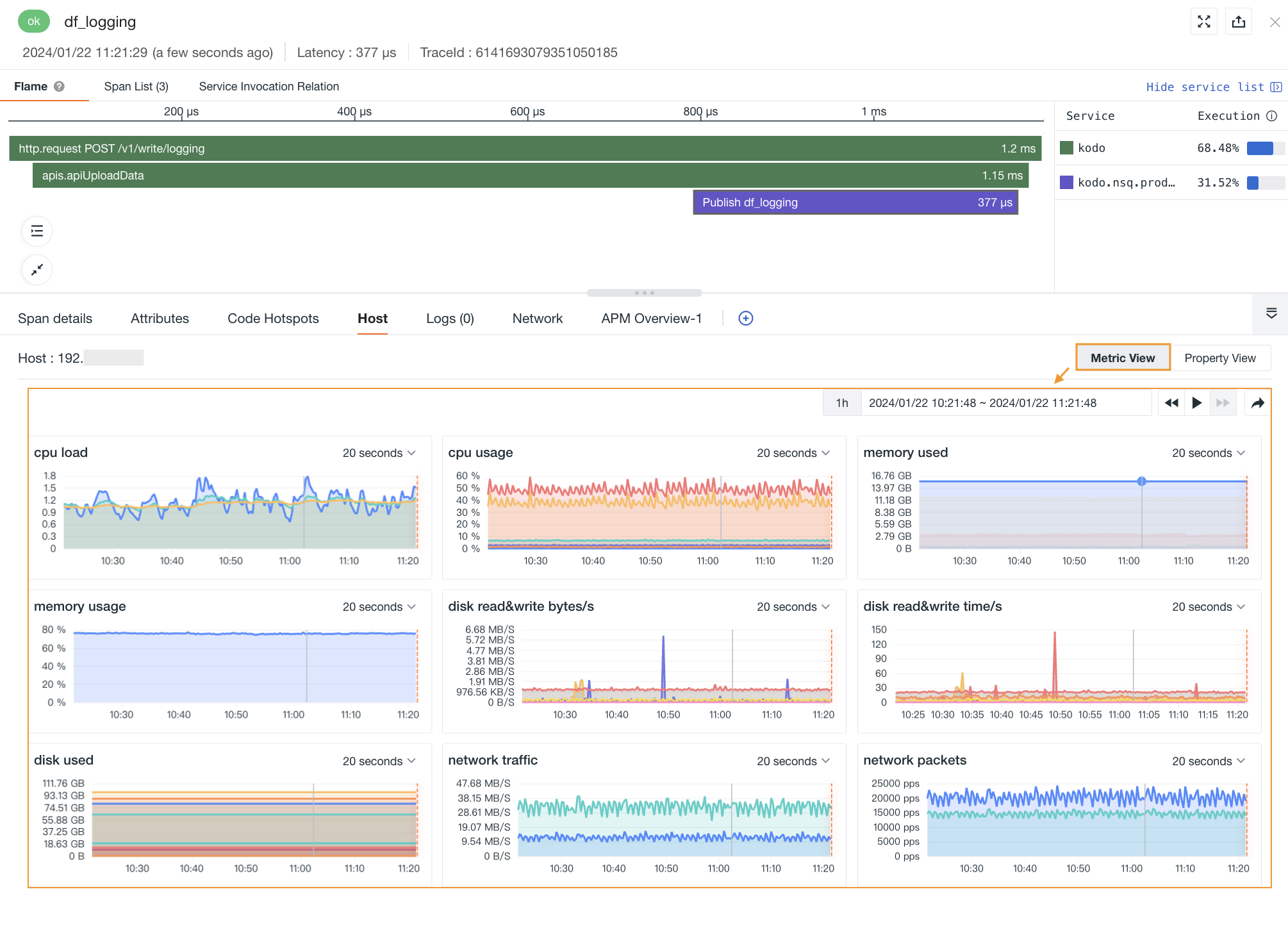
- Attribute view: Helps you trace back the actual state of the host object when the trace was generated. You can view the latest object data of the related host generated within the corresponding time period, including basic host information and integration status. If cloud host collection is enabled, you can also view cloud provider information.
Note: Guance retains host object historical data for the last 48 hours by default. If no host historical data corresponding to the current trace time is found, you will not be able to view the attribute view of the associated host.
On the trace details page, you can use Containers to view the metrics view and attribute view of the related containers (join field: container_name).
-
Metrics view: View the performance metrics of the related container from 30 minutes before the trace ends to 30 minutes after the trace ends, including CPU, memory, and other performance metric views.
-
Attribute view: Helps you trace back the actual state of the container object when the trace was generated. You can view the latest object data generated within the corresponding time period, including basic container information and attribute information.
On the trace details page, you can use Pods to view the attribute view and metrics view of the related pod (join field: pod_name).
-
Metrics view: View the performance metrics of the related container pod from 30 minutes before the trace ends to 30 minutes after the trace ends, including CPU, memory, and other performance metric views.
-
Attribute view: Helps you trace back the actual state of the container pod object when the trace was generated. You can view the latest object data generated within the corresponding time period, including basic information and attribute information about the container pod.
Guance supports viewing network topology and summary data under Network across multiple dimensions, including Host, Pod, Deployment, and Service.
Matching fields:
To view the related network on the details page, the corresponding join fields must be matched. This means the corresponding field tags must be configured during data collection. Otherwise, the related network views cannot be matched and displayed on the details page.
-
Host: matching field
host. -
Pod:
| Matching Field Priority |
|---|
| namespace, pod_name |
| namespace, pod |
| pod_name |
| pod |
- Deployment:
| Matching Field Priority |
|---|
| namespace, deployment_name |
| namespace, deployment |
| deployment_name |
| deployment |
- Service:
| Matching Field Priority |
|---|
| namespace, service_name |
| namespace, service |
Note:
- If join fields for Host, Pod, Deployment, and Service are all found, network data is displayed in this order when you enter the details page;
- If no join field is found, the entry is displayed in gray at the end. Clicking it shows the message No network view matched.