Other Settings
Contains various scenario operation configurations at the individual account level.
Workspace Management
For more details, refer to Managing Workspaces.
Personal API Key
A Personal API Key is an access credential bound to a user account. Its permissions are automatically synchronized with the account's full functional permissions on the platform (including dashboards, data queries, etc.). It is used with OWL and MCP Server.
Difference from Workspace-level API Key
- Personal API Key: Bound to a personal account, permissions are automatically inherited from the account. Suitable for personal scripts or third-party platform integration.
- Workspace-level API Key: Bound to a workspace role; the role must be manually specified when created. Primarily used for service-to-service communication such as DataKit reporting.
Click the window to copy the Personal API Key (❗️ This key represents your personal identity; do not disclose it).
- Supports "Regenerate."
- Supports generating a Temporary Authorization Code, which is used to obtain an API Key on the fly during automatic installation of the Owl CLI or AI tools. The code is valid for 30 minutes after generation and becomes invalid immediately after use.
System Notifications
After subscribing to system notifications, the system will trigger events in the following key scenarios and send notifications to the subscriber's email address:
When a data forwarding rule becomes invalid, the system sends an email notification.
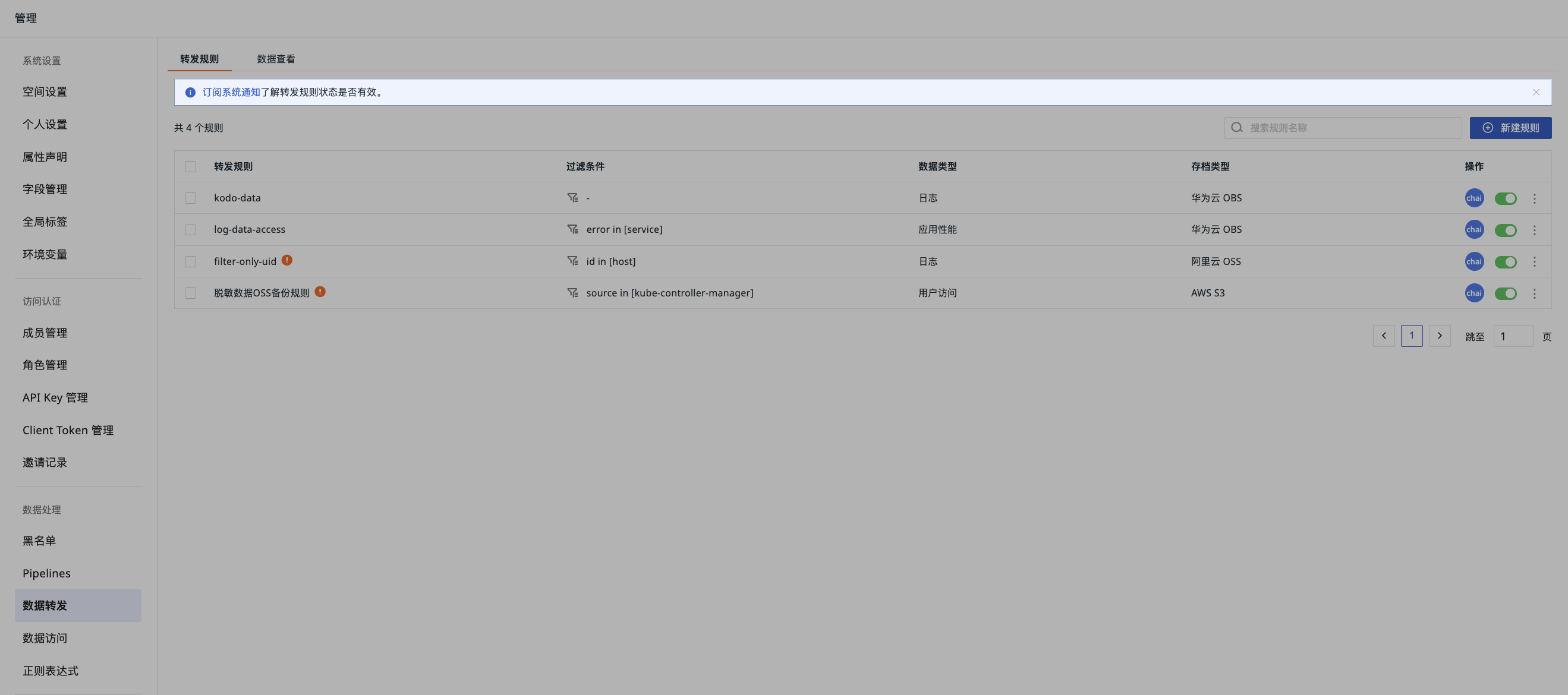
1. Alert Volume Near Upper Limit
When the number of monitored objects reaches 80% of the system limit, the system sends an email notification (at most once per day). The monitor may be using a high-cardinality field for aggregation, causing the number of monitored objects to grow continuously. We recommend that you review the query conditions and grouping settings. If the system limit (Alert Cache Limit) is reached, the monitor will be automatically paused.
2. Monitor Auto-Paused (Cache Limit Exceeded)
When the number of cached monitored objects reaches the system limit of 100,000, the system automatically pauses the monitor and sends an email notification. During the pause, the monitor stops running. To prevent a continued excessive number of monitored objects from affecting system stability, please check and adjust the query conditions and grouping settings. You can also modify and re-save the monitor to resume operation immediately.
3. Monitor Auto-Paused (High-Cardinality Field Intercepted)
When the system detects that the grouping field of the monitor's monitored objects poses a high-cardinality risk (e.g., a field value longer than 32 characters), the monitor is automatically paused and an email notification is sent. Such fields typically generate a large number of discrete groups, causing the number of monitored objects to grow rapidly. Please adjust the monitor's query and retry.
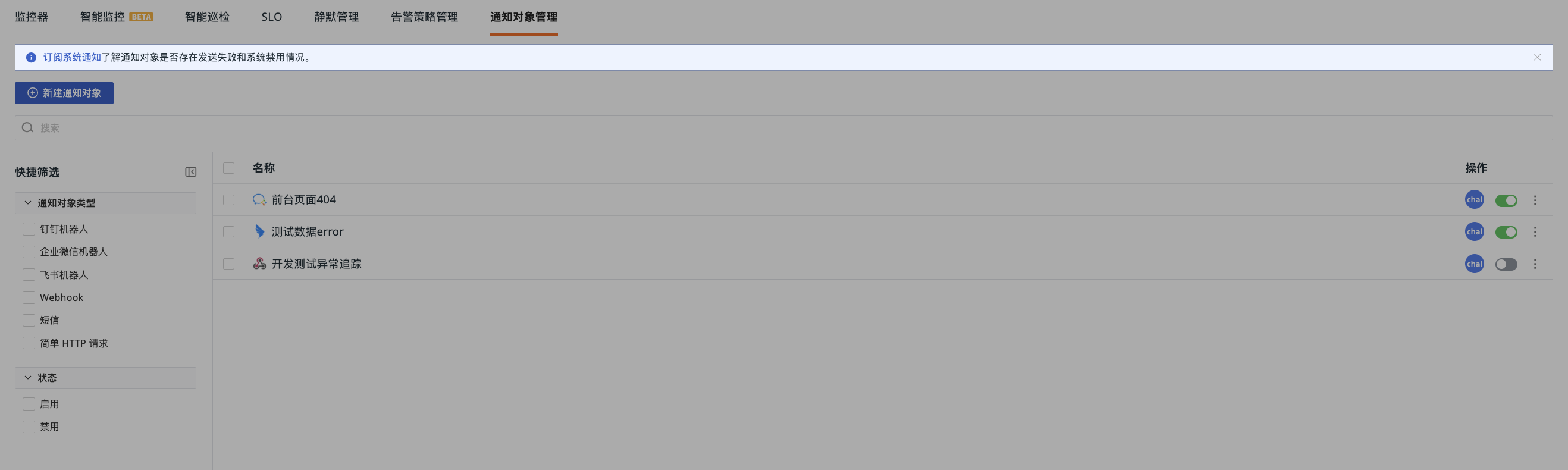
Go to Monitoring > Notification Targets, and click Subscribe to System Notifications to check whether any notification target has failed to send or has been disabled by the system.
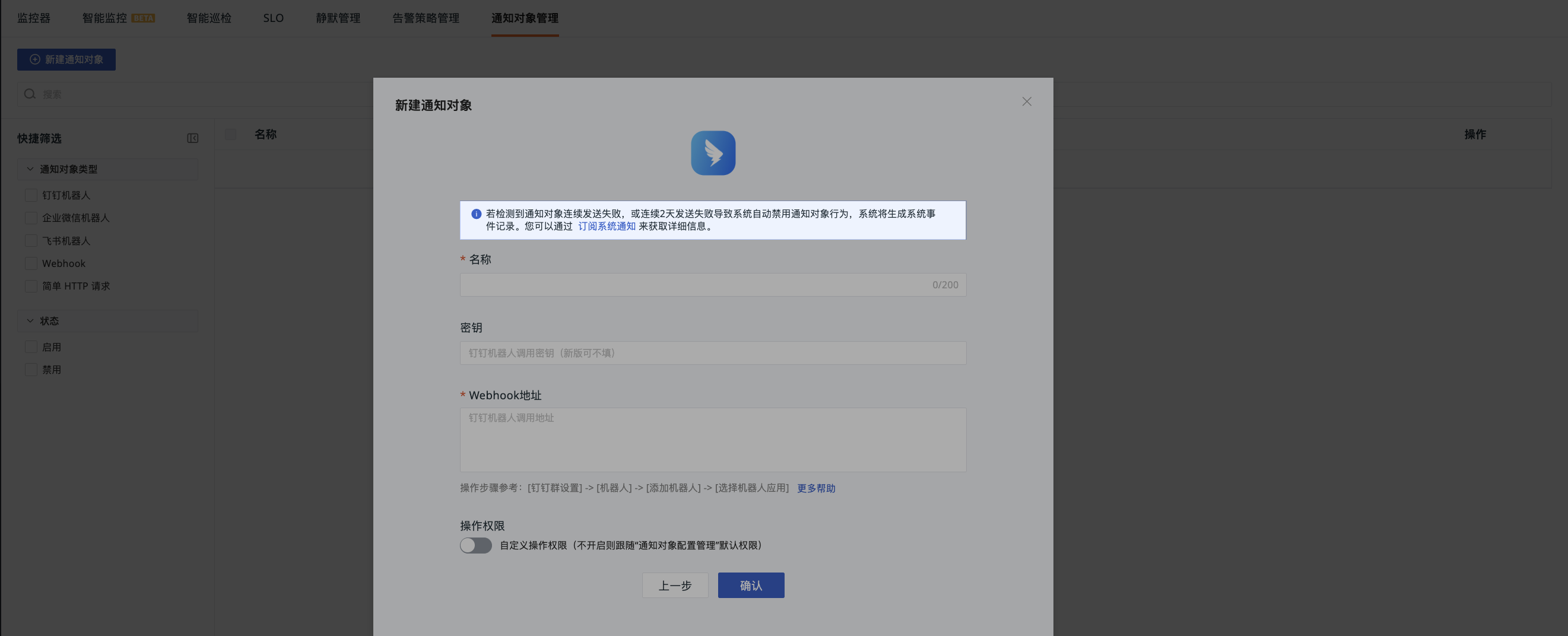
Alternatively, on the create/edit page of a notification target, click Subscribe to System Notifications.
Go to Management > Cloud Accounts, and click Subscribe to System Notifications to check whether the cloud account configuration is valid.

If the reported data in the workspace triggers the configured upper limit, the system sends an email notification.
When Obsy AI credits are exhausted, the system sends an email notification.
After clicking the Subscribe button above, the system will automatically send relevant notification emails to your email address when new messages are available.
Once a system notification is triggered, you can view all notification events in the notification list and manage them with the following operations:
- Filter by scenario type.
- Filter by notification title or content.
- View only unread notifications.
- Mark all as read.