Web Session Replay (Session Replay Web)
Integration
View Session Replay
After Session Replay is configured, you can view session replays in the Real User Monitoring (RUM) Session Explorer list and on the detail pages of all RUM explorers.
When you enter from cross-workspace query results, the replay and its related resources are loaded based on the session's source workspace; sessions with the same Session ID from different workspaces are not merged. If the source workspace cannot be confirmed, the replay entry is unavailable; refresh and try again. After returning to the analysis page, the original query scope is retained. For related conditions, see Cross-workspace Query Instructions.
Note: The data retention policy for Session Replay is linked with that of RUM, that is, if RUM data is retained for 3 days, Session Replay data is also retained for 3 days. If you modify the RUM data retention policy, the Session Replay retention period is adjusted accordingly.
View in the Session Explorer List
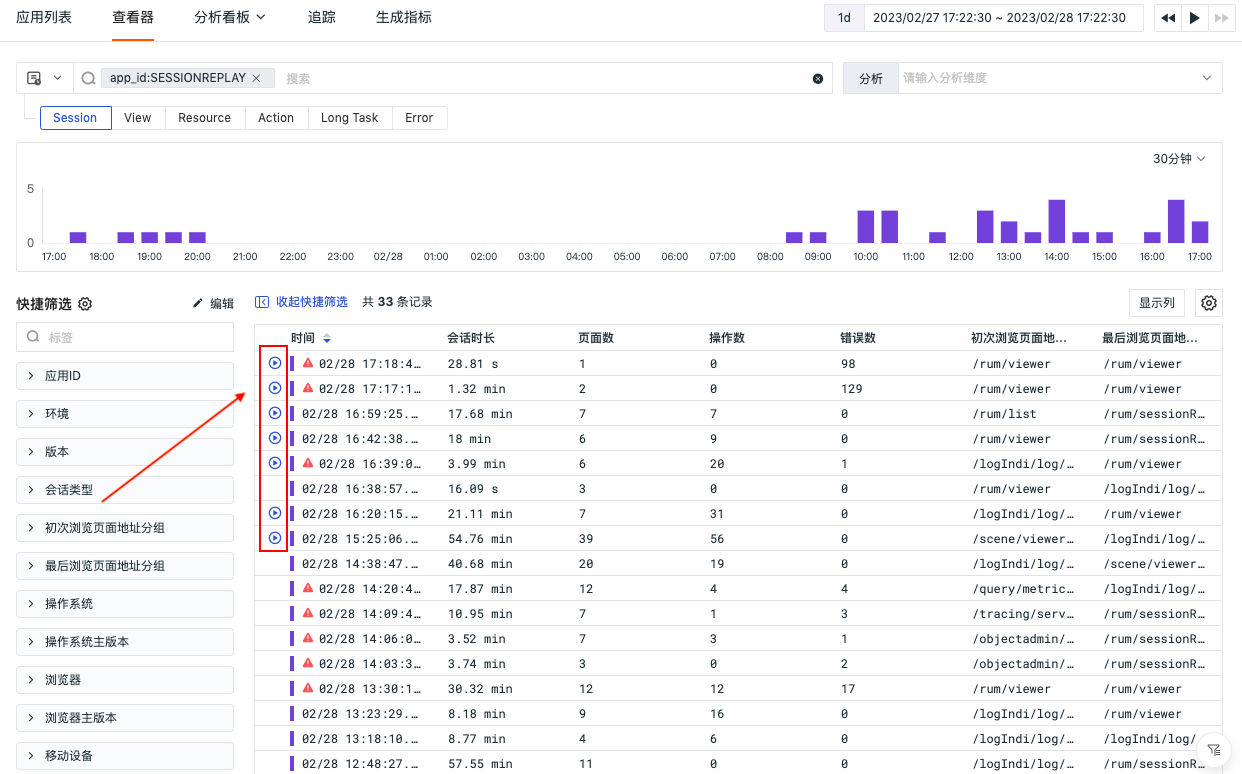
In the Session Explorer list, a Play button is displayed. Click it to view the replay.
View on the Detail Page
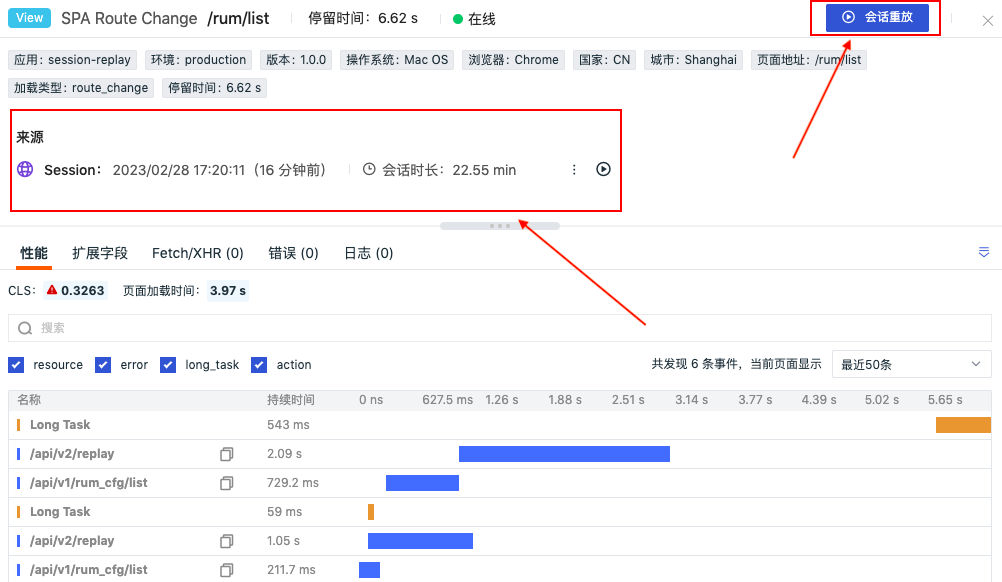
- On the detail pages of the Session, View, and Error explorers, click View Replay in the upper-right corner to view the operation replay of the current user session.
- On the detail pages of the View, Error, Resource, Action, and Long Task explorers, you can view the operation replay of the current user session in the Source section.
- More: Click the More button to View Session Details, Filter by Current Session ID, or Copy Session ID.
- Play: Click the Play button to view the session replay.
View Session Replay Playback
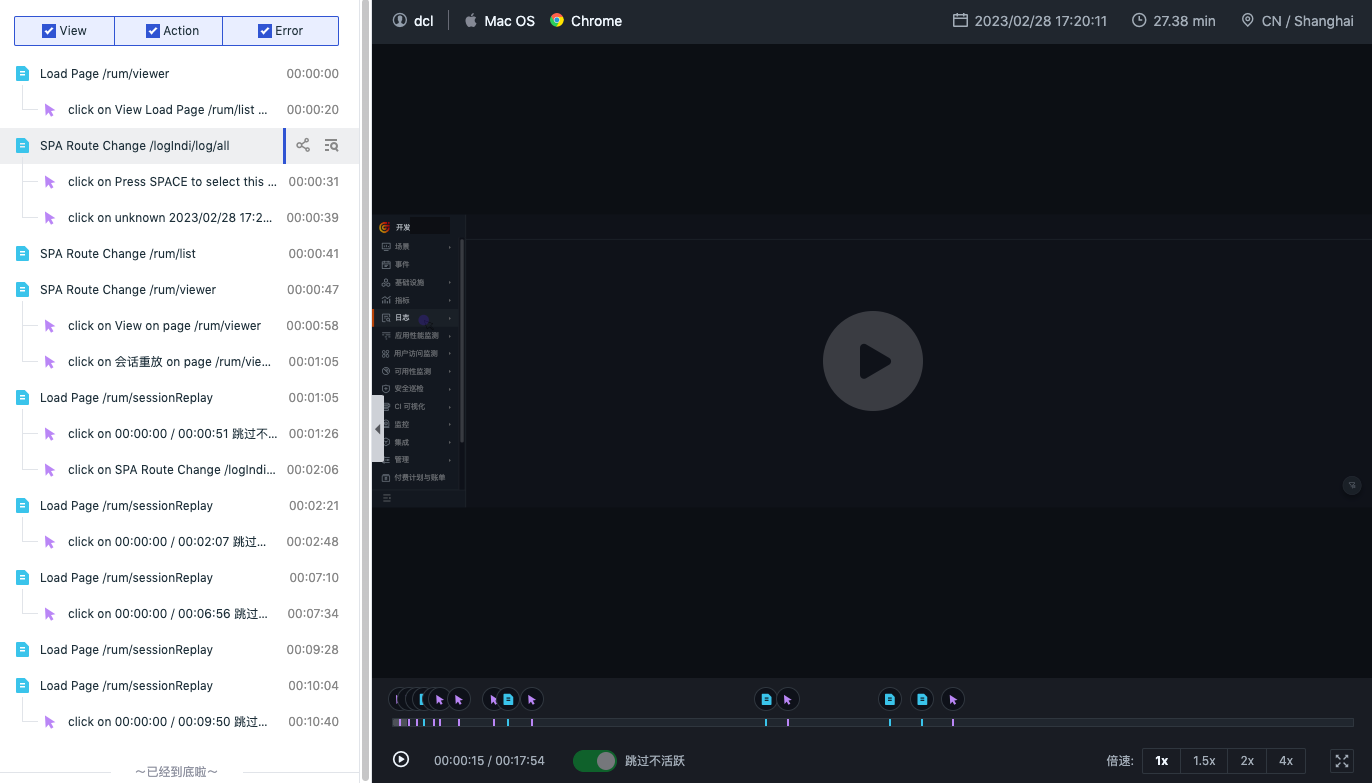
On the session replay page, you can view the entire user session, including pages visited, action records, and error data. Click to play the user's operation process.
In the left list, you can:
- Share link: Click to copy a shareable link for other team members to view and analyze.
- View details: Click to slide out and display the corresponding detail page.
- Collapse the left list: Click to collapse the left list and view the session replay.
At the bottom of the player, you can:
- Skip inactivity: Enabled by default. When enabled, segments with no interaction for more than 1 minute are skipped.
- Playback speed: Supports selecting 1x, 1.5x, 2x, or 4x speed.
- Fullscreen playback: Click the fullscreen playback button to view the session replay in fullscreen mode.
Replay Status and Error Handling
When replay data has not yet been generated or an error occurs, the page displays the corresponding status description and recommended actions instead of showing a black player that cannot play.
| Page Status | Description | Recommended Action |
|---|---|---|
| Generating Data | Session Replay data has been reported, and the system is still generating the replay file. | Refresh the page later and play again. |
| Incomplete Replay Data | Some replay data has been received, but a complete replay cannot be generated yet. | Wait for data reporting to complete, then retry; also check the network and SDK reporting status. |
| No Replay Data | No replay data is available for the current session. | Check the Session Replay sampling rate, SDK initialization, and recording startup configuration. |
| Status Query Error | The system is temporarily unable to query the generation status of the replay file. | Refresh the page and retry; if the issue persists, contact technical support. |
| Replay File Retrieval Error | The replay file has been generated, but an error occurred while retrieving it. | Reload the replay; if the issue persists, contact technical support. |
If reporting has not been completed after more than 48 hours, the page displays a delayed-reporting reminder. The final status is still determined by the page query results.