Huawei Cloud Deployment Guide
1 Preface
1.1 Document Overview
This document primarily describes the complete steps for deploying Guance on Huawei Cloud, starting from resource planning and configuration to deployment and operation.
Note:
- This document uses dataflux.cn as the primary domain name example. Replace it with the corresponding domain name during actual deployment.
1.2 Keywords
| Term | Description |
|---|---|
| Launcher | A WEB application used to deploy and install Guance. Follow the guided steps in the Launcher service to complete the installation and upgrade of Guance. |
| Operations Machine | An operations machine with kubectl installed, connected to the same network as the target Kubernetes cluster. |
| Installation Machine | A machine used to access the Launcher service in a browser to complete the guided installation of Guance. |
| kubectl | The command-line client tool for Kubernetes, installed on the Operations Machine. |
1.3 Deployment Step Architecture
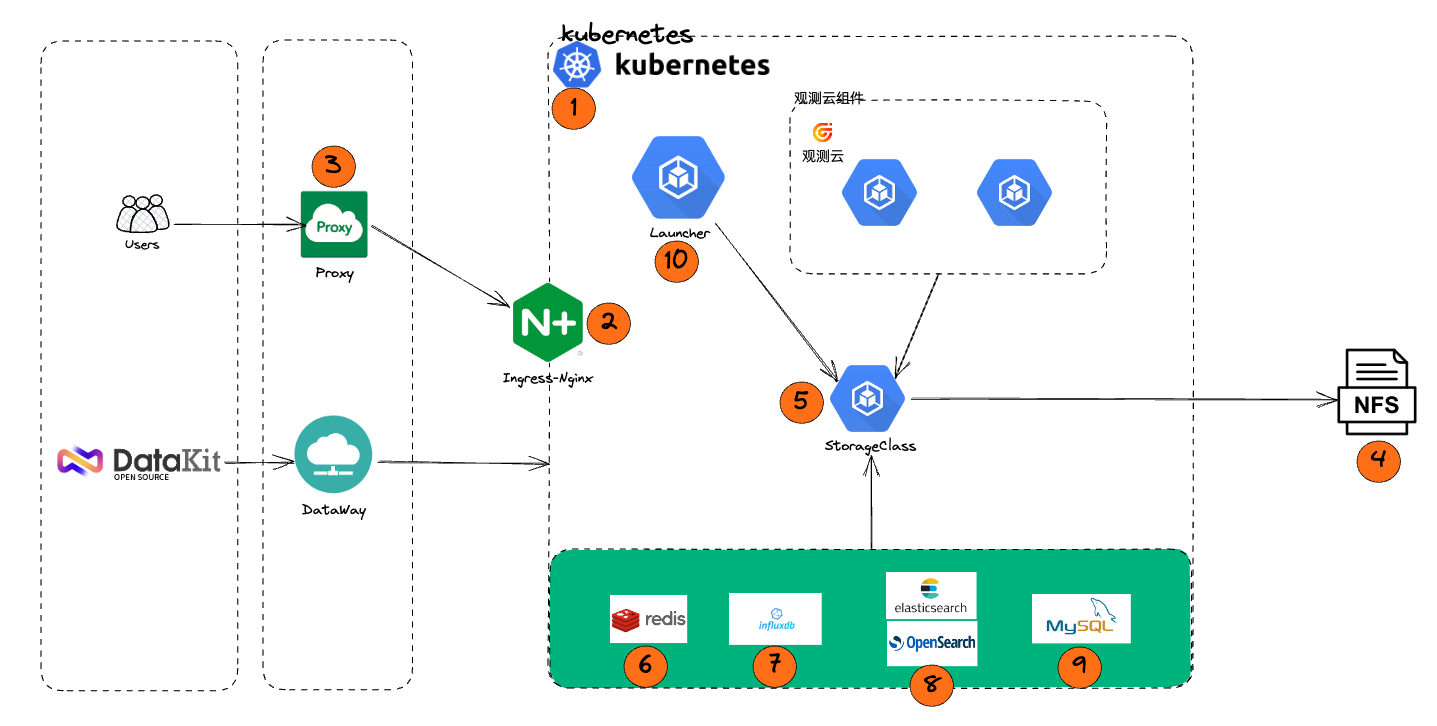
2 Resource List
Note
1. The "Minimum Configuration" is suitable only for POC deployments for functional verification and is not suitable for production environments.
2. The "Recommended Configuration" is suitable for data volumes with less than 150,000 time series in InfluxDB and less than 7 billion documents (total sum of logs, traces, RUM, events, etc.) in Elasticsearch.
3. Production deployment should be evaluated based on the actual volume of data ingested. The storage and specification requirements for InfluxDB and Elasticsearch will increase accordingly with higher data ingestion volumes.
4. If using self-built TDengine and OpenSearch, they need to be added to the CCE node pool. Self-built OpenSearch nodes require 3 coordinator nodes (4c8g) and 3 data nodes (8c32g), totaling 6 nodes.
| Resource | Specification (Minimum) | Specification (Recommended) | Quantity | Notes |
|---|---|---|---|---|
| CCE | Standard Managed Cluster | Standard Managed Cluster | 1 | Version: 1.23 |
| CCE Node Pool | 4C8G (Single OS Disk 80GB) | 8C16G (Single OS Disk 120GB) | 4 | Deploying the Huawei Cloud CCE managed cluster |
| 2C4G (Single OS Disk 80GB) | 4C8G (Single OS Disk 120GB) | 2 | Deploying Dataway | |
| NAT Gateway | Small NAT Gateway | Small NAT Gateway | 1 | Used for outbound network access from the CCE cluster |
| ELB | Shared Type | Shared Type | 1 | Placed in front of the Kubernetes Ingress |
| RDS | 2C4G 50GB | 4C8G 100GB (Primary/Standby) | 1 | MySQL 8.0 |
| Redis | 4G | 8G (Standard Primary-Replica with Dual Replicas) | 1 | Version: 6.0 |
| GuanceDB | 4C16G 300GB | 8C32G 500GB (Cluster Edition) | 2 | |
| Elasticsearch | OpenSearch | 4C16G 1T (Single Node) | 16C64G 2T (3 Nodes) | 1 | Elasticsearch Version: 7.10.2; OpenSearch (Self-built) Version: 2.3 |
| Domain Name | - | - | 1 | The primary domain name needs to be registered and filed. 8 subdomains under one primary domain. |
| SSL Certificate | Wildcard Domain Certificate | Wildcard Domain Certificate | 1 | - |
3 Infrastructure Deployment
3.1 Deployment Notes
RDS, Redis, Elasticsearch should be created according to the configuration requirements, within the same VPC network in the same region.
3.2 Steps 1, 2, 3: Creating CCE Services
3.2.1 Step 1: Purchase the CCE Cluster
Navigate to the official website, select Products in the navigation bar, choose Containers, click on Cloud Container Engine CCE, and select CCE Cluster Creation.
- Must be in the same region as the RDS, ECS, and other resources created later.
- Primarily, select the Cluster Scale based on your needs; the worker nodes will be created later.
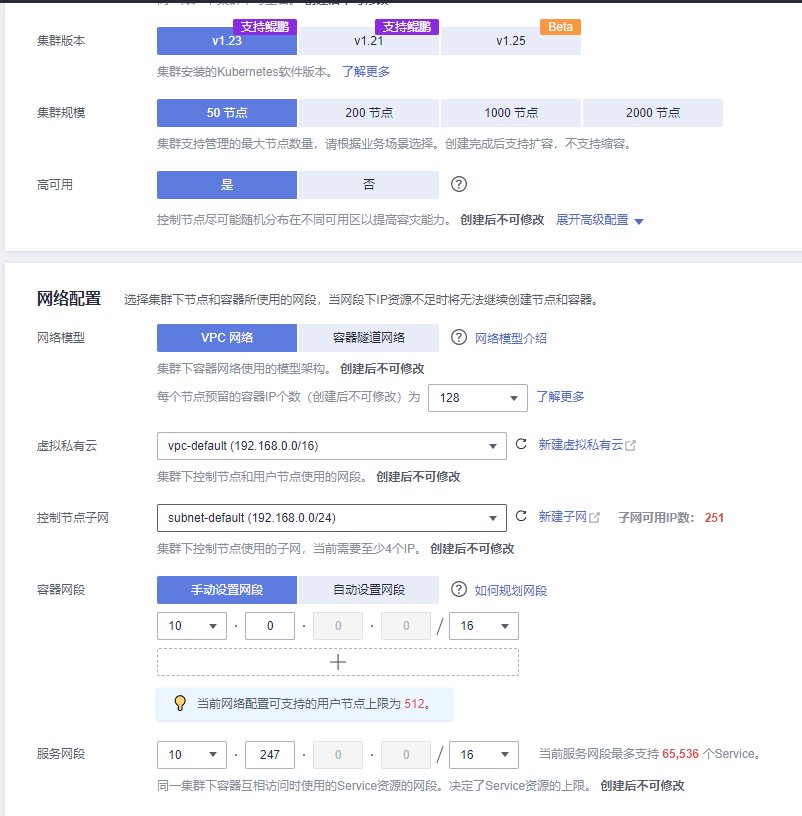
3.2.2 Step 2: Configure Worker Nodes
Primarily, select the ECS specifications and quantity. Specifications can be created based on the configuration checklist or evaluated based on actual requirements, but must not be lower than the minimum configuration. The quantity should be at least 3 or more. It is recommended that the data disk size should not be less than 100GiB.
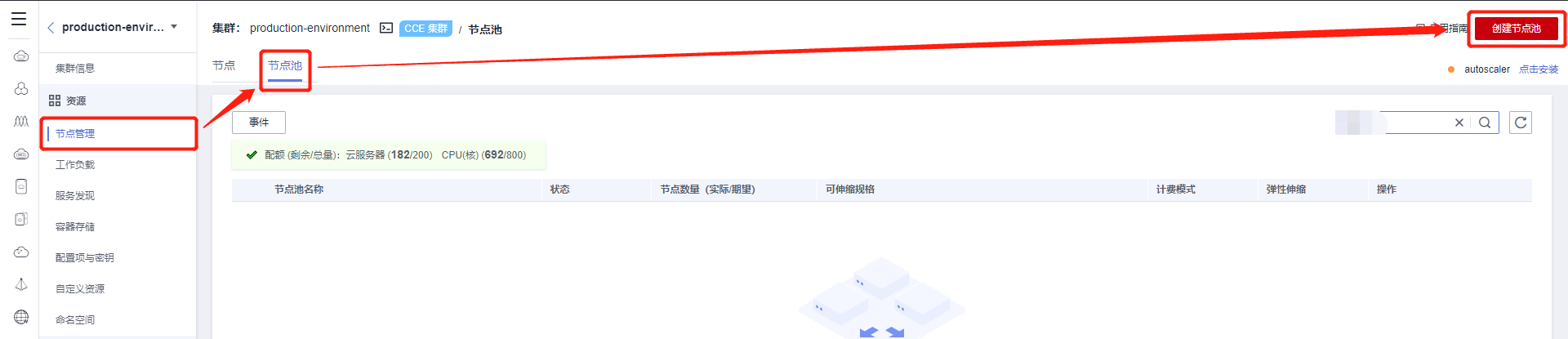

3.2.3 Step 3: Plugin Management
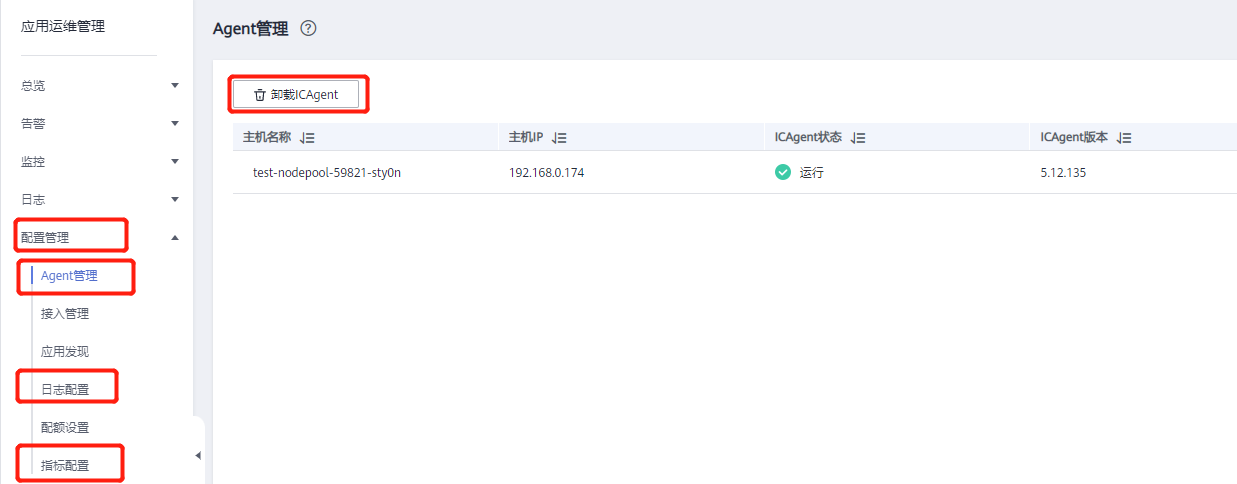
The everest and coredns plugins are created by default when the K8s cluster is purchased. It is recommended to install the following two additional plugins. Also, to conserve cluster resources and avoid extra costs, it is recommended to delete the ICAgent plugin.

Install the nginx-ingress Plugin
- Configure resource limits for CPU and memory.
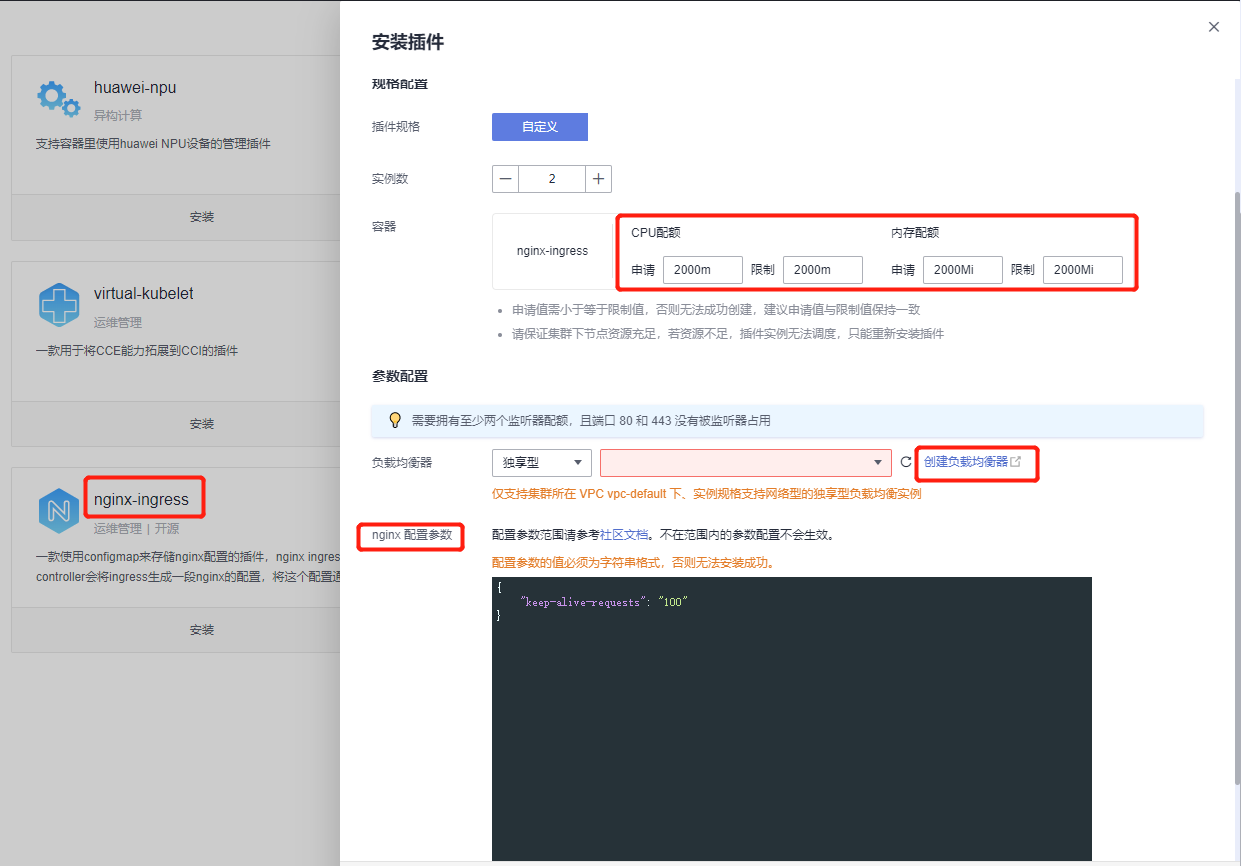
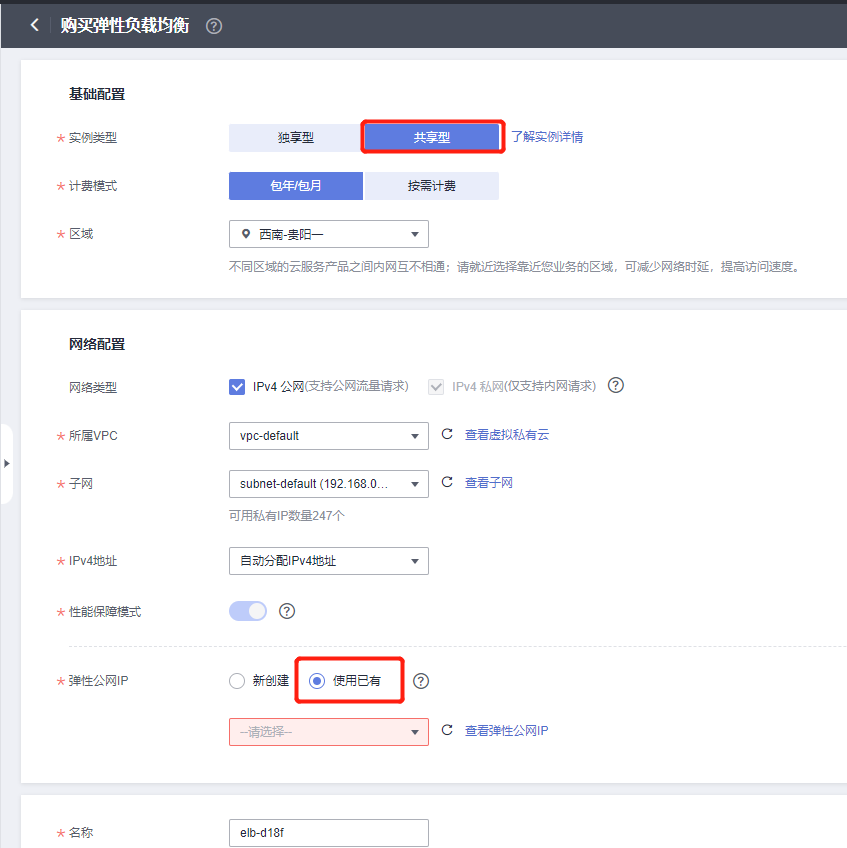
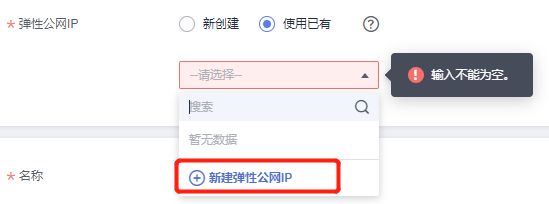
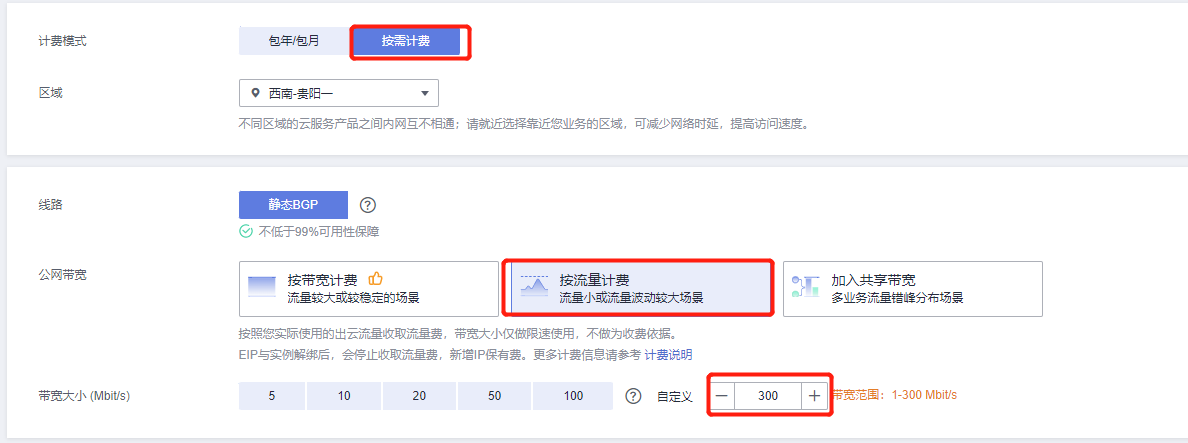
- Create a Load Balancer (ELB)
If needed, you can choose a Dedicated Elastic Load Balancer. This document selects a Shared type. Note: For the Elastic IP, it is recommended to use an existing one or create a new one with a 300 Mbit/s bandwidth billed by traffic.
- For the difference between Dedicated and Shared types, please refer to the following link:
https://support.huaweicloud.com/productdesc-elb/elb_pro_0004.html
- Configure the nginx-ingress plugin's nginx forwarding settings.
# Add the following content
{
    "allow-backend-server-header": "true",
    "client-header-buffer-size": "32k",
    "enable-underscores-in-headers": "true",
    "forwarded-for-header": "X-Forwarded-For",
    "generate-request-id": "true",
    "ignore-invalid-headers": "true",
    "keep-alive-requests": "100",
    "large-client-header-buffers": "4 32k",
    "proxy-body-size": "20m",
    "proxy-connect-timeout": "20",
    "reuse-port": "true",
    "server-tokens": "false",
    "ssl-protocols": "TLSv1 TLSv1.1 TLSv1.2 SSLv3",
    "ssl-redirect": "false",
    "use-gzip": "true",
    "worker-cpu-affinity": "auto"
}
Install the node-local-dns Plugin
- Enable the DNS Config Injection feature.
Note
The namespace must be labeled with node-local-dns-injection=enabled for the DNS cache feature to function.
Delete the ICAgent Plugin (Optional)
Select AOM Application Operations Management, uninstall the ICAgent plugin, and disable the switches for log overage collection and metric collection.
3.4 Step 4: Cache Service
- You can choose to use the default built-in cache service. If not using the default built-in cache service, configure Redis according to the following requirements:
- Distributed Cache Service (Redis version).
- Redis Version: 6.0, Standard Primary-Replica Architecture, supporting dual replicas.
- Configure a Redis password.
- Add the private IP addresses of the ECS instances automatically created by CCE to the Redis whitelist.
3.5 Step 5: GuanceDB for Metrics
3.6 Step 6: Elasticsearch
- Name: Cloud Search Service CSS
- Version: 7.10.2
- Enable security mode to set up the administrator account and password.
- Add the private IP addresses of the ECS instances automatically created by CCE to the Elasticsearch whitelist.
3.7 Step 7: RDS
- Name: Cloud Database RDS
- Version: 8.0, Standard Primary/Standby
- Set the password for the MySQL
rootuser. - Add the private IP addresses of the ECS instances automatically created by CCE to the MySQL whitelist.
4 Install and Configure kubectl
4.1 Install kubectl
kubectl is a command-line client tool for Kubernetes. It allows you to deploy applications, inspect and manage cluster resources, etc. Our Launcher uses this command-line tool to deploy applications. Please refer to the official documentation for specific installation methods:
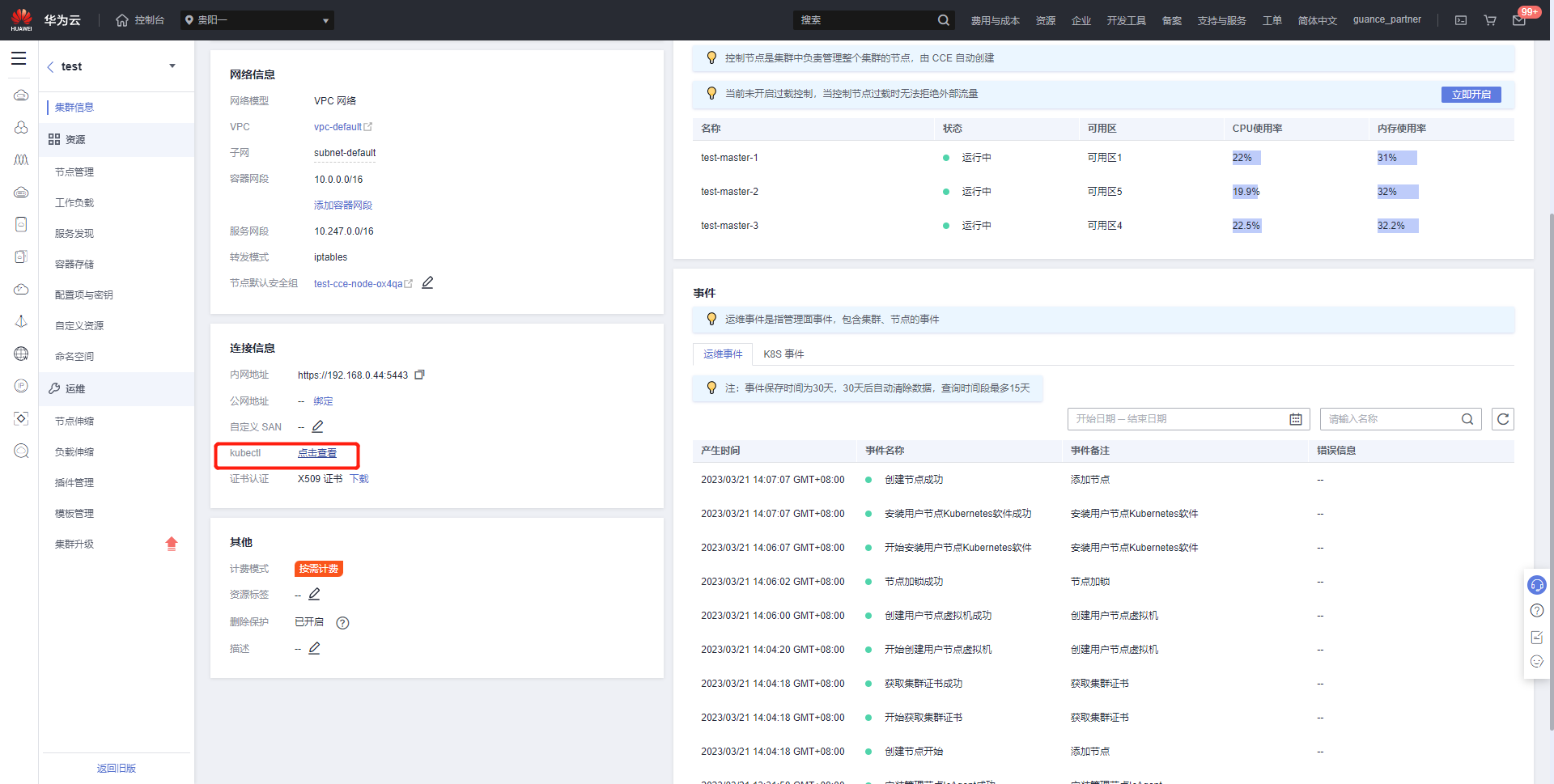
You can also click on the cluster to find kubectl and click to view.
4.2 Configure kubeconfig
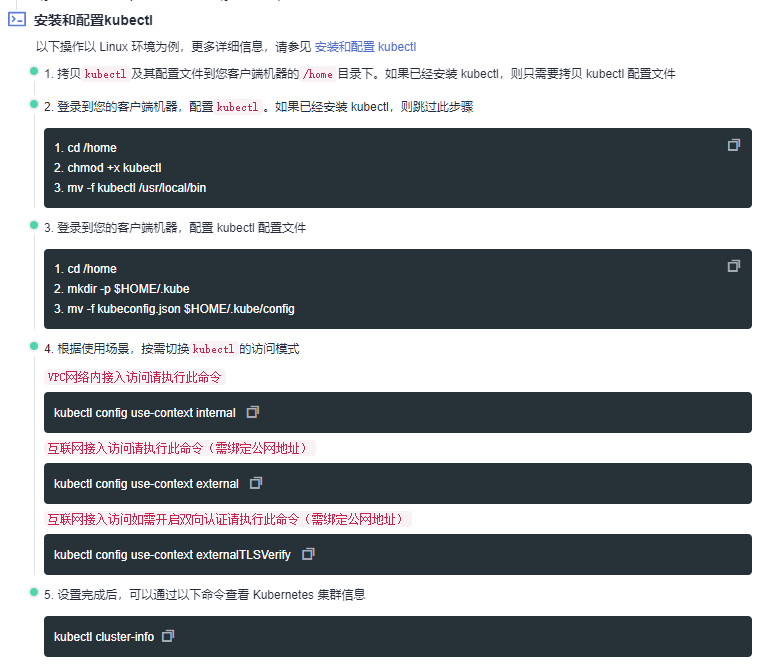
Choosing between public or private network access for kubeconfig depends on whether your Operations Machine is connected to the cluster's private network. Please determine the access method based on the Use Cases below.
5 Start Installation
After completing the operations, please refer to the guide Start Installation.