Account Settings
Go to the Account Settings page in the lower left corner of the console:
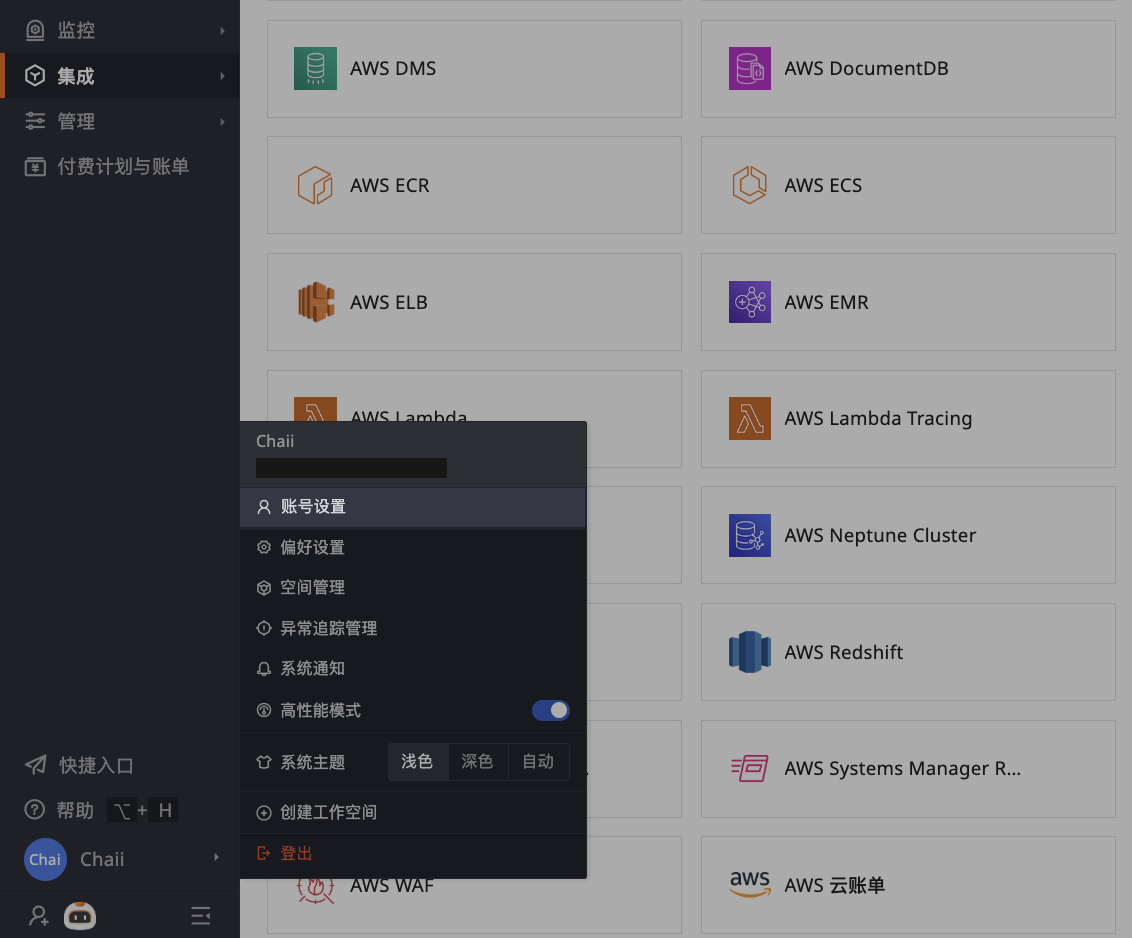
User Information
You can modify your avatar, username, email, phone number, and password here.
Security Settings
MFA Authentication
The system's MFA authentication adds an extra layer of security for logging in users, on top of the username and password. After enabling MFA, a secondary verification is required during login.
For more details, refer to MFA Management.
Login Session Duration
The system supports setting session duration for workspace accounts and SSO accounts. Once set, login sessions will expire after the timeout.
- Inactive Login Session Duration: Range 30 ~ 10080 minutes, default is 10080 minutes.
- Maximum Login Session Duration: Range 1 ~ 30 days, default is 30 days.
Cancel Account
Note
This entry is only visible for local accounts. Single Sign-On (SSO) accounts do not have this entry.
- Go to Account Management > Cancel Account in the lower left corner of the console.
-
Choose any method for identity verification: password verification, phone verification, or email verification.
-
If the current account is the owner of the workspace, please transfer this role permission first.
-
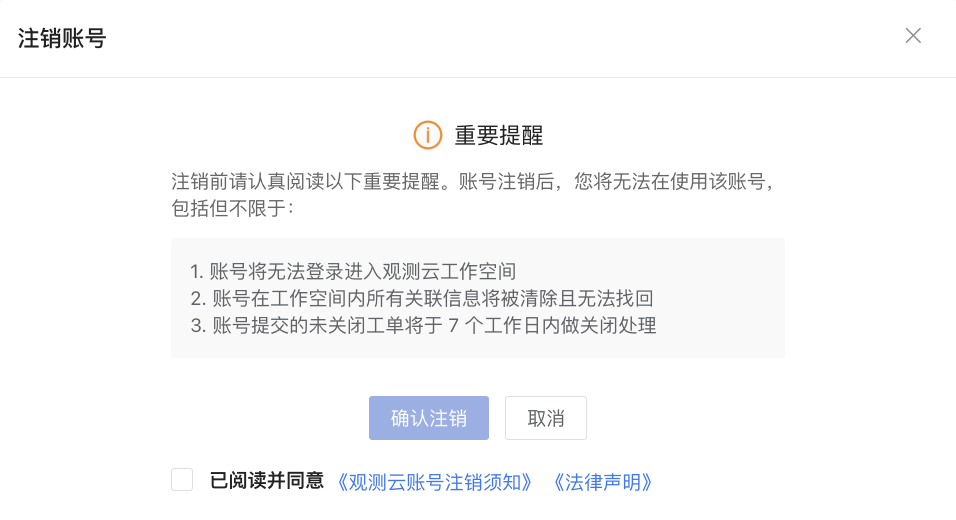
Proceed to the third step only if the current account is not the owner. Before confirming cancellation, please note:
-
The account will be unable to log in to the workspace.
-
All associated information of the account within the workspace will be cleared and cannot be recovered.
-
Any unclosed tickets submitted by the account will be closed within 7 business days.
-
-
Read and agree to the relevant agreements, then confirm cancellation.
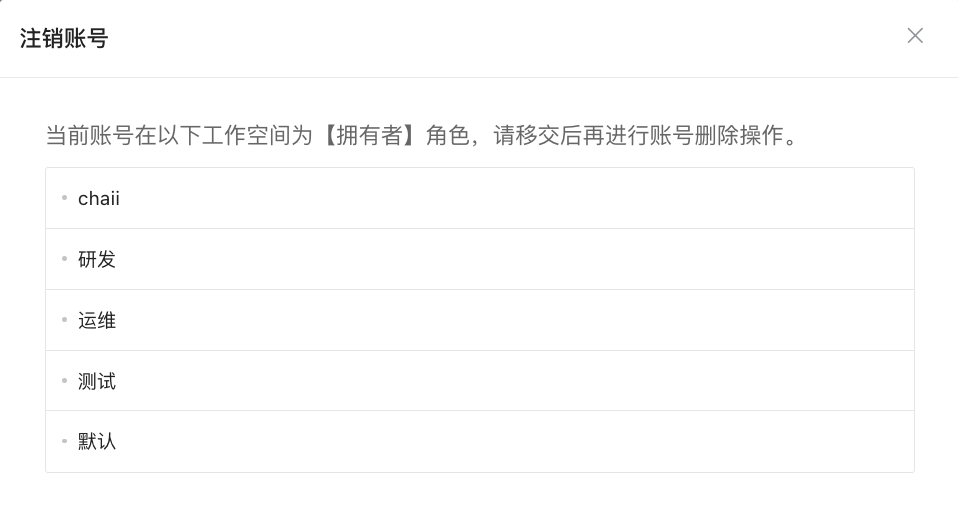

After the account is canceled:
-
Commercial Plan: After account cancellation, the canceled email can be re-registered. The new registration will be a brand new account, and historical data will not be associated.
-
Deployment Plan: You can create a new account via Admin Console > Add User.