Service Map
On the Service Map page, you can visually view the call relationships between services through the topology diagram.
Space Scope
After entering the Service Map page, service data of the current workspace is queried by default. Querying service details and metrics from other workspaces requires corresponding data authorization. If a service node from an unauthorized space appears in the topology, you cannot continue to view the restricted details and associated data of that service.
If the current workspace has been authorized to access data from other spaces, you can use the space scope selector at the top of the page to switch the viewing dimension:
- Current Space: Displays only the Service Map of the current workspace (default option);
- All Spaces: Displays the Service Map of the current space and all accessible spaces;
- Authorized Spaces: Select one or more specified authorized workspaces to view the Service Map of the corresponding spaces.
Search, filtering, service count statistics, node colors, and topology metrics on the page are all calculated in real time based on the currently selected space scope. If the current workspace has no cross-space authorization, no other space options will be shown on the page.
A single query can only include workspaces on the same site. Services with the same name from different spaces are distinguished by their respective sources; when clicking a node, viewing upstream/downstream services, or viewing associated data, the source space of the selected node is used, rather than the currently logged-in space or the first selected space. For general conditions, see APM and RUM Cross-Space Queries on the Same Site.
Note
Service Map data is delayed by 5 minutes by default. You can adjust this via the max_delay parameter within a range of 1 to 5 minutes (minute granularity) (❗️Deployment Plan users only), allowing you to set it flexibly based on your business real-time requirements.
-
SaaS Commercial Plan: The data visibility scope is configured through cross-space authorization. Only workspace owners, administrators, or roles with cross-space authorization management permissions can configure this. Once authorization takes effect, the authorized space can view the corresponding data in ServiceMap; after authorization is revoked, the corresponding workspace will immediately no longer be able to view the ServiceMap data of the source space;
-
Deployment Plan: The data visibility scope is configured at the site dimension.
Single Service
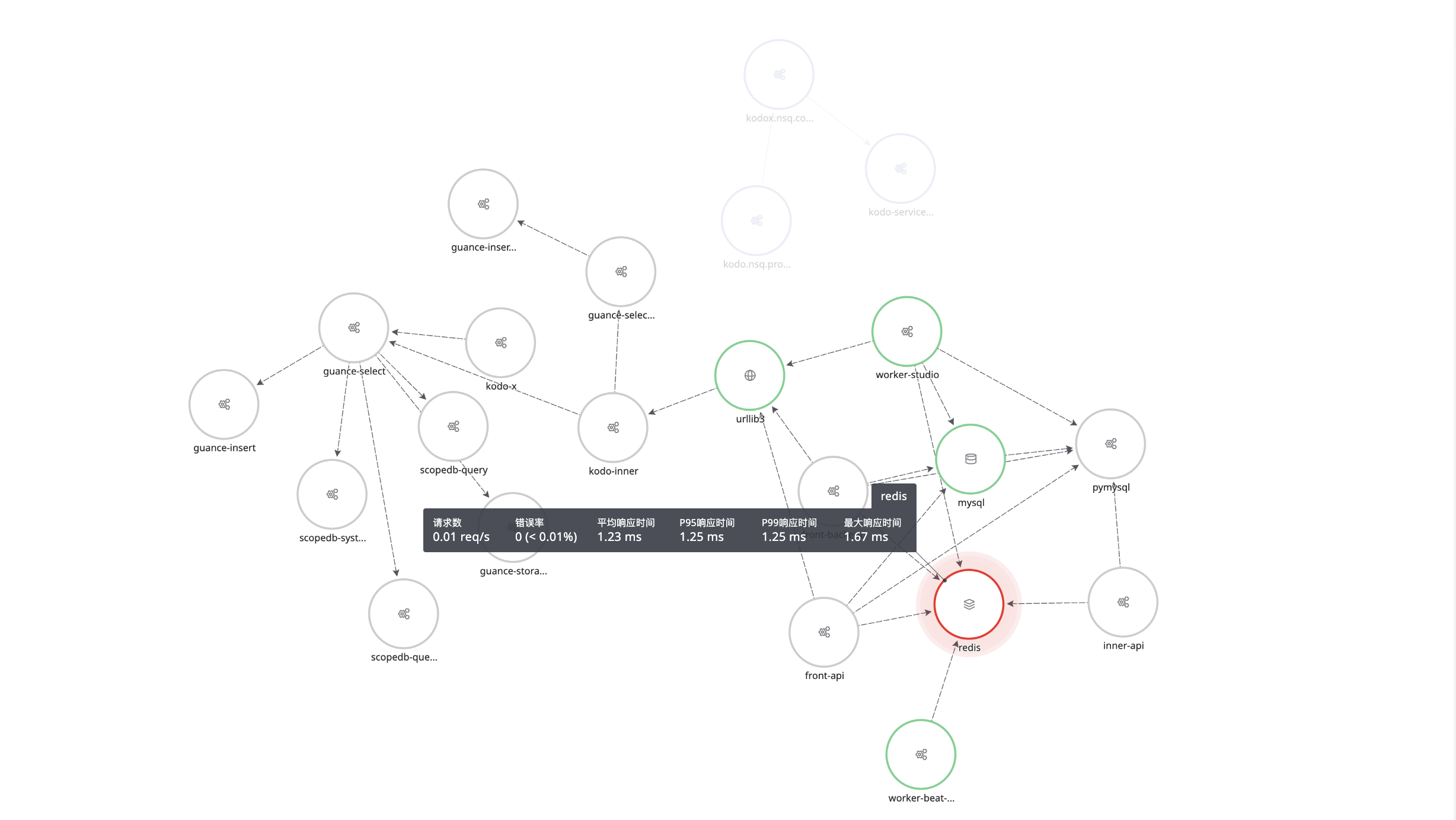
When you hover over a single service node, the corresponding service and its associated nodes are highlighted, while unrelated services and connection lines turn gray. The hover metric card displays data such as the request count, error rate, average response time, P99/P95 response time, and maximum response time of the service.
View Service Details
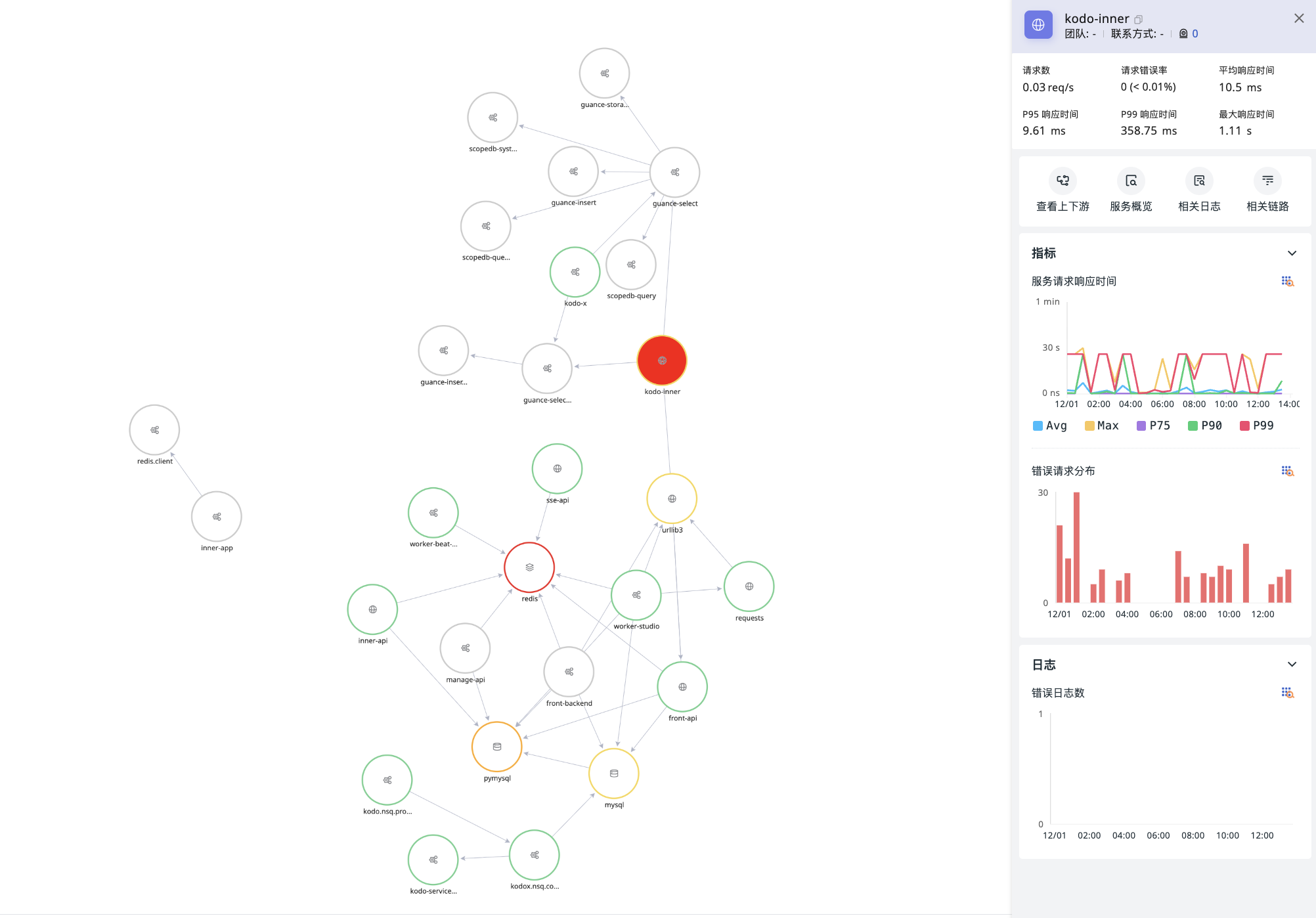
On the default page, in addition to visually displaying the call relationships between services within the currently selected space scope, you can click a service node for which you have corresponding data access permissions, and a side panel slides out to display its details.
| Authorization Status of the Service's Source Space | Drill-down Behavior |
|---|---|
| Authorized to the current space | Details are queried based on the space to which the service belongs; when switching drill-down dimensions, the source space of the service is retained. |
| Not authorized to the current space | The current space selection is retained and restricted charts are not displayed; related actions such as viewing upstream/downstream services are grayed out, with a hover tooltip indicating that the source space has not yet been authorized. |
Service details mainly include the following elements:
- Service name, etc., and the corresponding team, contact information, alert count, etc.;
- Basic metrics of the current service: request count, error rate, average response time, P99/P95 response time, and maximum response time;
- Click to view the upstream/downstream services, service overview, and associated logs and traces of the current service;
- Anomaly trend charts for metrics (service request response time, error request distribution) and logs (error log count).
After opening the details from the Session Replay page and continuing to the associated Profile details, you can use the back entry on the details page to return to the previous level and continue viewing associated data.
Manage Topology
-
Zoom in, zoom out, or fully display the current Service Map;
-
Select different performance metrics to match service node colors, including request count, P50/P75/P95/P99 response time, maximum response time, and error rate;
-
Custom Colors: Set the color range for service nodes for the selected "fill metric".
-
Custom Intervals: Customize the color range for service nodes based on the selected fill metric. The system automatically divides the value range into 5 numerical intervals based on the maximum and minimum values of the selected metric in the topology, with each interval corresponding to a color;
- Node Size: There are 3 node sizes in total. The maximum (Max) and minimum (Min) of service requests per second are divided into three equal parts, and the resulting three intervals correspond to 3 node sizes.
Note
When the requests per second is less than 0.01, the displayed value will be uniformly marked as < 0.01. Note, however, that node size calculation is still based on the actual value.
-
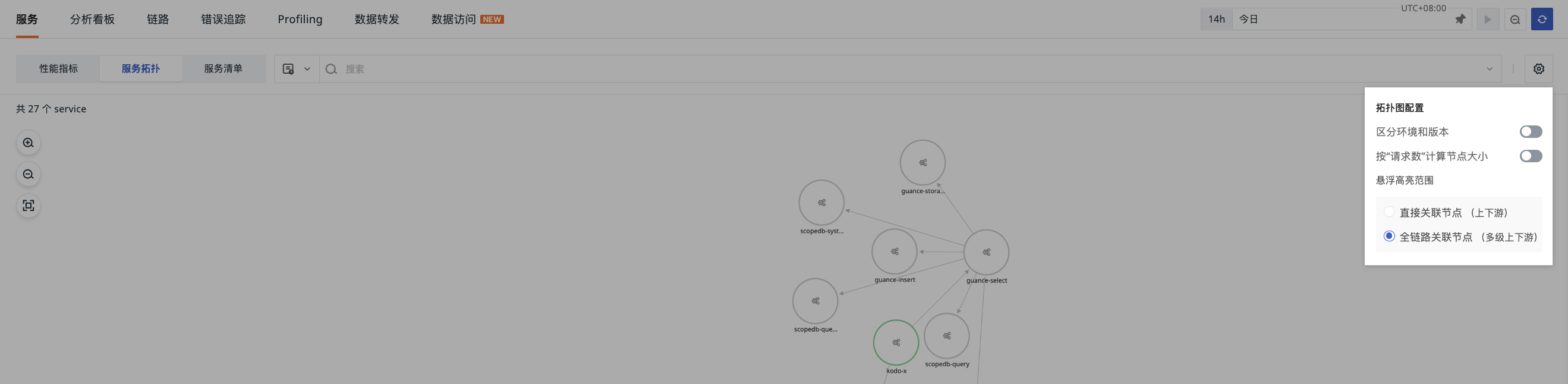
Topology Configuration:
- Distinguish Environment and Version: Draw the trace topology based on two dimensions: service (
service) and service environment version (service+env+version). When enabled, the system draws the Service Map according to different environment versions; - Service Grouping: Supports grouping topology nodes by Kubernetes cluster, environment, or service tags. Different groups are displayed in separate areas, and cross-group calls are still represented by connection lines.
In the Service Map > Full Path view of Service Details, you can also use the grouping feature to view call relationships.
- Distinguish Same-Named Services by Project: When enabled, the system splits services with the same name based on the
projectattribute. Data with the same service name but differentprojectvalues is displayed as different nodes; data withoutprojectis grouped under "Unset Project". - Whether to calculate node size based on request count;
- Select the hover highlight scope: directly associated nodes (upstream/downstream) / full-chain associated nodes (multi-level upstream/downstream);
- Show Only Services Matching Filter Conditions: When enabled, the Service Map filters service nodes based on the current filter conditions, retaining only service nodes that match the conditions and hiding those that do not.
- Distinguish Environment and Version: Draw the trace topology based on two dimensions: service (
Cross-Space Query
Cross-space drill-down uses the source space of the selected service; when returning to the list, the original query scope is retained. For data authorization configuration, see Cross-Workspace Authorization.
Prerequisite
All Commercial Plan workspaces belong to the same organization ID, that is, they share the same organization.
If the same Trace data is split, the data will belong to different workspaces, making it impossible to view the complete trace data in a single workspace. Cross-workspace Service Map queries ensure data query continuity: you can click the button directly in the current workspace to view the upstream/downstream call topology of the current service.
Data Source Definition and DQL Query
For more details, refer to Service Map Data Source Definition.