DingTalk Robot
To adapt to the latest DingTalk robot mode, you need to first create an enterprise internal application robot on the DingTalk developer platform.
For more details, see Creation and Installation of Enterprise Internal Application Robots.
Differences Between Old and New DingTalk Robots
- DingTalk platform: The robot creation method changed from directly creating robots from Group Management to creating applications on the developer platform;
- Guance: The secret for the latest DingTalk robot is optional.
Create an Enterprise Internal Application Robot
First, apply for developer permissions on the DingTalk developer platform from your organization.
Create an Application
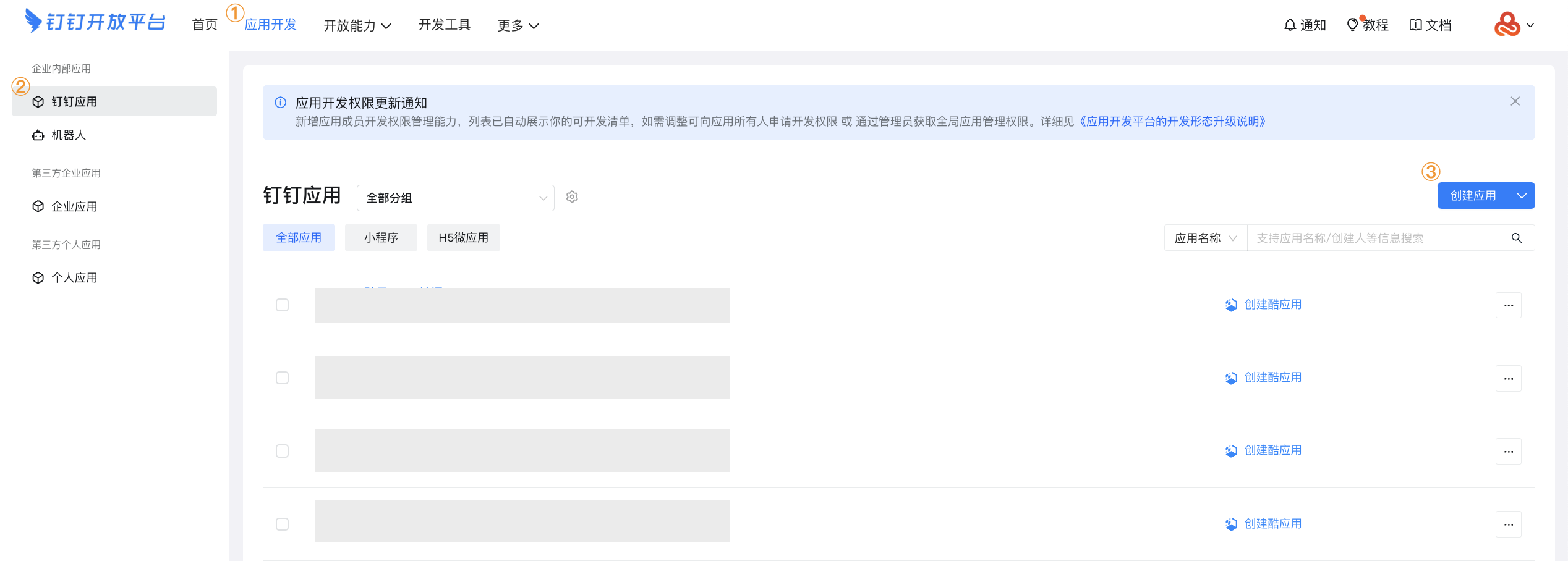
- Select Application Development > DingTalk Application > Create Application, then click Create Application;
- After the application is created, click Application Details on the right, go to the robot configuration page, and fill in the relevant configuration;
- In the target group, click Add Robot, and select the newly created application robot from the enterprise robot list;
- Obtain the robot Webhook address: find the newly created application robot under Robot Management, click View Details, and copy the Webhook address.

Note
The robot here is used only to receive messages; there is no interaction. The message receiving mode can be configured arbitrarily, and the address can be left empty in HTTP mode.
Return to the DingTalk Robot Configuration Page
-
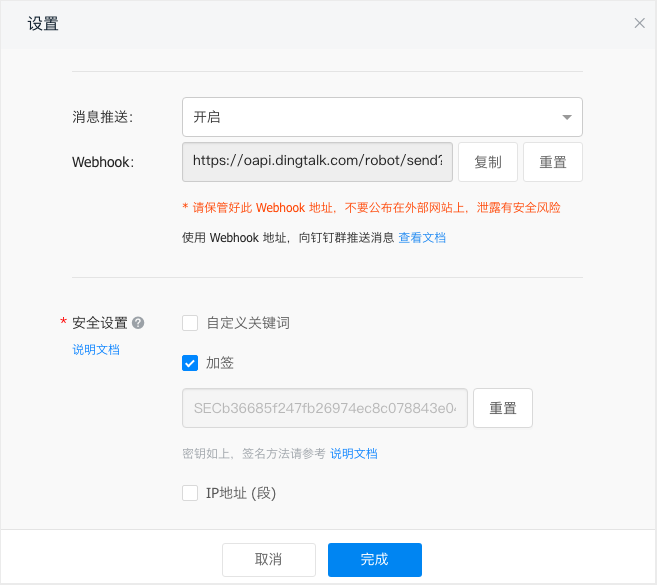
After the robot is successfully added to the DingTalk group, you can find the robot's Signing secret and Webhook address in the robot configuration details.
-
Enter the configuration information, including the custom notification target name, secret, and Webhook address.
Configure in Guance
- Return to the page for configuring the DingTalk robot as a notification target;
- Define a name for the current notification target to identify it in the notification target list;
- Fill in the secret and Webhook address obtained in the previous steps;
- Test whether the notification is sent as needed (❗️A test message will be sent to the group/channel corresponding to this Webhook. Go to the corresponding notification target to check whether the test message was successfully sent);
- Configure operation permissions;
- Confirm.