Monitor List
The Monitor List clearly displays all configured monitors and provides key information such as alert strategies, creator, and updater. It supports efficient management of monitors through search, filtering, import, and other functions. Furthermore, you can directly navigate to view the abnormal event records and operation logs triggered by monitors, ensuring transparency and traceability of monitor status and behavior.
Single Rule
For a single monitor rule, you can perform the following operations:
-
Enable/Disable: You can enable or disable a monitor. Newly created monitors are enabled by default and can be re-enabled after being disabled.
-
Clone Monitor: You can directly clone a selected monitor.
-
Edit Monitor: You can edit the monitor status and rule configuration.
-
Manual Trigger Detection: Supports manually triggering monitor detection. Silent rules take effect, and events are generated and alerts are sent after triggering.
-
Operation Audit: You can view operation records related to the monitor.
-
View Related Events: You can view unrecovered events triggered by this monitor and proceed to Event Management.
-
View Related Views: Can be associated with dashboards, supported for configuration during editing.
-
Delete Monitor: You can delete a monitor. Data cannot be recovered after deletion, but event data is retained.
Batch Operations
You can perform batch operations on monitors, including enabling, disabling, deleting, and exporting.
Additionally, you can directly configure alert strategies for monitors here, applying them to the selected monitors. New alert strategy configurations will overwrite the existing alert settings of the monitors.
Tag Display
The system supports adding tags to monitors. You can select existing tags or directly input them manually, pressing Enter to create a new tag. Events triggered by monitor detection will also carry these tags.
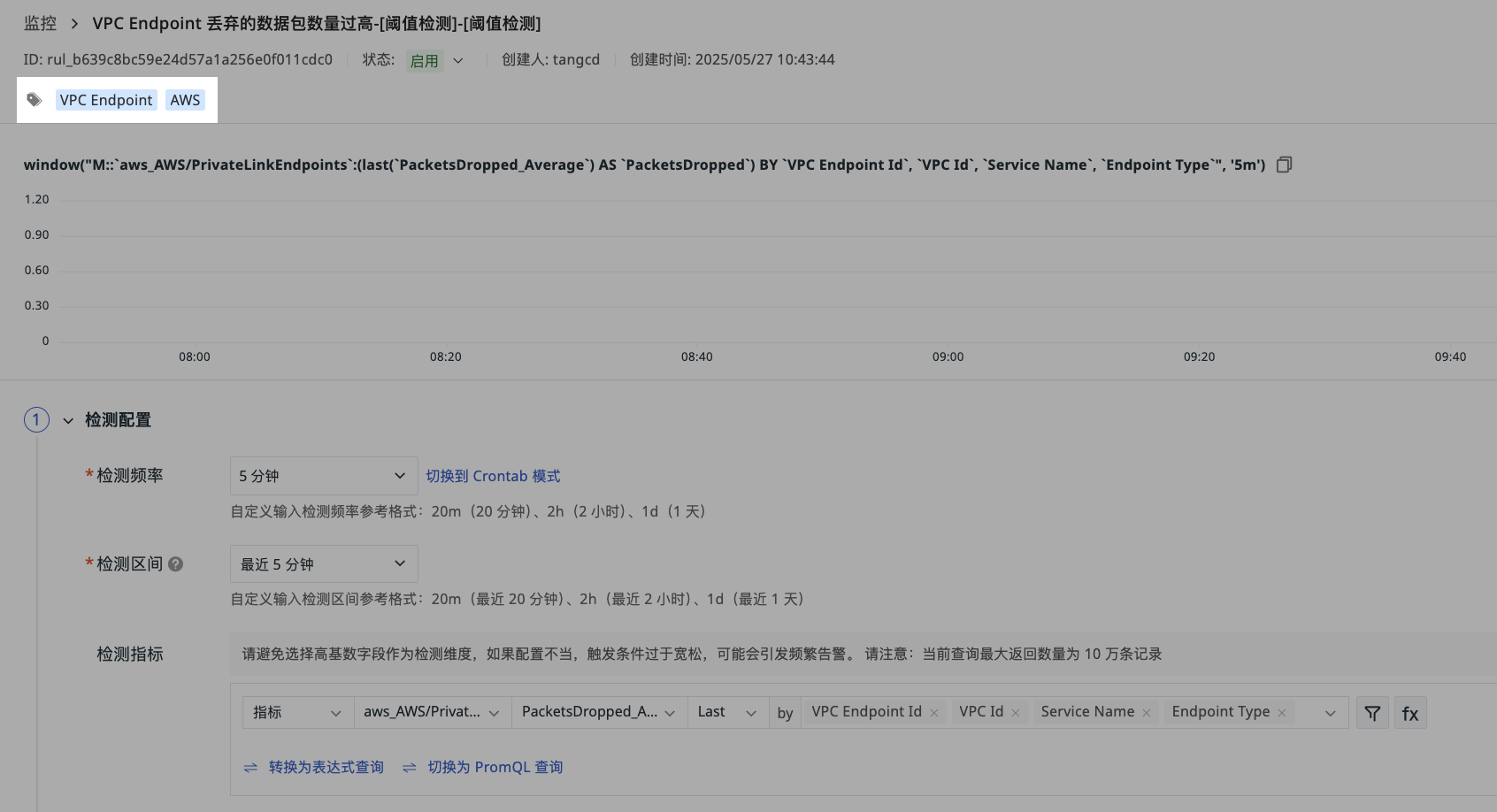
Added tags will be displayed directly in the list after saving. You can quickly find monitors under specific tags using the left-side Quick Filter > Tags.
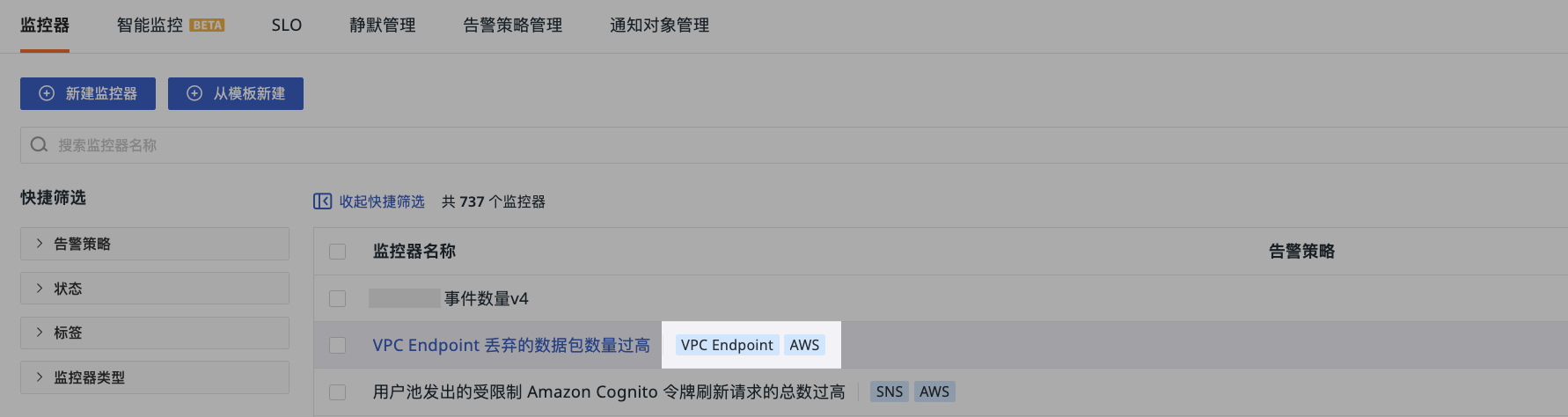
Tag Logic Supplement
- The tag value format is unrestricted. It can be
value(e.g.,host) orkey:value(e.g.,host:123). - If a custom tag
keyduplicates other event attributes (excepttags), the custom tag will be discarded. For example, if a monitor is grouped byhost, generating an event attributehost:001, a custom taghost:000added at this time will be discarded and not written into the event attributes.
Deauthorization Display
If the current workspace has its data authorization revoked, monitors that query using the corresponding data will be automatically disabled. A ! symbol will appear after the monitor name in the current monitor explorer, indicating that the current cross-workspace data authorization is invalid and requires checking for any adjustments to the relevant authorization.
SLO Linkage
Monitors added to SLOs as SLIs will display a special identifier:
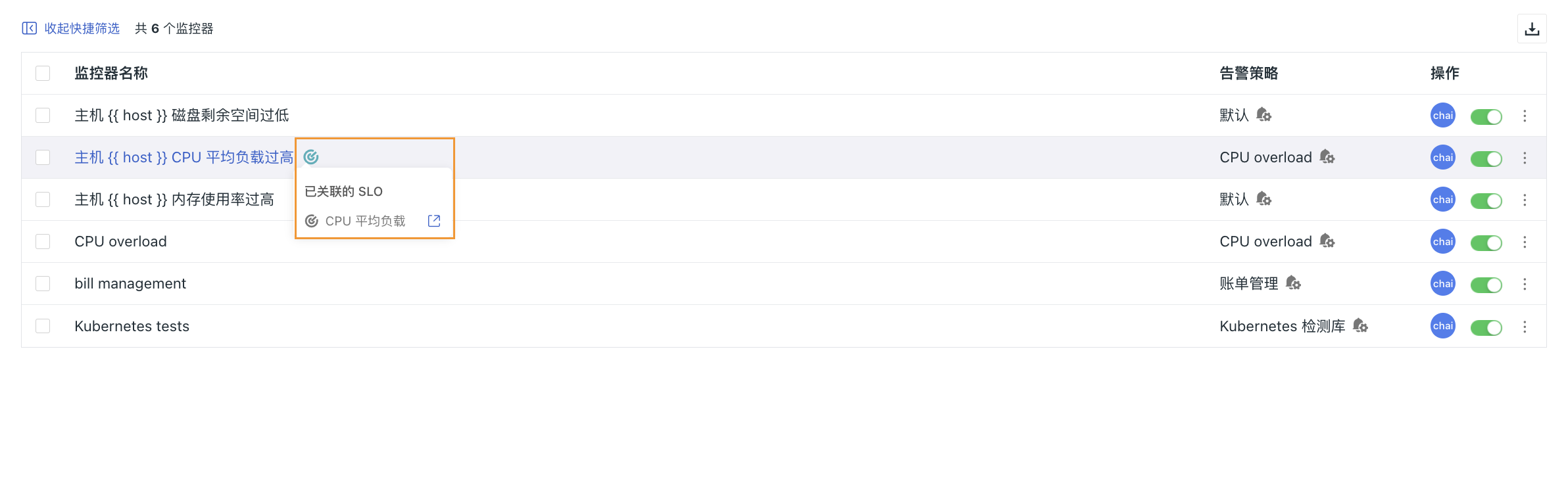
Hover to view the associated SLO list. Click to open the SLO details page.
Alert Strategies
The Alert Strategies feature supports creating meaningful monitor combinations when setting up monitors. By filtering corresponding monitors through alert strategies, management is facilitated.
Note
- When configuring alert strategies, a 2-minute waiting period is set for abnormal event detection of monitors to avoid data impact due to network or storage delays.
- Each monitor must select an alert strategy upon creation, which is system-defined as "Default".
- When an alert strategy is deleted, monitors under it will be automatically categorized under "Default".
For more details, refer to How to Create and Manage Alert Strategies.
Multiple Rules
For list-level operations on multiple monitor rules, you can perform the following operations.
Filter and Search
In the left-side Quick Filter, you can quickly locate target monitors based on alert strategy, status, tags, and monitor type.
You can also directly search by monitor name, monitor ID, or alert strategy name in the search box.
Import
The imported JSON file must originate from a monitor configuration file exported by the system. Supports automatic categorization into original groups after import. If "Delete and import monitors with the same name" is checked, the system will first delete existing monitors with the same name and then perform the import operation.
During the import process:
- If monitors with the same name are encountered, you can choose to delete the existing monitors with the same name.
- If some monitors involve cross-workspace monitoring and the current workspace does not have authorization for the target workspace, these monitors will fail to import.
Export All
Click to export all monitor rule configurations within the current workspace.