Search
The Explorer search bar supports token search, phrase search, field filtering, JSON search, and function queries. You can also switch to DQL mode and write complete query statements.
Choose a Search Method
| Query Need | Method | Example |
|---|---|---|
| Search text content | Text Search | connection timeout |
| Search for an exact phrase | Phrase Search | #"connection timeout" |
| Filter by field and value | Field Filtering | service:api |
| Search JSON nested fields | JSON Search | @meta.service:api |
| Search MD5-masked data | MD5 Function Query | color:md5(red) |
| Search IP CIDR ranges | CIDR Function Query | CIDR(@client_ip, 10.0.0.0/8) |
| Run complex queries or calculations | DQL Query | L::logs:(*) {...} |
Search and Filter
When you enter plain text, the system performs a token search; when you add # before quotes, it performs a phrase search; when you use field_name:field_value, it performs field filtering. For example, error timeout is a token search, #"error timeout" is an exact phrase search, and service:api filters by the service field.
Combining Searches
The Log Explorer suggests common combination operators such as AND and OR in the search bar dropdown.
AND: both conditions must be satisfied;OR: either condition can be satisfied;- Combination operators must be uppercase;
- Lowercase
andandorare treated as normal text in searches.
For example:
service:api AND status:error
source:nginx OR source:apache
(service:api OR service:web) AND status:error
Text Search
Text search in the Explorer uses the search() query syntax. The system tokenizes the input and retrieves data that contains all tokens.
- Chinese is tokenized by character;
- English is tokenized by word boundaries such as spaces and punctuation;
- English search is case-insensitive;
- Tokens do not need to appear consecutively.
Token Search
After you enter text, the system tokenizes it automatically. As long as the data contains all tokens, it can be retrieved even if other content appears between the tokens.
Chinese example:
Input: I like apples

Possible matches:
- I like apples
- I really like eating apples
- Apples are the fruit I like
All of the above results contain all valid tokens of the search input, and these tokens are not required to appear consecutively.
English example:
Input: connection timeout

Possible matches:
- connection timeout
- Connection retry timeout
- connection request failed due to timeout
All of the above results contain both connection and timeout. The tokens do not need to appear consecutively, and the search is case-insensitive.
Phrase Search
To search for a complete, consecutive phrase, add # before the quotes. English half-width double quotes are recommended:
#"I like apples": matches "I like apples, and I also like bananas", but does not match "I really like eating apples";#"connection timeout": matches "connection timeout occurred", but does not match "connection retry timeout".
The Explorer supports the following phrase forms:
| Form | Description | Converted DQL Condition |
|---|---|---|
#"connection timeout" |
Recommended form | search('#"connection timeout"') |
#'connection timeout' |
Single-quote compatible form | search('#"connection timeout"') |
#“connection timeout” |
Chinese-quote compatible form | search('#"connection timeout"') |
# is the phrase search operator and is not part of the search content. Using quotes without # does not enable phrase search. Quotes must appear in pairs, and the phrase cannot be empty. Unclosed expressions such as #"connection timeout, #'connection timeout, and empty phrases such as #"" and #'' are not executed as valid queries.
Phrase search can be used together with field filters and combination operators:
Here, -#"health check" excludes data containing this exact phrase, corresponding to the DQL condition not search('#"health check"'). When switching from Standard mode to DQL mode, compatible forms are uniformly converted to the #"..." phrase form in DQL. Switching back to Standard mode does not accumulate backslash escape characters.
Stop Words
Some frequently occurring words that carry little search value are excluded from full-text indexing. If search results do not match your expectations, see the Full-Text Index Stop Word List.
JSON Search
Prerequisites
- The workspace was created after
June 23, 2022; - Used in the Log Explorer.
JSON search is used to query JSON nested fields inside log fields. The queried log field must contain valid JSON content.
The query format is log_field_name@JSON_field_path:field_value. When querying the message field, you can omit message and use the shorthand @JSON_field_path:field_value. When querying other log fields, you must explicitly specify the log field name.
To query nested fields, use . to connect field names at each level.
Using @meta.service:api as an example:
| Part | Meaning |
|---|---|
@ |
JSON field prefix, recognized by the Explorer as an operator |
meta.service |
Nested field path in message |
: |
Separator between field and value |
api |
Field value to match |
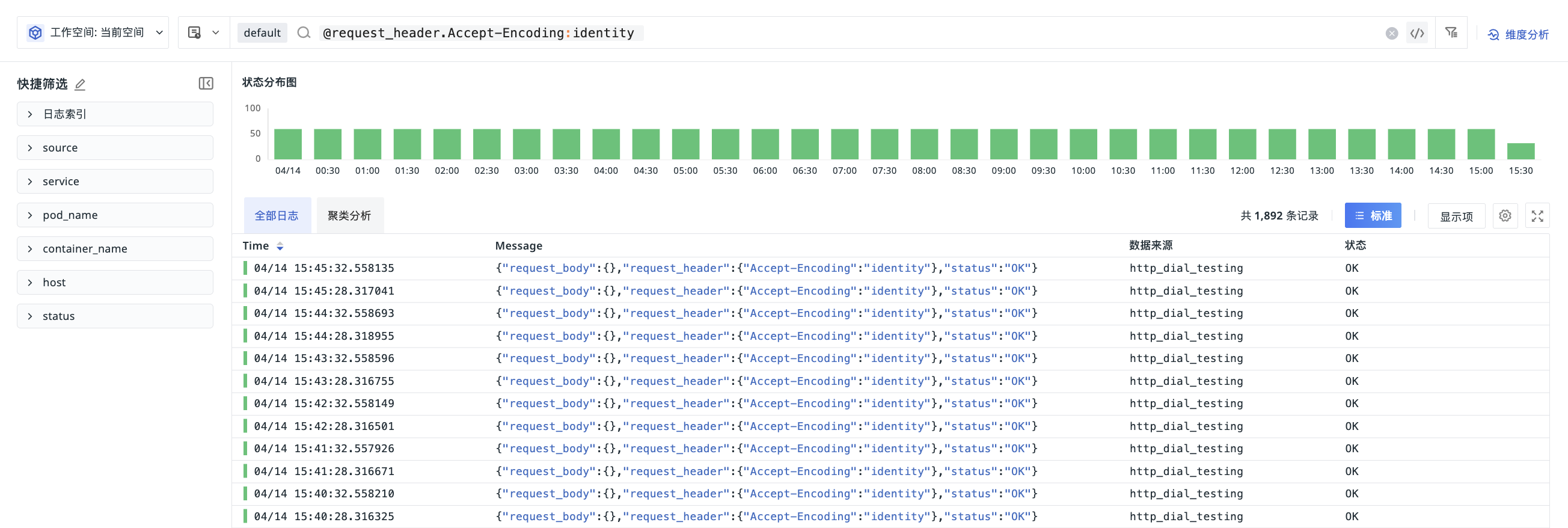
For example, if message contains the following:
{
  "__namespace": "tracing",
  "cluster_name_k8s": "k8s-demo",
  "meta": {
    "service": "ruoyi-mysql-k8s",
    "name": "mysql.query"
  }
}
You can use the following conditions:
@cluster_name_k8s:k8s-demo       # Exact match
@cluster_name_k8s:k?s*           # Wildcard match
@meta.service:ruoyi-mysql-k8s    # Query nested fields
@meta.service:ruoyi?mysql*       # Nested field wildcard match
Here, * matches zero or more characters, and ? matches exactly one character. These wildcards apply only to field filters, not to regular text search.
The examples above query the message field by default. If the same JSON content is stored in the payload field, use forms such as payload@cluster_name_k8s:k8s-demo and payload@meta.service:ruoyi-mysql-k8s.
Field Names Containing .
In JSON search, . represents nested field levels by default. If a field name itself contains ., you need to escape it with a backslash \.
| Scenario | Correct Syntax | Description |
|---|---|---|
Query nested field log.tag |
@log.tag:error |
. represents field level |
Query field name user.id |
@user\.id:1001 |
\ escapes . as part of the field name |
Wrapping field names in double quotes is not supported, for example @"user.id":1001.
MD5 Function Query
If a sensitive data scanning rule applies MD5 processing to sensitive content, the original values are replaced with irreversible 32-character hexadecimal hash values. To locate masked data using the original value, use the MD5 function query in the Explorer.
The function form is recommended:
For example, if the original value red in the color field has been converted to an MD5 hash, enter:
The system converts it to the following DQL condition:
The Explorer recognizes md5 and parentheses as function syntax. For compatibility with existing queries, the legacy form color:md5|red remains available and produces the same DQL condition. Function arguments cannot be empty. MD5 is case-sensitive and space-sensitive, so make sure the input is exactly the same as the original value before encryption.
MD5 is a one-way hash algorithm, so the original content cannot be recovered from hash values. For more information, see Sensitive Data Scanning.
DQL Query
When you need functions, expressions, aggregations, or complex filter conditions, click the DQL button on the right side of the search bar to enter DQL Query mode.
Search conditions in Standard mode are converted to DQL when you switch modes. For example:
| Standard Mode | DQL Condition |
|---|---|
#"connection timeout" |
search('#"connection timeout"') |
-#"health check" |
not search('#"health check"') |
color:md5(red) |
`color` = md5("red") |
The system automatically brings in the corresponding data type and data source based on the current Explorer. For example, the following DQL query retrieves logs whose message contains connection timeout within the last hour:
Lindicates log data;"default"indicates the log index;logsindicates the data source;[1h]indicates querying data from the last hour.
Once you enter DQL mode, complete DQL statements are required. Different Explorers correspond to different data types, and you cannot switch to a different data type in the current Explorer.
Log Explorer Analysis Mode
In the Log Explorer, when advanced queries are combined with the analysis configuration on the page, if the query contains a BY grouping condition, the page ignores the BY clause and uses the analysis dimension configured on the page to avoid duplicate or conflicting grouping conditions.
CIDR Function Query
The CIDR function is used to query data in a specified IP field that belongs to a network range. It performs CIDR range matching rather than string matching.
A CIDR block consists of a network address and a prefix length, for example 13.0.0.0/8. The larger the prefix length, the smaller the address range matched. In IPv4, /32 matches only a single IP address.
Query format:
For example, to query data in the network.client.ip field that falls within the 13.0.0.0/8 range:
Possible matches:
- 13.0.0.1
- 13.100.20.5
- 13.255.255.255

Will not match:
- 12.255.255.255
- 14.0.0.1
To match a single IPv4 address exactly, use /32:
If the field value is empty, malformed, or not a valid IP address, it will not be matched.
In DQL mode, you can use the lowercase cidr() function and wrap the CIDR block in double quotes:
Search History
The Log Explorer maintains index selection history separately from search and filter condition history. It is opened through the history icon on the right side of the log index search box.
The current user can view recently used search and filter conditions in the local browser, with up to 100 entries retained. Click a history entry to reuse it in the current Explorer.
Search History Merge Records
As a general-purpose tool within the platform, the Explorer applies to multiple features. Search history interoperability across different features has some differences:
- Search histories in the six RUM Explorers (Session/View/Resource/Action/Long Task/Error) are shared;
- Search histories in the Containers Explorer and the Kubernetes Explorer are shared;
- Search histories in Resource Catalog Explorers are shared;
- Search histories in the Log Explorer and the Log Error Tracking Explorer are shared;
- Search histories in the Trace Explorer, APM Error Tracking, and Profiling Explorer are shared.
Except for the cases above, other Explorers save their own search histories independently.