Member Management
You can centrally manage all members in the current workspace through "Member Management", including setting role permissions, inviting members and setting permissions for them, configuring teams, setting up SSO single sign-on, etc.
Only the workspace Owner, Administrator, and custom roles authorized with the Member Management permission can uniformly manage members. For more information on roles, refer to Role Management.
Member List Operations
Search Members
Quickly locate members, supporting the following two methods:
- Search: Enter a member's email, name, nickname, or login type for precise lookup.
- Quick Filter: Quickly filter by member's role, team, and login type.
Display Column Settings
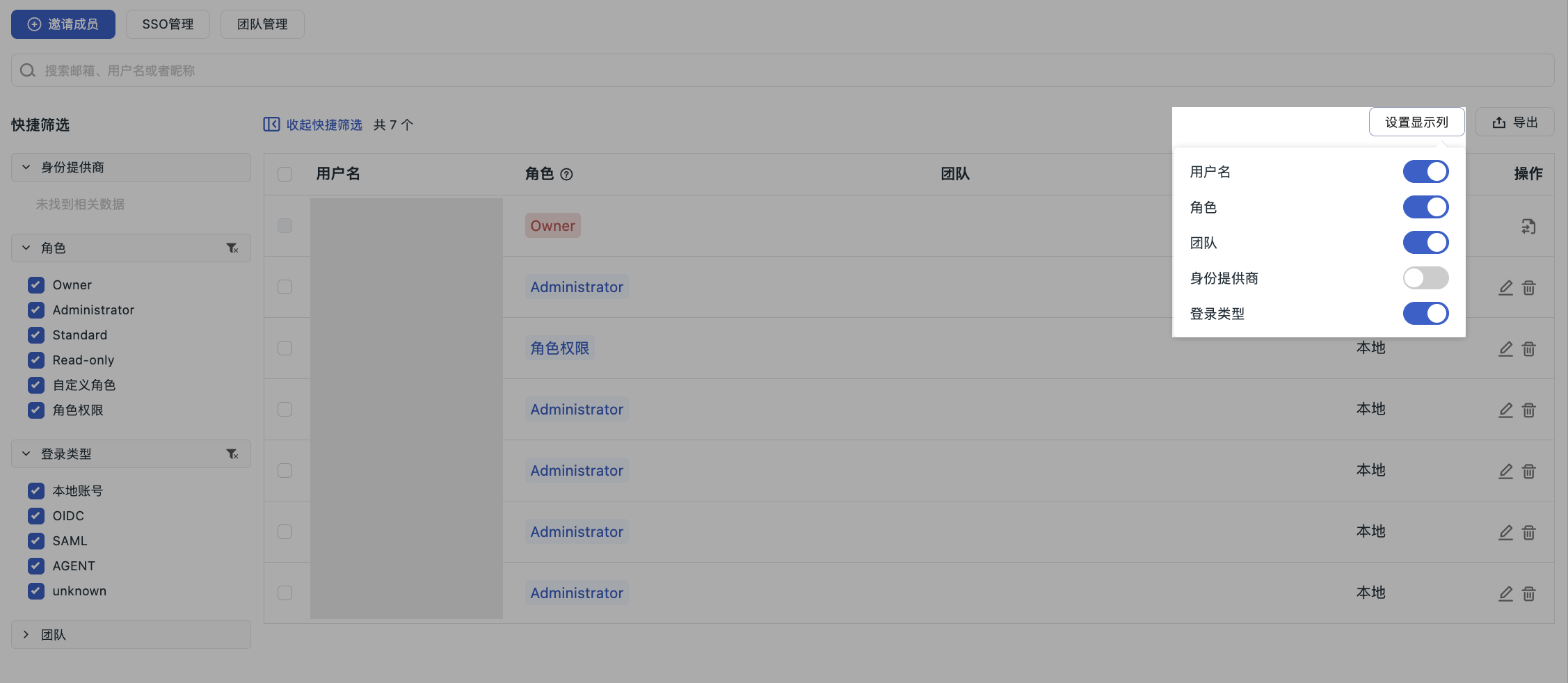
Click the "Settings" button above the member management list to customize the table display columns. You can freely toggle the display of the following:
- Role
- Team
- Identity Provider
- Account Type
- Personal API Key
The setting results will be synchronized and applied to the member export file.
Batch Operations
- Batch Modify Permissions: Adjust permissions for multiple members uniformly.
- Batch Delete: Remove multiple members at once.
Note
Only Owner and Administrator can perform batch operations.
Delete Member
Select the member you want to delete and click the delete button on the right.
Note
Only Owner and Administrator can delete members. A member with the Owner role must first be downgraded to Administrator before they can be deleted.
Edit Member
Select the target member and click the edit button on the right to perform the following operations:
- Set Nickname: Add a personalized nickname for the member.
- Configure Role and Team: Adjust the member's personal role and team as needed.
- Set a note for the member. (❗️ Only Owner can use this feature)
Invite Members
You can invite registered users of Guance to become new members within the workspace.
Currently, members can be invited from two entry points. For more information, refer to Invitation Entry Points and Invitation Records.
Export Members
After selecting the members you want to export, click the "Export" button to export the selected members' information as a CSV file. This file contains detailed information such as the member's username, email, nickname, login type, role, team, identity provider, and notes.
Member Details
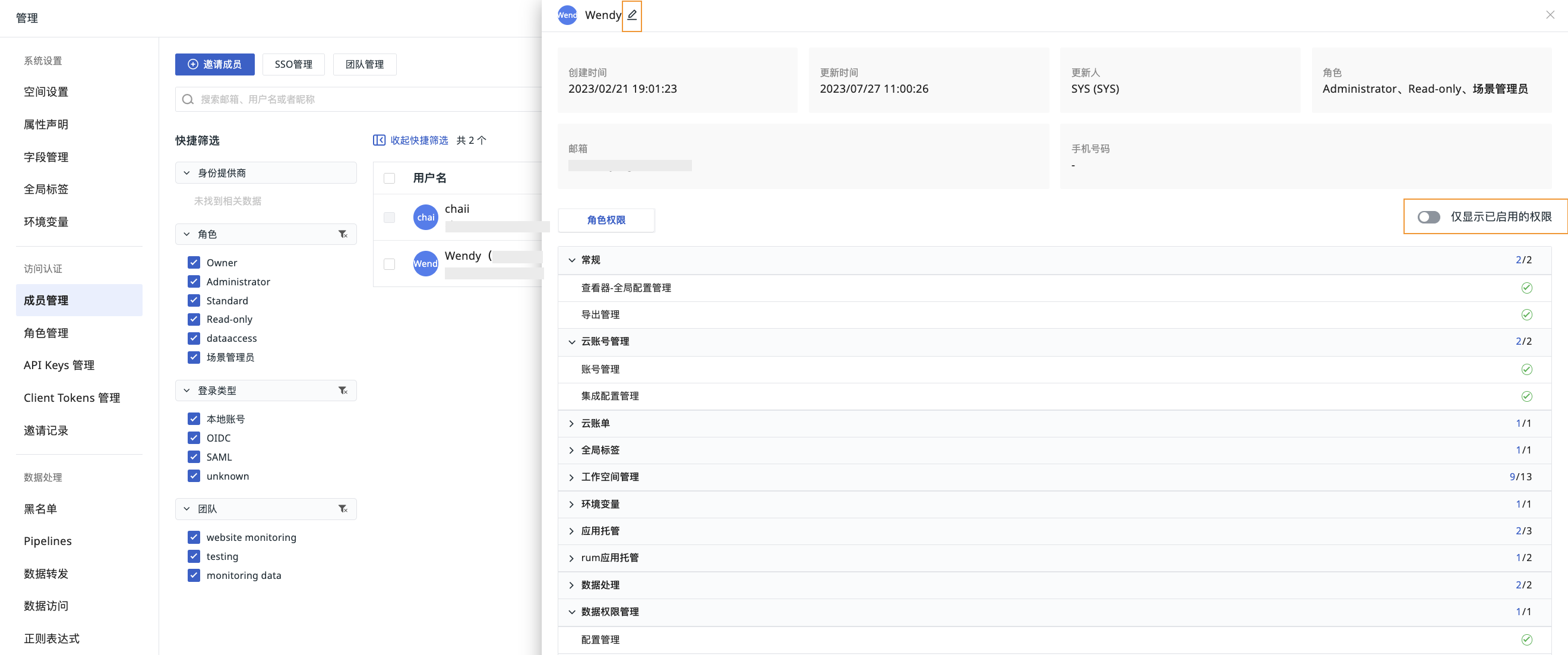
After a member is invited to the workspace, in Member Management, click on any member to slide out and view the member's information, including the member's name, creation/update time, email, role, and role permissions.
- Click the Edit button on the right side of the member to change role permissions and team.
- You can choose whether to enable "Show only enabled permissions".
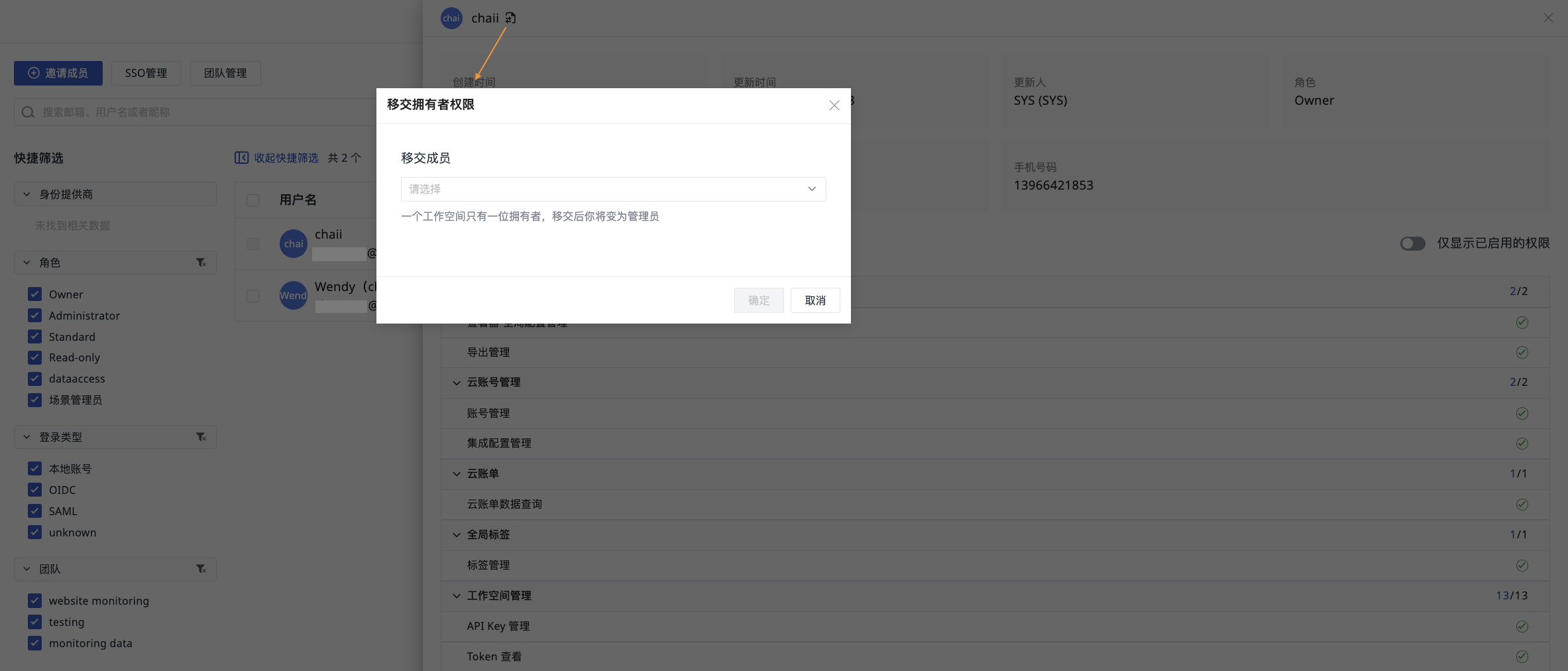
- If the member is the current workspace owner, you can directly click the button on the details page to configure permission changes.
SSO Management
In addition to Inviting Members, Guance supports enterprises managing employee information in their local IDP (Identity Provider). By configuring SSO single sign-on to access Guance, there is no need for user synchronization between Guance and the enterprise IDP. Enterprise employees can log in and access with designated roles.
In Member Management, click to enter SSO Management. You can refer to the document SSO Management for more information.
Team Management
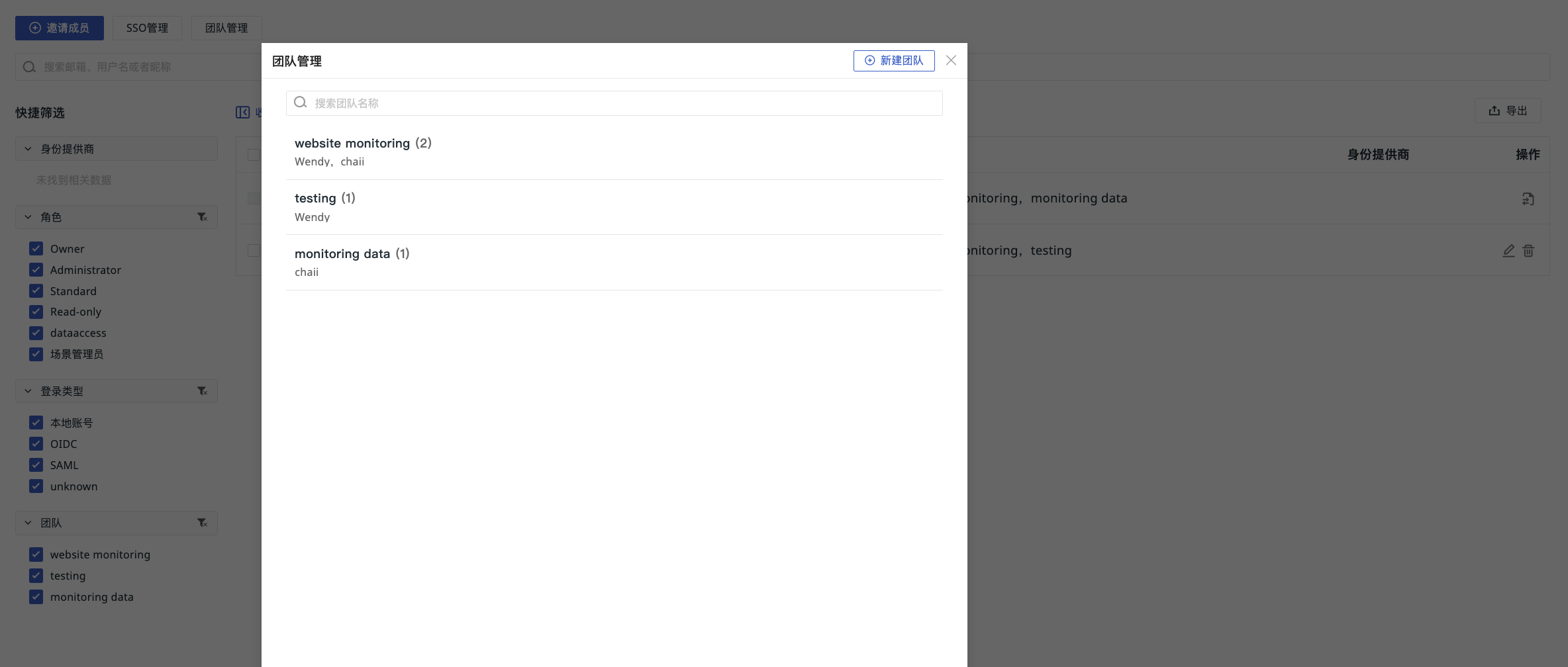
In Member Management, click Team Management to enter the team editing page.
Use Cases
If an enterprise needs to set different alert strategies for different teams so that relevant teams can receive and resolve fault issues promptly, they can set up teams and associate team members, then set the notification target in the alert strategy to that team.
For more information on setting alert strategies, refer to Alert Strategies.
Create/Edit Team
- Go to Team Management > Create Team.
- Customize the team name (duplicate names are not allowed).
- Select the team role.
- In the left-hand list of members to be added, all members not in this team are displayed. You can click the search box to search for members to add.
- Select the member.
- Confirm.
After the team is created, the team role will be automatically applied as an additional role to the team members. The member's final permissions include both their personal role and the team role. (❗️ The administrator role cannot be selected.)
Delete Team
- Click the delete button.
- A secondary confirmation pop-up window appears.
- Confirm.
After deleting the team role, the associated members will also lose that team role.