Forward Data to Volcengine TOS
- Complete the rule name and filter condition settings.
- Continue configuring the backup.
Configure
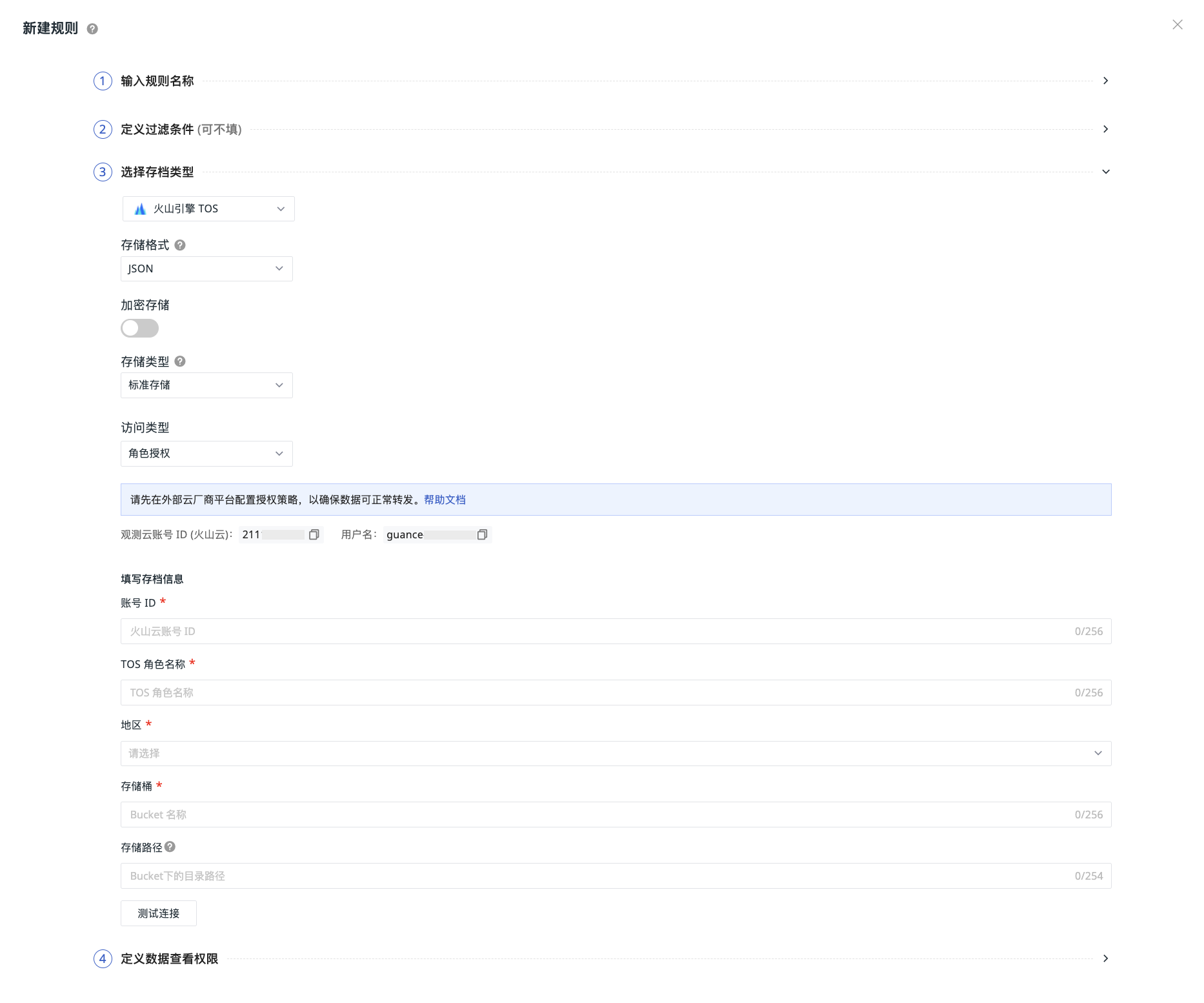
- Select Volcengine TOS as the backup type, which means saving matched data to this object storage.
- Choose the storage format.
- Choose whether to encrypt storage.
- Select the storage type.
- Select the access type.
- Click OK to successfully create the rule.
Note
If the backup type information changes, ensure that the configurations on the associated platform are updated accordingly to avoid data write failures due to configuration changes. The new configuration rule will take effect within 5 minutes.
Storage Type
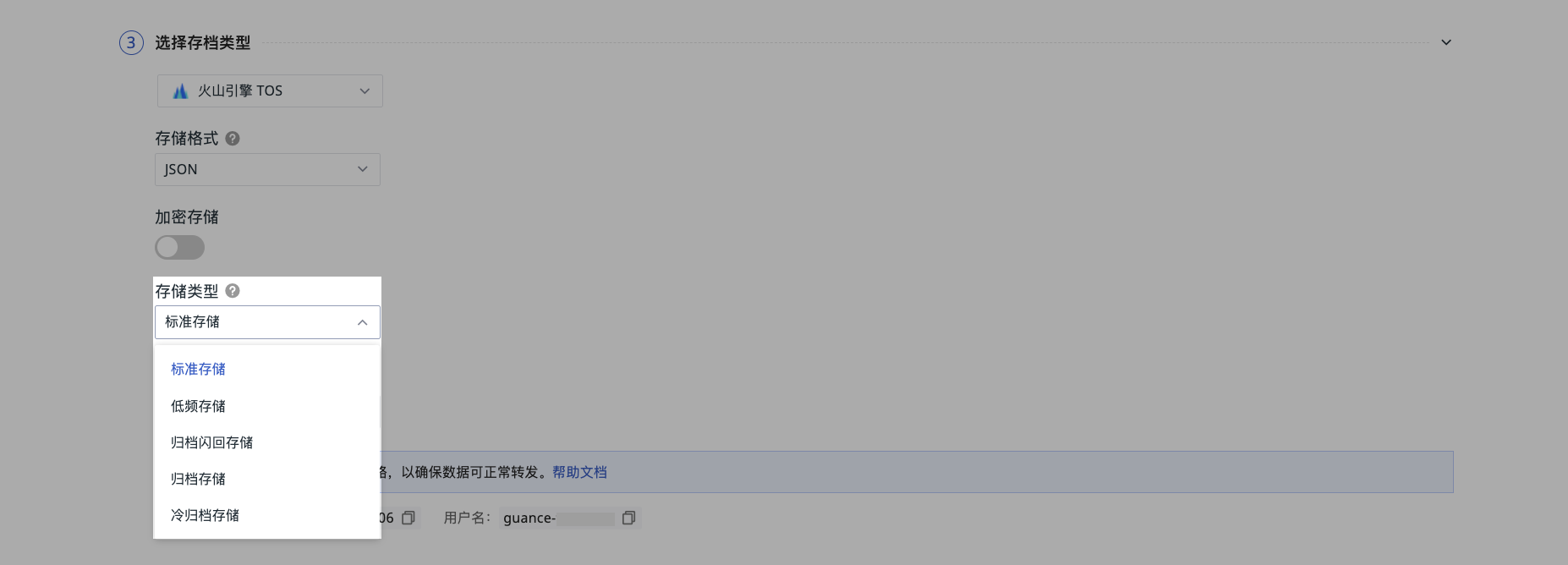
Storage Type |
Use Cases |
|---|---|
| Standard Storage | High availability, high reliability, high-performance storage type, suitable for frequently accessed data. |
| Infrequent Access Storage | Suitable for infrequently accessed data, minimum storage period of 30 days. |
| Archive Flashback Storage | Suitable for data that is rarely accessed, minimum storage period of 90 days. Supports direct reading (flashback) and direct conversion to other storage types without additional restoration or thawing. |
| Archive Storage | Suitable for business scenarios where data is rarely accessed and needs long-term preservation, minimum storage period of 90 days. Data must be restored before accessing archive storage data. |
| Cold Archive Storage | A cold data type, suitable for scenarios where data is extremely rarely accessed and needs long-term preservation. Minimum storage period of 180 days. Data must be restored before accessing cold archive data. |
Access Type
Role Authorization
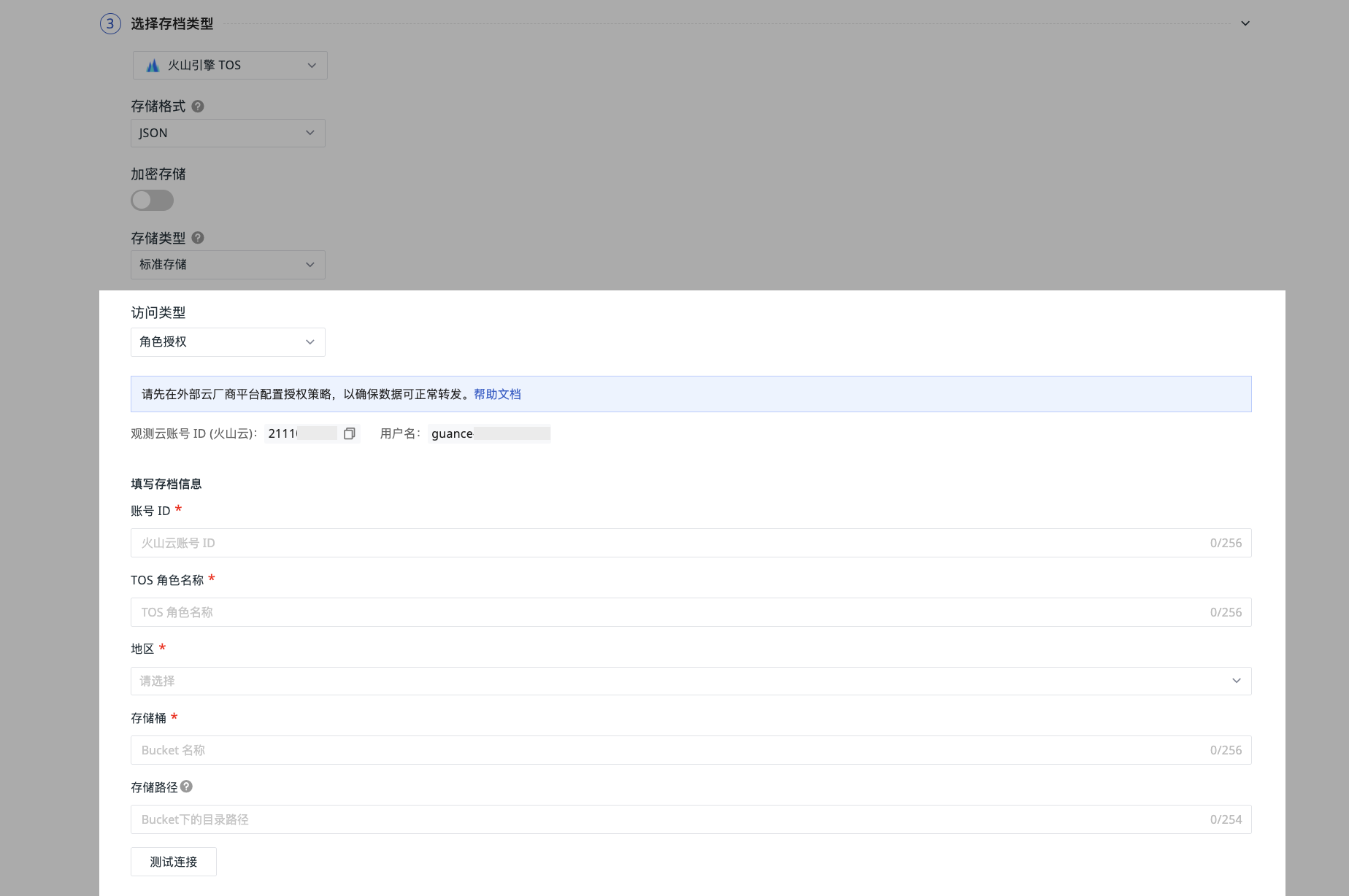
-
After configuring the authorization policy in the Volcengine Cloud console, fill in the backup information, including the Volcengine Cloud account ID, TOS role name, region, and bucket name.
-
Fill in the storage path to facilitate further differentiation and locating the specific destination of data forwarding.
-
Click "Test Connection". If the above information meets the specifications, a successful connection test message will be displayed. Click OK to save the current rule.
If the test fails:
You need to confirm:
- Whether the authorization was successful.
- Whether the account ID is correct.
- Whether the bucket exists.
- Whether the region is inconsistent.
Access Keys
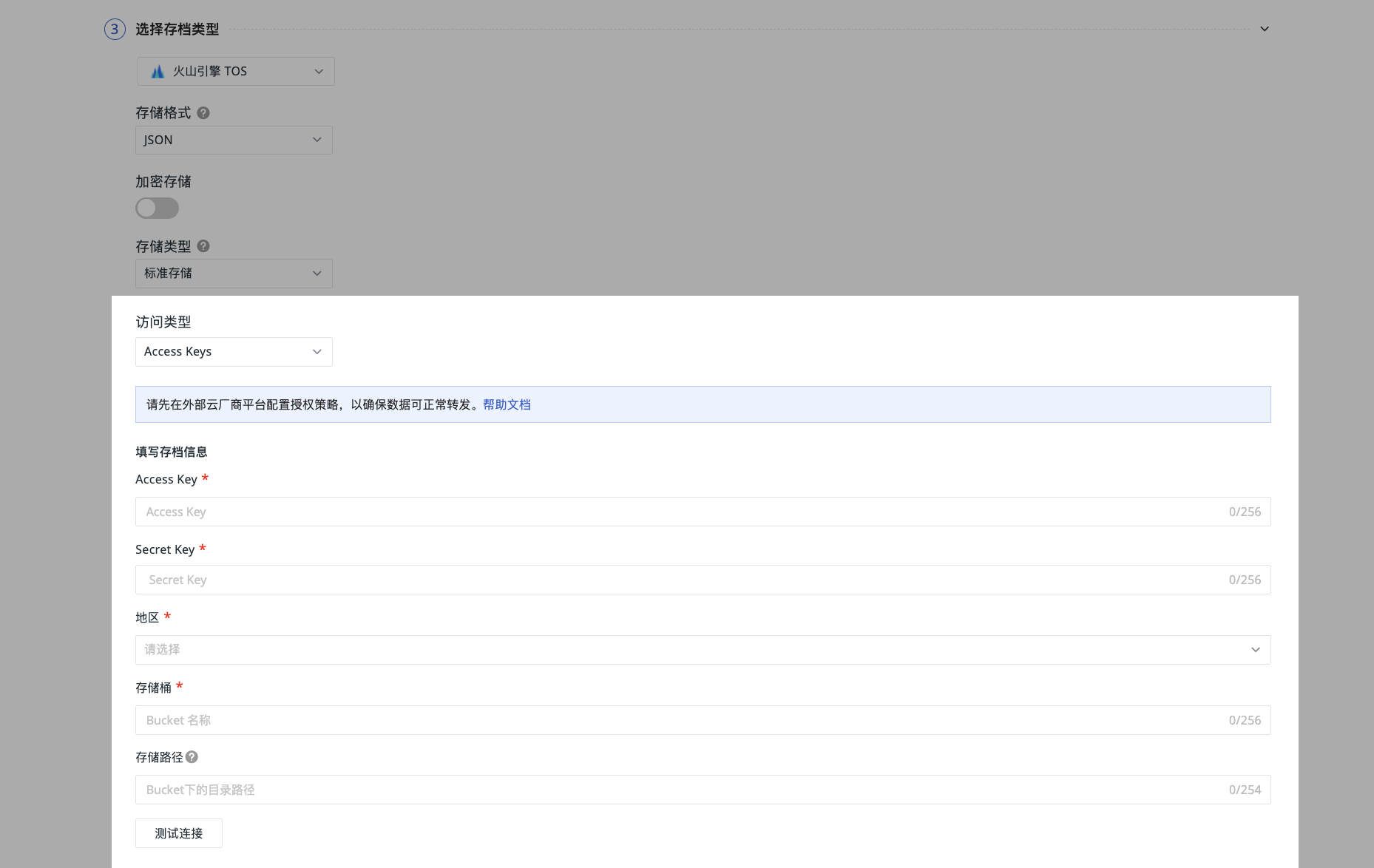
-
Configure the Guance RAM policy in Volcengine Cloud. After configuration, input the Volcengine Cloud AK & SK, region, and bucket name.
-
Fill in the storage path to facilitate further differentiation and locating the specific destination of data forwarding.
-
Click "Test Connection". If the above information meets the specifications, a successful connection test message will be displayed. Click OK to save the current rule.
If the test fails:
You need to confirm:
- Whether the AK / SK exists.
- Whether the bucket exists.
- Whether the region is inconsistent.
Account Authorization
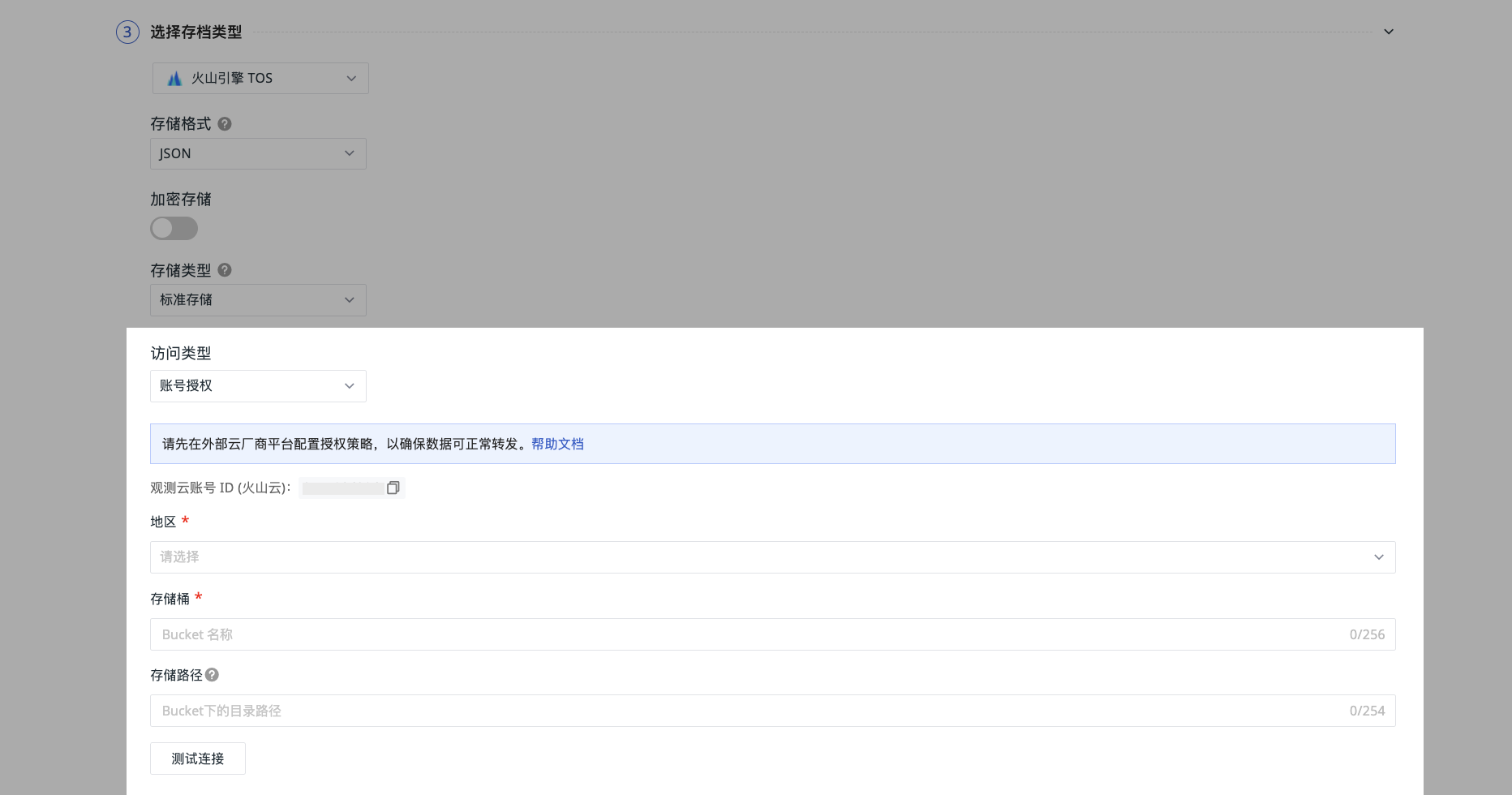
-
Volcengine Cloud provides cross-account authorization capability. You need to use the Guance dedicated account ID and add a cross-account access authorization policy according to the configuration instructions.
-
After configuration, select the region and input the bucket name.
-
Fill in the storage path to facilitate further differentiation and locating the specific destination of data forwarding.
-
Click "Test Connection". If the above information meets the specifications, a successful connection test message will be displayed. Click OK to save the current rule.
If the test fails:
You need to confirm:
- Whether the account ID is correct.
- Whether the bucket exists.
- Whether the region is inconsistent.
Data Waiting Time
Data is first written to a local temporary file. When the file size reaches 256 MB or the waiting time reaches the set value, the system automatically compresses and uploads it. You can adjust the waiting time according to actual needs, including 15 minutes, 30 minutes, and 1 hour:
- Shorter settings result in lower downstream data latency but generate more files.
- Longer settings result in fewer files but correspondingly increase downstream data latency.
Storage Path Naming Convention
- To create a single folder or multi-level folders, use a slash (/) to indicate creating multi-level folders.
- Folder names cannot start or end with a slash (/).
- Cannot contain more than two consecutive slashes (/).
- Applies to all access types.
Note
- If the filled folder does not exist, the system will create it directly, and data will still be saved to that path.
- Please change the storage path cautiously. Due to a configuration update delay of about 5 minutes, after a change, some data may still be forwarded to the original directory.
Next Steps
Continue configuring the data viewing permissions for the current forwarding rule.