Entity List
Enter Resource Catalog > Entity List to view and manage entity assets such as systems, services, hosts, and databases within the current workspace.
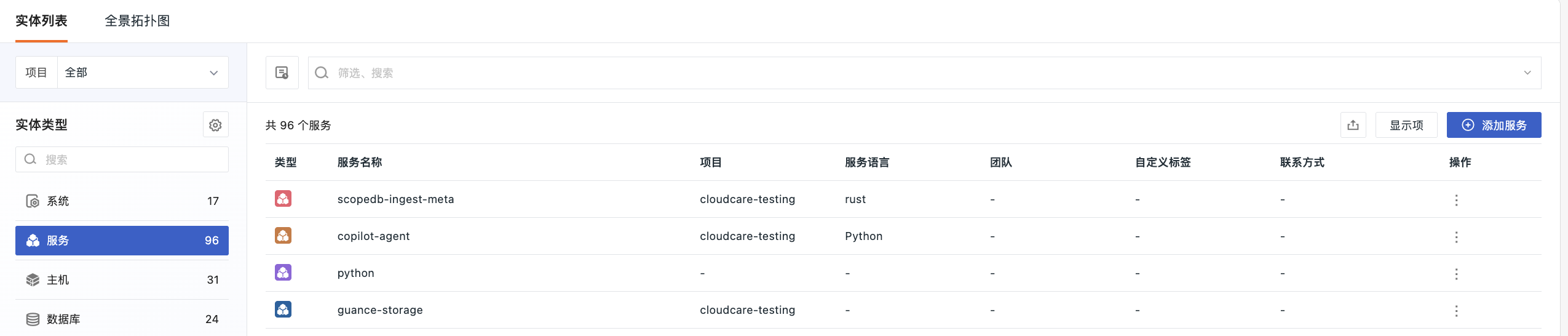
Find Entities
The page defaults to displaying entities under the "System" type. The left side shows the count statistics for each entity type; click a type name to switch views.
You can filter by specific projects using the "Project" dropdown in the upper left corner, or enter a keyword in the top search box to perform fuzzy matching on all string fields.
Service
Enter Resource Catalog > Entity List, select Service from the entity types on the left, to view and manage service assets within the current workspace.
The service list supports search, project filtering, custom display items, data export, as well as viewing, editing, and deleting services.
To manually add a service, click Create in the upper right corner and select Service as the entity type. For field descriptions, refer to Create Entity Object.
Shortcut
Click the Settings icon in the left sidebar to quickly access:
-
Create Entity Object: enter new asset information
-
Manage Entity Types: navigate to the entity type management page to view preset types.
List Options
View Mode
When System is selected as the type in the left sidebar, the list supports both list and card views. You can switch between them in the upper right corner.
List View
Suitable for high information density scenarios, allowing you to quickly view system summaries and drill down into constituent entities as needed.
The main list displays parent-level objects with system as the parent, defaulting to fields including type, system name, Health, entity count, system type, project, priority level, team, custom tags, and an action column. Supports sorting by Health in ascending or descending order.

Click the expand button before a system row to view its constituent entity sub-table, which includes fields such as entity name, entity type, alert count, project, team, tags, and last update time.

Card View
The card view is better suited for quickly browsing the overall status of multiple systems. Each card focuses on one system, intuitively presenting key summaries such as its health, total entity count, entity count with alerts, and last alert time, without expanding into the specific entity list, avoiding information overload.
- The left side of the card header shows the system icon and name, while the right side directly displays the health status and action entry.
- If a system has no alerts, the "Last Alert Time" displays as
-. - If the health cannot be calculated temporarily, it is marked as "Unknown".
Custom Display
The fields of the entity list are dynamically generated based on the YAML configuration for the selected type. Click the "Display Items" button in the upper right corner to toggle the following fields:
- System Type: classification identifier of the entity
- Project: name of the project it belongs to
- Environment: e.g., Production, Staging, Development
- Priority Level: e.g., critical, normal
- Team: name of the responsible team; click to jump to details
- Custom Tags: up to 2 displayed
Note
The display item configuration only applies to the current user and does not affect other members' views.
Export Data
Click the "Export" icon to export all entities (not limited by pagination) under the current filter conditions as a CSV file.
View Details
Click the entity name in the list to open the details page from the right side, displaying complete metadata, relationship topology, and associated observation data.
Quick Actions
Click the icon to:
- Edit: modify entity information
- Delete: after confirmation, delete the entity
More Reading
You may be interested in the following: