Configuring Email Service
Introduction
This article demonstrates how to configure the email alert service for Guance.
Prerequisites
- Guance is fully initialized
- Have the email service information:
hostportuseTLSuserpassworduseSSLusePlainAuth
Configuration Steps
Step 1: Test Email Service Information
Execute the following Python script in the middleware message-desk-worker pod. Modify the parameters host, port, sender, password, use_tls, recipient, useSSL, usePlainAuth to test whether the configuration is correct.
cat <<EOF> test-maile.py
from mailer import Mailer
from mailer import Message

host = 'smtp.example.com'
port = 587
sender = 'your_email@example.com'
password = 'your_email_password'
use_tls = True
recipient = 'recipient@example.com'
use_ssl = False
use_plain_auth = False

message = Message(From=sender, To=recipient)
message.Subject = 'Test email'
message.Body = 'This is a test email'

mailer = Mailer(host=host, port=587, use_tls=use_tls, usr=sender, pwd=password, use_plain_auth=use_plain_auth, use_ssl=use_ssl)

try:
    mailer.send(message)
    print('Email sent successfully.')
except Exception as e:
    print('Error:', e)
EOF
Run the Python script:
Check the execution result:

Step 2: Modify Service Configuration
Note
Modify the configuration based on your actual email service information.
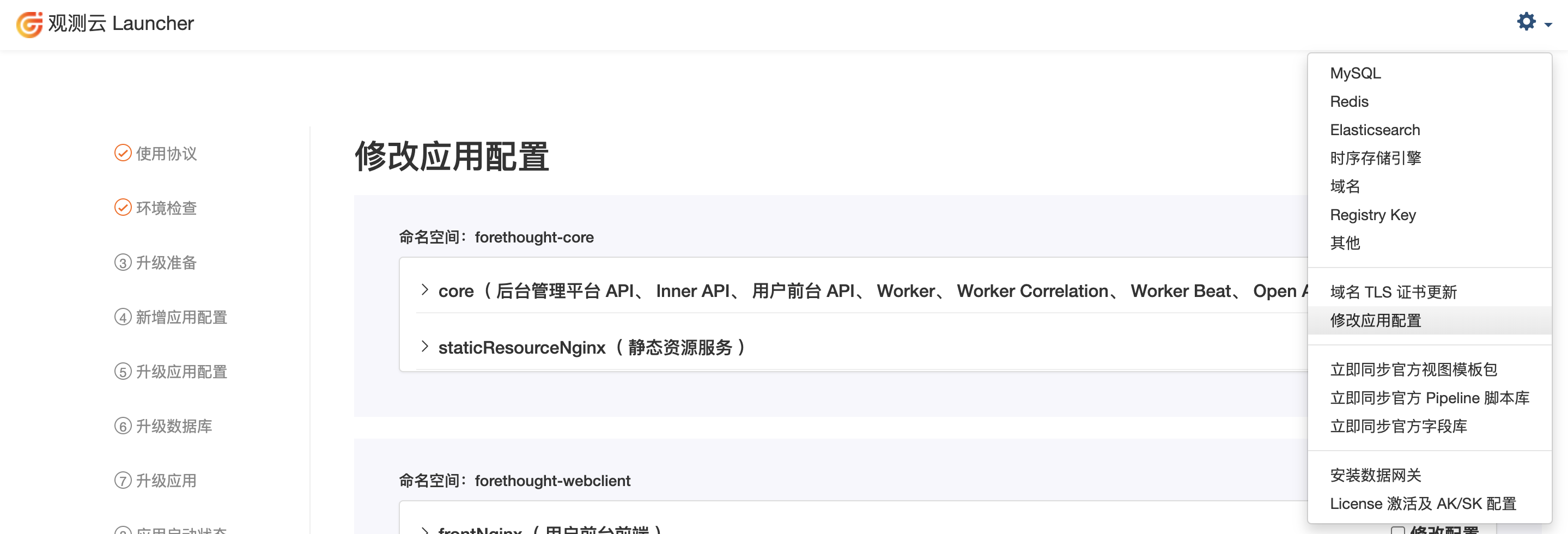
- Log in to Launcher, click the Configuration button in the upper right corner.
- Select Modify Service Configuration.
- Namespace:
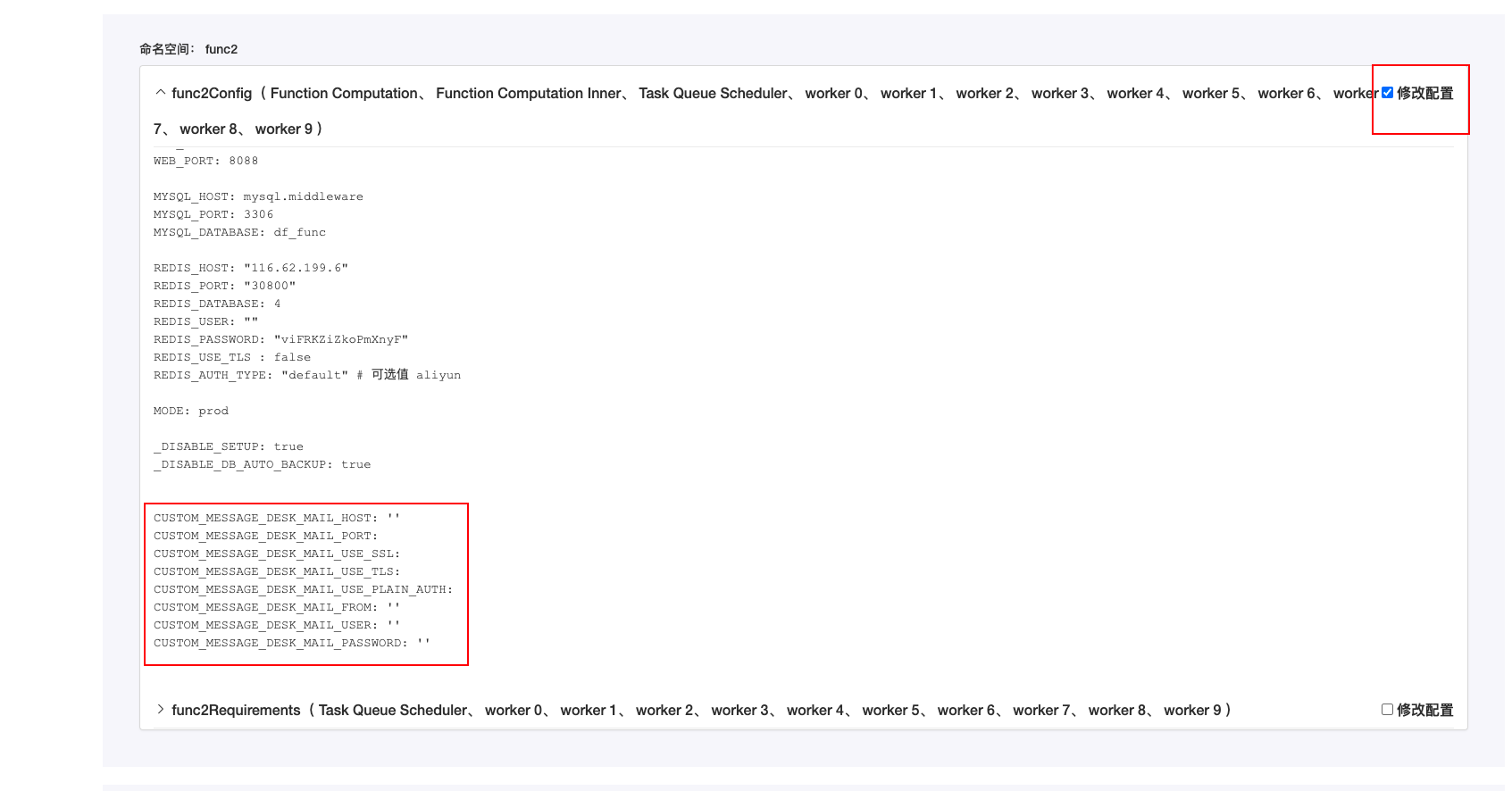
func2 - Modify the configuration of the following services:
- func2Config (Function Computation, Function Computation Inner, Task Queue Scheduler, worker 0, worker 1, worker 2, worker 3, worker 4, worker 5, worker 6, worker 7, worker 8, worker 9)
- Example configuration file:
# Email SMTP, fill in the following configuration values based on your email service information
CUSTOM_MESSAGE_DESK_MAIL_HOST: 'smtpdm.aliyun.com'
CUSTOM_MESSAGE_DESK_MAIL_PORT: 465
CUSTOM_MESSAGE_DESK_MAIL_USE_SSL: true
CUSTOM_MESSAGE_DESK_MAIL_USE_TLS: false
CUSTOM_MESSAGE_DESK_MAIL_USE_PLAIN_AUTH: true
CUSTOM_MESSAGE_DESK_MAIL_FROM: 'xxxxx <noreply@xxxxx.cn>'
CUSTOM_MESSAGE_DESK_MAIL_USER: 'xxxxx@xxxxx.cn'
CUSTOM_MESSAGE_DESK_MAIL_PASSWORD: 'xxxxx'
- Save the configuration and restart

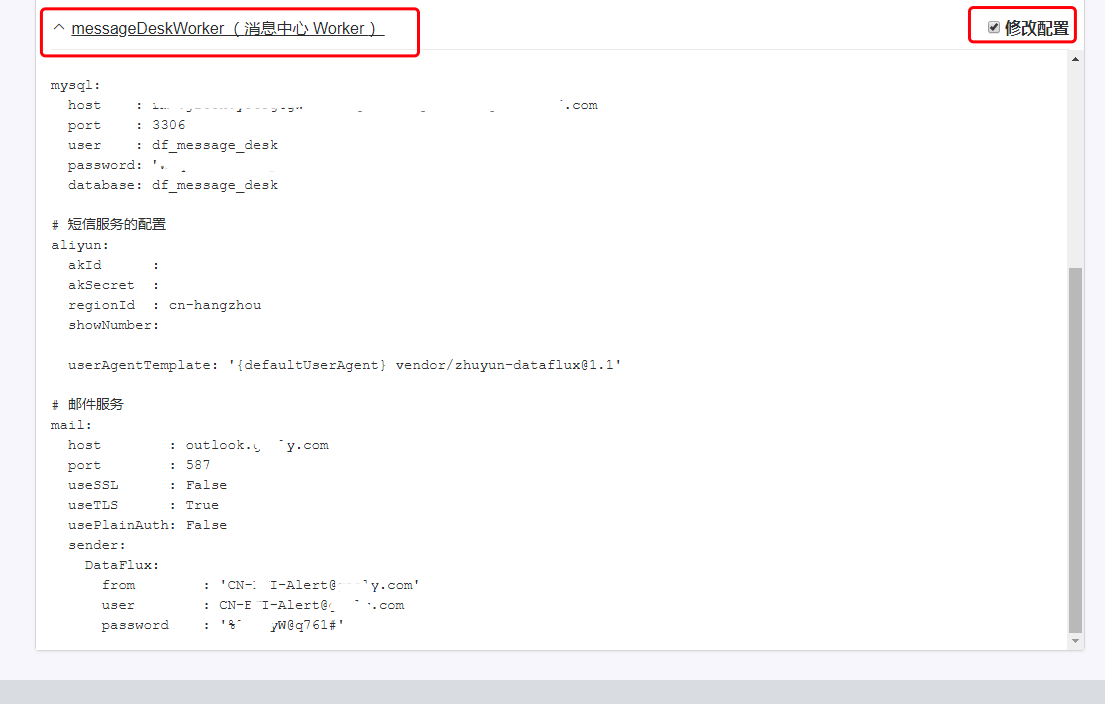
- Namespace:
middleware - Modify the configuration of the following services:
- messageDeskWorker (Message Center Worker)
- Modify the configuration
- Save the configuration and restart
Step 3: Testing and Troubleshooting
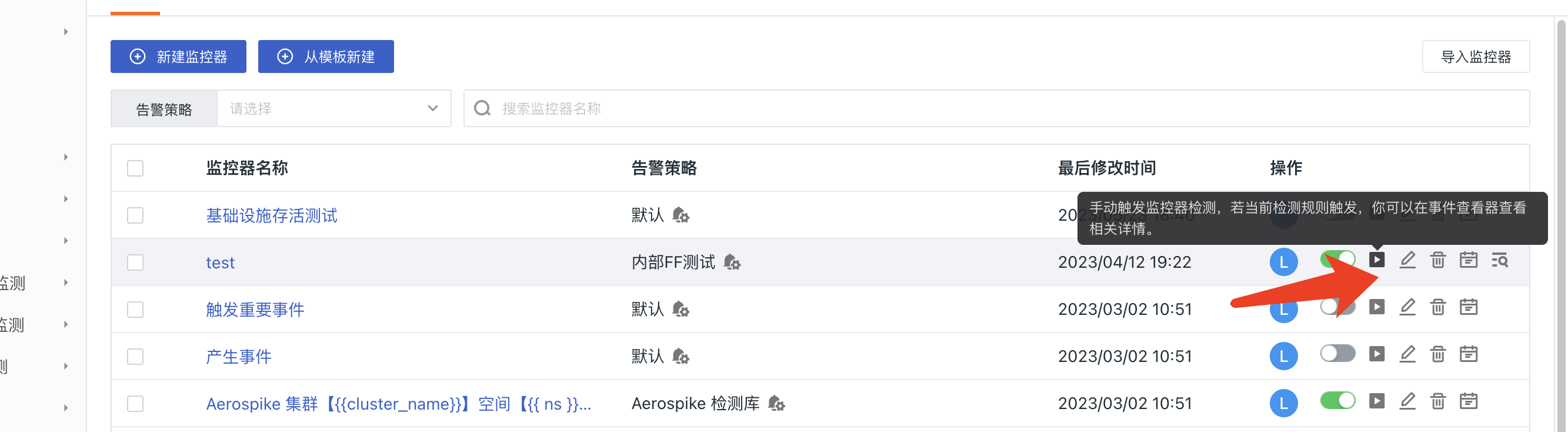
You can create an incorrect alert configuration to manually trigger an alert.
For troubleshooting, refer to Monitor Troubleshooting.