Data Access
Logs, RUM, APM, and metrics data may contain sensitive information, so for security reasons, even within the same business organization, fine-grained data access permissions are required.
The Data Access feature works in the following ways:
-
Based on indexes from different sources, sets data access scope at the member role level for visitors;
-
Uses tools such as regular expressions and desensitization fields to process data as necessary while restricting access, ensuring that sensitive information is properly protected without reducing data value.
On the Management > Data Access page, you can start creating a new rule in the following two ways:
Click the Create Rule button at the top left of the page to start creating;
If there are historical access rules on the current page, click the icon under the operations on the right side of the rule to clone an existing rule and create a new one.
Configure
- Select the data type;
- Define the name of the current rule;
- Enter a description of the current rule;
- Select the workspace site to which the current rule applies;
-
Based on the data type you selected, select the corresponding index, service, application, and metrics;
-
Define the data access scope under the current rule;
-
Add one or more fields that need to be desensitized;
-
Use regular expressions to desensitize sensitive information in the field content;
-
Select one or more member roles that the current access rule can apply to, including system default roles and custom roles;
- Save.
Configuration Notes
Data Access Scope Definition
Data scope: Members covered by the access rule can only view data that matches the filter conditions.
The logical relationship between different fields can be customized by selecting Any (OR) or All (AND):
-
All (AND) is selected by default and can be switched to Any (OR):
-
Examples of the logical relationship are as follows:
-
Example 1: (default AND)
- host=[host1,host2] AND service = [service1,service2].
-
Example 2: (switched to Any OR)
- host=[host1,host2] OR service = [service1,service2].
-
-
Supports filtering values via
tag/attribute, including positive filtering, negative filtering, fuzzy matching, negative fuzzy matching, exists, and does not exist.
Regular Expression Desensitization
When setting an access rule, although the data scope has been defined, additional measures are still required to prevent the disclosure of sensitive or unnecessary information. In this case, you can use desensitization fields or regular expressions to further process data and strengthen data protection.
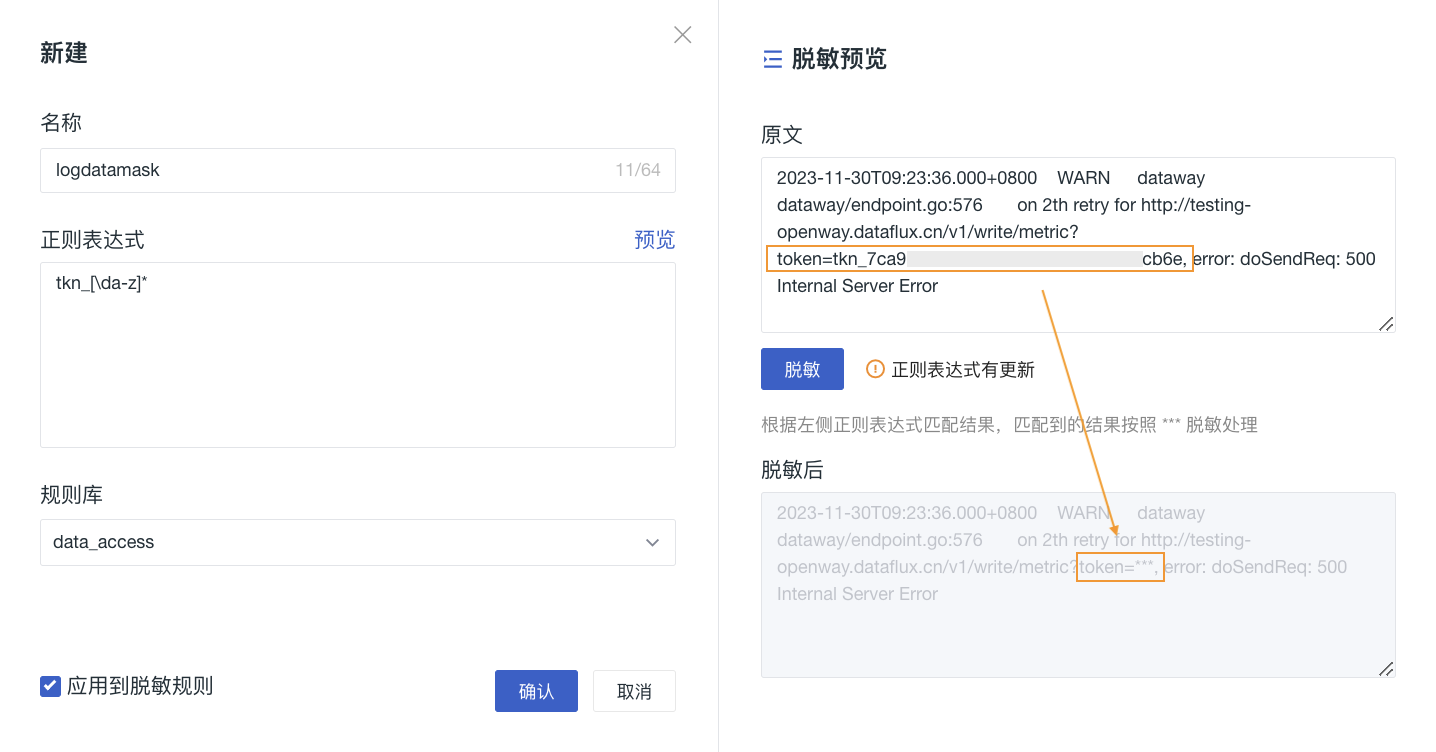
On the configuration page, in addition to directly adding individual desensitization fields, if you need to further desensitize part of the content in the log message, for example, to hide token or IP information, you can add a regular expression to meet this requirement.
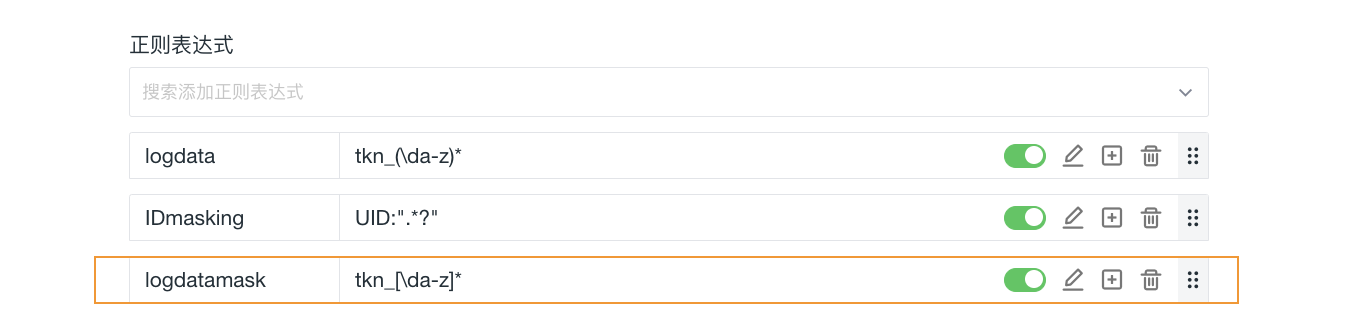
- Supports configuring multiple regular expressions; a maximum of 10 expressions can be configured under one access rule;
- Supports disabling or enabling a regular expression; subsequent application and preview only apply desensitization based on enabled regular expressions;
- Supports editing or deleting a regular expression directly here;
- Supports dragging to move the position of regular expressions; when data matches this desensitization rule, regular expressions are applied from top to bottom for desensitization;
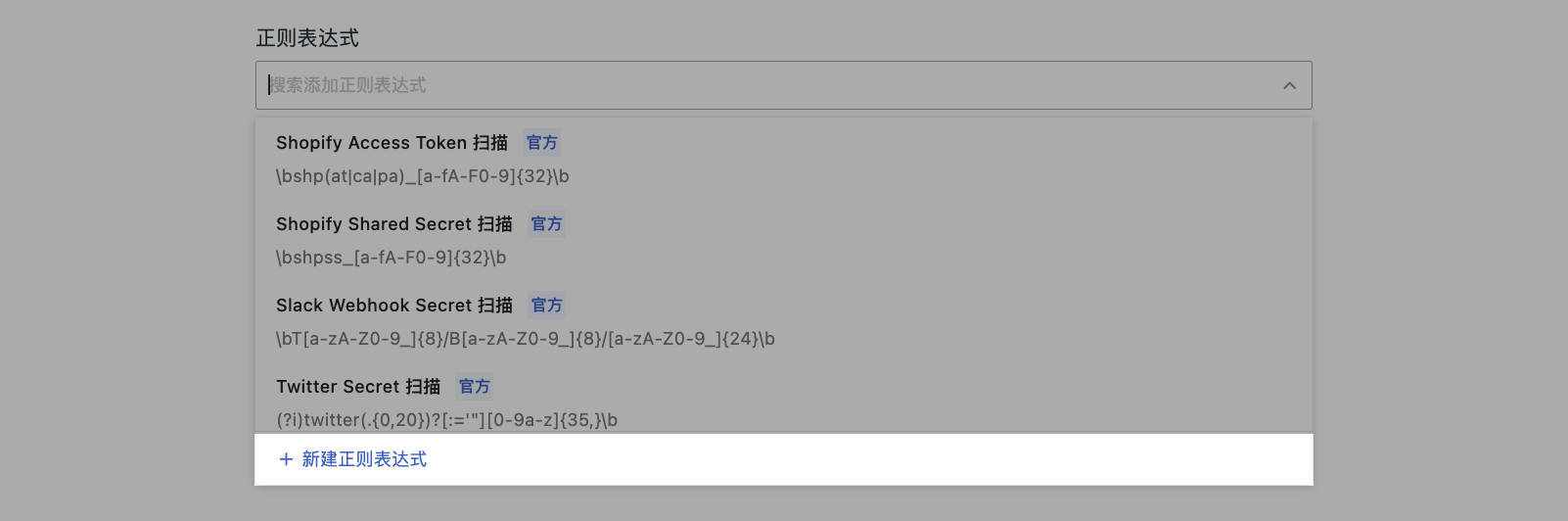
- Supports creating a new regular expression directly here:
In the pop-up window, enter the required information.
If Apply to Rule is selected, the rule is directly added below the regular expressions.
Role Scenarios and Query Permissions
Simple Scenario
Assume a member has only one role, such as read-only. After the rule is applied to this role, the member's query scope and field desensitization method are executed according to the rule.
If the All role is selected, the rule applies to all roles except Owner, including Administrator.
Validity Notes for Different Roles
- Owner is not restricted by data access rules;
- When Administrator is associated with a rule, the data scope is restricted and desensitization is performed according to the rule; when no rule is associated, even if "Data Access Scope Limit" is enabled, data can still be queried within the original permission scope;
- For other members not associated with a rule, whether data can be queried depends on the "Data Access Scope Limit" switch;
- Data access rules take effect only based on the prerequisite that the user role has data query permissions;
- After a role matches a rule, you can only add filters within the basic scope configured by the rule; if you query beyond this scope, the returned data is empty.
Multiple Role Permission Overlap
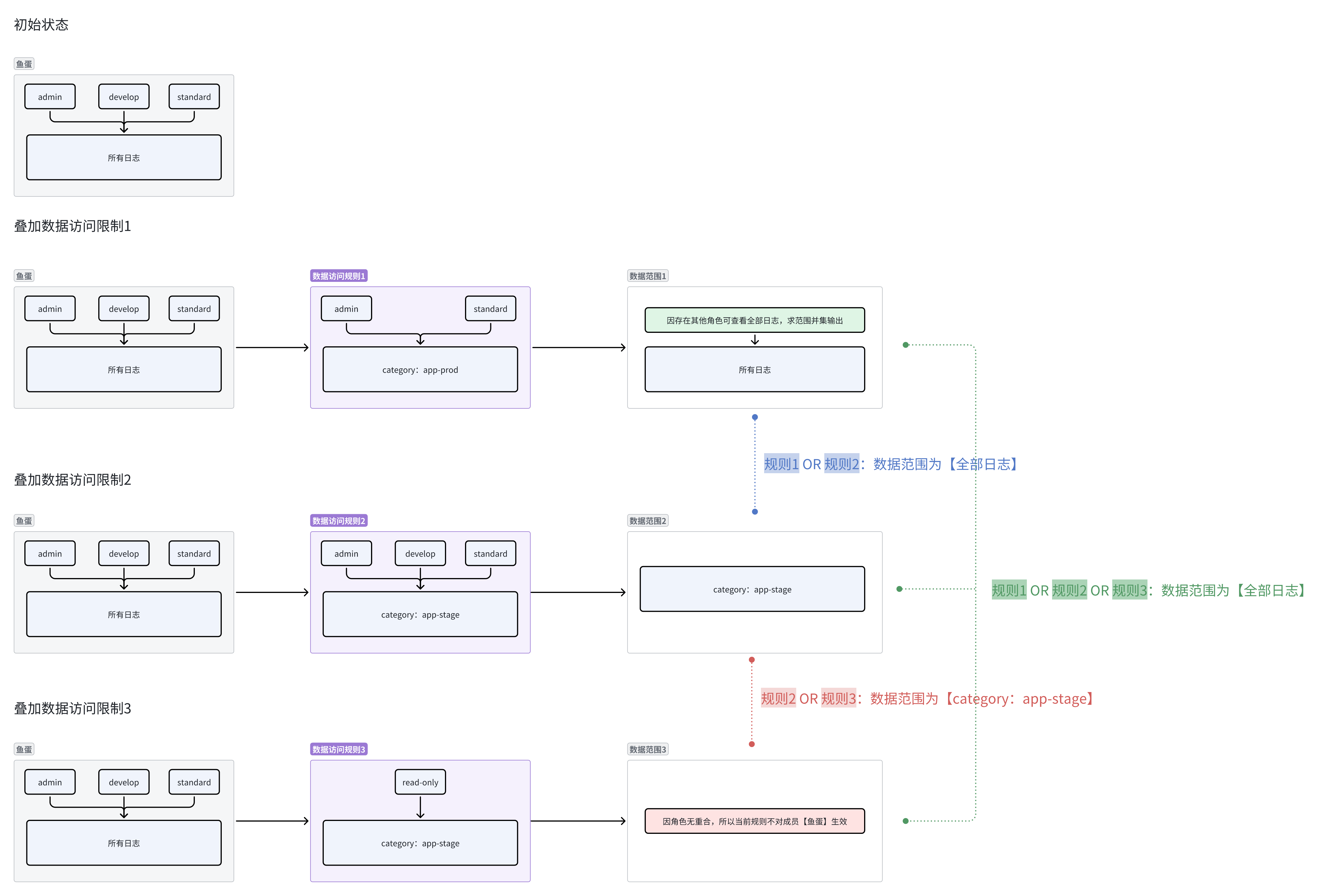
If a member has multiple roles, and the query permission coverage of these roles is different (as shown in the figure below), the member's final data query permission is the sum of the data access view scopes of all roles.

Multiple Rule Permission Control
When business data is complex and has many levels, it is sometimes necessary to set multiple access rules for data with different sources and attributes to adapt to different data access requirements.
- Relationship between multiple filters in one rule: multiple values of the same key are related by OR, and different keys are related by AND;
- Multiple rules are related by OR.
Therefore, if:
Rule 1: host = [host1, host2] AND service = [service1, service2] Rule 2: host = [host3, host4] AND source = [source1, source2]
If the same role has both of the above two permission rules, the actual data will be displayed as Rule 1 OR Rule 2 to achieve a union effect.
The actual visible data scope is:
(host = [host1, host2] AND service = [service1, service2]) OR (host = [host3, host4] AND source = [source1, source2])
If the same role has multiple permission rules, and Rule 1 has a desensitization rule configured, all data returned under all permission rules is affected by the desensitization rule.
Maintaining Associations in Role Management
In addition to selecting applicable roles in data access rules, you can also view and maintain the data access rules associated with roles in Management > Role Management.
- The Data Access Rules column in the role list displays the number of rules associated with the current role;
- After clicking or hovering over the number, you can search, paginate, and select rules in the drawer on the right, save the association, or jump to the Data Access page to continue configuration;
- This entry only maintains the association between roles and rules; it does not modify the rule's data scope, filter conditions, data type, or desensitization configuration;
- After the rule is saved successfully, the number of associations in the role list is updated synchronously.
Viewing and editing this association are controlled by role viewing, data access viewing, and data access management permissions, respectively. For details, see Role Management.
Configuration Example
- Select the index
rp70of the current workspace; - Set the data scope to
host:cn-hangzhou.172.**.**andservice:kodo; - Do not set a desensitization field here; directly write the regular expression
tkn_[\da-z]*to masktokeninformation; - Finally, directly assign the current access rule to all
Read-onlymembers in the current workspace. - Click Save. If necessary, click Preview at the bottom left to view the desensitization effect.
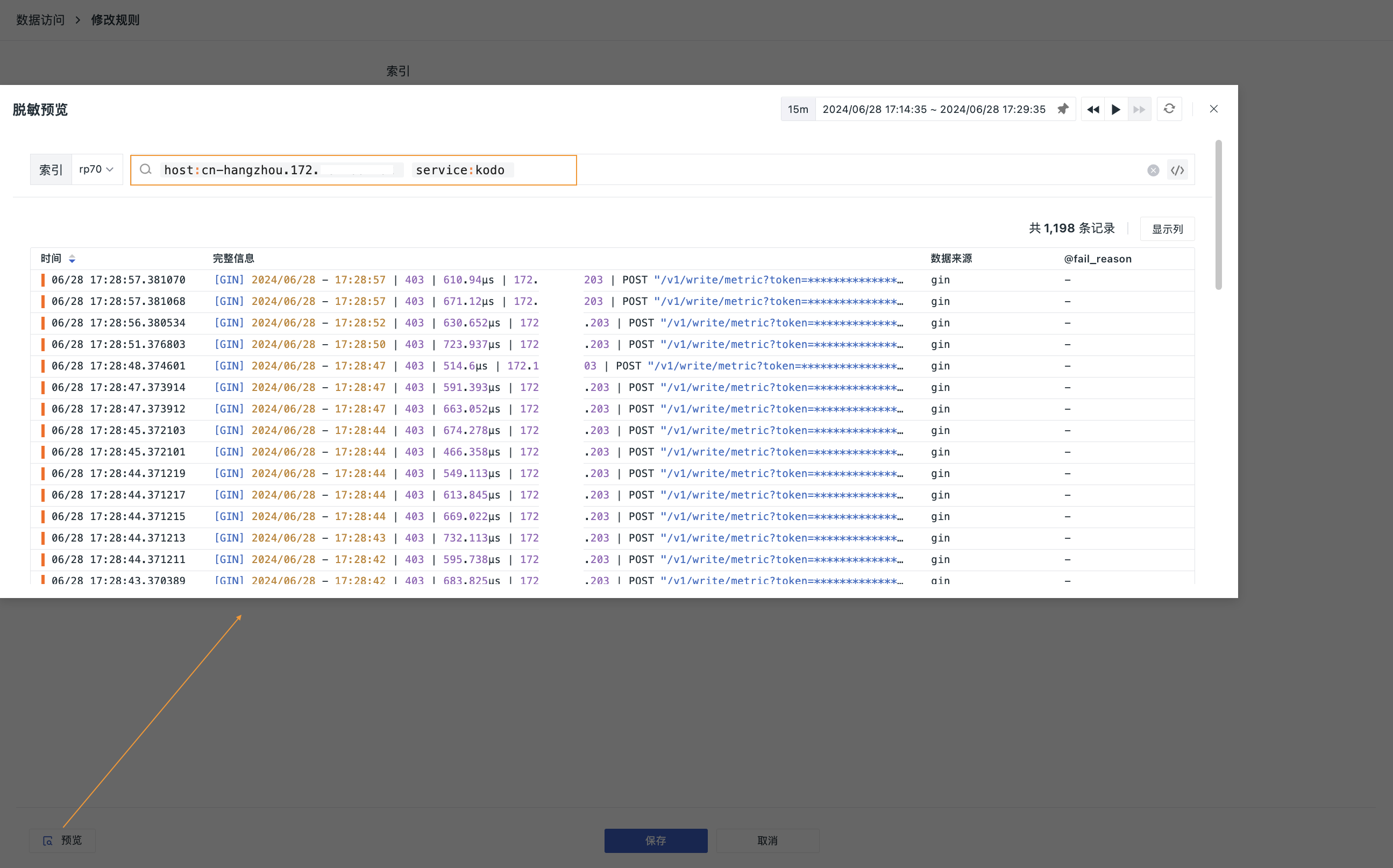
The above access rule applies to all Read-only members in the current workspace. They can only access data in the log index rp70 where host:cn-hangzhou.172.**.** and service:kodo, and in such data, all token information is not visible.
Use Cases
Based on the data access rules that have taken effect, snapshot data received by members matched by the rules is automatically filtered according to their permission rules. Even if the data contained in the snapshot exceeds the member's access permissions, the system filters it first, and the member can ultimately only view data that conforms to their access rules.
Management List
- You can view information such as the indexes associated with the rule, query conditions, whether desensitization is enabled, the number of associated roles, and the number of members; you can also view and maintain associated rules by role in Role Management.
- Only show rules related to me: Disabled by default, showing all rules; when enabled, only rules related to the current role are shown.
- Enable/Disable rule: Modify the rule status. When disabled, role access is not restricted; when enabled, the restriction is restored.
- Edit: You can modify the rule name, description, bound index, filter conditions, and authorized roles.
- Clone: Quickly copy the current rule.
- Operation Audit: Records operations related to the rule.
- Delete: Delete the current rule.
- Batch Operations: Supports enabling, disabling, and deleting multiple rules in batches.