Manage Forwarding Rules
All created data forwarding rules can be viewed in the Manage > Data Forwarding > Forwarding Rules list.
Rules List
You can manage the list through the following operations:
- Search by entering the rule name.
- Quickly filter and locate rules based on data type, storage format, and archive type.
- One-click filter to show all abnormal rules in the current list.
- Enable or disable the current rule.
- Click the search, edit, or delete button on the right side of a rule to perform the corresponding operation.
- Select multiple rules for batch operations.
Note
- There can be up to a 1-hour delay when viewing forwarded data.
- In edit mode, the access type and region cannot be adjusted. For rules selecting Guance storage, the edit and view contents are consistent.
Delete Rule
When deleting a rule, you need to enter the rule name to confirm the operation.
The system sets the rule status to "Deleting". After processing is complete, the rule will be automatically removed. During this process, creating a rule with the same name is not allowed.
- When data is forwarded to Guance: The forwarded data will also be permanently deleted.
- When data is forwarded to external storage: The system will stop forwarding new data to this rule. Forwarded data will continue to be retained. If cleanup is needed, please go to the console of the corresponding storage system to perform the operation.
Restore Task
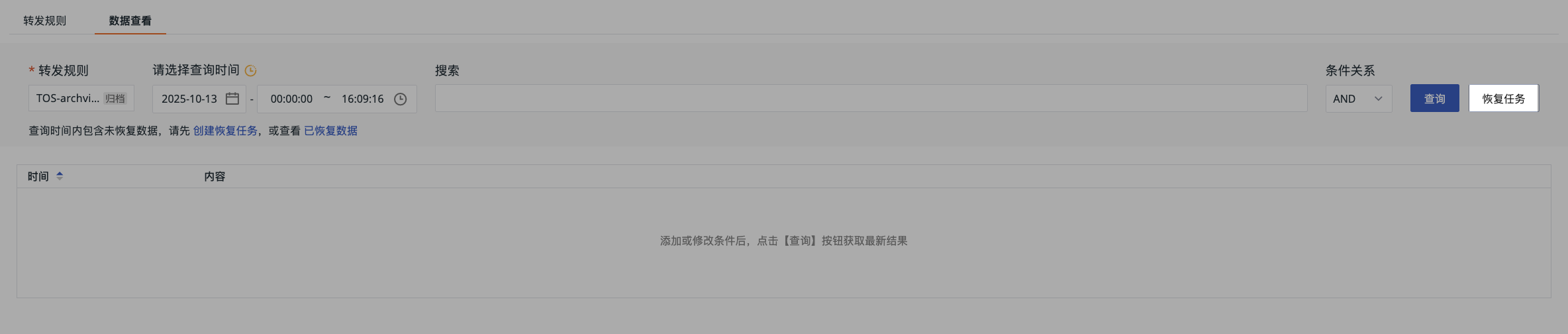
When the storage type of forwarded data is Archive (mainly referring to Archive Storage and Cold Archive Storage for Volcengine TOS), the data will be in a state that is not directly accessible. If querying is needed at this time, a restore operation must be performed first. After the data is thawed, it can be accessed and analyzed normally.
Create Restore Task
- Select a time range.
- Select a restore mode:
- Expedited Retrieval
- Standard Retrieval
- Bulk Retrieval
- Select a validity period.
After the task is created, you can view the task restoration progress in the restore task window.
Billing Details
Restoring data from archive storage is expected to take some time. This process will incur two types of fees through the cloud provider: data retrieval fees and temporary copy storage fees, both calculated based on the amount of data restored. However, Guance itself does not charge any additional fees during this process.
Data Explorer
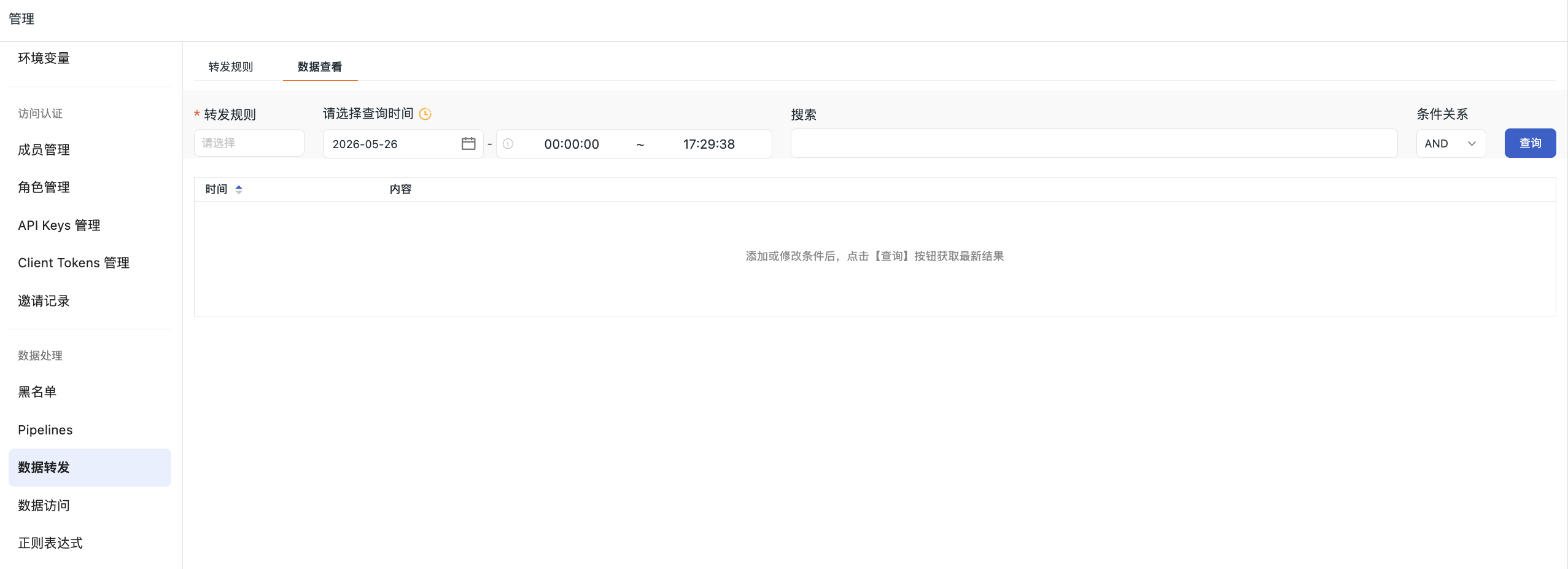
On the "Data Explorer" page, you can query the latest data results based on time range, forwarding rules, and search conditions.
Select Query Time
Click the time input box to set the start and end time for the query.
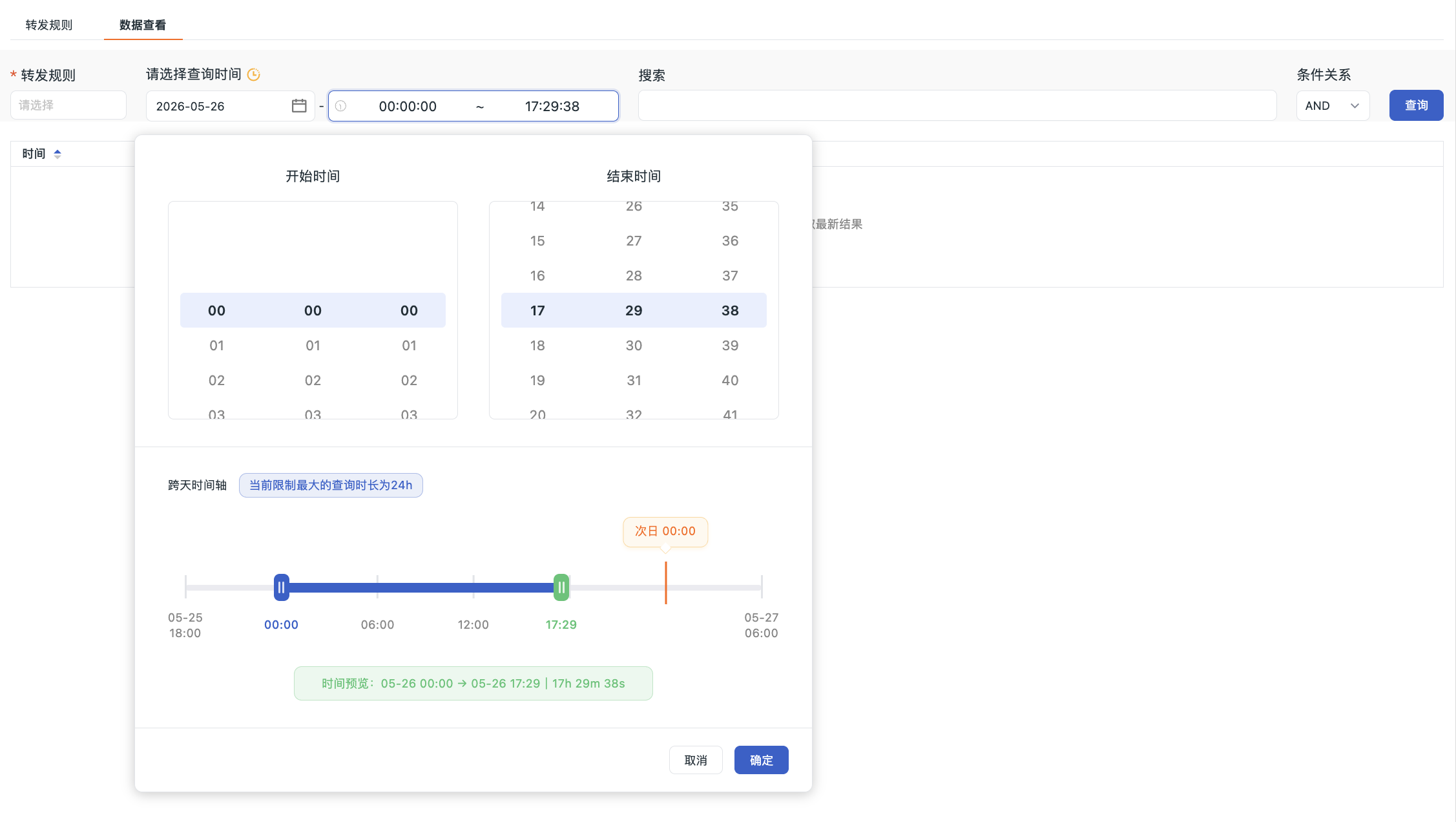
- Select Date: Choose the start date on the left.
- Set Start and End Time: Select the start time and end time on the right.
- Quick Adjustment: You can also directly drag the interval on the timeline to move it as a whole, or drag the left and right endpoints to fine-tune the start and end times. Dragging is allowed to cross midnight of the current day, and cross-day boundaries will have clear markers.
The timeline below will display the currently selected query interval and total duration in real-time for your confirmation.
Note
The single query time range must be greater than 0 and less than 24 hours. If adjustment is about to exceed the 24-hour upper limit, the system will automatically stop at the maximum allowed position.
Search Query
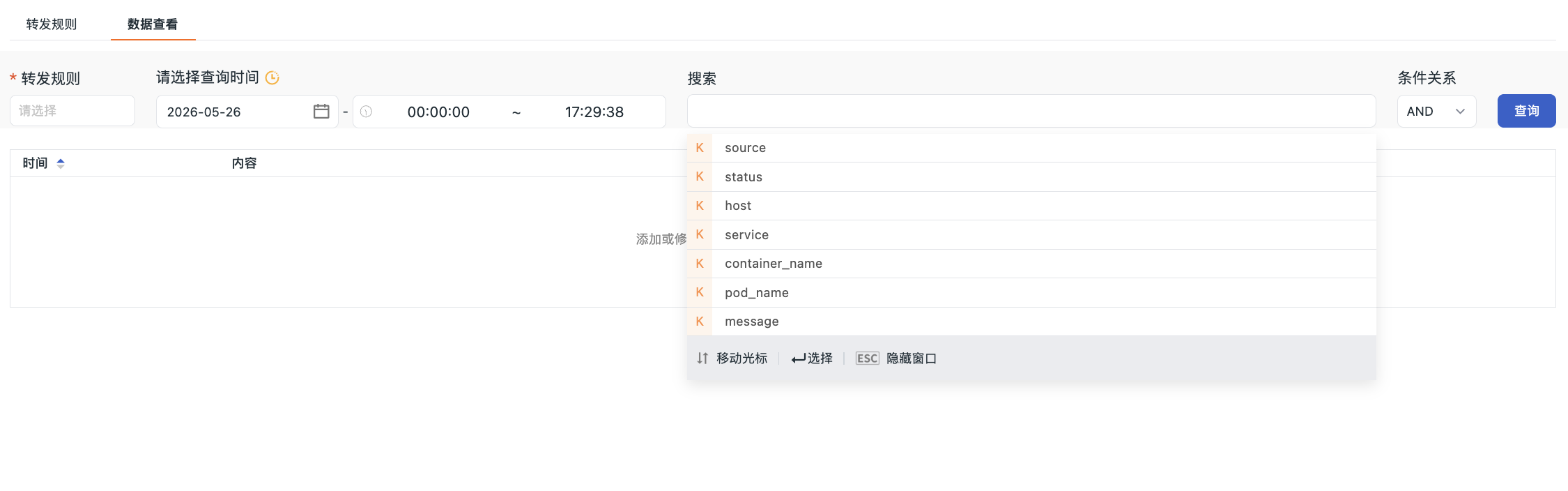
You can search fields using the key:value format. The system will fetch files in batches according to the selected time and search for matching data, returning 50 entries per batch. If no data is found in the first query or fewer than 50 entries are returned, you can manually click "Continue Query" until the scan is complete.
Search Query Logic
You can use the field :~ value format for search queries. This query uses regular expression matching logic.
- The system will return all content containing the string
field:value. Assuming the search conditionhost:~ hangzhouis entered, all data containinghost: hangzhouwill be returned. Exact matching is not supported. - Multiple filter conditions can be connected using AND or OR.
Data Forwarding - Query and Restore Duration
After configuring the query duration, when viewing forwarded data, the query time interval will be affected by the duration configuration set here.

- Go to Manage > Workspace Settings > Advanced Settings > Data Forwarding - Query and Restore Duration.
- Select the duration.
- Confirm.