Quick Creation of Dashboards
Dashboards centralize functionally related visualizations on the same screen, enabling data insight scenarios through multi-dimensional data analysis. You can create them in the following three ways:
| Creation Method | Use Case | Core Capability |
|---|---|---|
| Create from Template | Use preset monitoring views to rapidly see results | Built-in templates for Host, K8s, Application Performance, etc. |
| Custom Creation | Full freedom to design layout and queries | Drag-and-drop 30+ chart types, configure variable linking |
| Import Creation | Reuse existing configurations or team-shared templates | Supports JSON/ZIP formats, batch migration |
Create from Template
With built-in templates, you can set up professional monitoring views in 5 minutes without starting from scratch.
Step 1: Select a Scenario Template
- Click + Create Dashboard in the top-left corner;
- Select a template in System Views.
Step 2: Define Main Configuration Items
-
The dashboard name defaults to the name of the currently selected view and can be changed as needed;
-
Define the Identifier ID for this dashboard;
-
Optionally enter a description for this dashboard;
-
Select Labels for subsequent grouping management;
-
Select the Visibility Range for this dashboard;
-
Confirm to create successfully.
Identifier ID
This ID is defined as identifier and is used to uniquely identify the dashboard or view.
It can be used to configure a chart link for deterministic positioning.
Define the identifier ID of the dashboard as abc. In the exported JSON file, the parameter is: "identifier": "abc"

When configuring a chart link, the link to the dashboard with identifier ID abc is:
This also applies to views:
// Available values for the type field: inner (user view), sys (system view). Defaults to inner if not specified:
/scene/builtinview/detail?identifier=abc&type=sys // System view
/scene/builtinview/detail?identifier=abc&type=inner // User view
/scene/builtinview/detail?identifier=abc // User view
Visibility Range
The visibility range of a dashboard includes:
-
Public: Open to all members of the workspace;
-
Only Me: Only the creator can view;
-
Custom: Restrict visibility to specific members.
Note
-
A non-public dashboard shared via link is not visible to anyone other than the creator;
-
This toggle only controls the public status of the current dashboard and does not affect other rules.
Guaranteed Streaming Aggregation Acceleration
Streaming aggregation acceleration continuously computes aggregated results, reducing repeated calculations during queries, thereby improving dashboard loading and refresh efficiency.
After enabling Guaranteed Streaming Aggregation Acceleration, the system reserves resources for fixed aggregation queries that pass validation in the current dashboard, preventing the acceleration tasks from being automatically de-prioritized due to capacity scheduling. This feature does not alter query conditions or chart results and is suitable for dashboards that are frequently viewed or require stable loading performance.
This toggle is disabled by default. When disabled, the system may still automatically accelerate queries based on resource availability.
Enabling Guaranteed Acceleration
- When creating or editing a dashboard;
- Toggle on Guaranteed Streaming Aggregation Acceleration;
- Save the dashboard. After the system validates the queries and prepares resources, eligible queries will display as Acceleration Guaranteed and can be viewed in the Query Acceleration List, along with registration records and sources.
Note
- Only members with dashboard editing permissions can modify this option;
- If query validation or resource preparation fails, the corresponding query will not be marked as guaranteed, and the original query configuration remains unaffected;
- If the toggle is not available on the page, contact your administrator to confirm whether the current workspace has this capability enabled.
Disabling Guaranteed Acceleration
Edit the dashboard, disable Guaranteed Streaming Aggregation Acceleration, and save. The query will revert to automatic acceleration mode. If the same streaming aggregation is still guaranteed by another dashboard, the system continues to retain the task. Only after all sources are disabled will the corresponding record be removed from the query acceleration list.
Custom Data Insight
When preset templates do not meet your needs, you can build a fully customized visualization solution through the following steps.
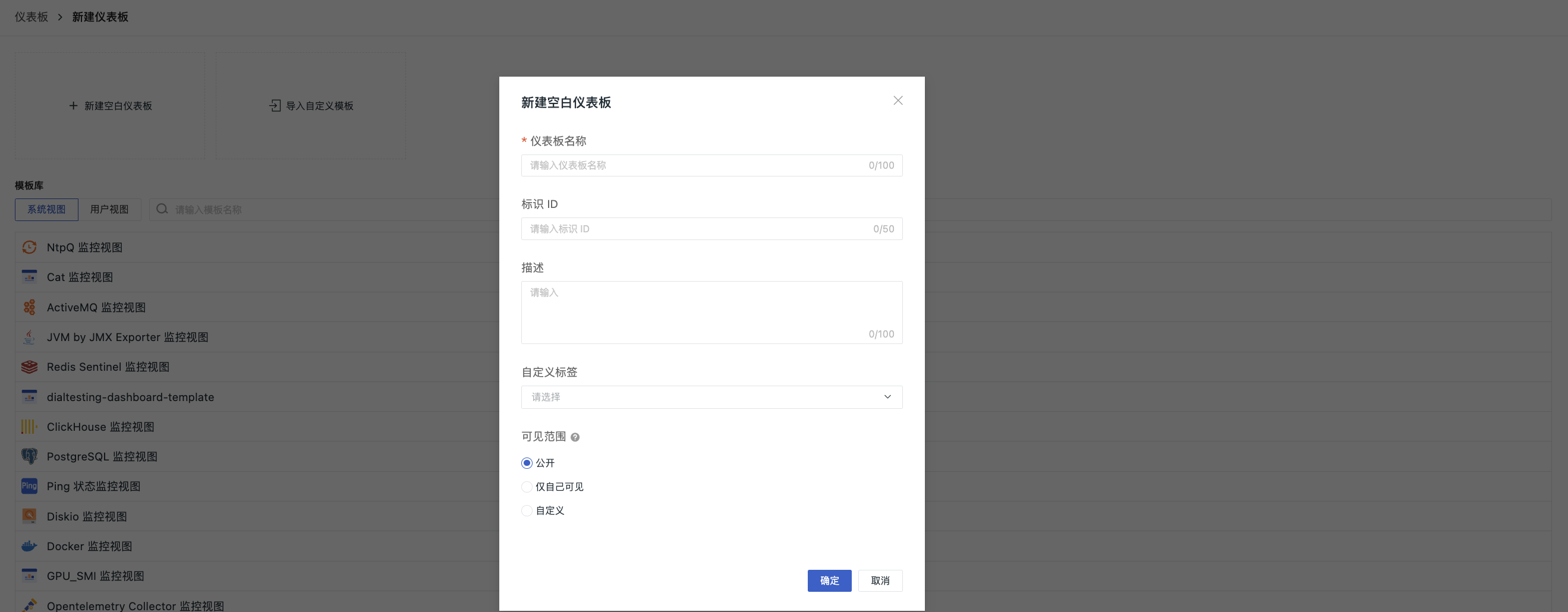
- Navigate to Dashboards > + Create Dashboard > Create Blank Dashboard;
- Configure basic information (name, identifier ID, description, labels, visibility range);
- Confirm to create successfully.
AI-Powered Dashboard Creation
With Obsy Copilot, you can describe your analytical needs in natural language. The AI generates a draft dashboard, which you can confirm and quickly create.
Click to view more details.
Step 1: Describe Requirements
- Go to Scenarios > Dashboards > + Create Dashboard;
- Select AI-Powered Dashboard Creation;
- In the input box, describe the metrics or scenario you want to analyze, or click one of the quick examples above to use it directly.
Quick examples include:
- Analyze API error rate changes in the last 7 days and show the TOP 5 services
- Generate a 24-hour failure analysis dashboard for payment-service
- Help me create a dashboard for endpoint latency trends and slow service rankings
Step 2: Confirm the Draft
After the AI generates a draft dashboard, you can view and edit the dashboard name, description, custom labels, and visibility range. If you need to adjust charts, continue describing modification requests in the input box at the bottom (e.g., "change the line chart to a bar chart", "add a CPU load chart").
Once confirmed, click Confirm to Generate Dashboard.
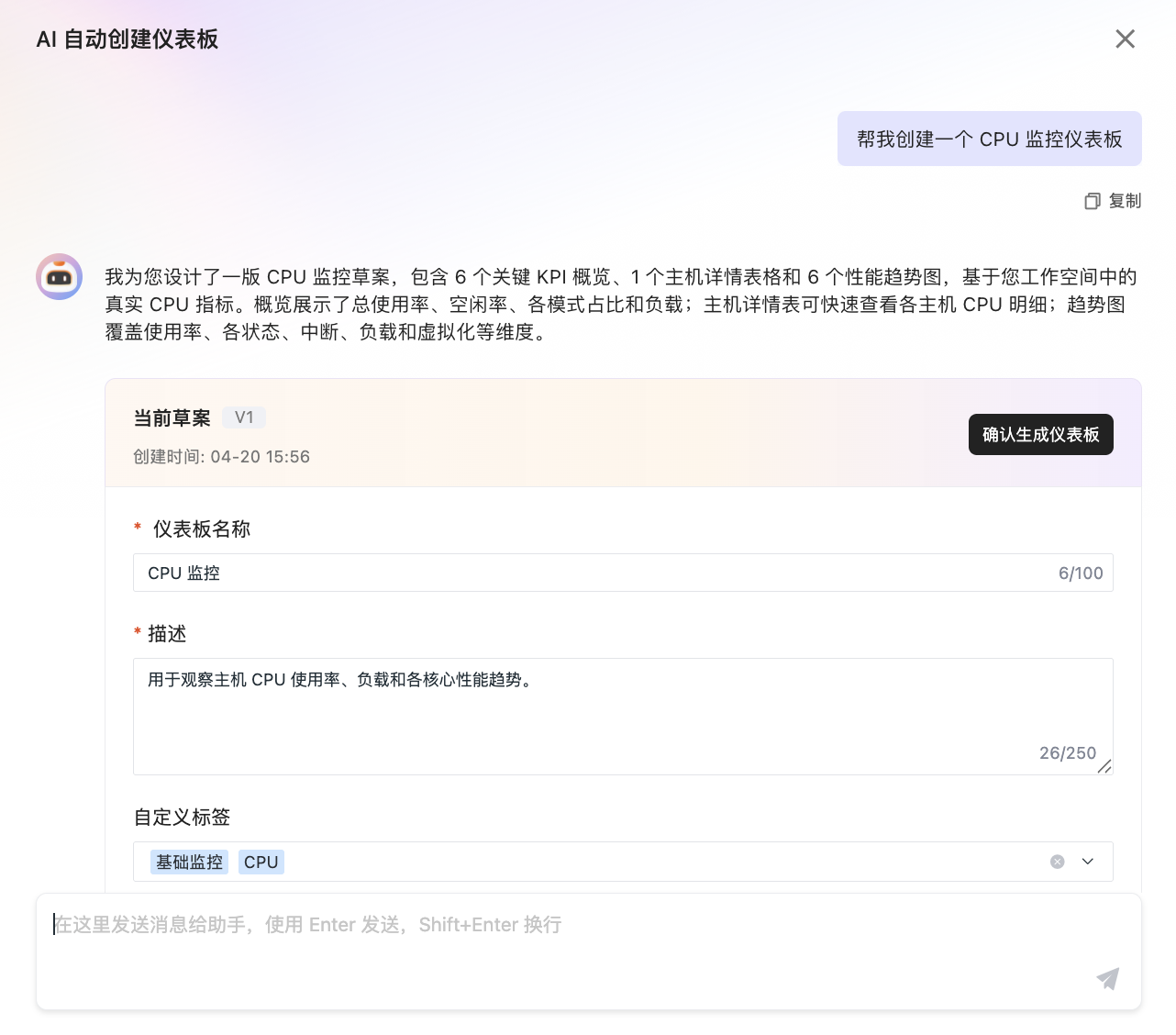
Step 3: Preview and Save
After entering the preview page, the system dynamically generates charts. When all charts are generated, click Save Dashboard to complete the creation.
If you exit midway, you can choose to continue with the last draft or start a new creation when you click + Create Dashboard again.
Import a Dashboard
In addition to the two methods above, if you need to reuse existing configurations, migrate across workspaces, or use templates from your internal team, you can quickly create a dashboard by importing.
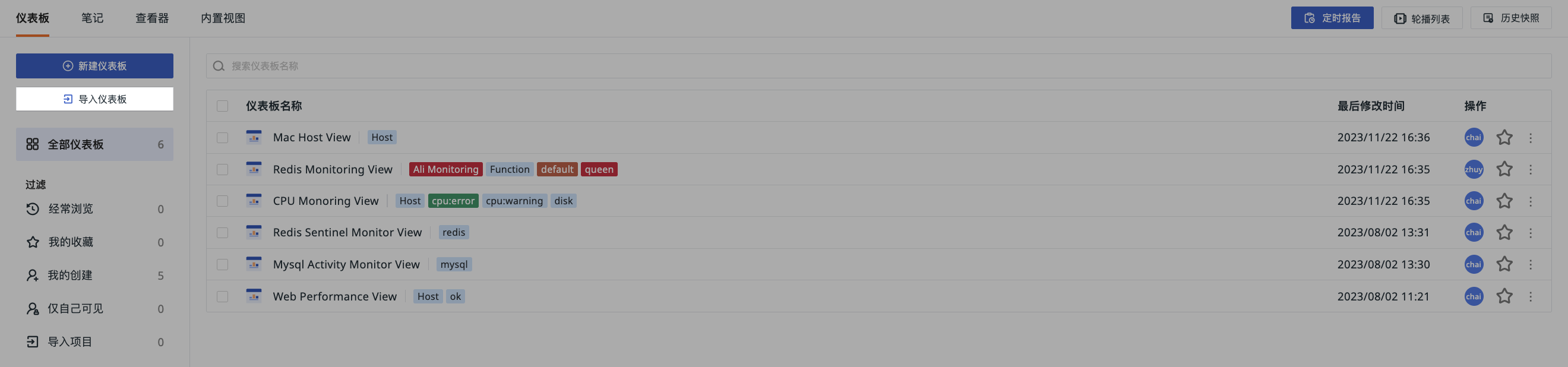
Click + Create Dashboard > Import Dashboard. The system displays an import window supporting the following two dashboard types:
| Type | Description |
|---|---|
| Official Dashboard | Selected by default, supports importing dashboard JSON files in the Guance standard format |
| Grafana Dashboard | Selecting this option shows a compatibility notice; supports importing JSON files exported from Grafana ❗️Some advanced features in Grafana dashboards differ from this platform; after import, related content may not display correctly or may require manual reconfiguration |
Steps to Import an Official Dashboard
- Go to the Official Dashboard import tab;
-
Upload a
.jsonor.zipfile; -
.json: Single dashboard configuration, used to import a specific dashboard -
.zip: Batch package of multiple dashboards, used for team template distribution or full environment migration -
Configure basic information (name, identifier ID, description, labels, visibility range);
- Confirm to create successfully.
Special Handling for ZIP Batch Import
The system checks for duplicate identifier IDs:
- If no duplicate, the import succeeds;
- If duplicate, you must choose to skip, overwrite, or cancel.
During batch import, if the user does not have edit permission for a dashboard with a duplicate identifier ID, the system forcibly applies the "skip" strategy, and this situation is not indicated in the processing interface.
After a successful import, you can go to Dashboards > Import Items to view the batch import results.
Steps to Import a Grafana Dashboard
- Go to the Grafana Dashboard import tab;
- Upload a
.jsonfile; - Confirm to create successfully.
Further Reading
You may need the following subsequent operations: