Create ICMP Testing Tasks
ICMP testing can be used to monitor the network communication status of a host. By sending one or more ICMP requests (Ping), you can detect packet connectivity, packet loss rate, and round-trip time (RTT). If route tracing (Traceroute) or network hops are configured, the system will return the route trace results, showing the number of network hops required to connect to the target host and detailed information about each hop node.
Create
Click Create > API Tests, and select ICMP Protocol.
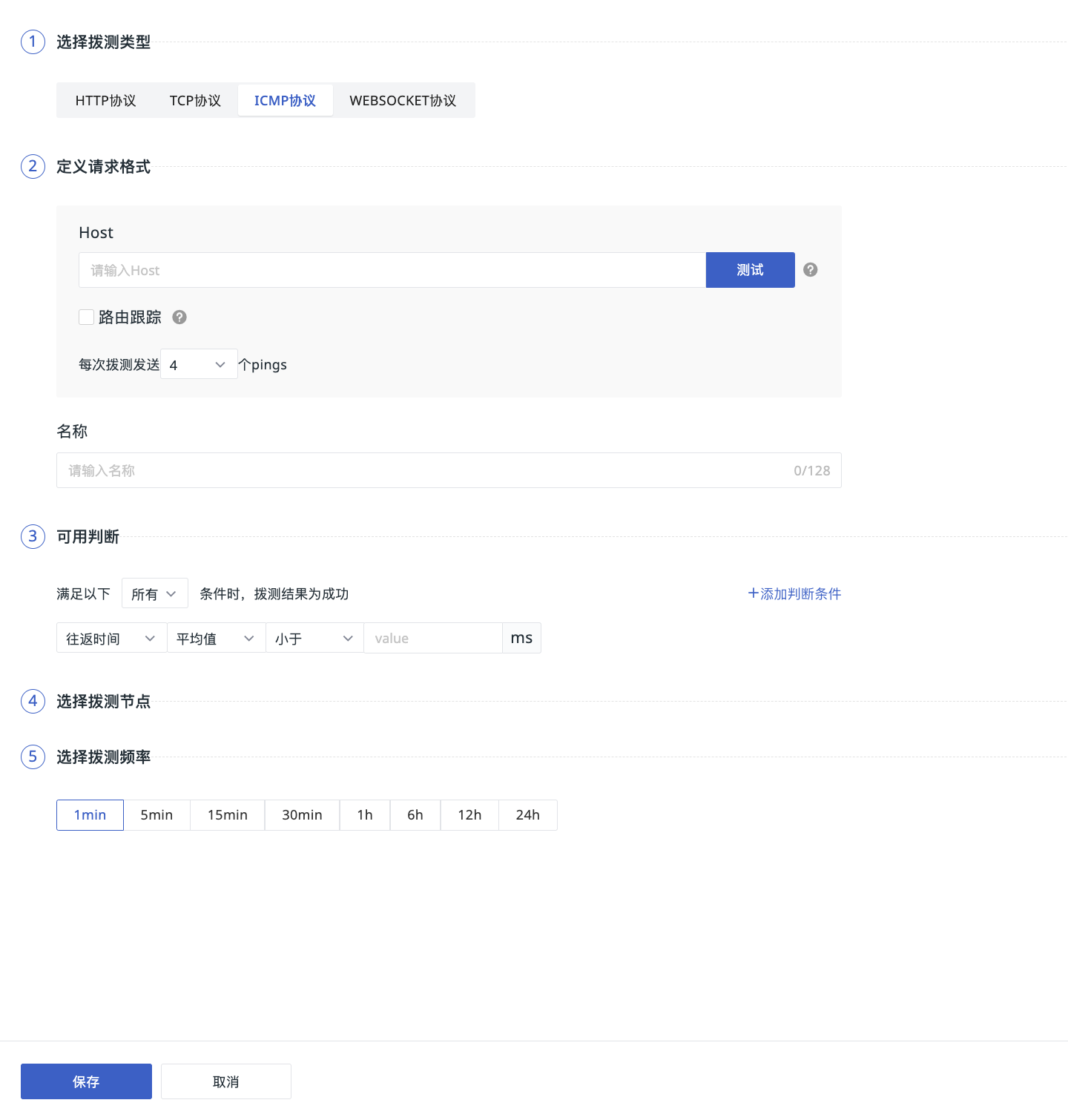
Step 1: Define Request Format
- Host: Enter the host address, supporting domain name format (e.g.,
www.example.com) or directly entering an IP address (e.g.,192.186.0.1). - Route Tracing: When enabled, the route tracing probe (
traceroute) will be activated to discover all gateways on the path to the target host. - Pings Sent per Test: You can choose to send 1 to 10 ICMP packets.
- Name: Customize the name for the ICMP testing task. Duplicate names are not allowed within the current workspace.
Step 2: Availability Judgment
You can add judgment conditions to filter and match data based on criteria. When multiple judgment conditions are selected, you can define AND or OR logical relationships using "All" or "Any".
After defining the request format and adding judgment conditions, click the "Test" button on the right side of the URL to verify if the testing connection configuration is successful. The test will return the number of packets sent/received based on the Pings sent per test. If route tracing or network hops are configured, the route trace results will also be returned.
Note
- If "Network Hops" is selected as a judgment condition, the system will return route trace data, similar to the Traceroute function.
- If the testing task fails to successfully Ping the target, the round-trip time will be displayed as 0, indicating no valid round-trip time.
- The test results are independent of the selected node.
Step 3: Select Testing Node
Currently, Guance covers 14 testing nodes globally. You can select one or more nodes in China or overseas regions (available only for Commercial Plan users and above) to quickly start monitoring site service quality.
Step 4: Select Testing Frequency
Select the execution frequency for the testing task. The following options are supported:
- 1 minute (available only for Commercial Plan users and above)
- 5 minutes (available only for Commercial Plan users and above)
- 15 minutes (available only for Commercial Plan users and above)
- 30 minutes
- 1 hour
- 6 hours
- 12 hours
- 24 hours
In addition to the specific options provided by the system, you can also input a custom crontab task to configure scheduled task execution based on cycles such as minutes, hours, days, months, weeks, etc.