Create Alert Policy
Create
- Define the name of the current Alert Policy;
- Enter a description for the policy as needed;
- Select the Monitors to be associated;
- Select the notification time zone;
- Select whether to configure an Alert Policy that triggers notifications based on level or members;
- Select the time range for repeated alerts (the original alert is silenced);
- Select the Alert Aggregation mode as needed to determine the final aggregation form of alert notifications;
- Add operation permissions to the policy rules as needed;
- Save the policy to complete the creation.
Associated Monitors
On the configuration page, you can select the monitoring rules associated with the current Alert Policy, including:
-
All
-
Monitors
-
Smart Monitoring
-
SLO
-
Security Monitoring
Here you can quickly create new monitoring rules as needed.
Configure Notification Rules
Configuration Notes
-
Recovery notifications: When a previously sent anomaly alert event recovers, the system sends a recovery notification to the corresponding notification targets. For example, if a
Criticalnotification for an event was sent to a group, when the status begins to recover, a recovery notification is sent to that group; -
Notification delay: Alert notifications are not sent immediately after they are generated. Due to factors such as data ingestion, there may be a delay of up to 1 minute.
Two notification configurations are currently supported:
Level-based: After selecting an event level, set notification targets for this type of anomaly event. If filter conditions are configured, the event data scope under the level is further narrowed before notifications are sent to the targets;
Member-based: First select members or teams and define the event data scope they need to watch or be responsible for. Within this data scope, specify the event levels and the corresponding notification targets, establishing a strong association between events and targets.
Level-Based Notification Configuration
Define the notification targets to which alerts at each level are sent.
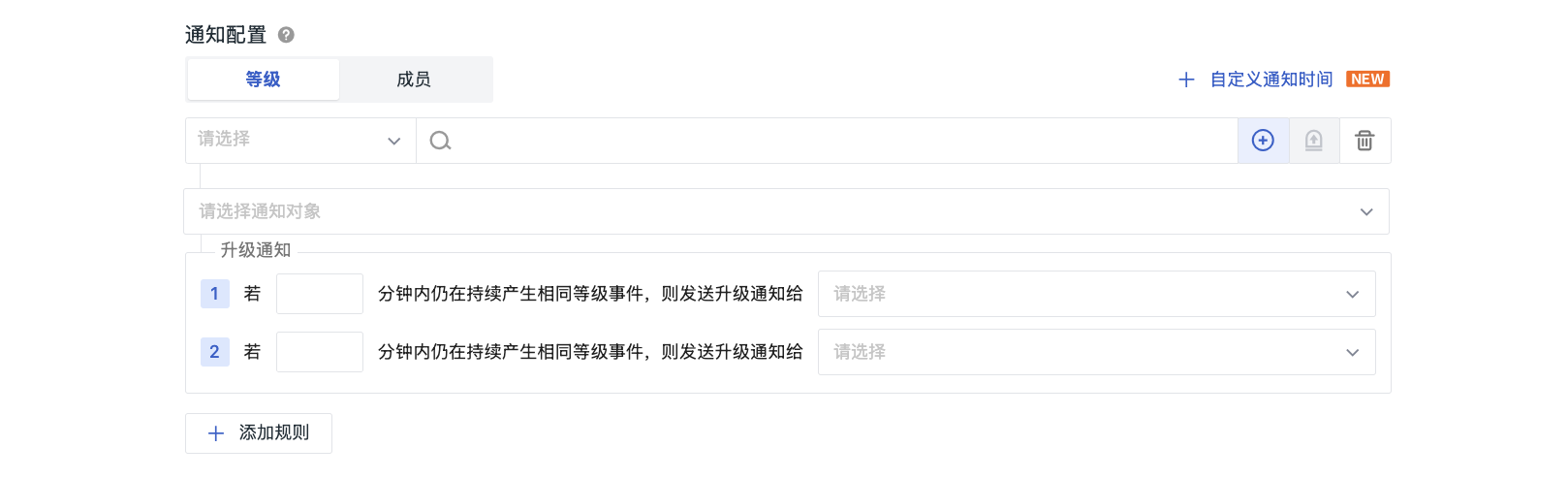
-
Select the event level;
-
The same event level can be selected multiple times;
-
Based on the selected event level, you can link to Alert Aggregation.
-
-
Select the notification targets for events at this level.
Type |
Description |
|---|---|
| Workspace member | Email notification; viewable under Manage > Member Management |
| Team | Email notification; a team can include multiple Workspace members; viewable under Manage > Member Management > Team Management |
| DingTalk/WeCom/Lark bot | Group notification; viewable under Monitoring > Notification Targets |
| Custom Webhook | Set by the user; viewable under Monitoring > Notification Targets |
| SMS | SMS notification; an SMS group can include multiple Workspace members; viewable under Monitoring > Notification Targets |
| Custom external email | Enter the email address and press Enter; available only to Commercial Plan and Deployment Plan users |
Member-Based Notification Configuration
Configuring notification rules by member enables precise point-to-point alert notifications. In a single alert rule, you can configure different notification scopes, levels, and methods for multiple member groups, and customize the notification time range for each group.
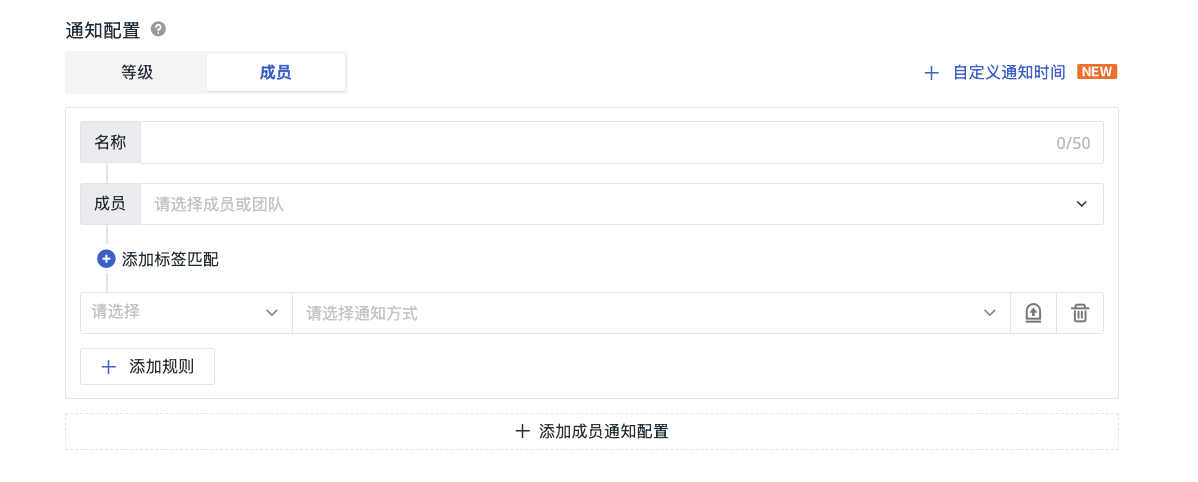
-
Define the name of the notification rule;
-
Select the members and teams to be notified;
-
Add filter conditions for tag matching;
-
For the filtered event data, set the corresponding notification targets for different event levels;
-
Enable the custom notification time range configuration as needed.
Configuration Notes
-
Hover to reuse existing member notification configurations with one click;
-
If you configure multiple custom notification time ranges, the system matches them from top to bottom and uses only the notification rules in the first matching time range to send alerts.
Add Filter Conditions
Whether you configure notifications by level or by member, adding specific filter conditions allows you to:
-
For level-based notifications, further narrow the data scope of events at a specific level;
-
For member-based notifications, restrict members or teams to focus only on events that match specific tags.
After filters are added, only events that meet both the level requirements and the filter conditions trigger notifications.


In the Configure Notification Rules step of the Alert Policy, click the Filter button to select common fields such as Host, Kubernetes, and Application Service and set matching values. You can also manually enter event fields in the key:value format to narrow down the event scope that receives notifications.
For example, use service and env to filter events of a specific service and environment. Field names and values can be viewed in event details.
Equals, not equals, wildcard, negated wildcard, and regular expression matching are supported. Multiple conditions on the same field are matched with OR, while conditions on different fields are matched with AND.
Configuration Notes
-
Only one filter condition group can be added per alert rule. A group can contain one or more filter rules, and the system combines all rules for filtering;
-
Filter conditions cannot be empty.
Alert Escalation Notifications
If a Monitor frequently detects anomalies of the same level within a short period, it may indicate a persistent problem. In such cases, other notification targets may be needed to resolve the issue. You can add escalation notification rules. When the anomaly persists, the system automatically escalates it to a Critical notification and sends it to the designated recipients, ensuring that the problem is noticed and handled in a timely manner.
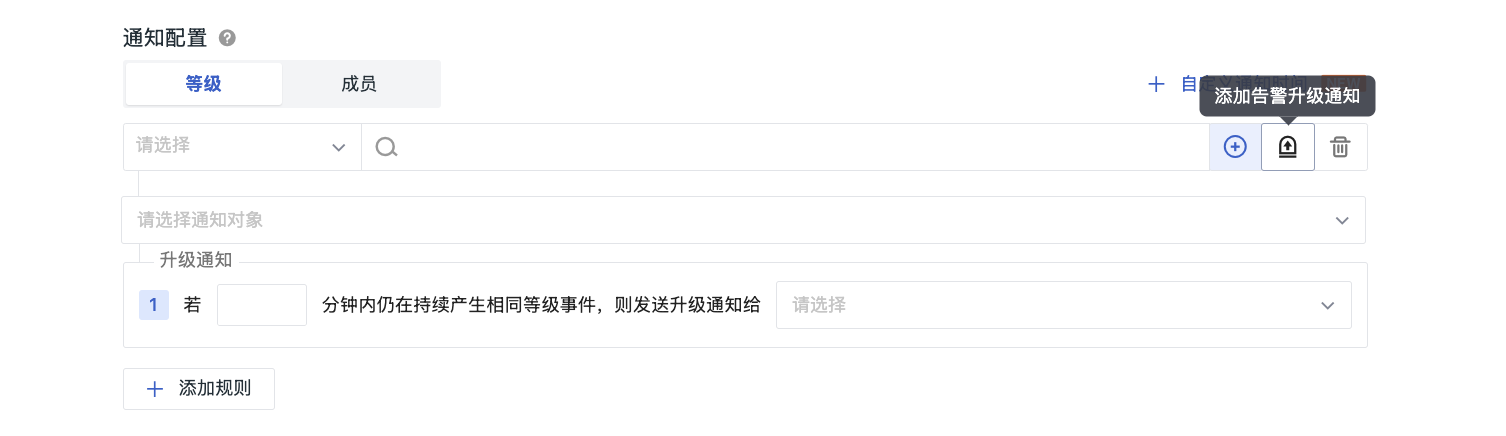
If a notification rule is configured with two escalation notifications:
-
When alerts of the same level continue to be generated, the system checks the time interval to determine whether to send the first escalation notification;
-
After the first escalation notification is sent, the system checks the time interval configured for the second escalation notification to determine whether to send the second one.
Configuration Notes
-
Each notification rule supports up to two escalation notifications;
-
Each escalation notification is triggered only once; no duplicate alerts will be sent.
Custom Notification Time
The scenarios discussed above focus on the immediacy of automatically triggering notifications when anomalies are detected. In practice, you can also set the specific time for sending notifications as needed.
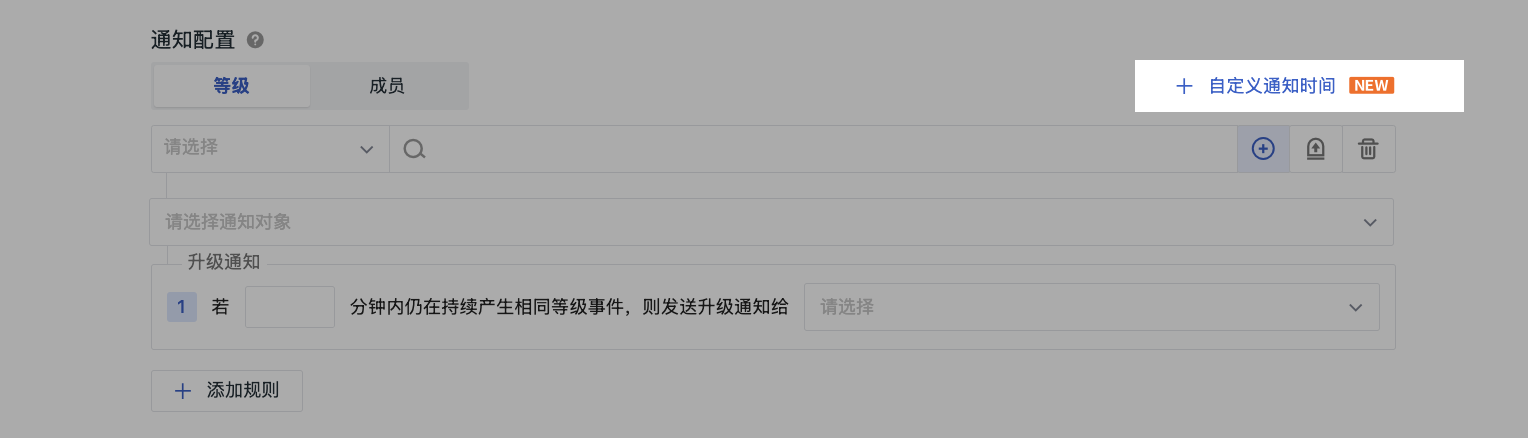
-
Modify the configuration name as needed;
-
Divide the periods of events based on four dimensions: day, week, month, and custom;
- If Custom is selected, upload a CSV file, and the system automatically fills in the periods based on the dates in the file. (❗️Dates in the file must use the format
Year/Month/Day&YYYY/MM/DD; the file can contain no more than 365 dates.)
- If Custom is selected, upload a CSV file, and the system automatically fills in the periods based on the dates in the file. (❗️Dates in the file must use the format
-
Based on the period, limit the time of day during which events are generated, and send notifications according to the selected time range. For example, if
09:00 - 10:00is selected, after the policy takes effect, anomaly events generated within this one-hour window match and flow into this custom configuration; -
After completing the period and time configuration, select the alert levels and notification targets.
Configuration Notes
-
In a single custom notification configuration of the same Alert Policy, if multiple rules are configured, generated anomaly events are matched from top to bottom, and alert notifications are sent according to the first matching custom configuration. If no rule is matched, no notification is sent;
-
When configuring a Monitor, if multiple Alert Policies are selected, after the Monitor is enabled, generated anomaly events will match the selected Alert Policies respectively.
Repeat Alerts
After repeat alert notifications are configured, event data continues to be generated within a certain time range, but no alert notifications are sent. The generated data records are stored in the Event Explorer.
Configuration Notes
If "Forever" is selected for the repeat alert option, the system sends only the first alert notification and does not send repeat notifications afterward.
Configure Repeat Alerts by Level
After this option is checked, you can set separate suppression intervals for repeated alerts for different alert levels (such as Critical, Major, and Warning).
This setting only applies to the selected alert levels: alerts at the selected levels do not send repeated notifications within the configured interval, while unselected levels continue to follow the original repeated alert rules.
Advanced Configuration
Recovery events do not send notifications: After this option is enabled, all recovery conditions only generate events and do not send notifications.
Configure Notification Aggregation Rules
No Aggregation
This is the default configuration. In this mode, alert events are merged into one notification and sent to the corresponding notification targets every 20 seconds.
Rule Aggregation
In this mode, you can select the following aggregation rules and send alert notifications based on the aggregation period:
Rule Aggregation |
Description |
|---|---|
| All | Generate the corresponding alert notifications within the selected aggregation period based on the level dimension configured in the Alert Policy |
| Monitor/Intelligent Inspection/SLO | Generate the corresponding alert notifications based on the unique ID of the Monitor, Intelligent Inspection detection rule, or SLO, combined with the aggregation period |
| Detection Dimension | Generate the corresponding alert notifications based on the detection dimension combined with the aggregation period, for example host |
| Tags | Multiple tags can be selected. Use global tags to link with Monitors and generate the corresponding alert notifications based on the aggregation period. ❗️ If an event has multiple tag values at the same time, the tag order configured on the page determines which alert notification is matched first, and the relationship between multiple tag values is OR |
Trigger Policy
In Rule Aggregation mode, if "Send First Alert" is checked here, df_status is additionally included on top of All, Monitor/Intelligent Inspection/SLO, Detection Dimension, and Tags when sending alerts, so that important anomaly events are not missed while waiting for aggregation.
Smart Aggregation
In this mode, events generated within the aggregation period are clustered into groups based on the selected Title or Content, and each group generates one alert notification.
AI Aggregation
Using a large language model, new events within the configured number of minutes are aggregated into one alert. When the timeout is exceeded, the next alert is generated automatically, avoiding repeated interruptions.
Custom
Based on your actual business needs, you can flexibly specify a specific field combination for alert aggregation. Enter one or more field names, and the system aggregates alerts strictly according to the specified field combination. Aggregated alerts based on these fields are triggered only when the event data contains all the specified fields and the value of each field is valid.
Fields are separated by commas, for example: host, source, service_name. A single field (such as host) or a combination of multiple fields is supported.
If two fields such as host,source are specified but some events contain only host and lack source, these events will not be aggregated.
Aggregation Period
In Rule Aggregation and Smart Aggregation modes, you can manually set a time range (within 1-30 minutes).
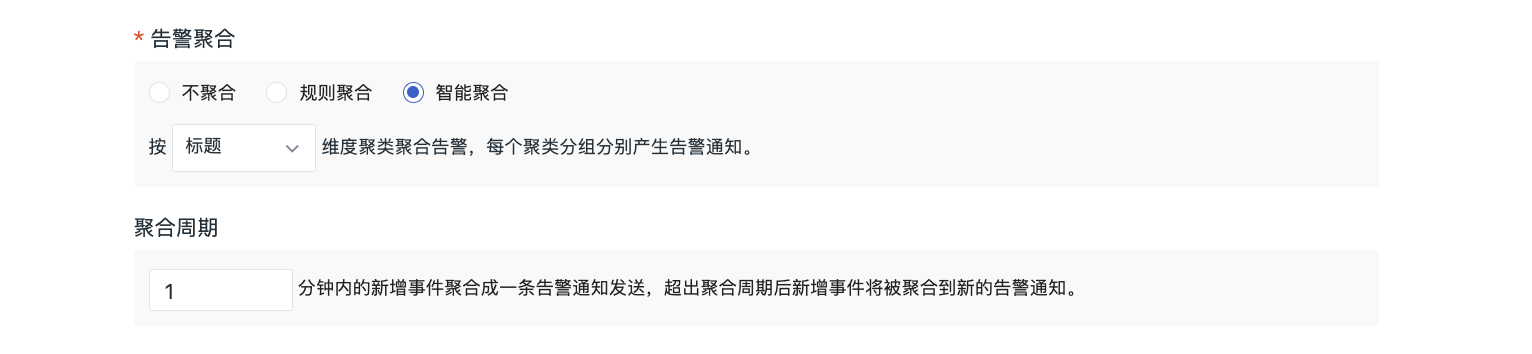
Within this time range, new events are aggregated into one alert notification and sent. If the aggregation period is exceeded, new events are aggregated into a new alert notification.
Configure Operation Permissions
After you configure operation permissions for an Alert Policy, the roles, team members, and Workspace users in your current Workspace can perform corresponding operations on the Alert Policy based on the assigned permissions. This ensures that different users perform operations that comply with the configuration according to their roles and permission levels.
-
If this configuration is not enabled: follow the default permissions of "Alert Policy Configuration Management";
-
If this configuration is enabled and custom permission targets are selected: only the creator and the targets granted permissions can enable/disable, edit, or delete the rules configured in this Alert Policy;
-
If this configuration is enabled but no custom permission targets are selected: only the creator has the permission to enable/disable, edit, or delete this Alert Policy.
Configuration Notes
The Owner role of the current Workspace is not affected by the operation permission configuration here.