AWS Marketplace Activation of Guance Commercial Plan
This article explains how to activate the Guance Commercial Plan and use an AWS account for billing after subscribing to the Guance service on the AWS Marketplace.
1. Subscribe to Guance
-
Log in to the AWS Marketplace Guance product page and click Continue to Subscribe.
-
After successful subscription, click Set Up Your Account.
2. Activate Guance Commercial Plan
After clicking, you will be automatically redirected to the activation page of Guance. If the current AWS account is not bound to a Guance Billing Center account, there are two scenarios:
-
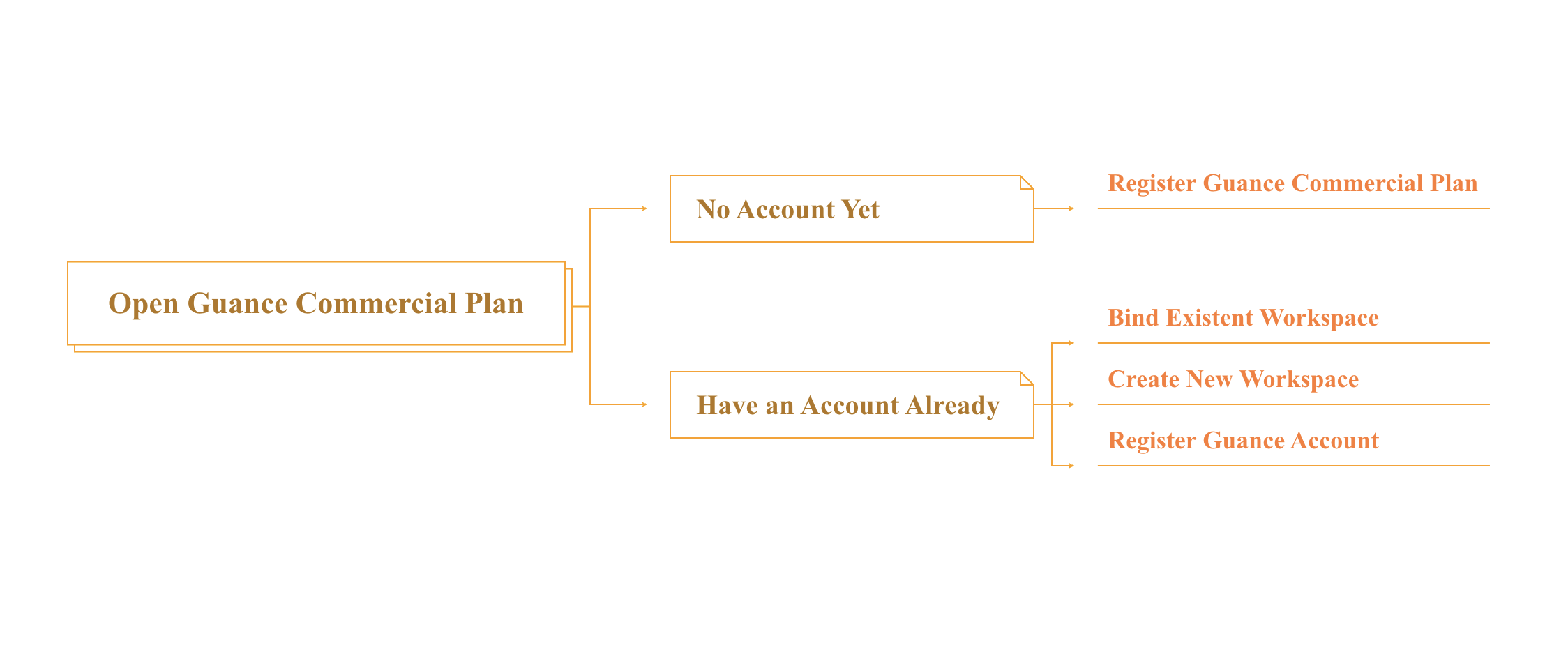
No Billing Center account: You need to register a Guance account and a Billing Center account, then bind the cloud account for billing.
-
Existing Billing Center account: You can directly bind the Billing Center account to enable cloud account billing.

What is a Billing Center account?
A Billing Center account is an independent account within the Guance Billing Center platform used to manage billing for the Commercial Plan. It allows a single account to associate multiple workspaces for unified billing management.
The overall process is as follows:
No Billing Center Account
If you do not have a Billing Center account, click Next to automatically redirect to the registration page. After completing the registration process, you will obtain a Guance account and a Billing Center account.
-
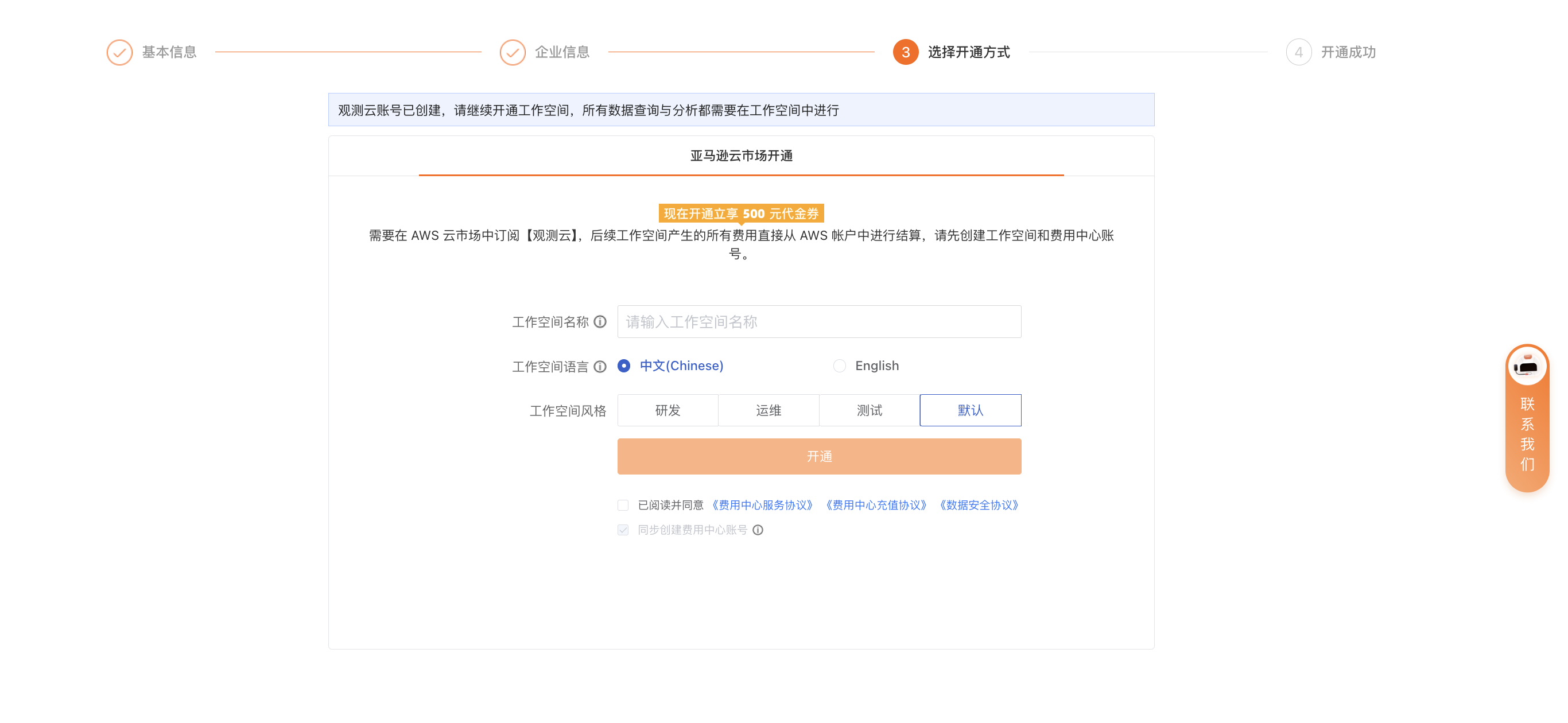
Fill in basic information.
-
Fill in company information.
-
Select activation method: Enter the workspace name and choose the workspace language.
-
Click Activate to complete registration.
Existing Billing Center Account
If you already have a Billing Center account, click Next to directly enter the binding page:
Note
The site in the upper right corner of this page is unrelated to the Billing Center binding process. It only affects the site for subsequent workspace creation, and the site cannot be changed after creation.
Bind Billing Center Account
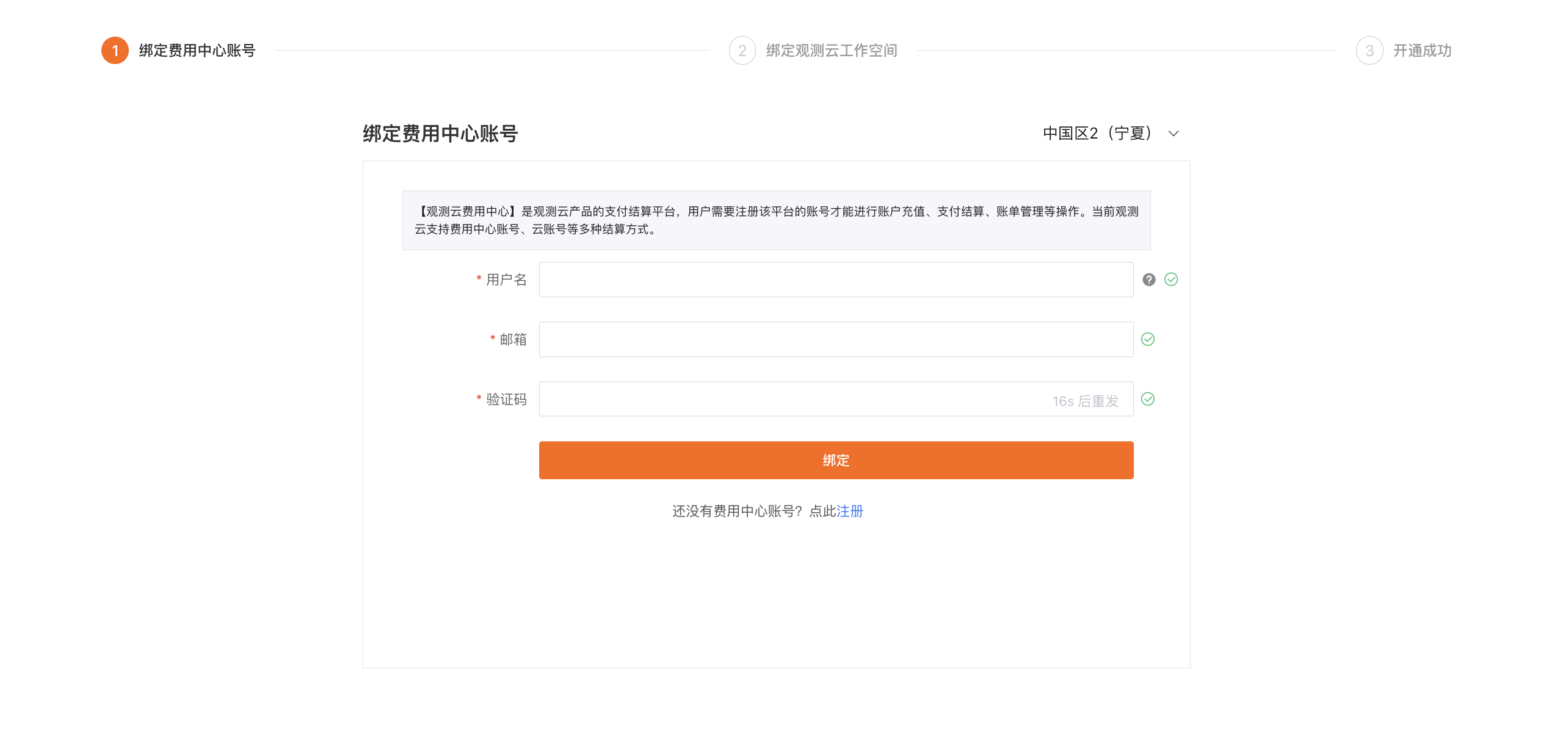
Enter the username of the Billing Center account and bind it through email verification.
Bind Workspace
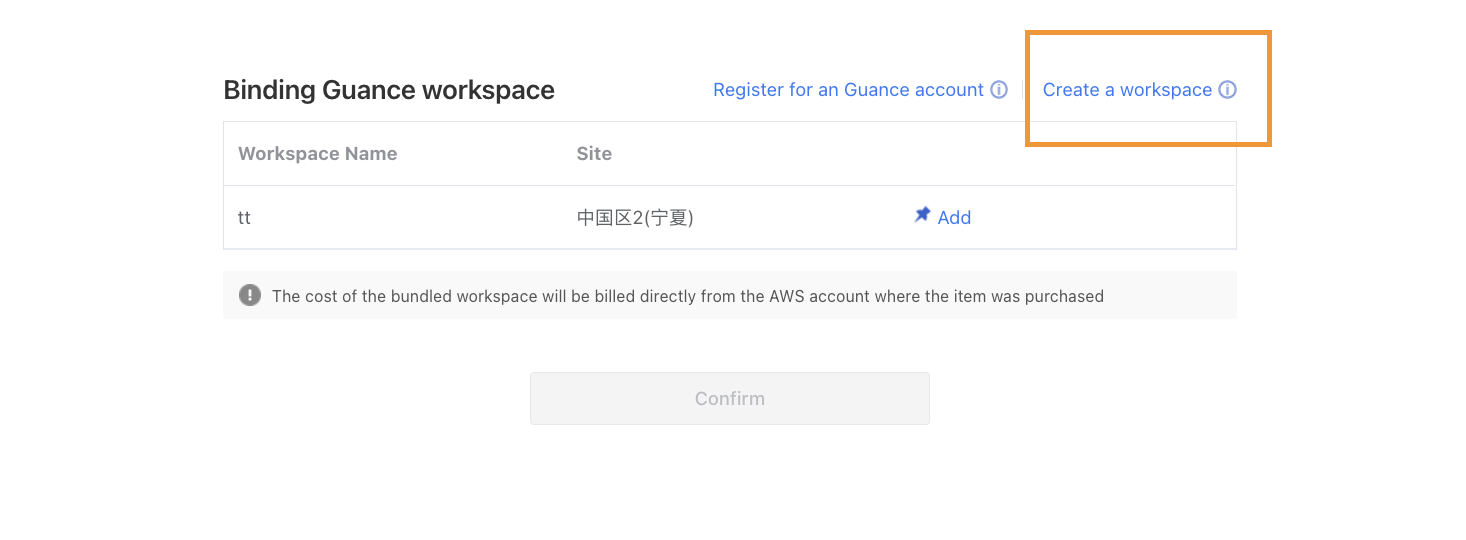
Create Workspace
If no workspace is associated under the current Billing Center account, you need to create one. Since the Guance console and the Billing Center are independent platforms, you need to confirm whether you have registered with Guance and have a Guance account.
If you have already registered a Guance account and need to create a workspace, go to Create Workspace > Have a Guance Account.
-
Enter the workspace name.
-
Select the workspace language.
-
Enter the email used to register the Guance account.
-
Enter the verification code.
-
Agree to the terms.
-
Click Create, and the workspace will be successfully created.
-
After successful workspace creation, you will be automatically redirected to the binding page, showing Bound.
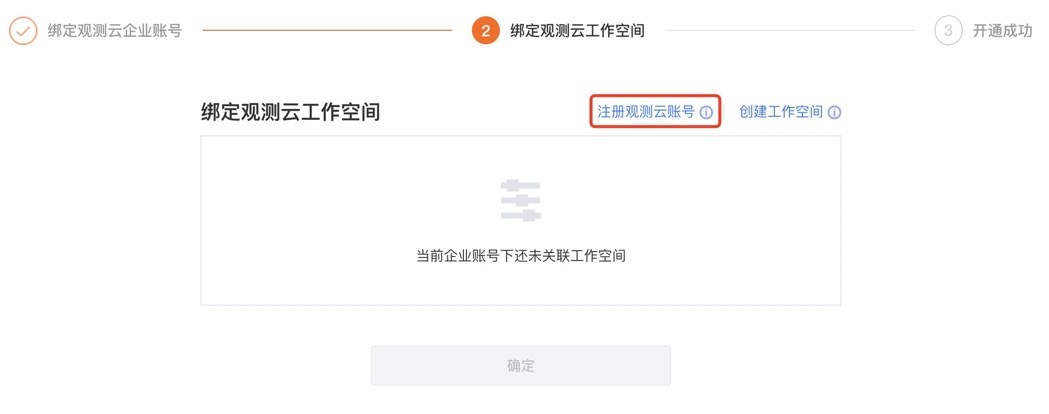
If you have not used Guance before, please register an account first. Go to Create Workspace > No Guance Account.
-
Enter the workspace name.
-
Select the workspace language.
-
Enter a username.
-
Enter and confirm the login password.
-
Enter an email.
-
Enter the verification code.
-
Optionally enter a phone number.
-
Agree to the terms.
-
Click Register and Create Workspace.
-
Click Register Guance Account, enter the relevant information, and complete registration via email verification.
Bind Existing Workspace
If there is a bindable workspace under this Guance Billing Center account, click Bind directly.
-
Select the workspace to bind and click Bind.
-
Click Confirm on the new page.
-
It will now show Bound.
3. Successful Activation
After successfully binding the workspace, click Confirm to be redirected to the login page. Enter your username and password to access the workspace and start using Guance.