Activate the Guance Commercial Plan via Huawei Cloud Marketplace
Ordering the Guance service on the Huawei Cloud Marketplace involves two main steps: purchasing the Guance service and binding the co-branded service. After a successful subscription, log in to Guance through the link provided by the Huawei Cloud side.
Step 1: Purchase the Cloud Service on the Marketplace
Log in to Huawei Cloud > Marketplace, and go to the purchasing page of the Guance SaaS Edition.
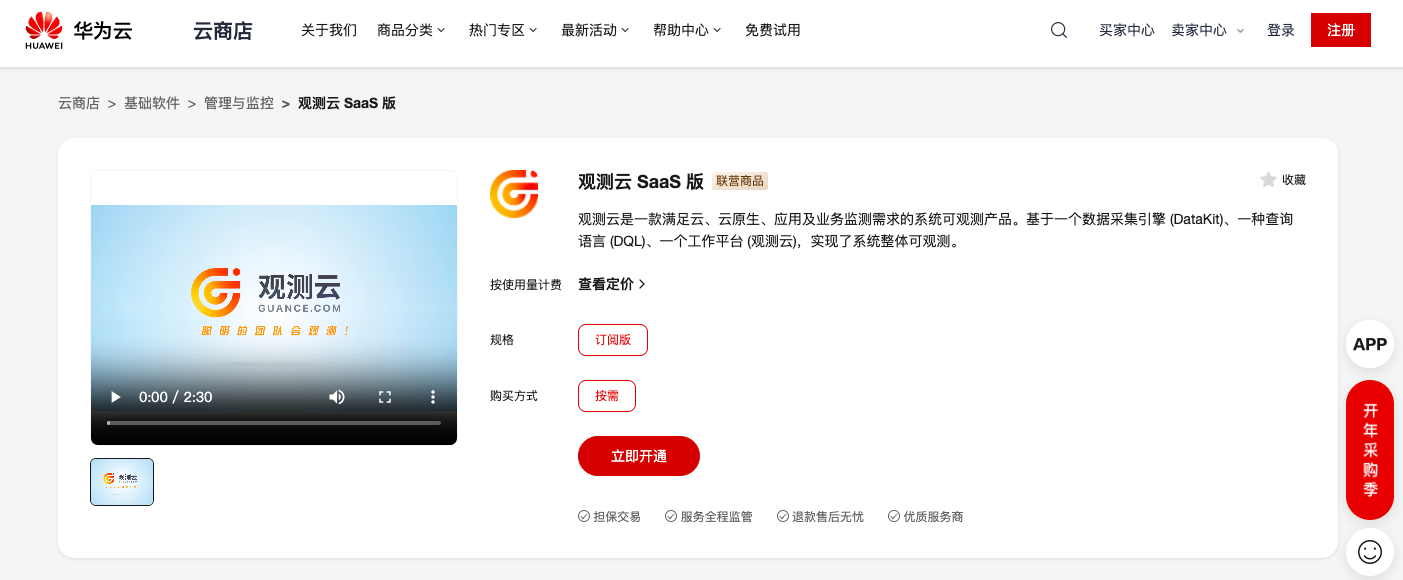
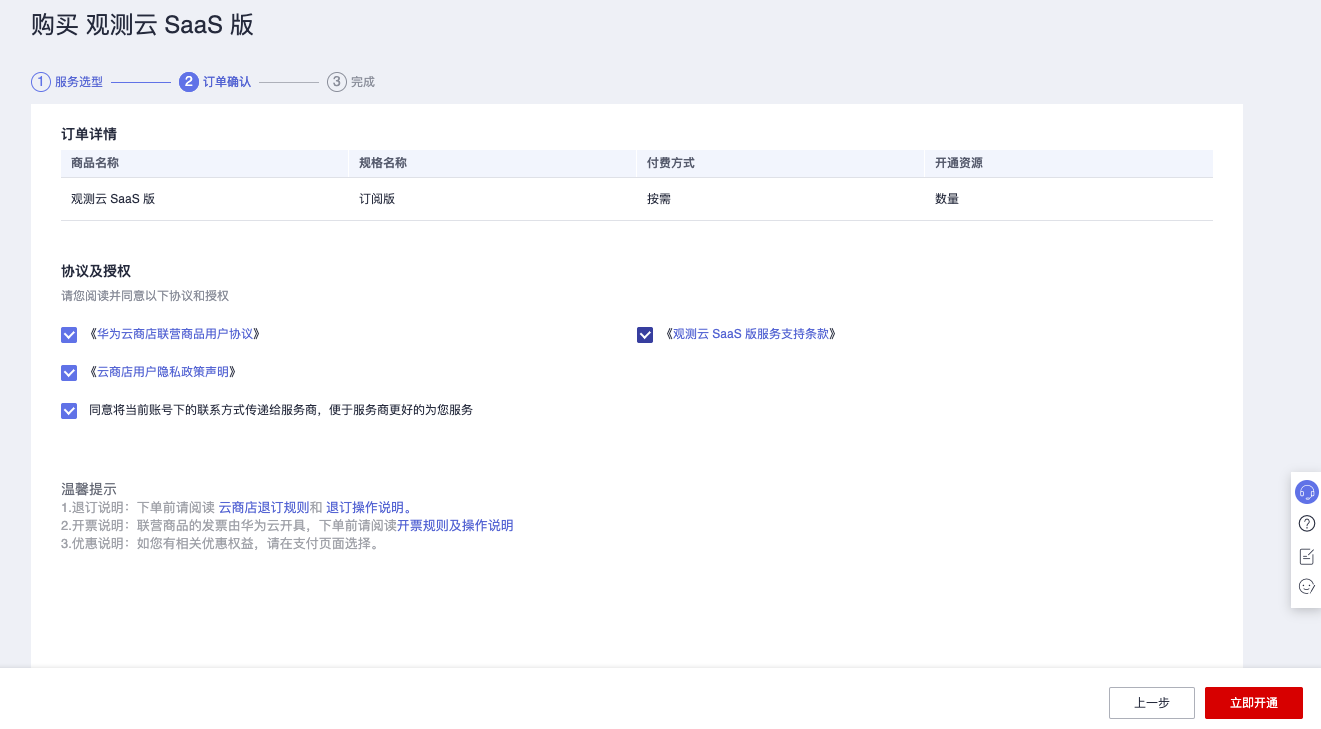
Click Activate Now, and a prompt for Purchase Guance SaaS Edition appears. After agreeing to the terms, click Activate Now.
When prompted SaaS activation task submitted successfully, click Return to My Cloud Marketplace.

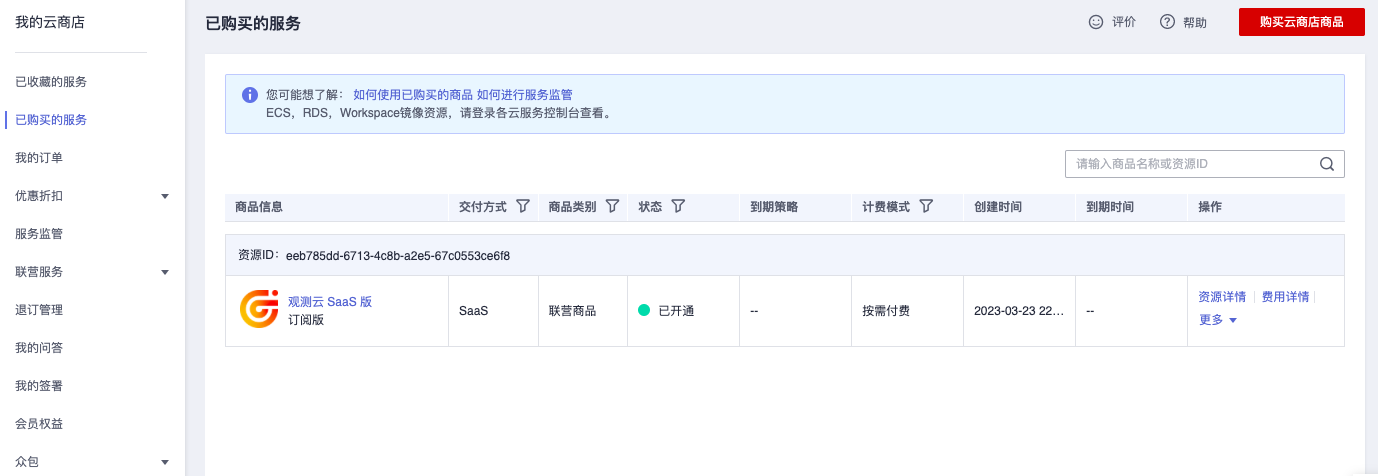
Return to the Purchased Services List in Huawei Cloud to view the purchased Guance service. If the purchased item is not yet visible, refresh the page.
Note: Your Huawei Cloud account must be real-name authenticated before you can purchase the Guance service.
Step 2: Bind the Co-Branded Service
After purchasing a co-branded SaaS product on the Huawei Cloud Marketplace, go to the Buyer Center.
- Click Enable in the "To-do Items" pop-up; or click My Cloud Marketplace > Co-Branded Service in the left navigation bar to enter the Getting Started Guide page.
- Click Start Now to enter the Co-Branded Service page.
- Select a role. It is recommended to choose For Myself.
- Click Confirm.
For more details, see Co-Branded SaaS Product Usage Guide.
Create Enterprise: Enter the enterprise name and enterprise domain.

Note:
- The enterprise name cannot be modified after creation.
- The enterprise short name is a unique identifier for the enterprise and cannot be modified after creation. When authorized users within the organization log in through the Cloud Marketplace unified login page, the Marketplace will uniquely identify the user's information using the user account and enterprise short name.
- Creating an enterprise for the first time takes 1–3 minutes to activate.
Add Members: Fill in the employee name, department, contact information, etc.

Note:
- The "Account" and "Password" created here will be used for SSO to the Guance Billing Center registration or for logging into the Billing Center account.
- When adding members for the first time, Huawei Cloud automatically fills in the account information (real-name info, phone number or email, and Huawei Cloud account name). You can modify this information.
- The account and password you set must be communicated to enterprise members offline.
Authorize Members to the Application: Click to select the member list, check the License Agreement, and click Confirm Authorization.
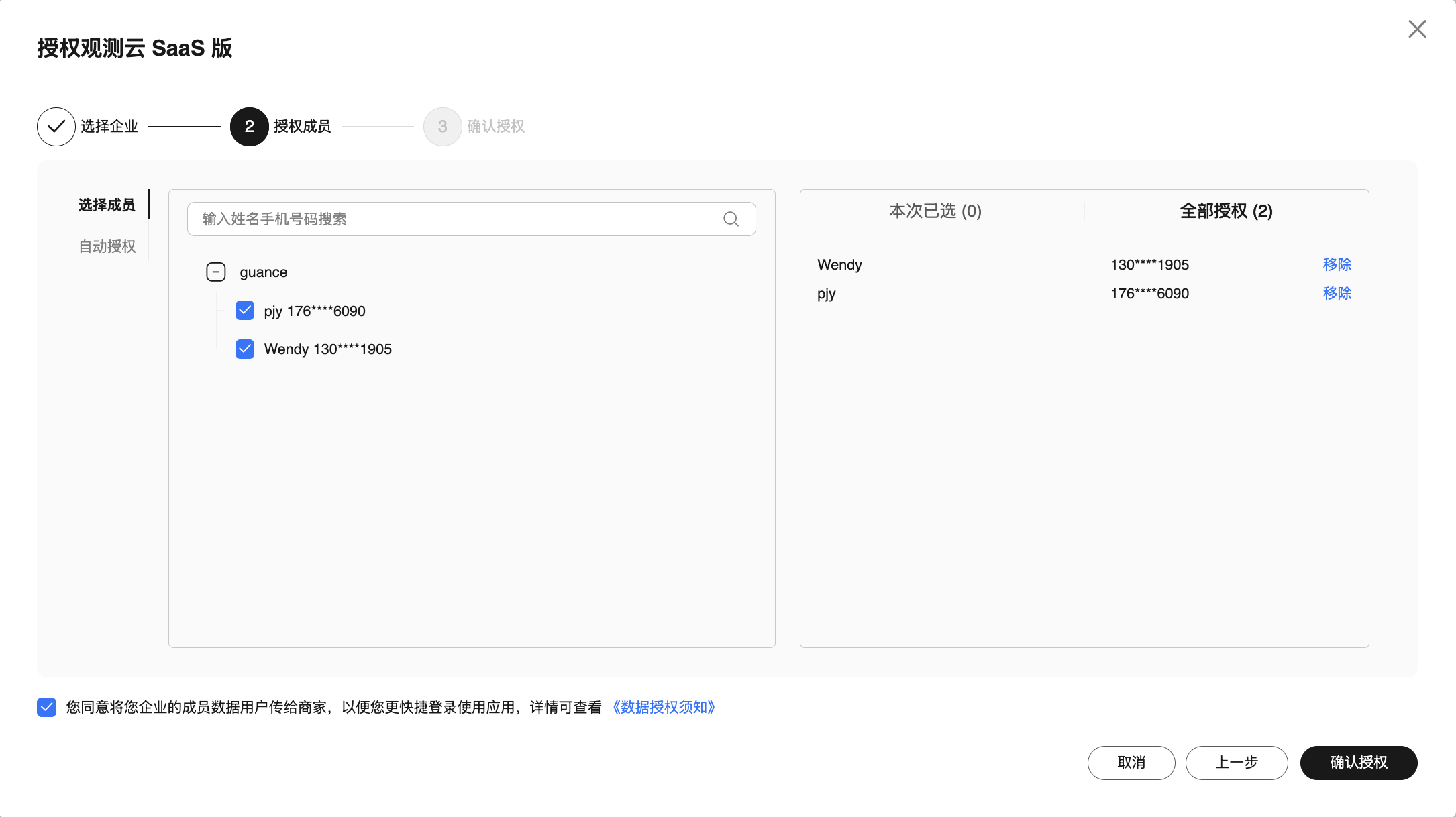
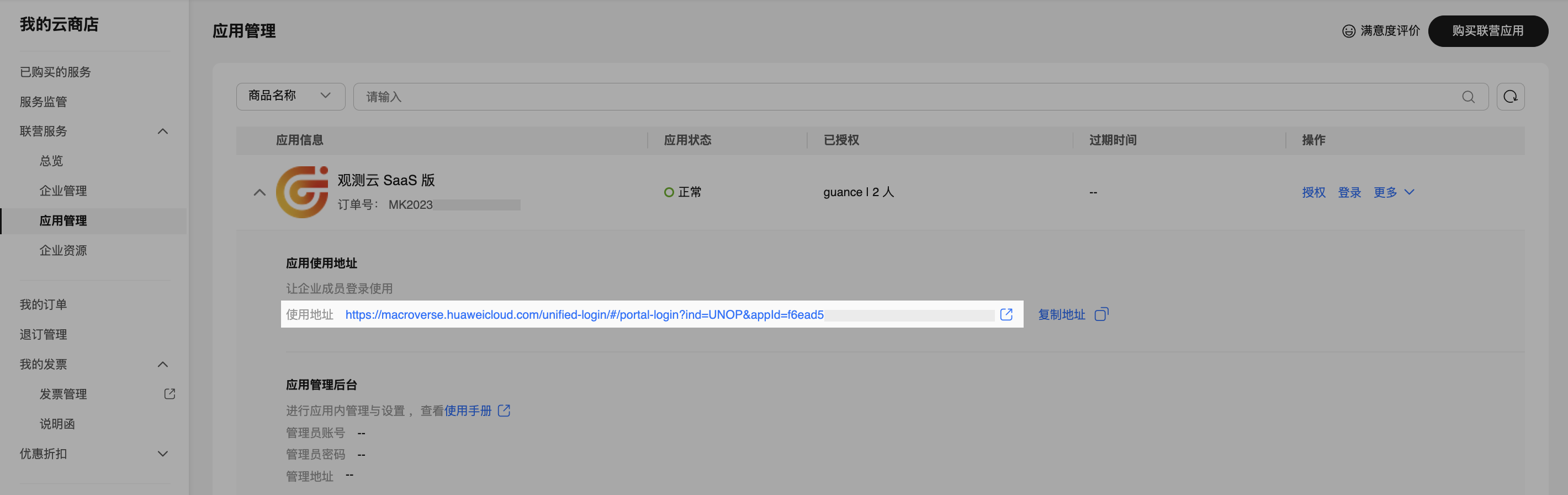
After authorization, pass the login URL, enterprise account name, and account password to the enterprise employees who will use the Guance product.
Log In to the Application
- Use the authorized enterprise employee account to log in to Guance via the unified login link provided by the Cloud Marketplace. Enter the account and password set when adding the member in the associated organization.
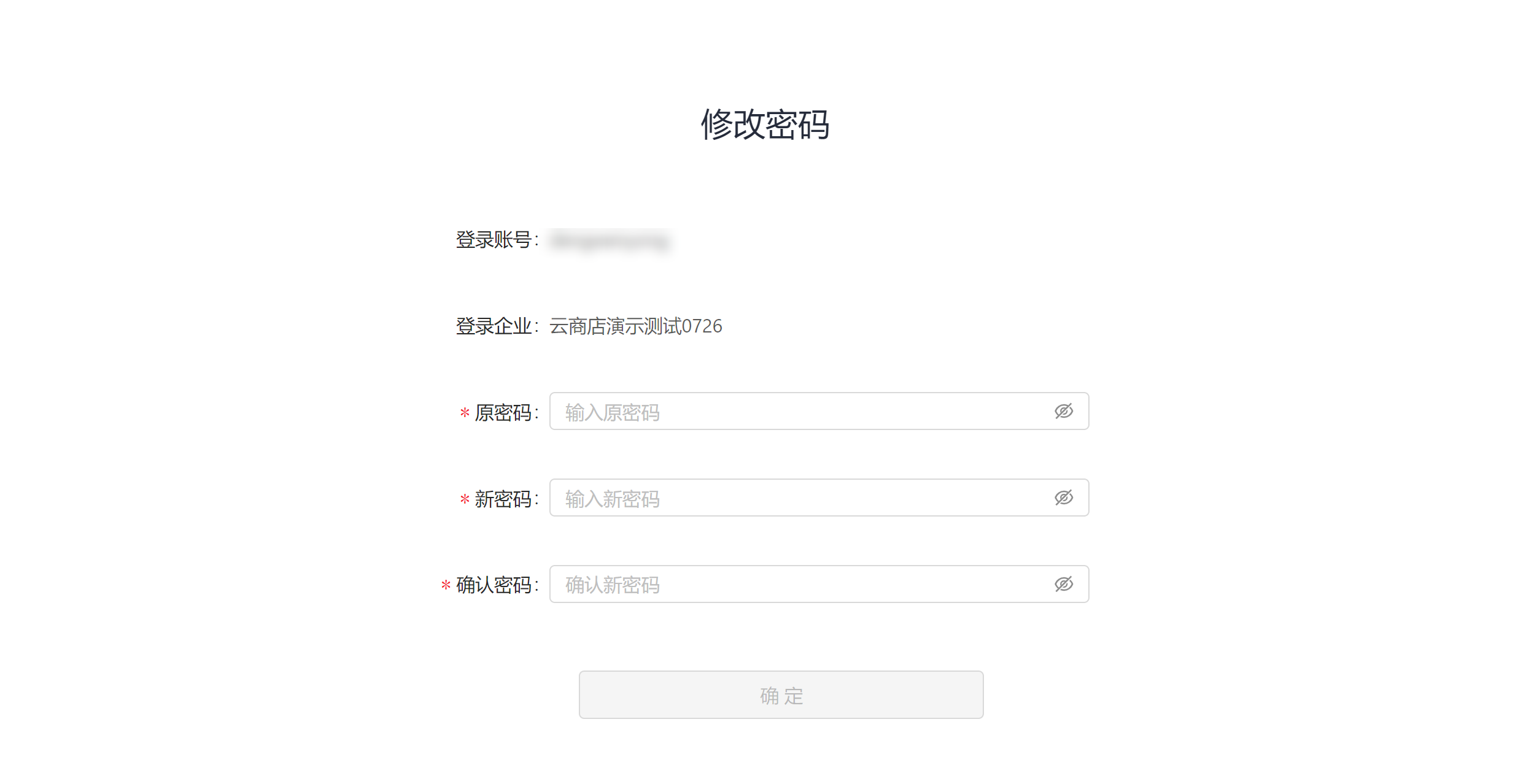
- Upon first login, you must change the initial password.
- After changing the password, you will be redirected to the Guance product page.

Step 3: Start Using Guance
If the current Huawei Cloud account is already bound to a Guance Billing Center account, click the link to directly SSO without entering credentials.

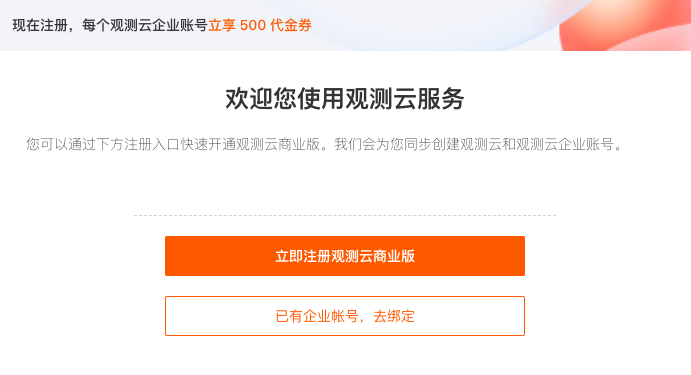
If it is not bound to a Guance Billing Center account, the page will automatically redirect to the page shown below:
No Billing Center Account: You need to register a Guance account and a Billing Center account, then bind the cloud account for billing.
Have a Billing Center Account: You can directly bind the Billing Center account to enable cloud account billing.
What is a Billing Center Account?
The Billing Center account is an independent account within the Guance Billing Center platform used to manage Commercial Plan billing. It allows a single account to associate multiple Workspaces, enabling unified billing management for those Workspaces.
The overall process is as follows:
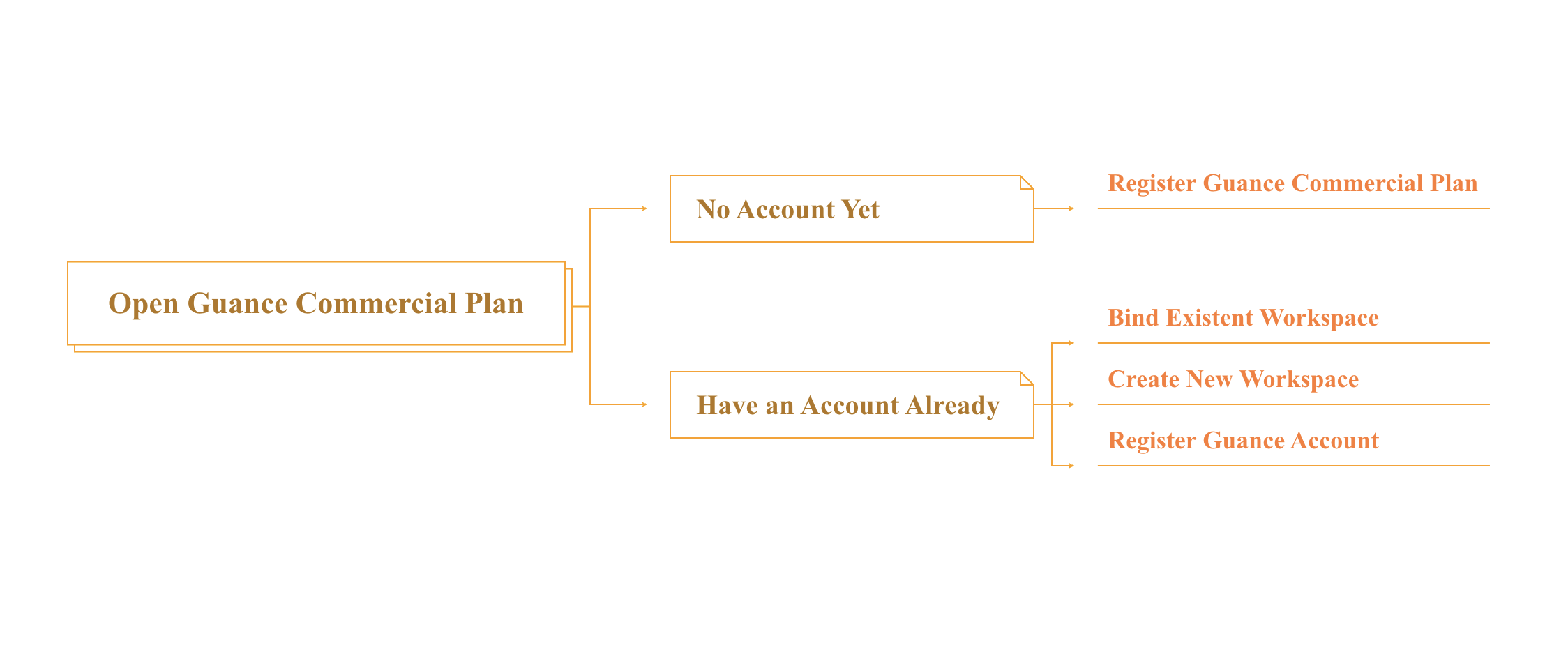
No Billing Center Account
If you do not yet have a Billing Center account, click Next to be automatically redirected to the registration page. After completing the registration process, you will obtain a Guance account and a Billing Center account.
- Fill in basic information.
- Fill in enterprise information.
- Select the activation method: enter the Workspace name, select the Workspace language, and enter the Huawei Cloud Account ID.
- Click Activate to complete the registration.
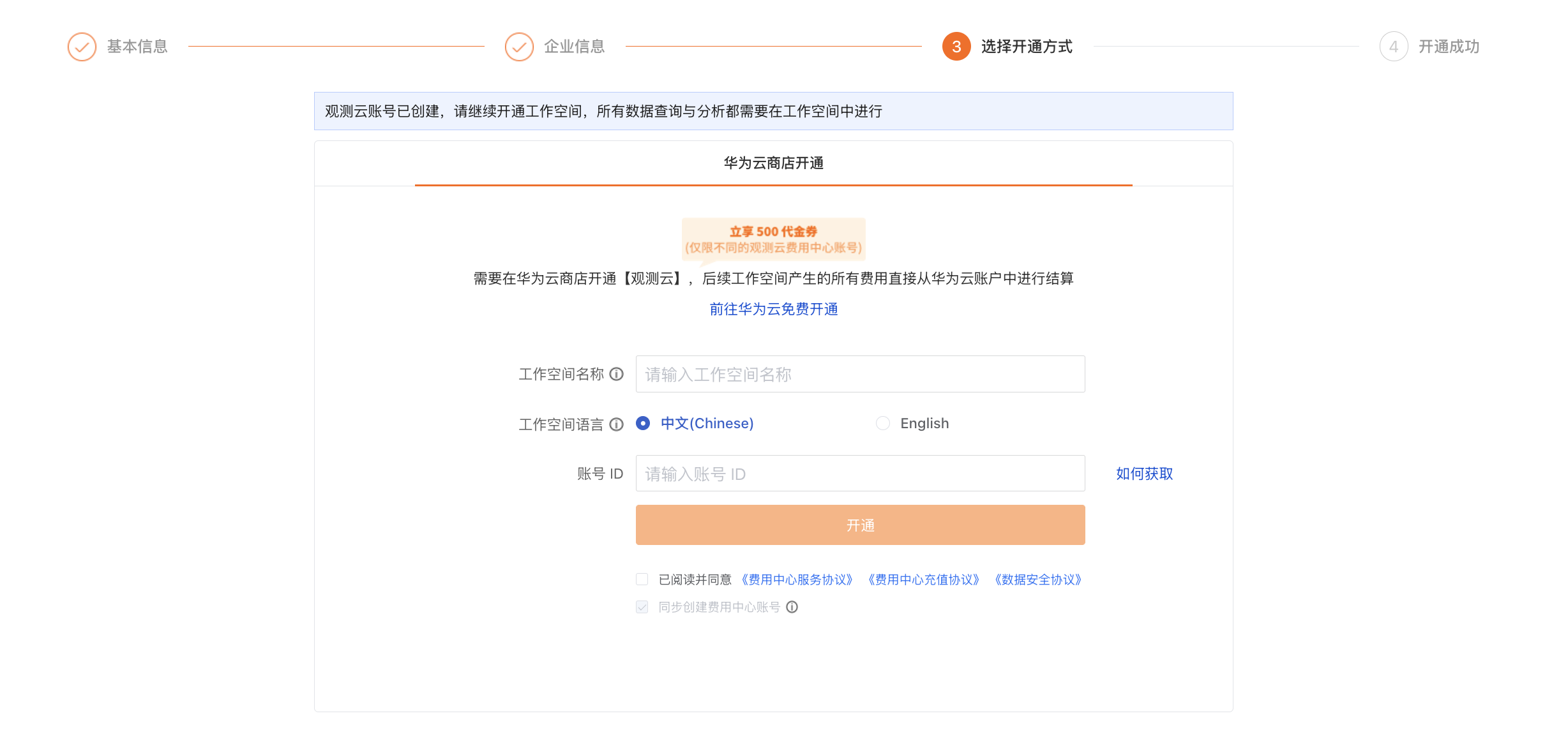
Already Have a Billing Center Account
If you already have a Billing Center account, click Next to directly enter the binding page:
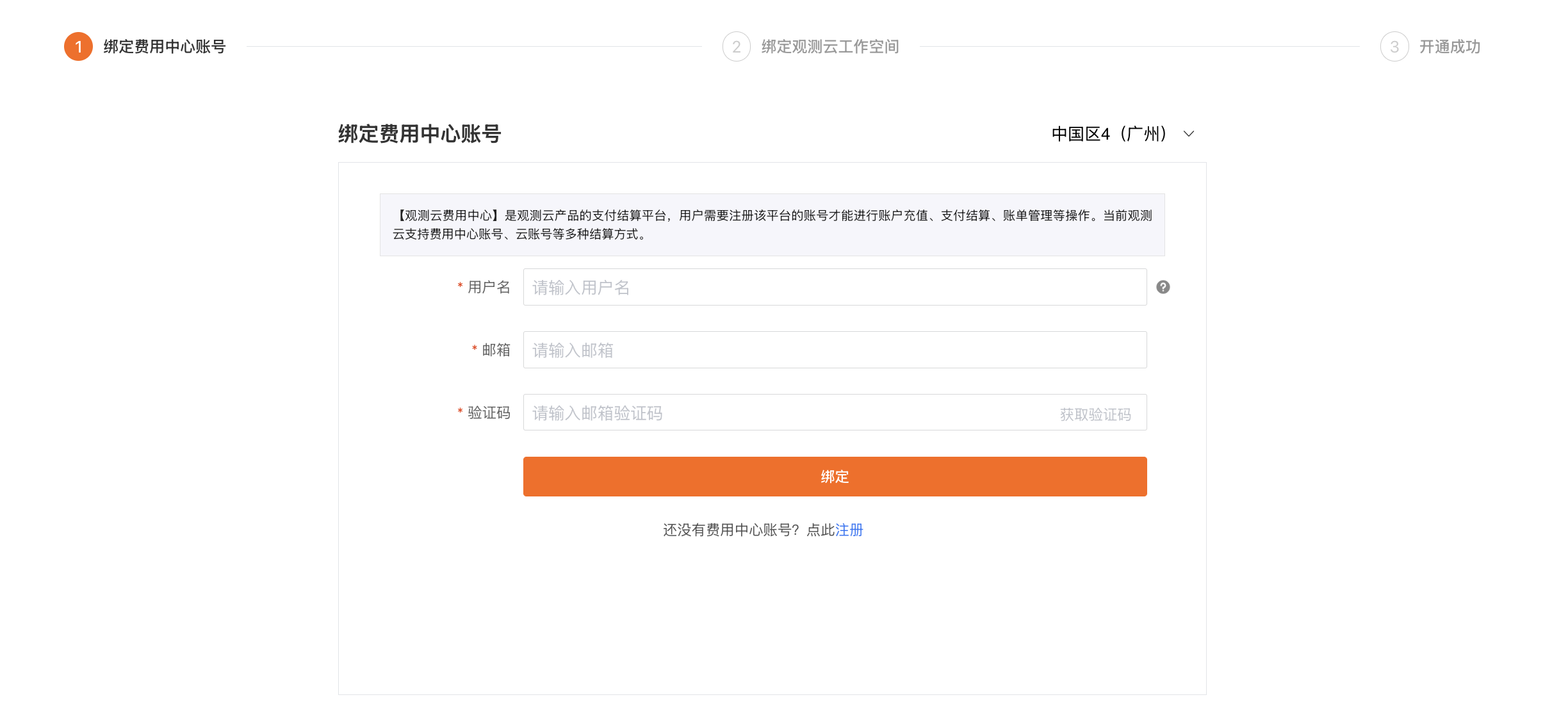
Note: The site shown in the top-right corner of this page is unrelated to the Billing Center binding process. It only affects the site used when creating a Workspace later, and it cannot be changed after the Workspace is created.
Bind the Billing Center Account
Enter the username of the Billing Center account and verify via email to bind.
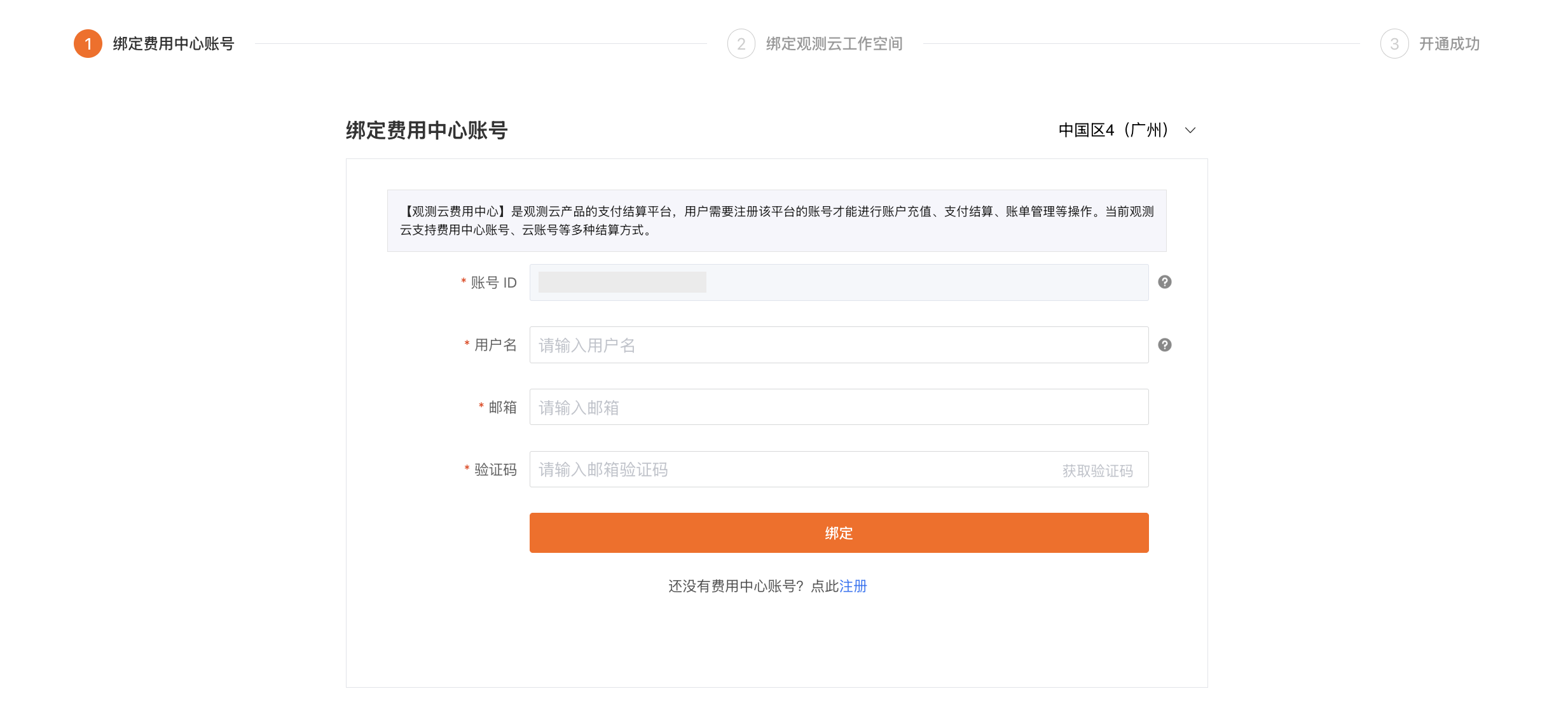
Bind the Workspace
Bind an Existing Workspace
If you have a bindable Workspace under this Guance Billing Center account, click Bind directly.

- Select the Workspace to bind and click Bind.
- Click Confirm in the new page.
- It will now show as Bound.
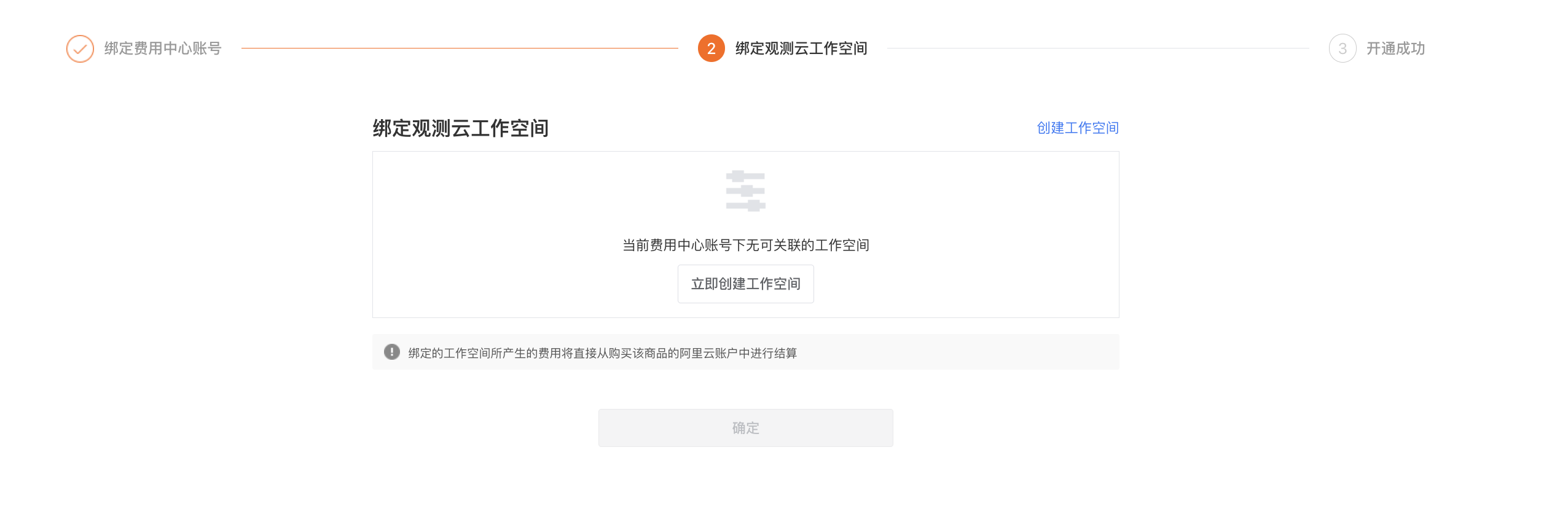
Create a Workspace
If no Workspace is associated with the current Billing Center account, you need to create a Workspace first. Since the Guance Console and the Billing Center are two separate platforms, you must confirm whether you have registered for Guance and have a Guance account.
If you have already registered for a Guance account and need to create a Workspace, go to Create Workspace > Have Guance Account.
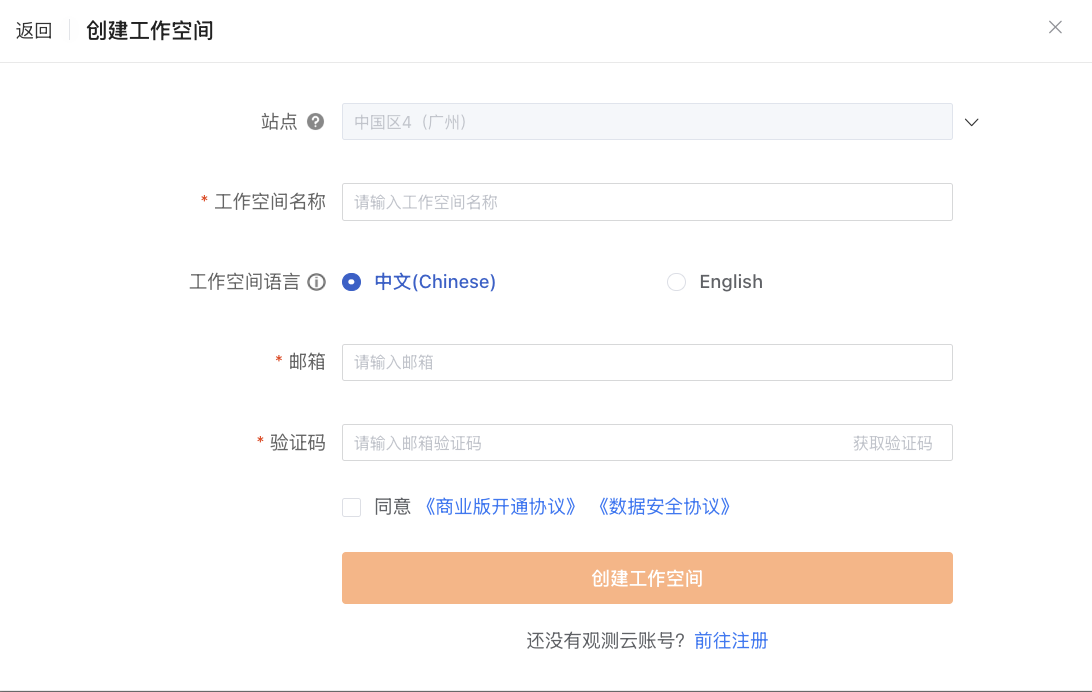
- Enter the Workspace name.
- Select the Workspace language.
- Enter the email used when registering the Guance account.
- Enter the verification code.
- Agree to the terms.
- Click Create. The Workspace will be created successfully.
After the Workspace is created, the page automatically returns to the binding page and shows Bound.

If you have not used Guance before, please register a Guance account first. Go to Create Workspace > No Guance Account.
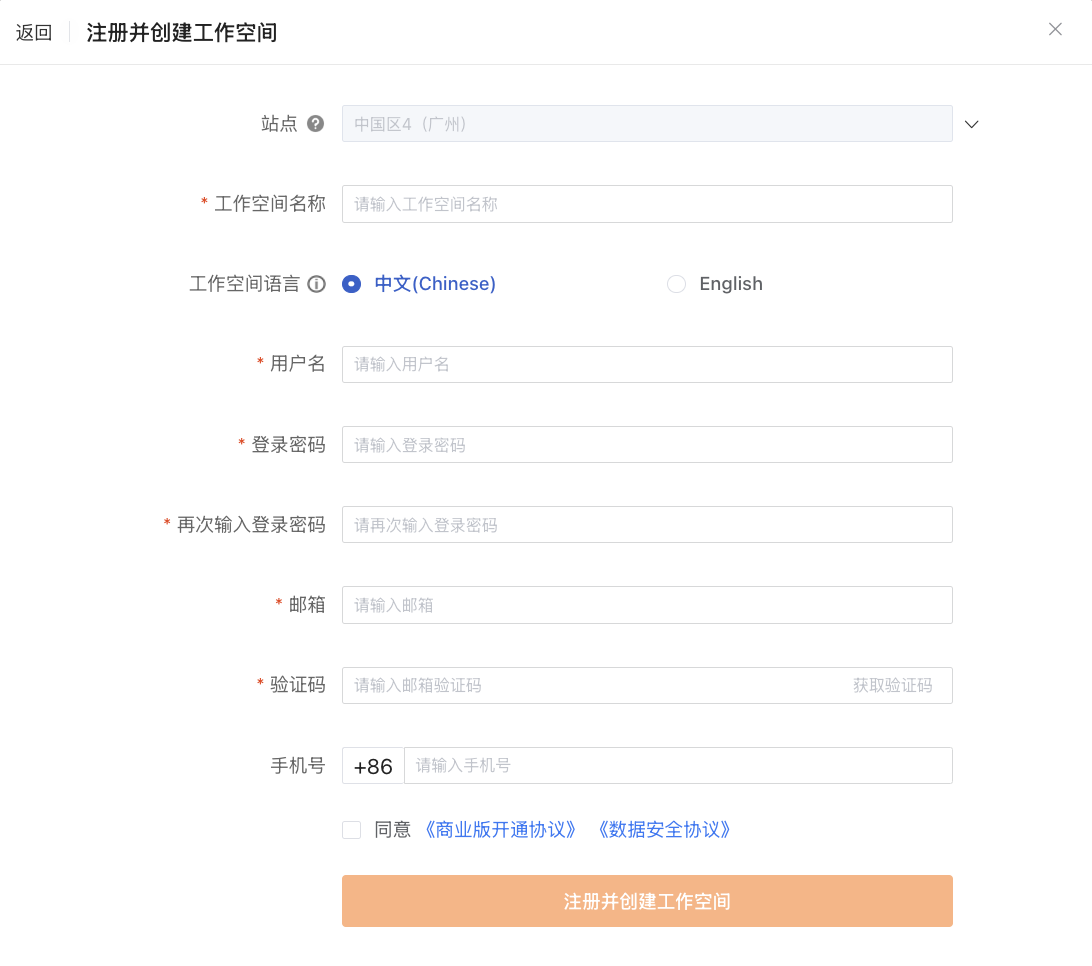
- Enter the Workspace name.
- Select the Workspace language.
- Enter a username.
- Enter and confirm the login password.
- Enter an email address.
- Enter the verification code.
- Optionally enter a phone number.
- Agree to the terms.
- Click Register and Create Workspace.
After the Workspace is created, the page automatically returns to the Bind Guance Workspace page and shows Bound.
Step 4: Activation Successful
After successfully binding the Workspace, click Confirm to be redirected to the login page. Enter your username and password to access the Workspace and start using Guance.
How to Obtain the Huawei Cloud Account ID
- Log in to the Huawei Cloud Console with your account.
- Click the account avatar in the top-right corner.
- In the dropdown menu, click My Credentials.
- On the API Credentials page, you can view the Account ID.
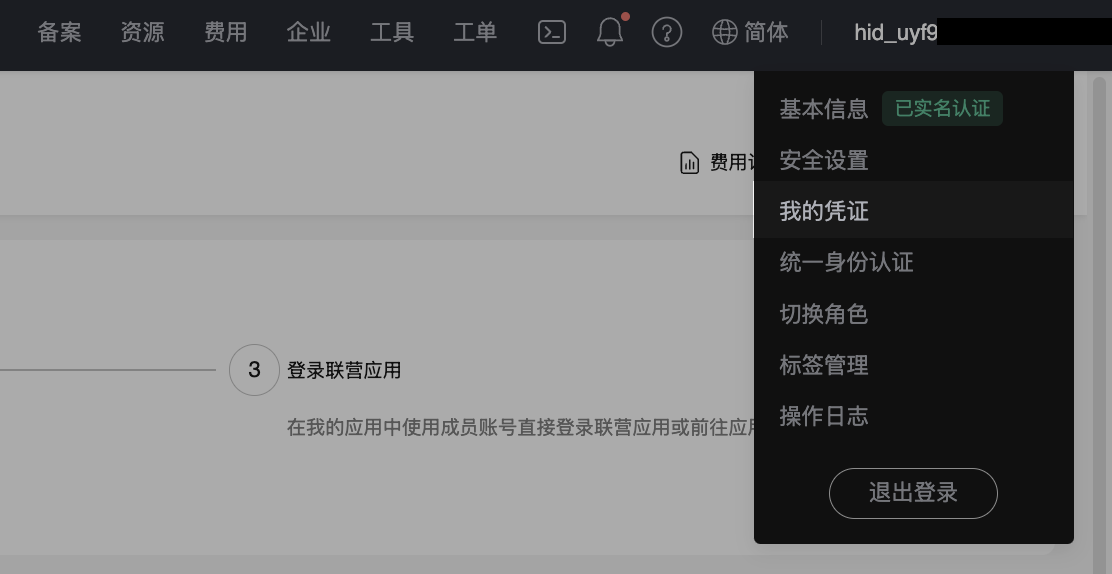

How to Obtain the Huawei Cloud Instance ID
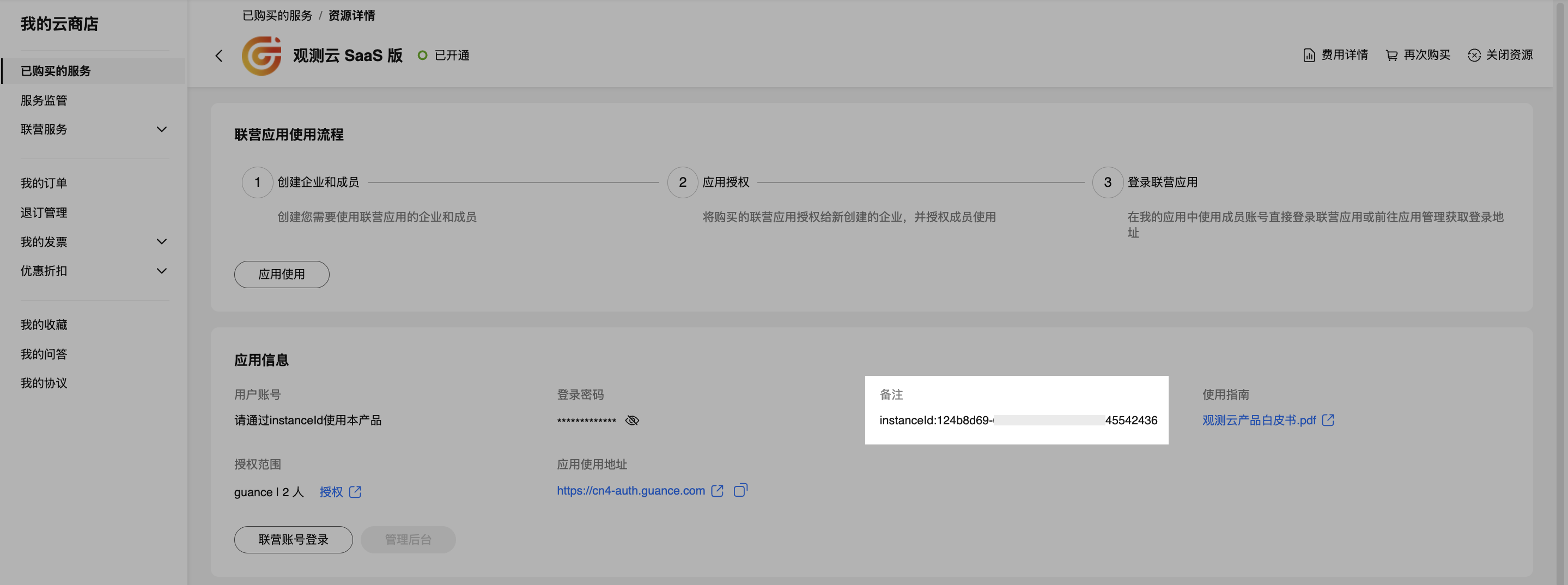
In the Huawei Cloud Marketplace, go to My Cloud Marketplace > Purchased Services. Open the product details page, and under Resource Details of the current service, you can view the Huawei Cloud Instance ID.