Notification Targets
Set the notification targets for alert events, including:
System default notification targets
System Default Notification Targets
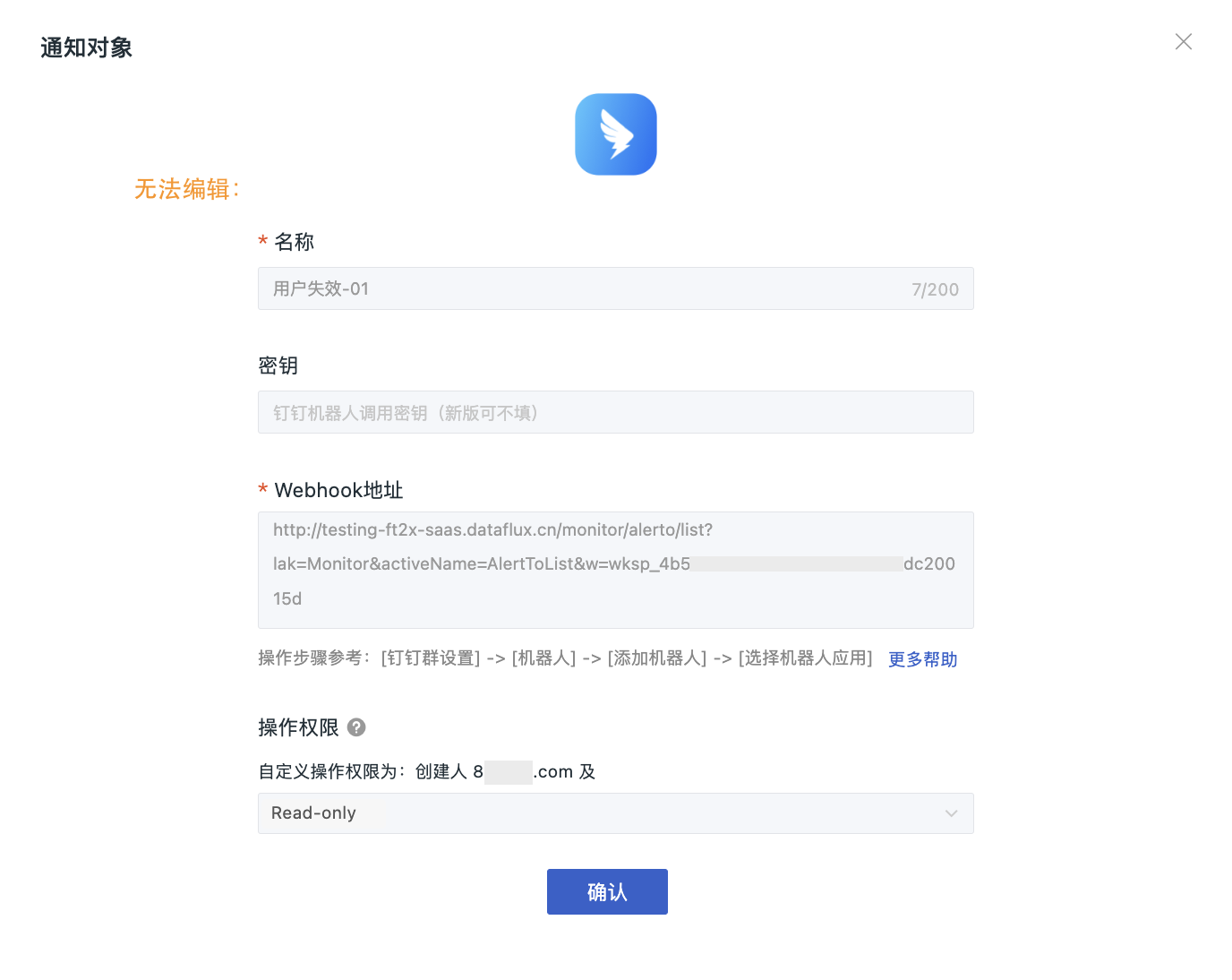
The system provides default notification channels. When configuring, specify the Webhook address for event notifications, define notification permissions, and select specific users or roles to manage notification target rules.
Note
Alert notifications from DingTalk, WeCom, and Lark bots are merged and sent once per minute, with a delay of about one minute.
Main Configuration
- Define the name of the notification target for identification in the notification target list.
-
Configure the secret/Webhook address and other information for the notification target:
-
Test the notification: after configuration, click "Test Notification Sending" to verify whether the notification channel is reachable.
- Configure operation permissions.
- Confirm.
Configure Operation Permissions
After setting the operation permissions for the notification target, the roles, team members, and users in your current workspace will perform corresponding operations on the notification target based on assigned permissions.
| Operation | Description |
|---|---|
| The configuration is not enabled | Follows the default permissions of "Notification Target Configuration Management" |
| The configuration is enabled and custom permission objects are selected | Only the creator and the objects granted permissions can enable/disable, edit, or delete the rules set for this notification target |
| The configuration is enabled, but no custom permission objects are selected | Only the creator has permission to enable/disable, edit, or delete this notification target |
Note
The Owner role in the current workspace is not affected by the operation permission configuration here.
Custom Notification Targets
In addition to the system default notification targets, you can also connect external notification channels through a third-party Func to send alert information directly to a local DataFlux Func.
For specific steps, see Integrating Custom Notification Targets.
Management List
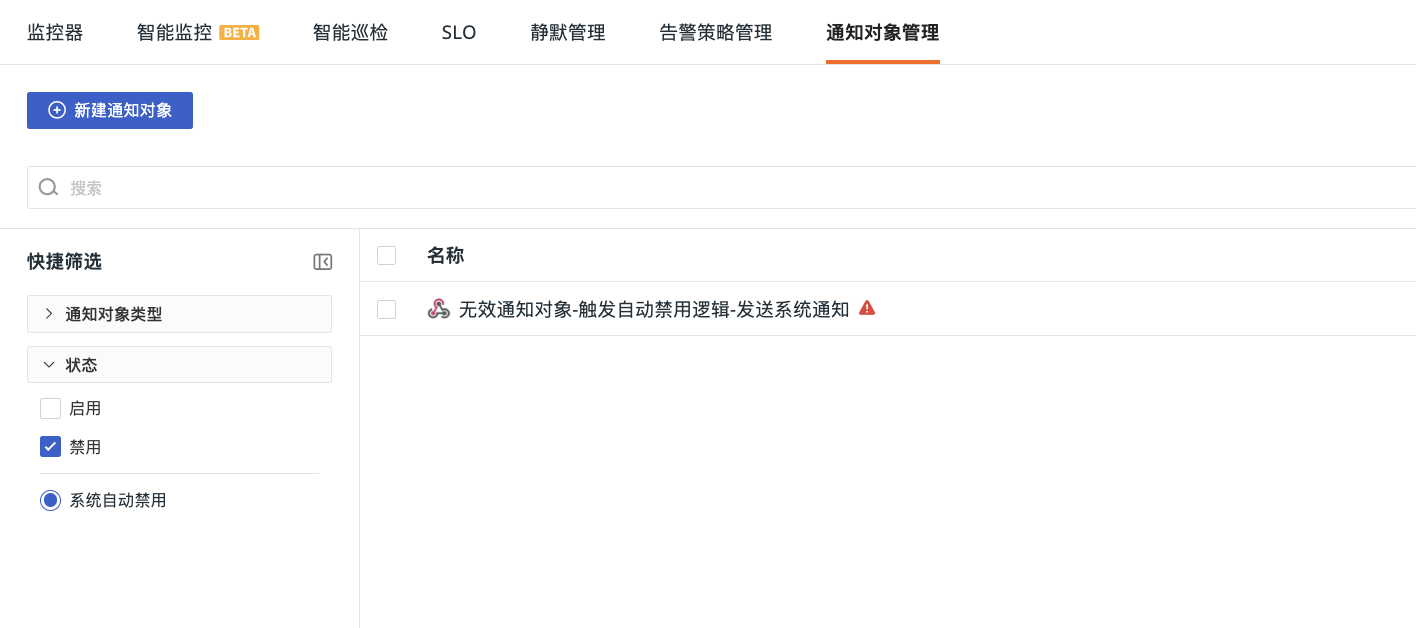
All successfully added notification targets can be viewed on the Monitoring > Notification Targets page. You can manage the list through the following operations:
- Enable/disable, modify, or delete a specific notification target.
- Batch operations.
- Operation audit: click to jump to the operation records related to this notification target rule.
- Use the quick filters on the left to select filter conditions and quickly locate notification rules.
- If you are not granted permission to a notification target rule, you cannot enable/disable, edit, or delete it.
Automatically Disabled by System
If a notification target rule fails to send for two consecutive days, the system automatically disables it. Under Quick Filters > Status, select the checkbox to quickly view all automatically disabled rules.