Explorer
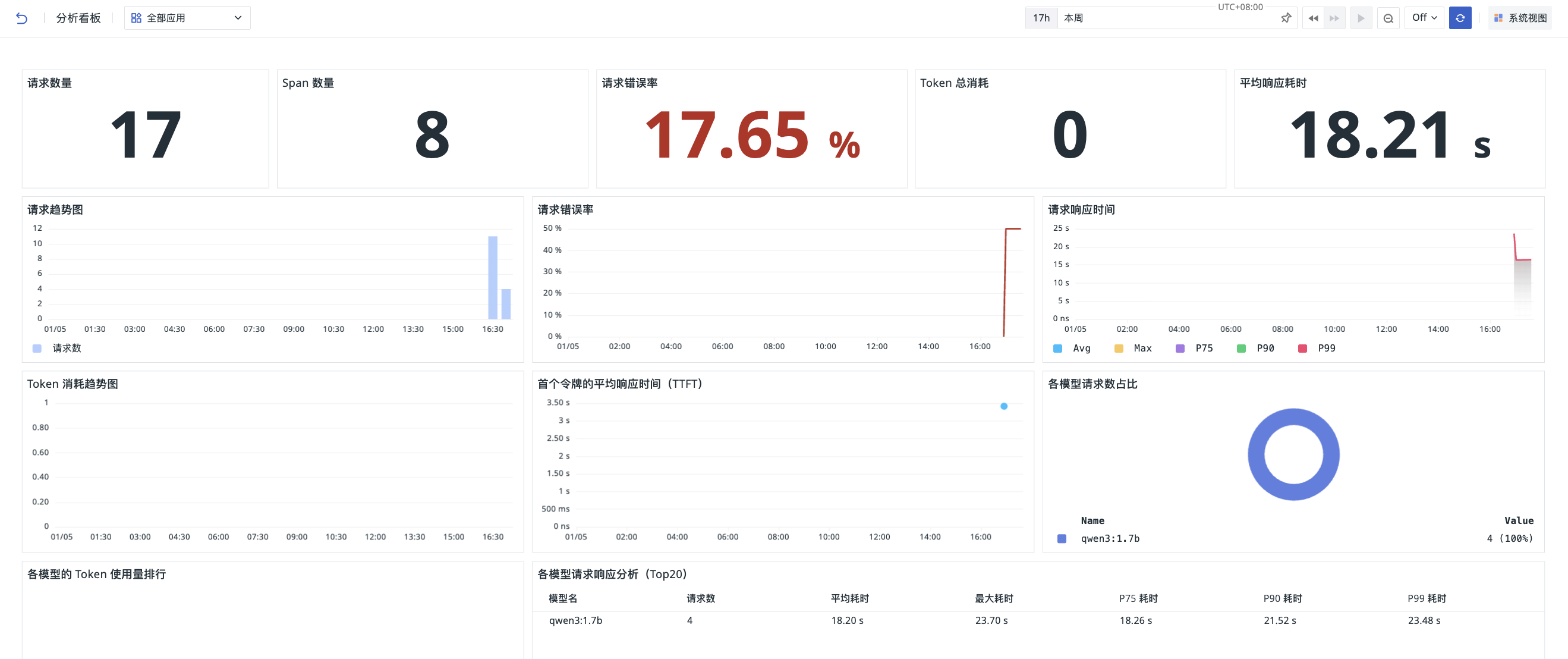
After an application is created successfully, the system aggregates each Agent/LLM request into the Explorer as a log event. You can search and filter to analyze all Session and Trace data for a single application or all applications.
The top of the page supports switching between Agent and LLM states, with Agent state selected by default.
Agent State
In Agent state, two filter boxes are shown at the top of the page:
- Agent type: filter all Agent types or a specific type;
- Instance: filter the specific instances under the selected Agent type; instance name search is supported. After a specific Agent type is selected, the instance filter only shows instances of that type; when no Agent type is selected, the instance filter defaults to All Instances but is not selectable.
LLM State
Switch to LLM state to see an application filter control at the top of the page. You can select all applications or a specific LLM application to view.
View Modes
User List
The Agent master Explorer aggregates data across Agent types by User dimension. The detail page of an individual Agent type also provides a User tab for viewing User usage under that type.
For Agent Teams data, the User dimension is associated with workspace members and also displays usernames to help identify the corresponding user.
The Agent type detail page contains the following first-level tabs:
Session List
Session-dimension data is displayed by default. List fields include Session ID, input tokens, output tokens, number of risk events, and alert level. The quick filters on the left support filtering by token range, model provider, request model, response model, and other dimensions. Multiple analysis views are supported, such as list, Top List, time series chart, pie chart, treemap, and grouped table chart.
- Number of risk events: the total number of risk events detected in the current Session;
- Alert level: the highest alert level of risk events in the current Session; if there are no risk events, it displays the no-risk status.
Click a row to enter the Session detail page:
- Overview: the left side shows the Session Trace Waterfall Chart, and the right side shows the preview, attribute information, and the alert level of the current Session;
- Call Analysis: shows the proportions of model calls, Tool executions, and Skill executions, as well as the Traces and risk events associated with the current Session. Risk events display information such as alert level, related operations, and occurrence time.
Trace List
Switch to the Trace List tab to view data by Trace dimension. List fields include Trace ID, owning Session, Trace duration, input tokens, output tokens, Trace status, number of risky operations, and alert level.
- Number of risky operations: the number of operations marked as risky in the current Trace;
- Alert level: the highest alert level among all risky operations in the current Trace.
Click a row to enter the Trace detail page:
- Overview: shows the Trace call process in a Waterfall Chart and the alert level of the current Trace; Span details are displayed below;
- Call Analysis: shows Tool and Skill call records. Risky operations display a risk indicator, and the risk levels are also shown in the related Tool, Skill, and other operation information.
Detail Page
On the detail page, the left side shows the individual Span and Trace generated by the application, and the right side shows the corresponding preview and attribute information.
Risk Alerts
The system marks objects such as Session, Trace, Tool, and Skill with risk flags based on risk events generated during Agent execution.
Risk alert information may appear in the following locations:
| Location | Displayed Content |
|---|---|
| Session list | Number of risk events, alert level |
| Session Overview | Alert level of the current Session |
| Session Call Analysis | Risk events and associated Traces |
| Trace list | Number of risky operations, alert level |
| Trace Overview | Alert level of the current Trace |
| Trace Details | Risk indicators for risky operations, and risk levels of operations such as Tool and Skill |
When a Session or Trace contains multiple risk events, the list and overview display the highest alert level among them. In Call Analysis, you can click a specific risk event or risky operation to jump to Security Monitoring for details.
Related Actions
- Search and locate by node name
source; - Choose whether to show metrics and scores.
What are metrics and scores?
- Metrics:
durationtime display - Scores: model quality evaluation scores, descriptions, and other information
Preview
Includes node type, node name, execution duration, token consumption, execution status, and execution details.
Status Display
Execution status (status) |
Possible causes |
|---|---|
| Success: Success | |
| Failed: Error | Agent/LLM call timeout, abnormal tool returns, etc. |
| Warning: Warning | Output content triggers sensitive word detection but execution is not interrupted, etc. |
Execution Details
Displays the Input and Output in the application. The former contains all the elements used to build the final request sent to the model, while the latter shows the result generated from the input.
For data ingested via LangChain OpenTelemetry, the system parses gen_ai-related attributes into Input, Output, and Token information. If the raw data does not provide the corresponding attributes, the page displays empty.
Attribute Information
The related field information contained in the current Span or Trace.
Related Views
Using the + button in the upper-right corner, you can bind built-in views to the current detail page for dedicated visualization of Agent/LLM data.
- Click the add button;
- Select the related field;
- In the Bind Built-in View panel that pops up, select the view to bind;
- After the binding succeeds, the new tab is displayed in the tab bar.
Further Reading
You may also be interested in: