Pulling Application Images
Online Deployment
Online deployment means the Kubernetes environment has access to the public internet, so Kubernetes can automatically pull images from the official public image registry of Guance.
To obtain the public image registry address of Guance, see Guance Version History.
Offline Deployment
Downloading and Importing the Guance Offline Image Package
Note
If the Kubernetes node hosts can access the public internet, you do not need to import images using the offline method described below; the installer will download the images automatically.
For offline installation, you must first manually download the latest Guance image package and use the docker load command to import all images into each Kubernetes worker node before proceeding with the guided installation.
Download URL for the latest Guance Docker image package: https://static.guance.com/dataflux/package/guance-amd64-latest.tar.gz
-
Download the Docker image package to your local machine:
-
After downloading, upload the Docker image package to every Kubernetes node host, then run the following commands to import the Docker images:
-
Import image command for Docker environment:
-
Import image command for Containerd environment:
For offline installation, you must first manually download the latest Guance image package and use the docker load command to import all images into each Kubernetes worker node before proceeding with the guided installation.
Download URL for the latest Guance Docker image package: https://static.guance.com/dataflux/package/guance-arm64-latest.tar.gz
-
Download the Docker image package to your local machine:
-
After downloading, upload the Docker image package to every Kubernetes node host, then run the following commands to import the Docker images:
-
Import image command for Docker environment:
-
Import image command for Containerd environment:
Configuring launcher with a Self-hosted Image Registry
Note
If you import the offline image package into a self-hosted image registry and then use it, you must perform the following configuration.
This operation must be performed before deploying launcher.
When installing launcher, add the imageSecrets.url, imageSecrets.username, and imageSecrets.password parameters.
helm install launcher launcher  --repo https://pubrepo.guance.com/chartrepo/launcher -n launcher \
--create-namespace  \
--set ingress.hostName=<Hostname>,storageClassName=<Stroageclass> \
--set imageSecrets.url=<warehouseaddress>,imageSecrets.username=<warehouse username>,imageSecrets.password=<warehouse passwd>
- Create a secret
kubectl create secret docker-registry dataflux-test --docker-server='<Repo Server>' --docker-username='<Repo Username>' --docker-password='<Repo Password>'
Replace
docker-server,docker-username, anddocker-passwordwith your image registry address, account, and password.
- Retrieve the secret
Output:
eyJhdXRocyI6eyJwdWJyZXBvLmd1YW5jZxxxxxxxxxiJkZXBsb3kiLCJwYXNzd29yZCI6IlFXRVIiLCJhdXRoIjoiWkdWd2JHOTVPbEZYUlZJPSJ9fX0=
- Installation
Launcher YAML download: https://static.guance.com/launcher/launcher.yaml
Save the YAML content above as a file named launcher.yaml on the operation and maintenance machine, then replace the variables in the file:
- Replace
{{ launcher_image }}with the latest Launcher application image address (available from the Deployment Images document). - Replace
{{ domain }}with the primary domain, e.g.,dataflux.cn. - Replace
{{ storageClassName }}with the storage class name, e.g.,alicloud-nas.
Replace the .dockerconfigjson content with the secret.
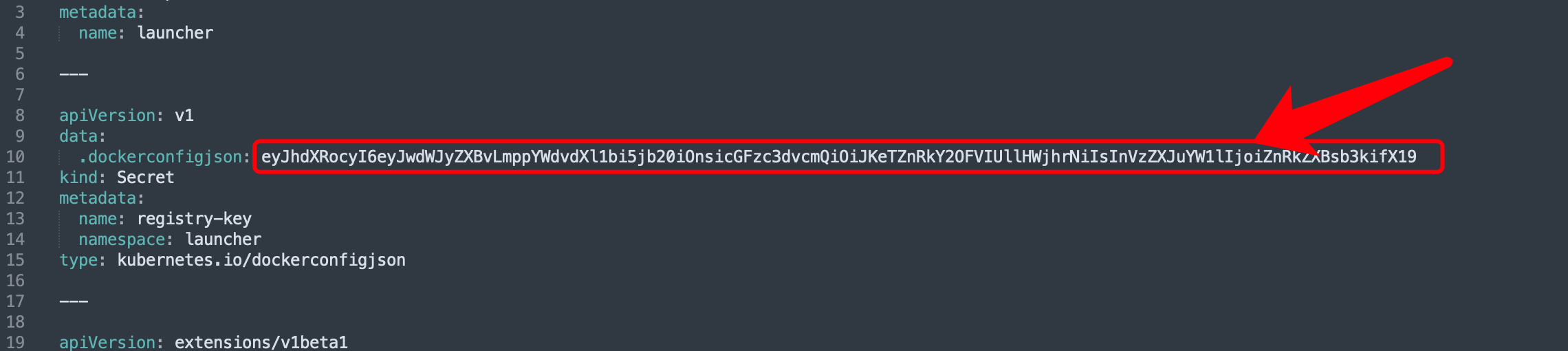
Run the installation: