Monitor Troubleshooting
Introduction
This article describes how to troubleshoot common monitor issues:
- The monitor does not generate events
- The monitor has events, but no push notification is sent
Prerequisites
- You need the account permissions to create monitors in Guance
- You need the admin management permissions in the Guance backend
Troubleshooting Steps
Step 1: Log in to the Func Platform to Check the Issue
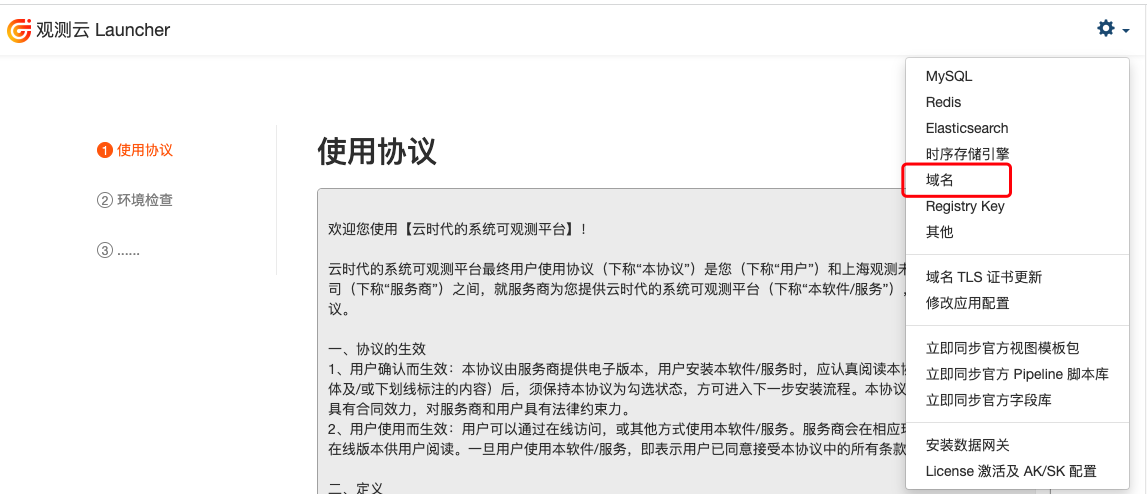
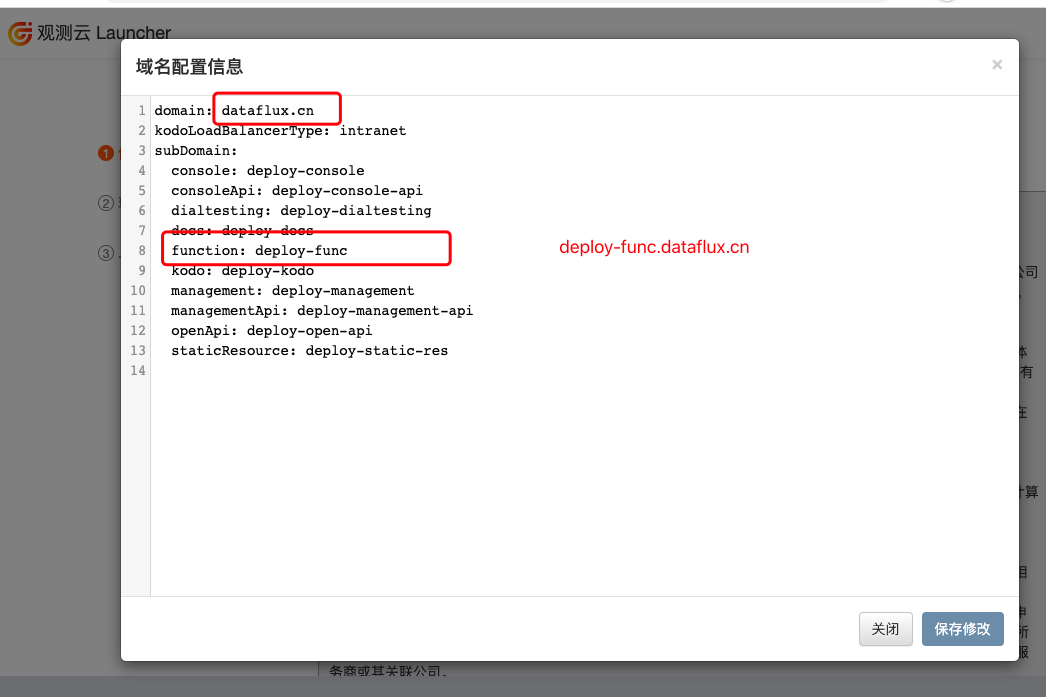
- Obtain the Func login address from Launcher
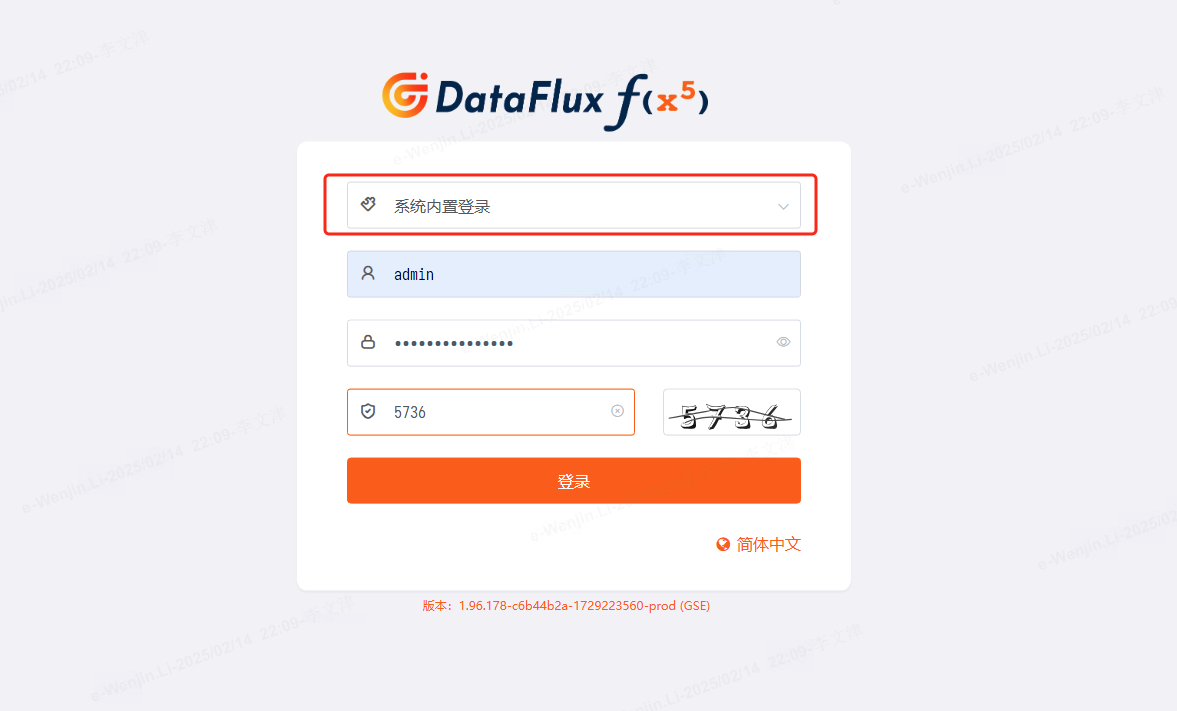
- Log in to your Func platform (system built-in login)
For the account, contact Guance support tickets.
Step 2: Check Whether the Func Worker Queue Is Blocked
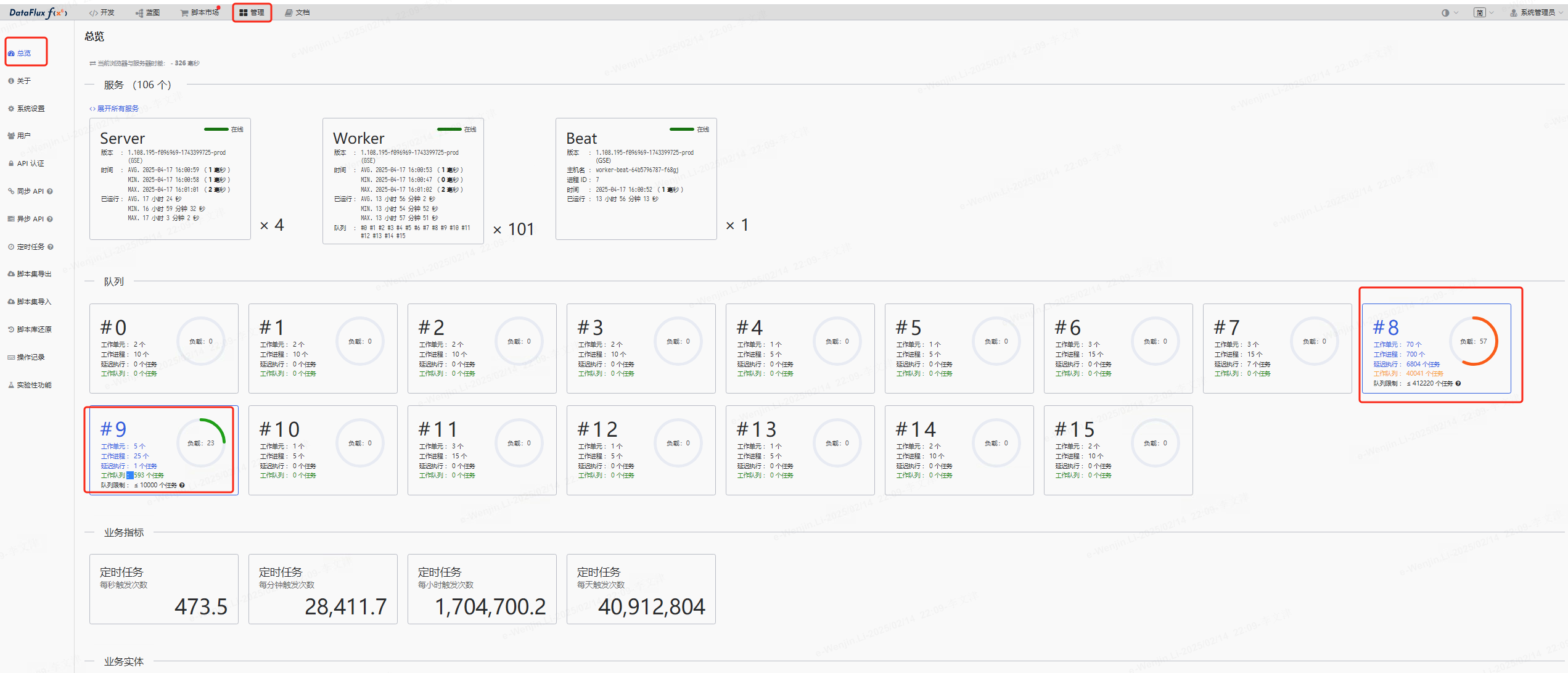
- View the overview to check whether worker-8 and worker-9 have high load or an excessively long work queue
Solution:
- Increase the replica count of worker-8 and worker-9. If the work queue remains blocked, continue with the following steps.
Note: When increasing the replica count of worker-8, be aware of the query pressure on the log engine and the time-series engine.
Step 3: Create a Test Monitor
- Log in to the Guance console
-
Select Monitors -> Create Monitor -> Threshold Detection
-
Detection metric:
-
Trigger condition: Critical
Result > 0 -
Event title:
test -
Event content:
test -
Alert policy: Select the policy you have configured
-
Save
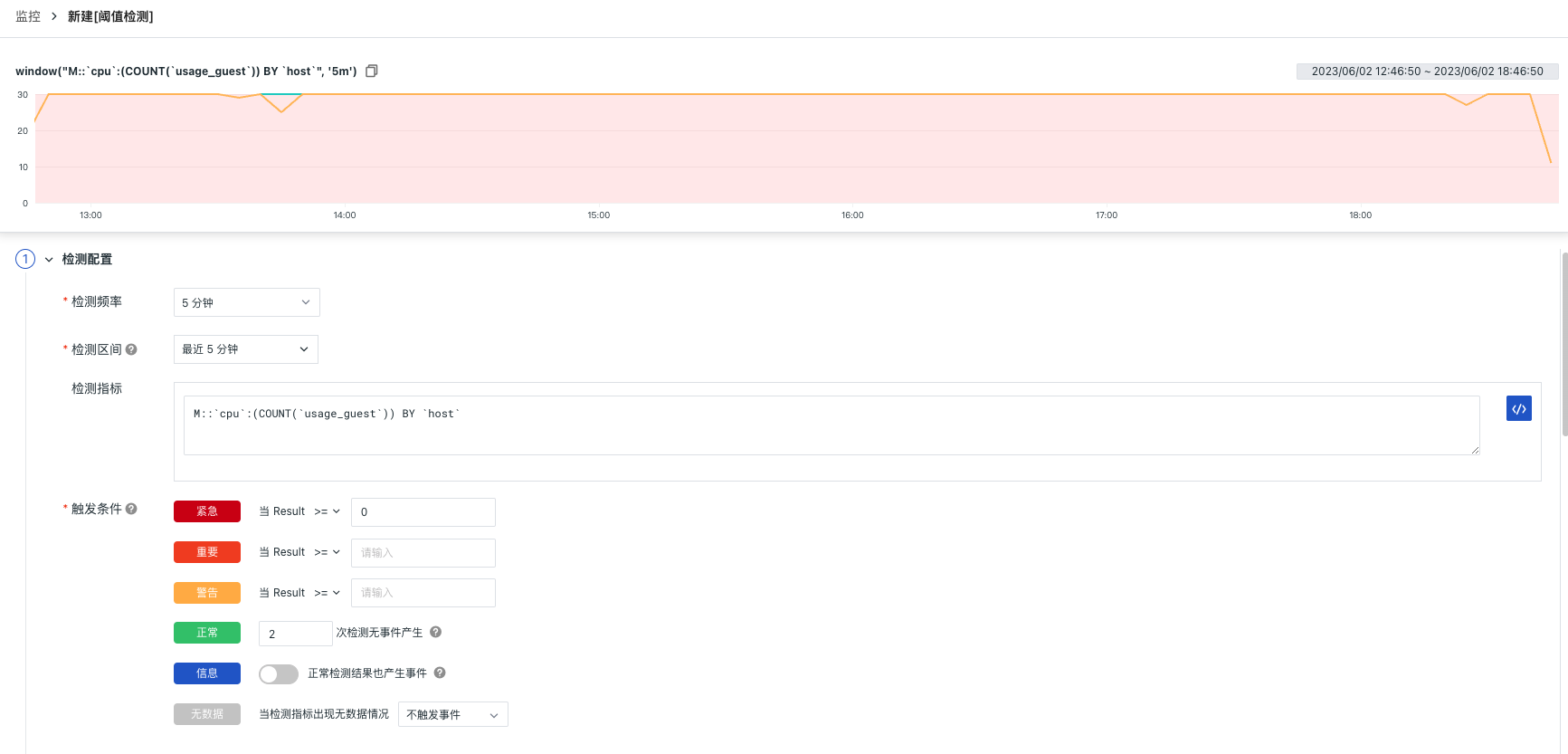
Step 4: Obtain the Auto-Trigger Configuration ID
- Log in to the Guance console, select Monitors, click the monitor name link, and obtain the auto-trigger configuration ID
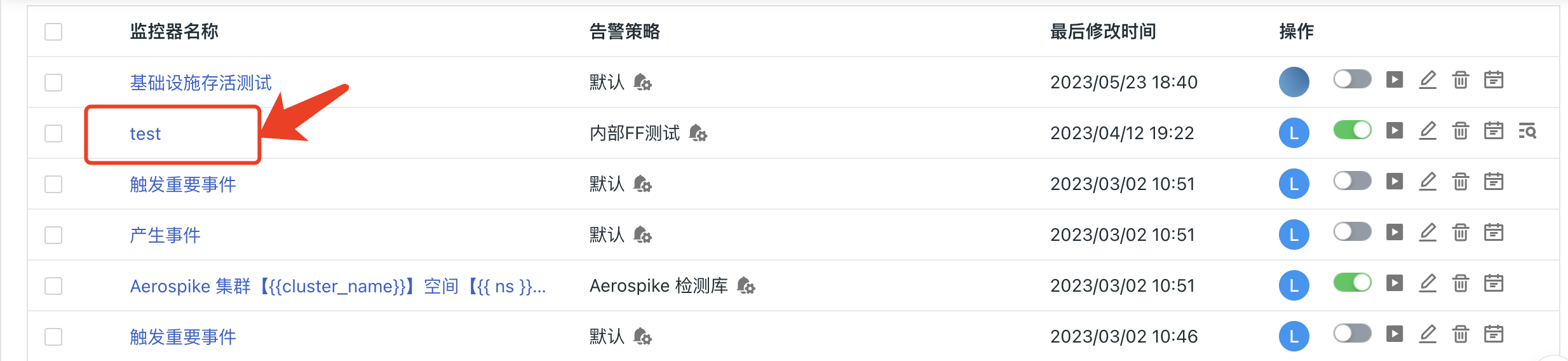
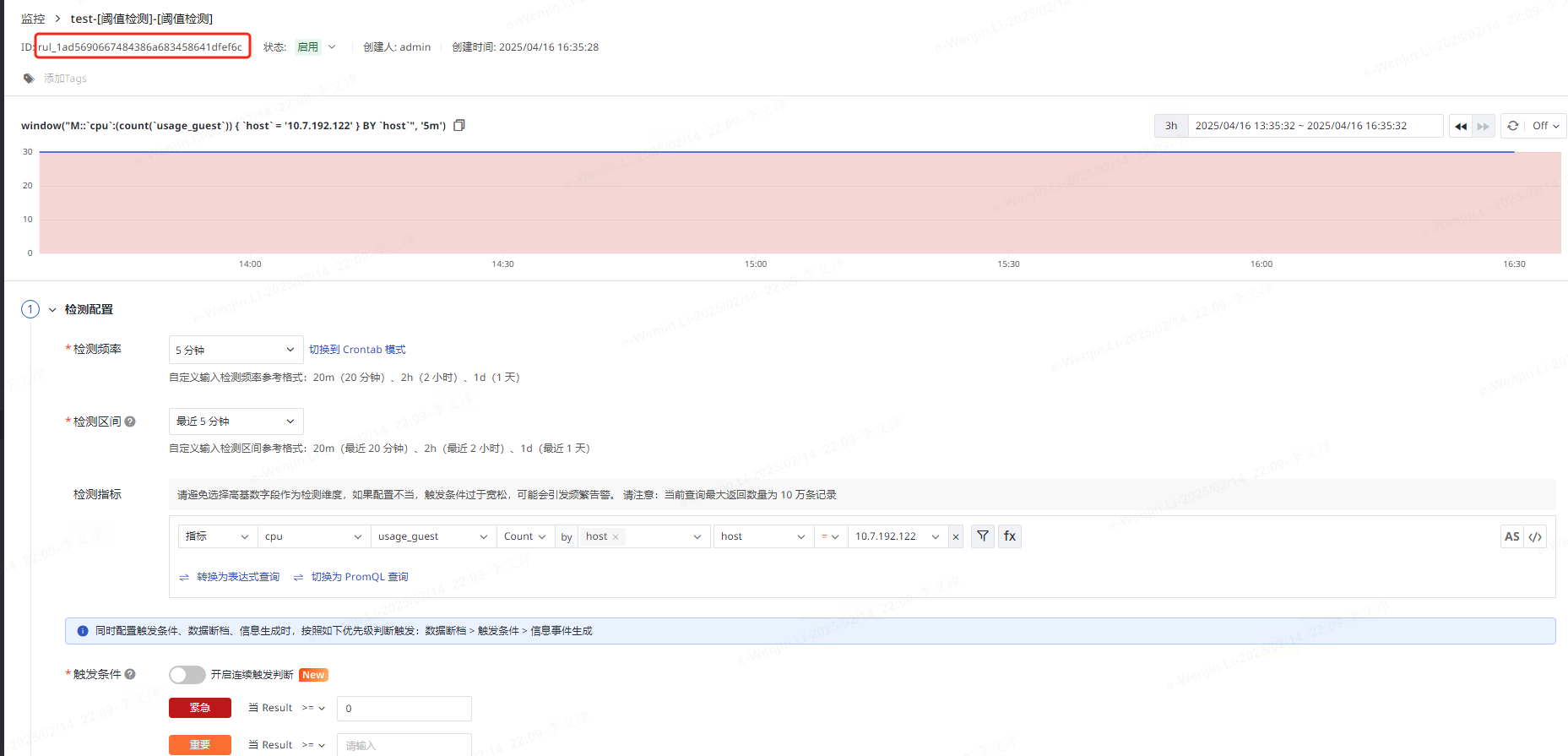
Step 5: Modify the Func System Settings
- Open System Settings and enable Local Function Task Record

Step 6: Query the Func Execution Record
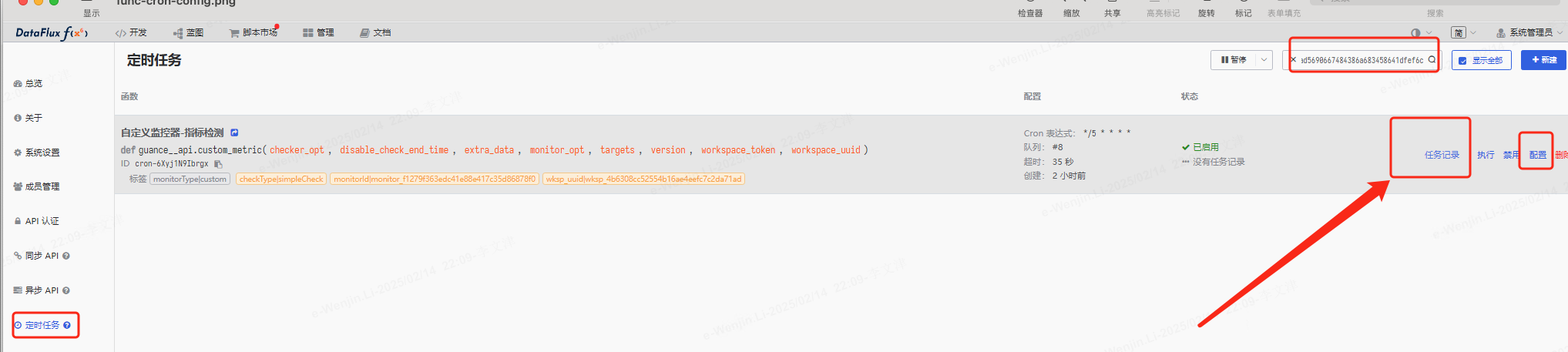
- Go to Management -> Auto-Trigger Configuration -> Select Show All -> Enter the ID from Step 4 -> Confirm Search
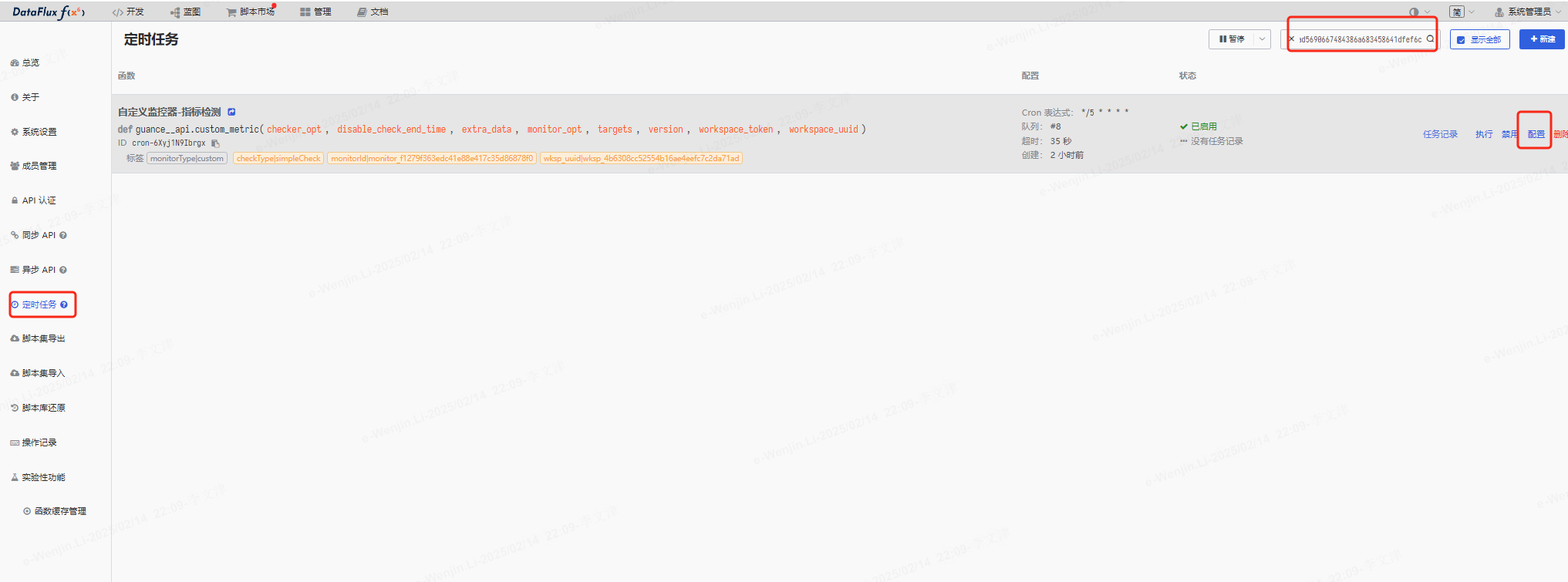
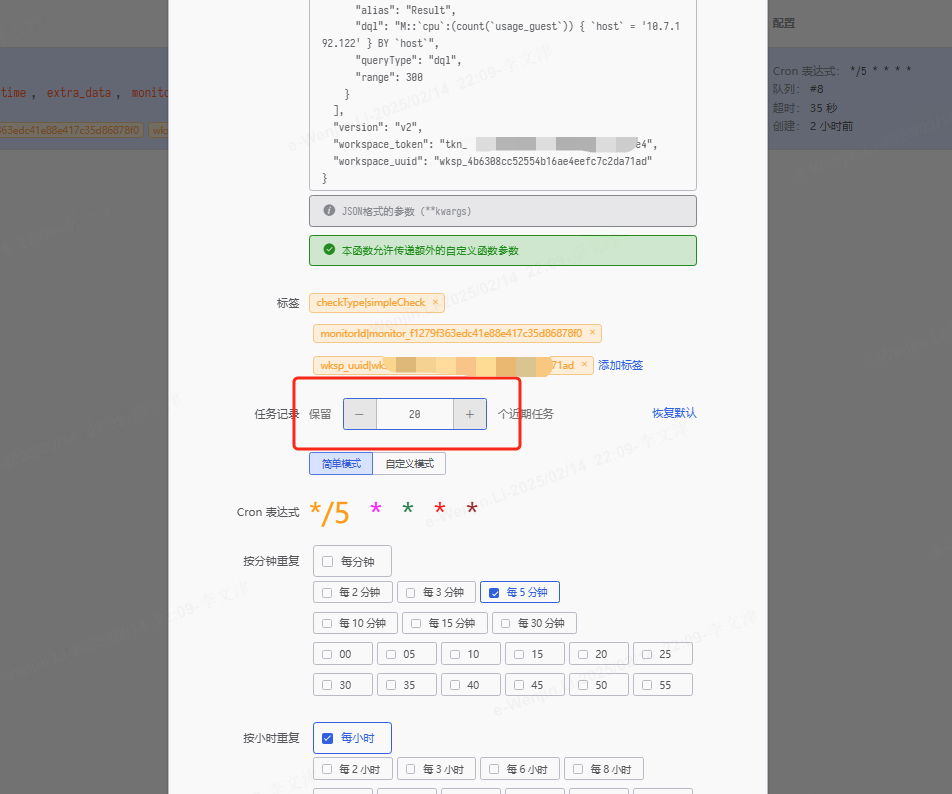
- Configure the auto-trigger, set Task Record Retention to, for example, 20
-
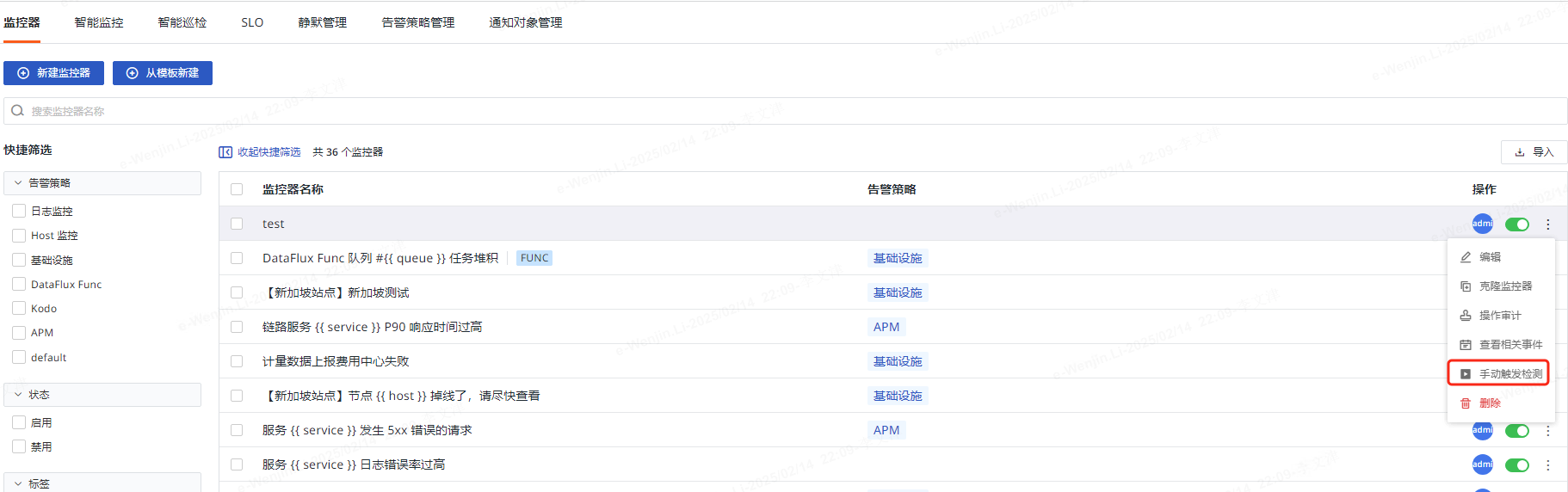
Manually trigger the detection
-
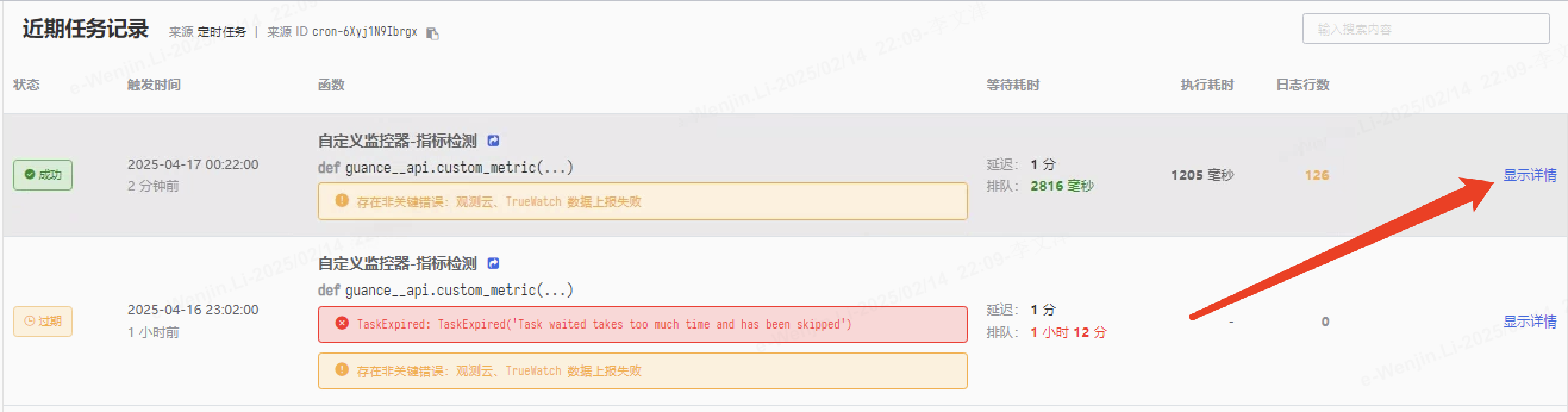
You can view detailed error information through Recent Executions
Step 7: Restore Configuration
- Disable Local Function Task Record
- Restore the default Task Record Retention