Restore Monitors
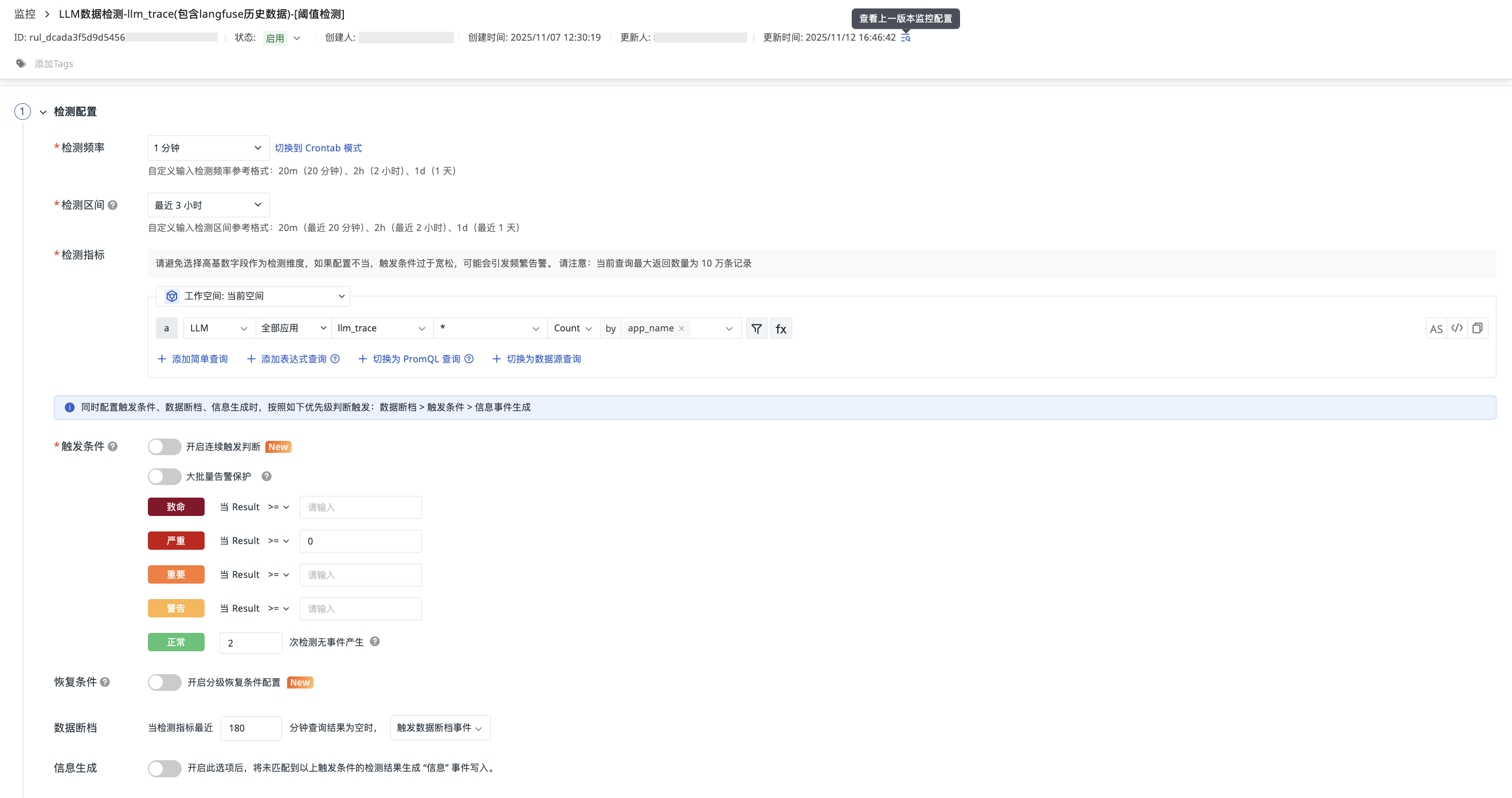
The current status, creation and update times, and creator of all monitors are clearly visible. When a monitor needs to be adjusted, team members can quickly find the person in charge to understand the situation, and can view the modification history of each configuration, making communication and collaborative updates more convenient.
Restore
- Go to the Monitoring > Monitors edit configuration page;
- At the top of the page, you can view the monitor's status, last update time, creation time, and creator;
- Click the View button on the right to open the previous version of the monitor configuration in a new browser window;
- On the new page, click the Restore this Version button in the upper-right corner;
- In the pop-up dialog, confirm the restore to revert to the previous version of the monitor configuration for editing and saving.