Built-in Views
Built-in Views are reusable visualization templates provided by Guance for unified data presentation and analysis across multiple scenarios. Using Built-in Views, you can avoid repetitive configuration and ensure consistency in data presentation within your team.
Use Cases
| Role | Description | Typical Applications |
|---|---|---|
| Template Library | Standard monitoring view templates pre-configured by the system | Quickly create monitoring dashboards for HOST, CONTAINERS, DATABASE, etc. |
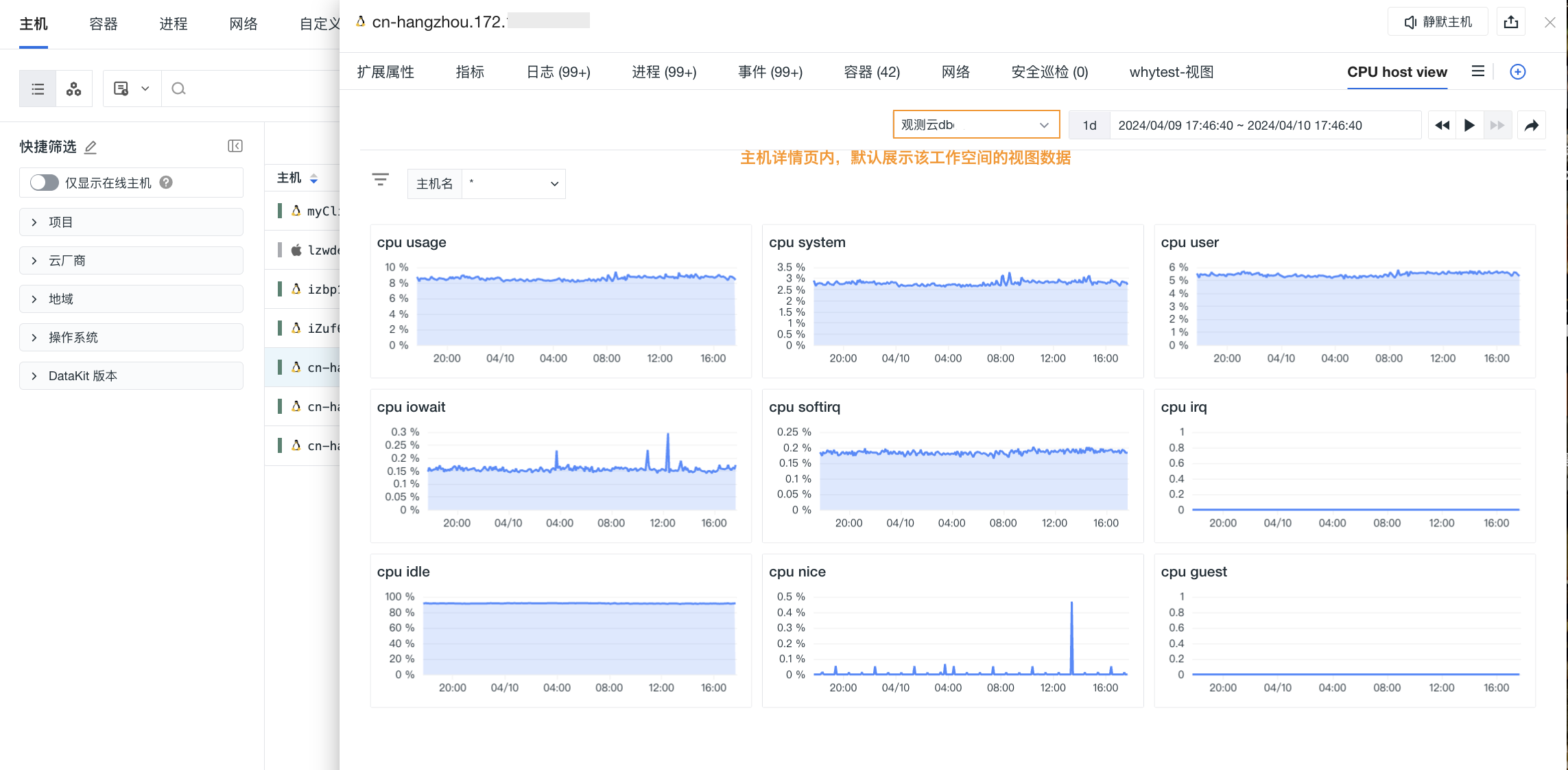
| Correlation Analysis Entry Point | Embedded in infrastructure, LOG, APM, and other modules | Directly view related views like CPU, memory, and processes on the HOST details page |
| Team Standardization Tool | Customize views and distribute them to members | Unify monitoring presentation standards across different business lines |
View Types
Built-in Views are divided into two categories:
System Views
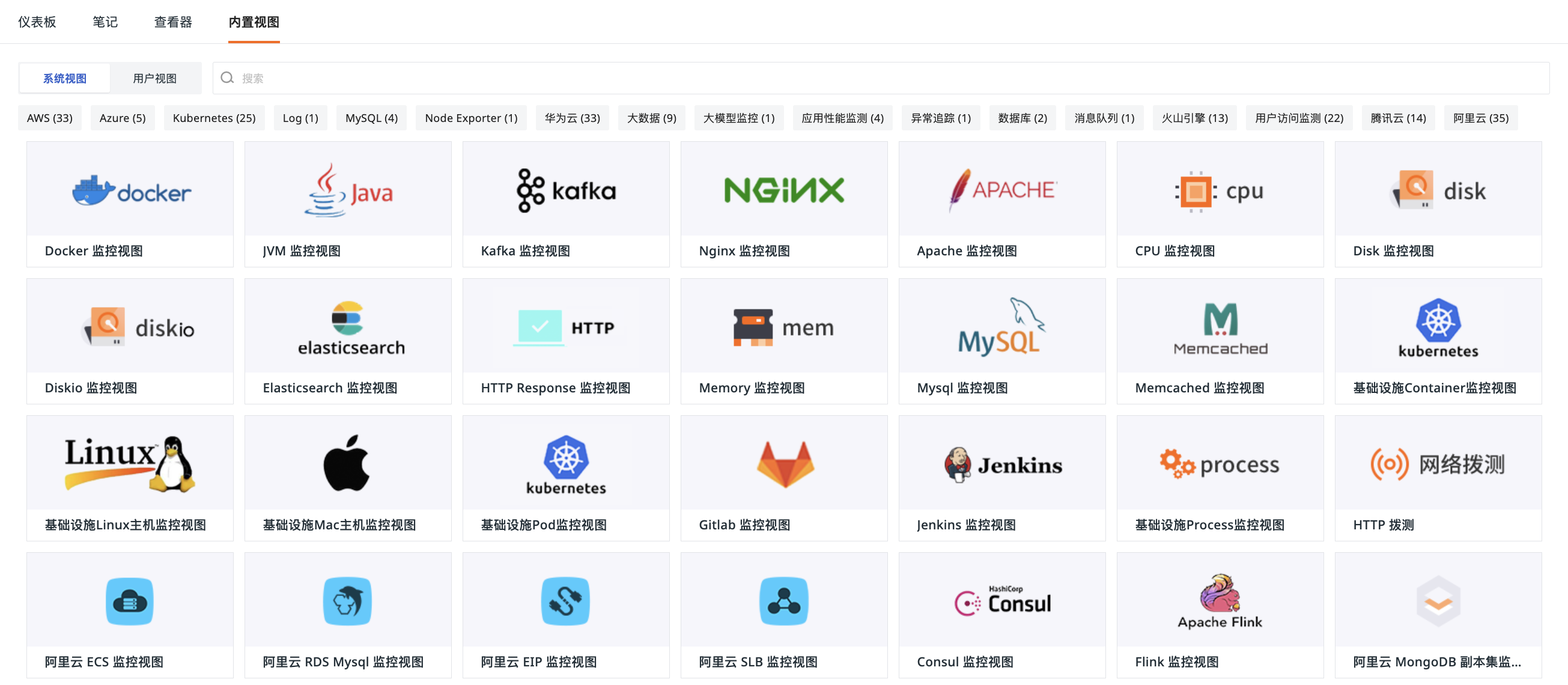
Official view templates provided by the system, covering various monitoring scenarios:
- Infrastructure: Docker, Kubernetes, Linux HOST, Windows HOST
- MIDDLEWARE: Kafka, Nginx, MySQL, Redis, Elasticsearch
- Application Performance: JVM, Go, Python, Node.js
- Cloud Providers: Alibaba Cloud, AWS, Tencent Cloud, Huawei Cloud, and other cloud service monitoring
- Others: NETWORK TESTING, Security Check, custom LOG analysis
Get Started
- Navigate to Scenarios > Built-in Views > System Views.
- Click to enter a specific view.
- You can choose to directly create it as a new dashboard or a new user view.
- Confirm.
Note
System Views cannot be edited directly. If modifications are needed, please clone them as User Views first.
User Views
View templates customized and saved by users, supporting editing and binding.
Creation Methods
Clone from a System View
Save from a dashboard (Dashboard > Settings > Save to Built-in Views)
Note
- Duplicate names for User Views are not allowed within the same workspace.
- When a System View and a User View share the same name, the Explorer will prioritize displaying the User View.
Manage Views
Export View JSON
Select Built-in Views > System Views/User Views, and click "Export View JSON" to generate a JSON file. This file can be used to import into scenario dashboards or user views in other workspaces.
Import View JSON
When customizing a User View, click "Import View JSON" to use a JSON file as a new view template.
Note
Importing will overwrite the original view and cannot be undone. It is recommended to export a backup first.
Export to Dashboard
Convert a User View into an independent dashboard:
- Click "Settings".
- Select "Export to Dashboard".
- Enter a name and select tags.
- Confirm.
Cross-Workspace Query (Pin)
If the current workspace is authorized to access data from other workspaces, you can pin the target workspace within a view to set it as the default query space.
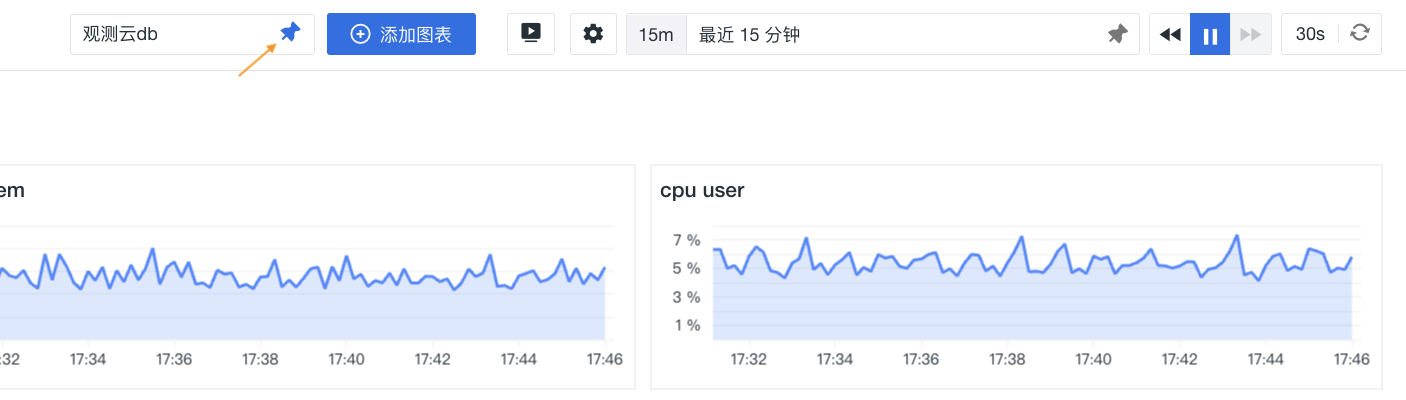
If this view is bound to an Explorer, the Explorer details page will also display data according to the pinned workspace.