Filtering
In the Explorer, you can filter and query data by specifying field name and field value.
Note
The main difference between filtering and searching is whether the input contains : (colon separator). If it does, it is treated as a filter condition; if not, it is treated as a search condition.
Operators
Different types of fields support different operators, as follows:
-
String field operators:
=,≠,match,not match,wildcard,not wildcard,exist,not exist,regexp,not regexp -
Numeric field operators:
=,≠,>,>=,<,<=,[xx TO xx],exist,not exist
| Operator | Description |
|---|---|
= |
Equal to, example: attribute:value |
≠ |
Not equal to, example: -attribute:value |
match |
Contains, example: attribute:~value |
not match |
Does not contain, example: -attribute:~value |
wildcard |
Contains; use wildcards for fuzzy matching, example: attribute:*value* |
not wildcard |
Does not contain; use wildcards for reverse fuzzy matching, example: -attribute:*value* |
exist |
Exists; returns data that contains the specified field, example: attribute:* |
not exist |
Does not exist; returns data that does not contain the specified field, example: -attribute:* |
regexp |
Regular expression match; uses a regular expression to match the target string, example: attribute:/value.*/ |
not regexp |
Reverse regular expression match; uses the target string to match the regular expression, example: -attribute:/value.*/ |
> |
Greater than, example: attribute:>value |
>= |
Greater than or equal to, example: attribute:>=value |
< |
Less than, example: attribute:<value |
<= |
Less than or equal to, example: attribute:<=value |
[xx - xx] |
Range, example: attribute:[1 - 100] |
Wildcard
Supports * or ? wildcards, where:
-
*matches 0 or more arbitrary characters -
?matches exactly one arbitrary character
Example:
Value: platform

# Use only the suffix * for matching; suitable when the prefix of a value is fixed and exact while the latter part changes dynamically
attribute:plat*    // * matches form

# Use only ? for matching; suitable when only characters at certain fixed positions change dynamically
attribute:plat?orm   // ? matches f

# Combine ? and *
attribute:pla?for*   // ? matches t, * matches m

# Use * in combination
attribute:plat*or*   // The first * matches f, the second * matches m
Special Characters
In the Explorer, some characters have special meanings. For example, space is used to separate multiple words. If the search content contains the following special characters, they need to be handled specially: space, :, ", “, \, (, ), [, ], {, }.
For more details, see Special Character Escaping Query.
Boolean Operators
You can further combine related searches and filters using AND/OR/NOT.
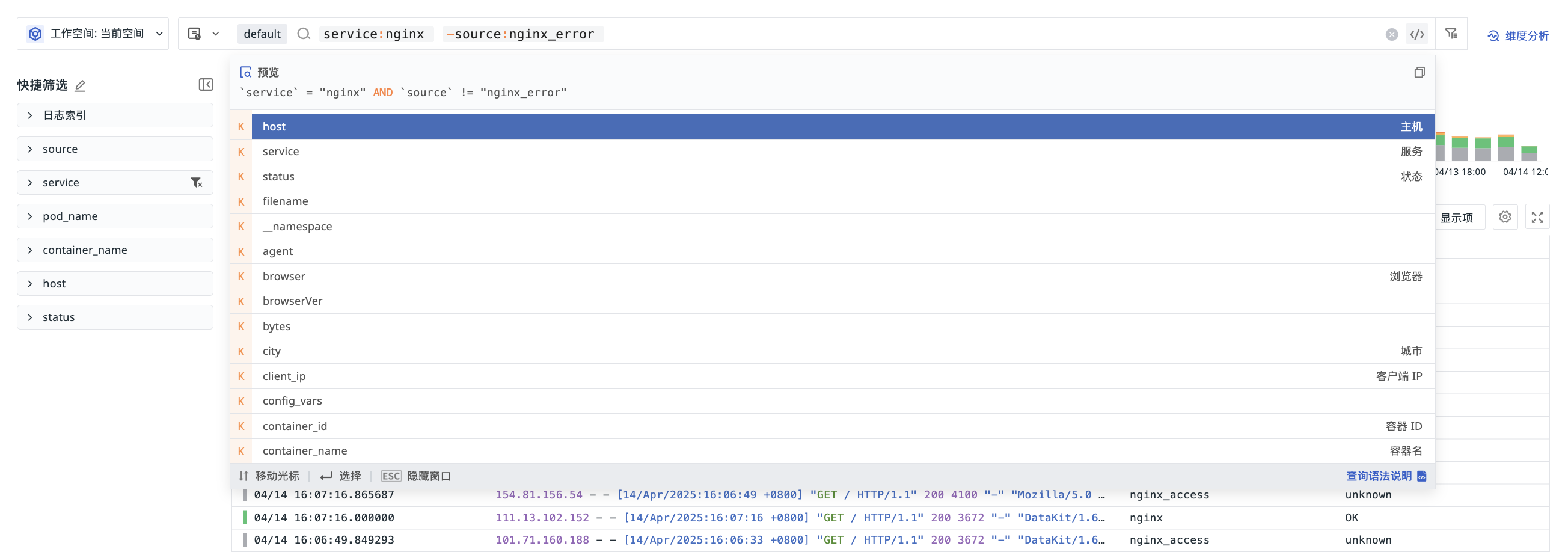
| Logical Relationship | Description |
Remarks |
|---|---|---|
| a AND b | Returns the intersection of the preceding and following query results | Search and filter conditions are connected with AND by default. AND can be replaced by a space, that is, a AND b = a b |
| a OR b | Returns the union of the preceding and following query results | The returned results must contain either a or b. Example: a OR b:value |
| NOT c | Excludes the current query results | NOT is mostly used in search syntax; in filters, use ≠ for exclusion logic |
Grouping
Use parentheses () to increase the priority of query conditions. If parentheses are present in a query, the logic inside them is executed first. Inside parentheses, the query priority still follows the order NOT > AND > OR.
Manual Mode
You can switch the search box to Manual Mode.
Available in all Explorers (except Dashboards/custom Explorers). In this mode, you can add search and filter conditions through UI interactions, and freely switch between Manual Mode and UI Mode without making any changes to the existing content, enabling real-time switching and restoration between UI and manually entered input.
Quick Filters
In the Explorer, you can edit Quick Filters to add new filter fields. Two configuration modes are supported:
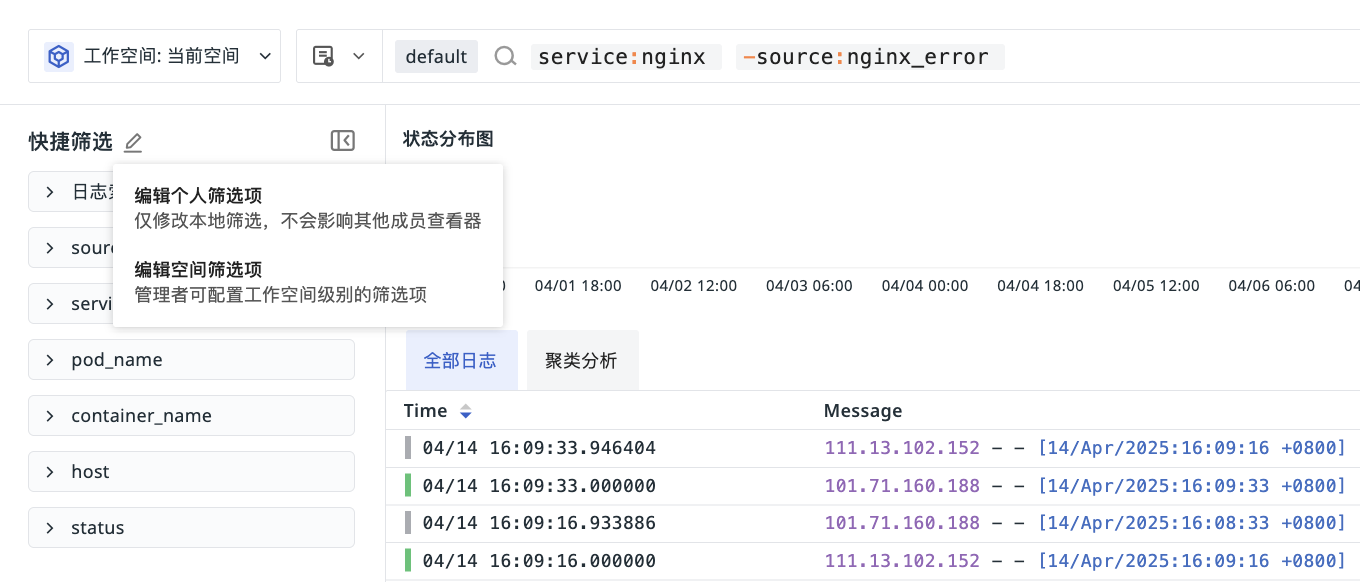
Configured by administrators or owners.
Visible to all members of the workspace, but regular members and standard members cannot edit, delete, or change their position.
Note
After configuring filter fields here, the system automatically sets them as index fields. You can then reuse them directly in the search bar.
All members can configure Quick Filter fields based on the local browser.
Visible only to the current user; other members of the workspace cannot see them.
Quick Filters support preset fields. Newly added fields use the field type defined in Field Management by default. If the field does not exist in Field Management, it defaults to text format.
When you enter the field editing interface, two groups of fields are displayed:
-
Filter fields: fields displayed in the Quick Filters
-
Available fields: all cached fields of the current data type
You can perform the following operations:
-
Search for fields; if no exact match is found, you can directly create the field and add it to Filter Fields;
-
Edit field aliases;
-
Drag to adjust the field order;
-
Remove fields;
-
Set whether to display field aliases.
Null Value Filtering
When an administrator enables null value filtering in the global configuration, the No Data item in each field group of the Quick Filters is pinned to the top of the field value list and separated from other field values by a divider. The No Data item remains visible when scrolling through the field value list. Click this item to filter for data that has no value for that field.
Related Operations
To optimize performance, Quick Filter items are not automatically refreshed when query conditions (time range, search filters, etc.) change. You need to manually expand the corresponding filter item to load or update its data.
Refresh rules:
-
Initial load: When you enter the Explorer, all filter items are collapsed by default; some commonly used filter items (such as
service,status, etc.) are expanded by default and load the current list data once. -
Manual refresh: After adjusting the time range, search conditions, or filter conditions, the data of expanded filter items is not updated automatically. To view the latest option list, collapse the item temporarily and then expand it again.
-
Independent refresh: The global refresh button at the top of the page and the automatic refresh interval setting next to the Time Widget (for example, 5s, 30s) only refresh the data in the Explorer's main list and do not affect the data state of options in the Quick Filter panel.
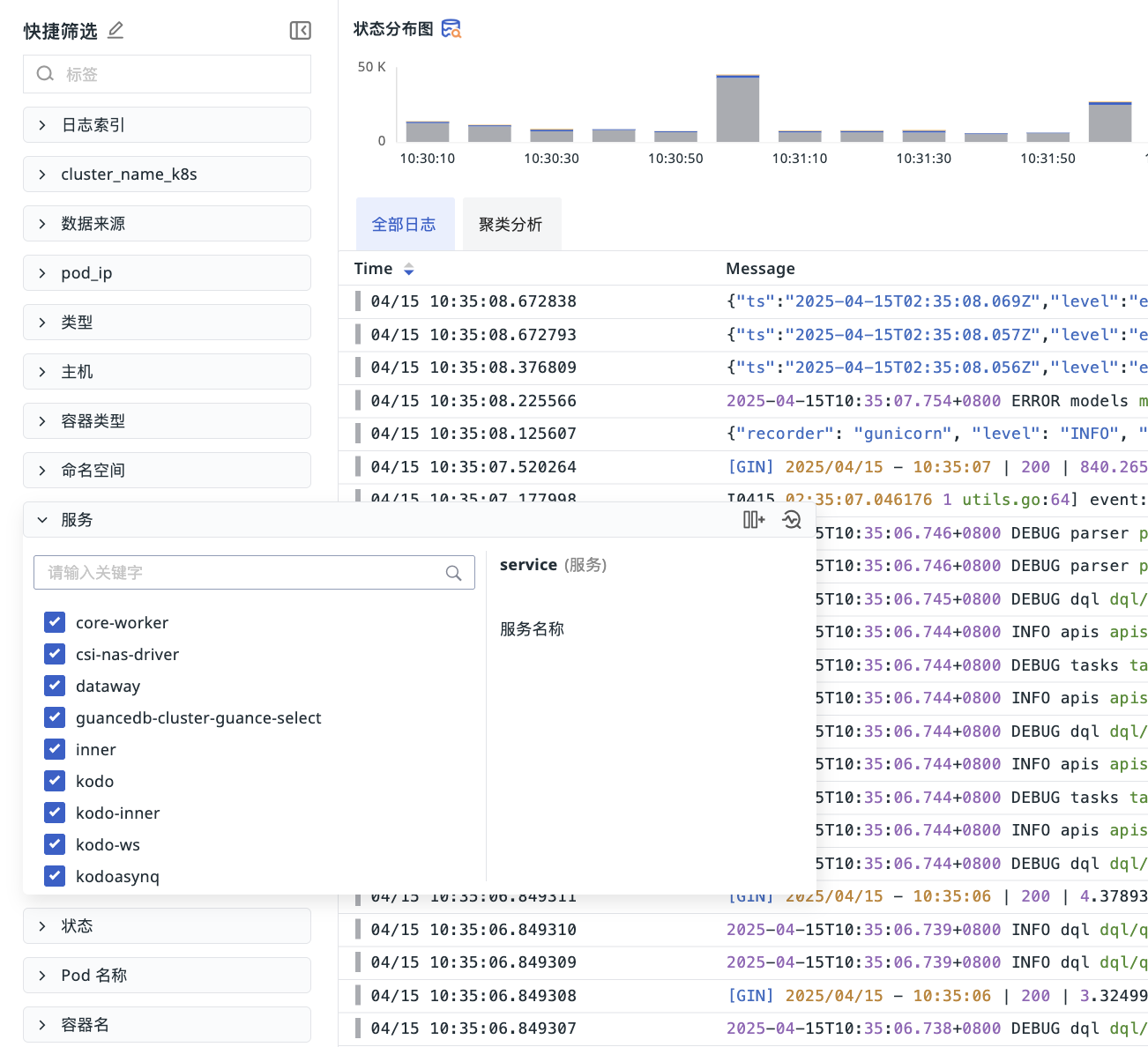
Click the row of a tag value to select only that value. For multiple selection, you can continue checking the checkboxes of other values. If you have selected a value, clicking its row again will deselect it and clear all filters.
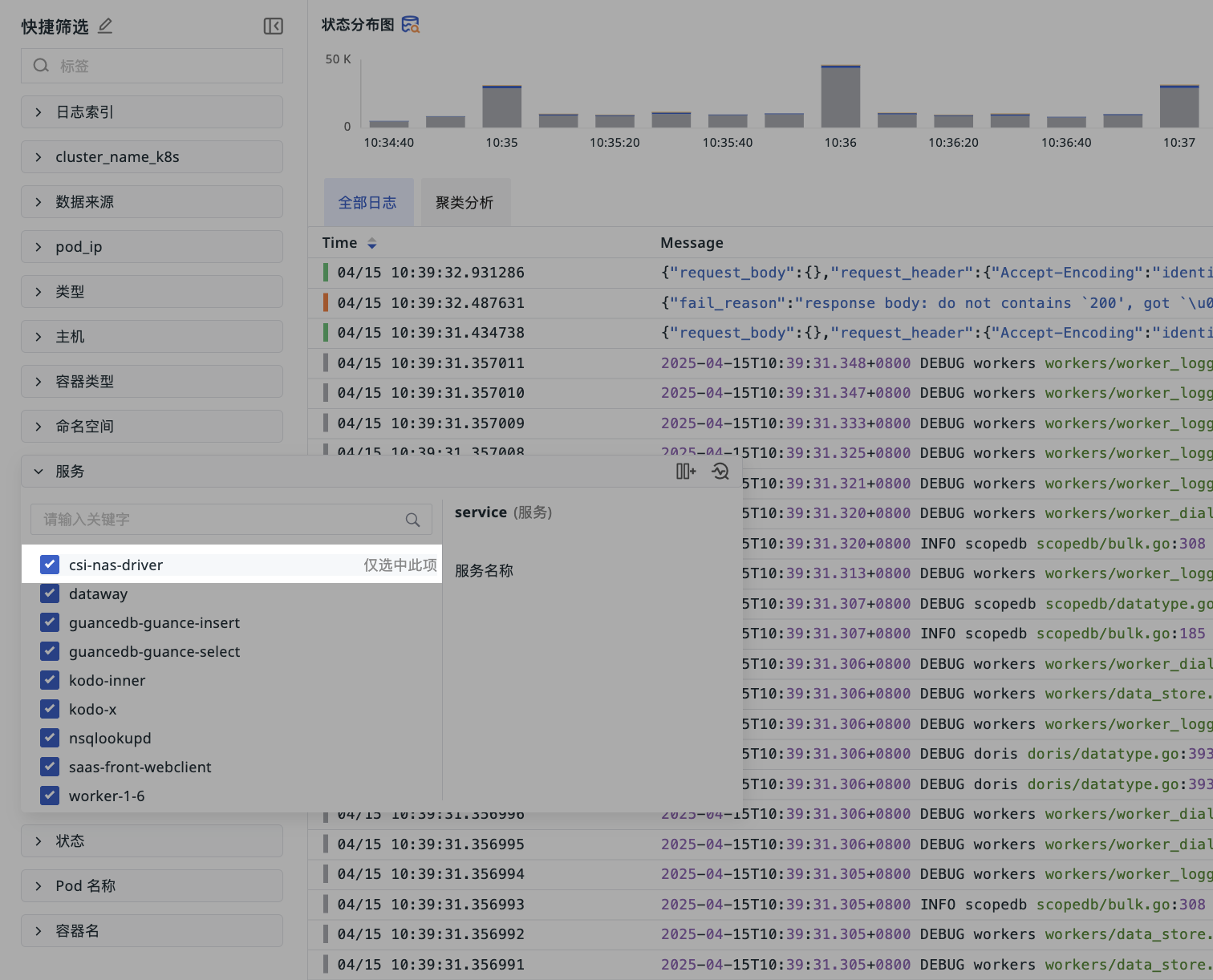
When there are more than 10 tag fields in the Quick Filters, you can perform a fuzzy search by field name or display name.
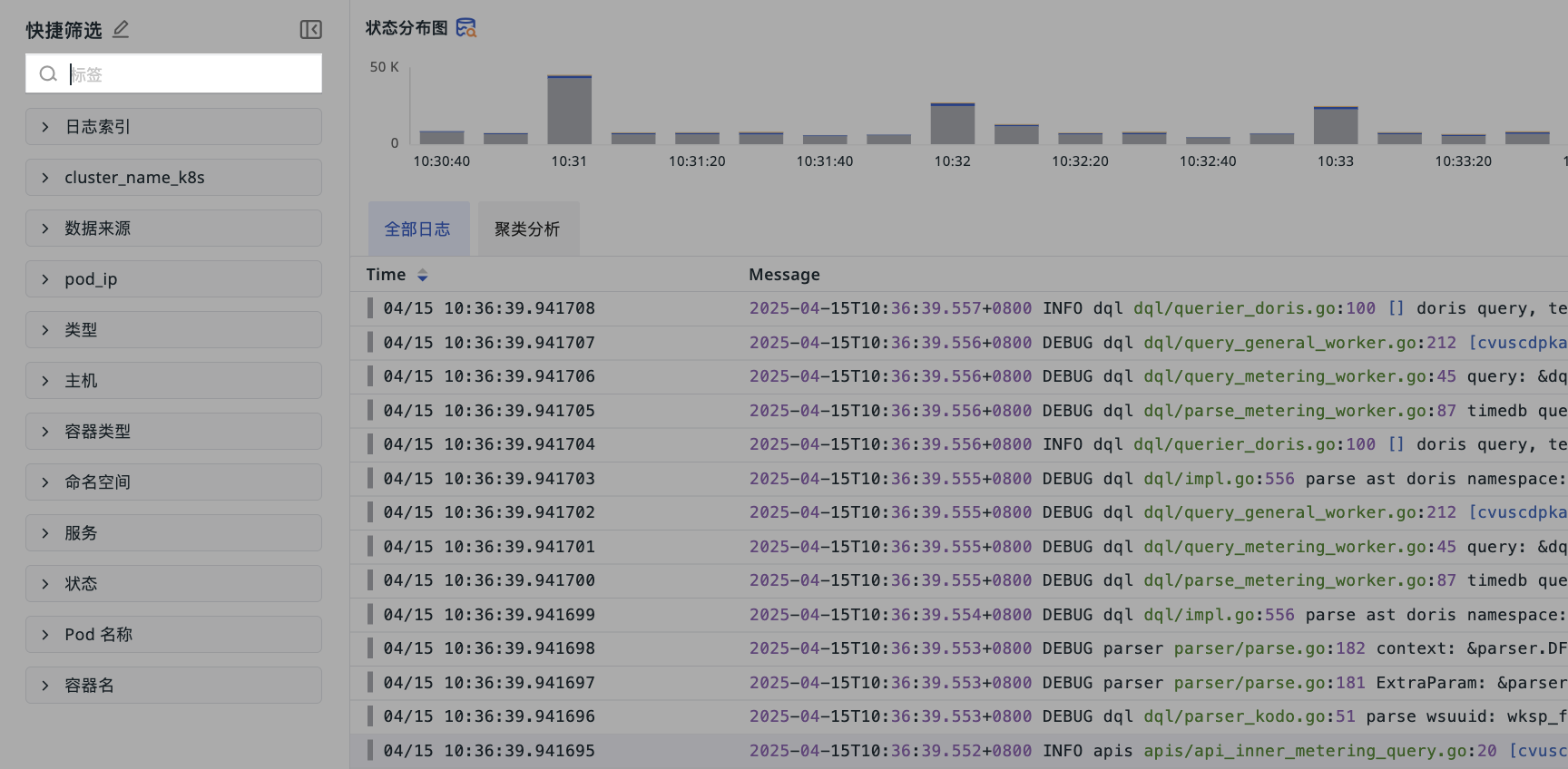
When a Quick Filter item has more than 10 field attribute values, you can enter text for real-time search. In addition, you can filter by clicking the fuzzy match or reverse fuzzy match buttons.
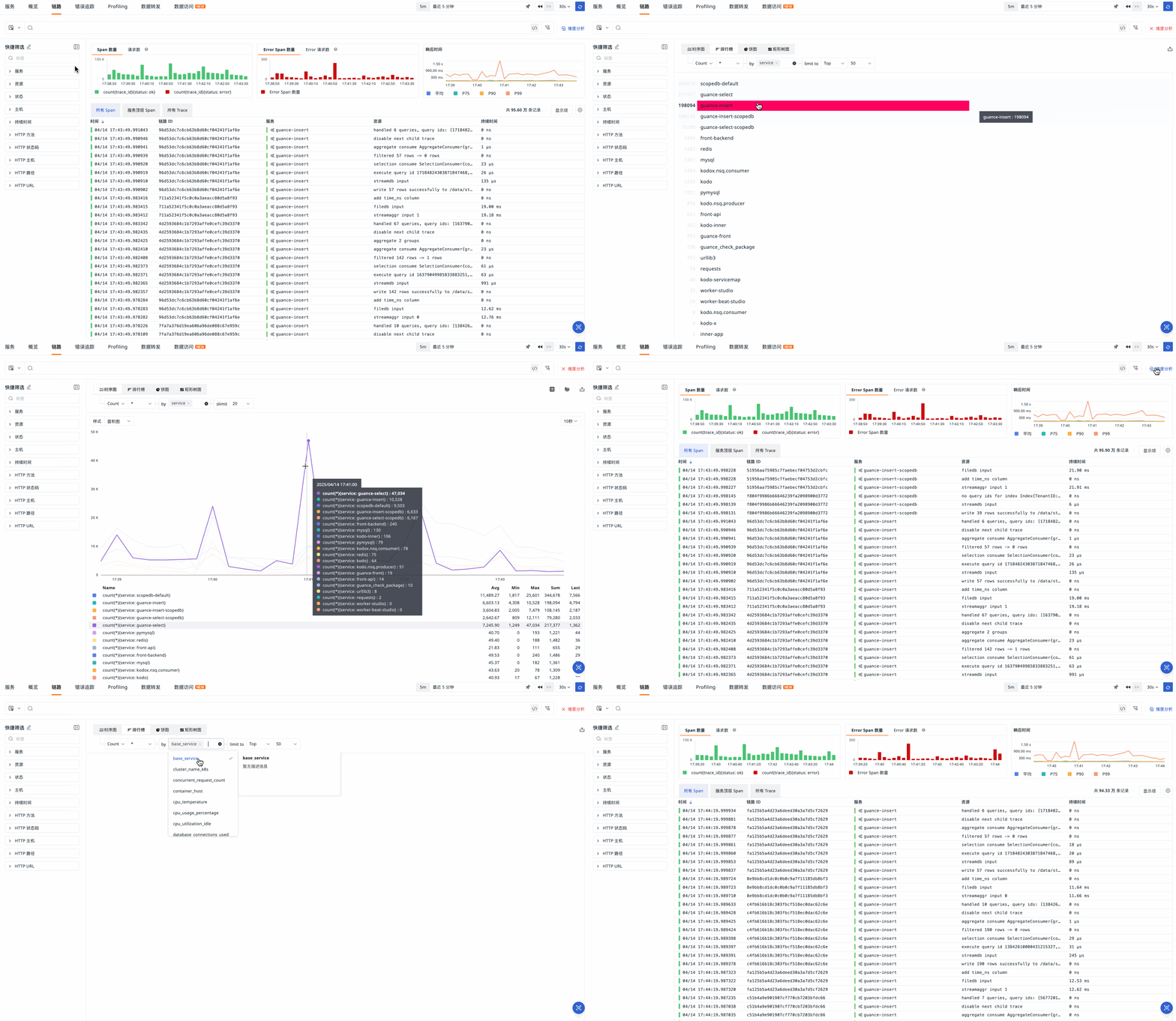
After clicking, the current Explorer switches to Analysis Mode, and the field is automatically applied to the Analysis Dimension for querying.
If the Quick Filters in the Explorer include the duration field, you can manually adjust the maximum and minimum values for query analysis.
- By default, the minimum and maximum values of the progress bar are the minimum and maximum durations in the trace data list
- If the input format is invalid, the input box turns red and no search is performed. The correct input format is a plain "number" or "number + ns/μs/ms/s/min"
- If you search without entering a unit, the system appends "s" to the entered number by default for filtering
- If you enter a unit manually, the search is performed directly using that unit

Filter History
You can view filter and search history and apply it to different Explorers in the current workspace. Click the icon on the right side of the search bar at the top of the Explorer, or use the shortcut (Mac OS: shift+cmd+k / Windows: shift+ctrl+k) to quickly open Filter History.
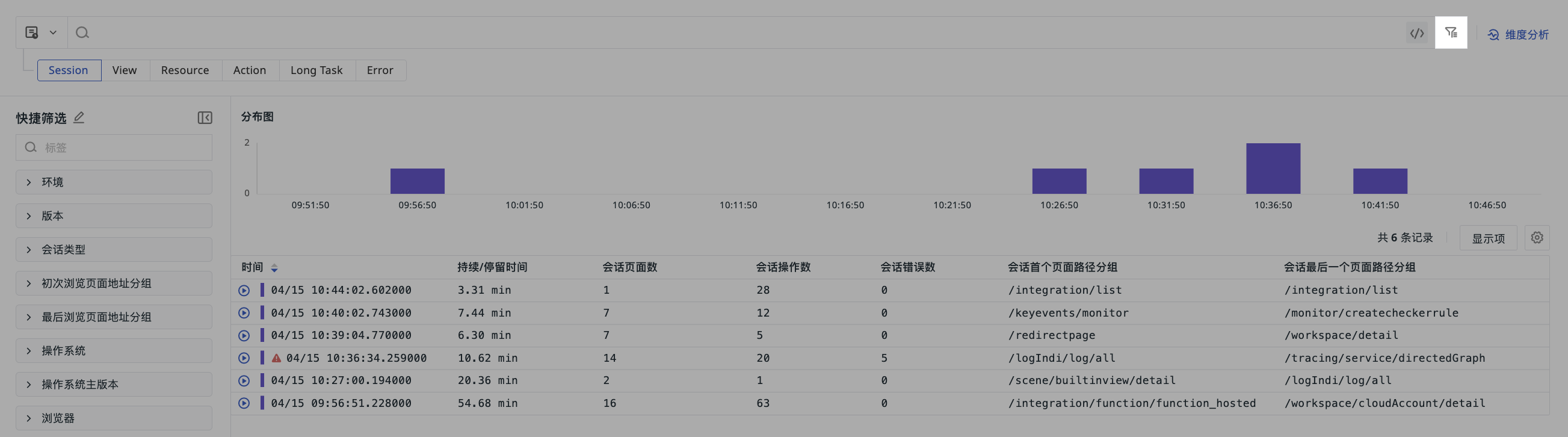
Note
Filter history only supports viewing the current user's filter and search conditions in the local browser.
Related Operations
In the Explorer's Filter History, you can view up to 100 filter conditions.
-
Pin to filter: Click the Pin to Filter button on the right to pin a filter condition to the top;
-
Add to filter: Click a filter condition directly to add it to the Explorer for filtering; multiple selections are supported;
-
Apply filter history across Explorers: For example, if you browsed the filter history
-source:defaultin Logs > Explorer, you can use that filter condition directly in other Explorers such as Trace.