Guance DataWay Deployment
Note
If you have deployed DataWay with Launcher, you can skip the installation steps in this article. This article describes how to register and install DataWay using the Guance Management Console. You can also use Launcher for quick DataWay installation.
Prerequisites
- Guance is already deployed. If not, refer to Deploying Products with Launcher.
Basic Information and Compatibility
| Name | Description |
|---|---|
| Guance Management Console | http://df-management.dataflux.cn |
| Offline Installation Supported | Yes |
| Supported Architectures | amd64/arm64 |
| Deployment Machine IP | 192.168.100.105 |
Installation Steps
1. Register DataWay
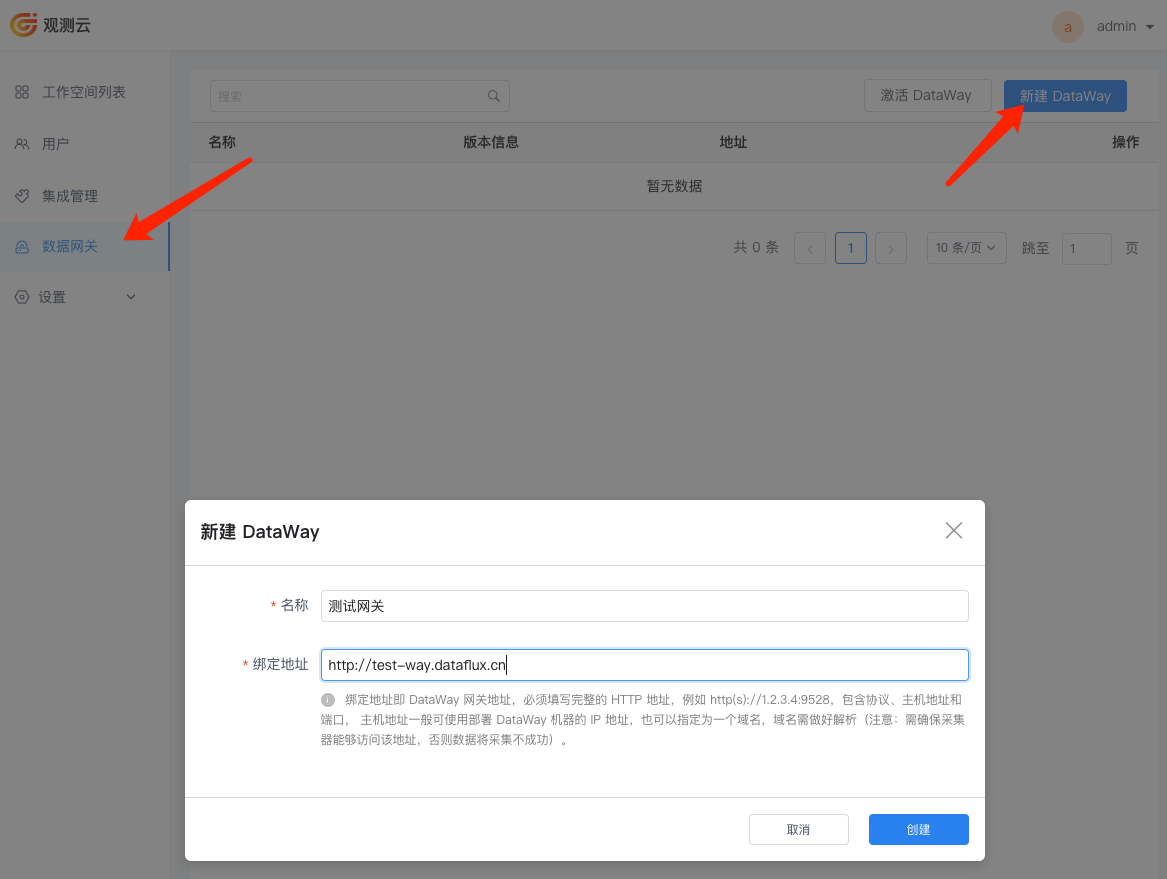
Log in to the Management Console at http://df-management.dataflux.cn using the admin account (password: admin) that you configured. Go to the DataWay menu under Guance Management Console and click Create DataWay to add a DataWay.
- Name: Give it a custom name.
- Bind Address: The access address of the DataWay, used by DataKit to report data. You can use
http://ip+port.
Note: When configuring the Bind Address, ensure that the DataKit host can reach this DataWay address and report data through it.
2. Install DataWay
Note
Ensure that the host deploying DataWay can reach the kodo address configured earlier. It is recommended that DataWay communicates with kodo via the internal network!
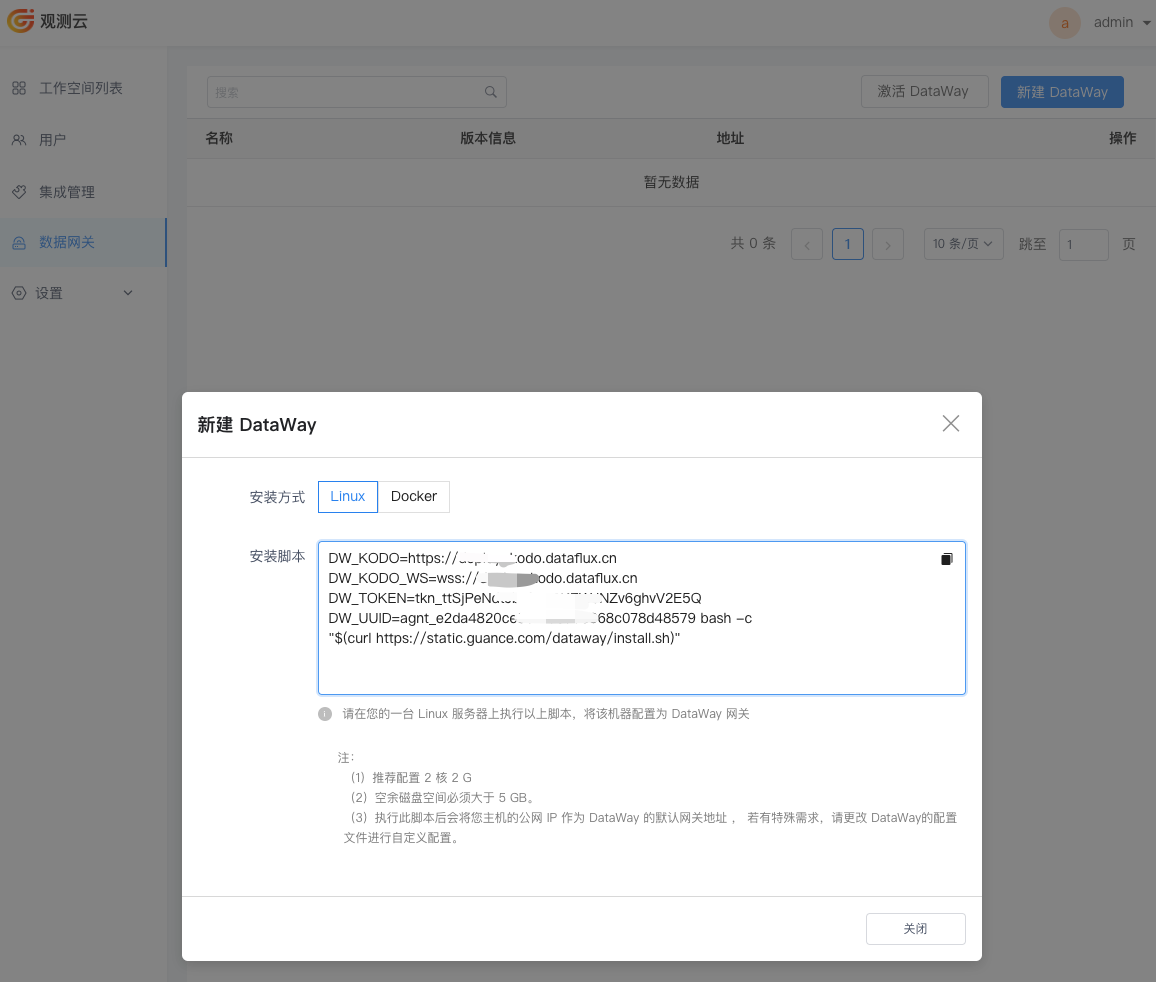
After adding a DataWay, you can obtain an installation script. Copy the script and run it on the host where you deploy DataWay.
- Obtain
DW_TOKENandDW_UUID
- Modify configuration
Edit the DW_UUID and DW_TOKEN environment variables in the DataWay YAML file.
- Install
3. Verify Deployment
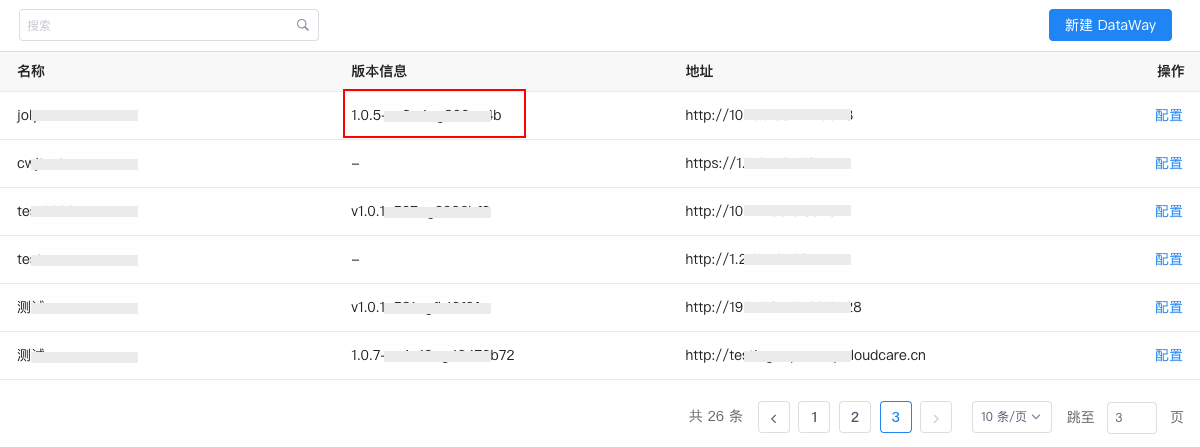
After installation, wait a moment and refresh the DataWay page. If you see a version number in the Version Information column of the newly added DataWay, it means the DataWay has successfully connected to the Guance center, and front-end users can use it to report data.
DataWay Access Settings
- Obtain node IPs
Output:
NAME         STATUS   ROLES           AGE   VERSION   INTERNAL-IP     EXTERNAL-IP   OS-IMAGE                KERNEL-VERSION          CONTAINER-RUNTIME
k8s-master   Ready    control-plane   9d    v1.24.0   10.200.14.112   <none>        CentOS Linux 7 (Core)   3.10.0-957.el7.x86_64   containerd://1.6.16
k8s-node01   Ready    <none>          9d    v1.24.0   10.200.14.113   <none>        CentOS Linux 7 (Core)   3.10.0-957.el7.x86_64   containerd://1.6.16
k8s-node02   Ready    <none>          9d    v1.24.0   10.200.14.114   <none>        CentOS Linux 7 (Core)   3.10.0-957.el7.x86_64   containerd://1.6.16
You can directly access: http://10.200.14.112:30928
10.200.14.112 is the node IP in this example. Use your own cluster IP. You can also access DataWay through a proxy service; see Proxy Access Settings.
Save the following content as dataway-svc.yaml:
---

apiVersion: v1
kind: Service
metadata:
  annotations:
    service.beta.kubernetes.io/aws-load-balancer-nlb-target-type: ip
    service.beta.kubernetes.io/aws-load-balancer-scheme: internal  # internal
    # service.beta.kubernetes.io/aws-load-balancer-ssl-cert: "" # certificate
    # service.beta.kubernetes.io/aws-load-balancer-scheme: internet-facing  # external
  name: dataway
  namespace: utils
spec:
  ports:
  - name: 9528tcp02
    port: 80
    protocol: TCP
    targetPort: 9528
  selector:
    app: deployment-utils-dataway
  type: LoadBalancer
Deploy:
Get the NLB address:
You can directly access: http://nlbIP
You can directly access port 9528 on the installation machine.