Swarm Bee Observability Best Practices
Introduction
Swarm is part of the official Ethereum project, primarily developed by the foundation, allowing mining pools to contribute storage, bandwidth, and computing resources to support applications based on the Ethereum network. The team aims to create a peer-to-peer storage and service solution that is non-stop, zero-fault, and censorship-resistant. Within Swarm, an economically incentivized system facilitates payment and transfer of value for resource exchange, using different protocols and technologies from the Ethereum blockchain. Swarm is a decentralized content storage and distribution service that can be likened to a CDN, distributing content across computers over the internet. You can run a Swarm node like running an Ethereum node and connect to the Swarm network. This is similar to BitTorrent and can also be compared to IPFS, with ETH used as a reward for incentivization. Files are split into chunks, allocated, and stored by participating volunteers. Nodes that store and serve chunks receive ETH compensation from nodes that need storage and retrieval services. Swarm does not use a mining model, so there is no block reward; instead, rewards are obtained through interaction with other nodes, and checks can be exchanged for BZZ. Therefore, the network environment and node status of the BZZ cluster are particularly important.
-
Bee
-
CPU
- Memory
- Disk
- Network
Scenario View
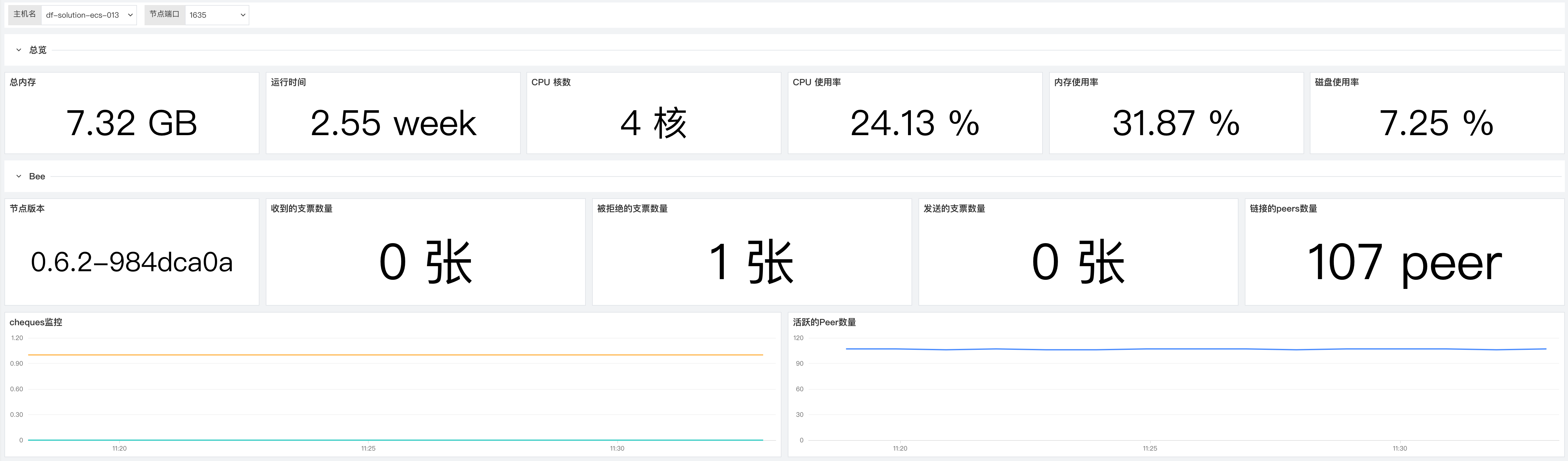
Built-in Views
Disk

Prerequisites
- DataKit installed (DataKit Installation Guide)
- Docker installed and Docker Swarm initialized (Docker Installation Reference)
Configuration
Configure Prom Exporter
Navigate to the conf.d/prom directory under the DataKit installation directory, copy prom.conf.sample and rename it to prom.conf. Example:
 ## Exporter address
  url = "http://127.0.0.1:1635/metrics"

  ## Metric type filter, optional values: counter, gauge, histogram, summary
  # By default, only counter and gauge metrics are collected
  # If empty, no filtering is applied
  metric_types = ["counter", "gauge"]

  ## Metric name filter
  # Supports regular expressions; multiple can be configured, satisfying any one of them
  # If empty, no filtering is applied
  # metric_name_filter = ["cpu"]

  ## Measurement name prefix
  # If configured, a prefix is added to the measurement name
  #  measurement_prefix = "prom_"

  ## Measurement name
  # By default, the metric name is split by underscore "_", with the first field as the measurement name and the remaining fields as the current metric name
  # If measurement_name is configured, the metric name is not split
  # The final measurement name will have the measurement_prefix prefix
  # measurement_name = "prom"

  ## Collection interval: "ns", "us" (or "µs"), "ms", "s", "m", "h"
  interval = "10s"

  ## TLS configuration
  tls_open = false
  # tls_ca = "/tmp/ca.crt"
  # tls_cert = "/tmp/peer.crt"
  # tls_key = "/tmp/peer.key"

  ## Custom measurement name
  # Metrics with the same prefix can be grouped into one measurement
  # Custom measurement name configuration takes priority over measurement_name
  #[[inputs.prom.measurements]]
  #  prefix = "cpu_"
  #  name = "cpu"

  # [[inputs.prom.measurements]]
  # prefix = "mem_"
  # name = "mem"

  ## Custom tags
  [inputs.prom.tags]
  bee_debug_port = "1635"
  # more_tag = "some_other_value"
Configure the Swarm API Service Collector
Install Dataflux Func
Modify DataKit
Navigate to the conf.d directory under the DataKit installation directory and modify the http_listen field in the datakit.conf file. Example:
http_listen = "0.0.0.0:9529"
log = "/var/log/datakit/log"
log_level = "debug"
log_rotate = 32
gin_log = "/var/log/datakit/gin.log"
protect_mode = true
interval = "10s"
output_file = ""
default_enabled_inputs = ["cpu", "disk", "diskio", "mem", "swap", "system", "hostobject", "net", "host_processes", "docker", "container"]
install_date = 2021-05-14T05:03:35Z
enable_election = false
disable_404page = false

[dataway]
  urls = ["https://openway.dataflux.cn?token=tkn_9a49a7e9343c432eb0b99a297401c3bb"]
  timeout = "5s"
  http_proxy = ""

[http_api]
  rum_origin_ip_header = "X-Forward-For"

[global_tags]
  cluster = ""
  host = "df_solution_ecs_004"
  project = ""
  site = ""

[[black_lists]]
  hosts = []
  inputs = []

[[white_lists]]
  hosts = []
  inputs = []
Save and restart DataKit:
Install Func
Download the DataFlux Func dependency file:
After the command completes, all required files are saved in the newly created dataflux-func-portable directory in the current directory.
In the downloaded dataflux-func-portable directory, run the following command to automatically configure and start the entire DataFlux Func:
Upon successful installation:
Please wait for the container to run, wait 30 seconds...
CONTAINER ID   IMAGE     COMMAND   CREATED   STATUS    PORTS     NAMES


Installed dir:
    /usr/local/dataflux-func
To shutdown:
    sudo docker stack remove dataflux-func
To start:
    sudo docker stack deploy dataflux-func -c /usr/local/dataflux-func/docker-stack.yaml
To uninstall:
    sudo docker stack remove dataflux-func
    sudo rm -rf /usr/local/dataflux-func
    sudo rm -f /etc/logrotate.d/dataflux-func

Now open http://<IP or Hostname>:8088/ and have fun!
Navigate to http://<IP or Hostname>:8088. You will see the following interface:

Configure DataKit Data Source for Data Upload
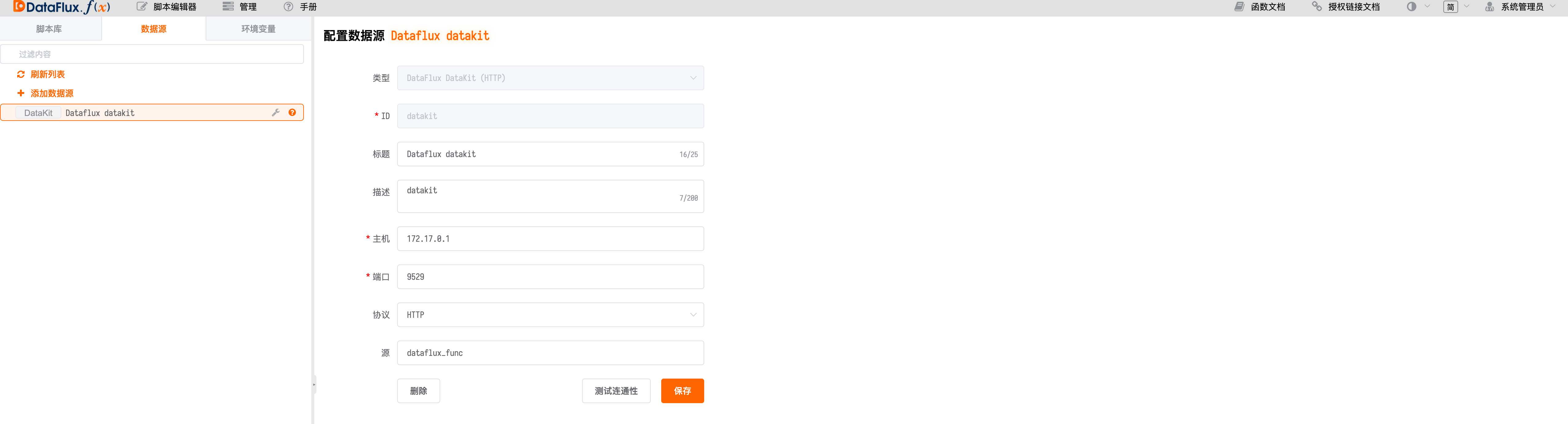
Write a Script for Peer Data Collection
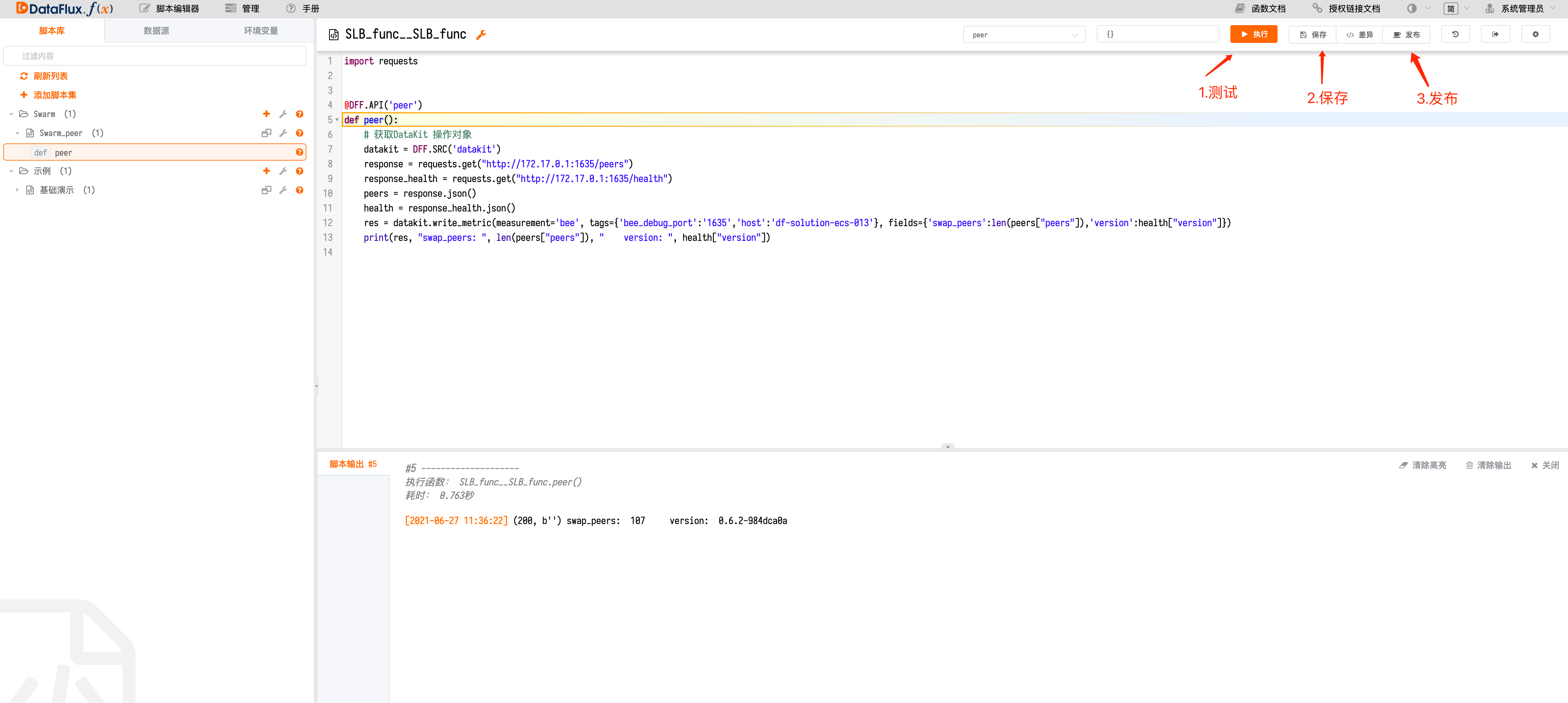
import requests


@DFF.API('peer')
def peer():
    # Get the DataKit operation object
    datakit = DFF.SRC('datakit')
    response = requests.get("http://172.17.0.1:1635/peers")
    response_health = requests.get("http://172.17.0.1:1635/health")
    peers = response.json()
    health = response_health.json()
    res = datakit.write_metric(measurement='bee', tags={'bee_debug_port':'1635','host':'df-solution-ecs-013'}, fields={'swap_peers':len(peers["peers"]),'version':health["version"]})
    print(res, "swap_peers: ", len(peers["peers"]), "    version: ", health["version"])
Since DataFlux Func runs via Docker Stack and is bridged to the host
docker0, it is not directly connected to the host's local network. Therefore, even if DataFlux Func and DataFlux DataKit are installed on the same server, you cannot simply bind the DataFlux DataKit listener port to the local network (127.0.0.1).In this case, modify the configuration to bind the listener port to
docker0(172.17.0.1) or0.0.0.0. Note: Remember to change the Swarm Bee configuration to prepend0.0.0.0to the local listener port:1635.
Insert the data obtained from the API request into the corresponding measurement and add appropriate tags to facilitate display in the workspace.
Create an Automatic Trigger Execution in Management for Function Scheduling

Select the execution function just written, set a scheduled task, add a validity period, and click Save.
The minimum interval for scheduled tasks is 1 minute. If you have special requirements, you can use a
while + sleepapproach to increase the data collection frequency.
View Function Execution Status via Automatic Trigger Configuration
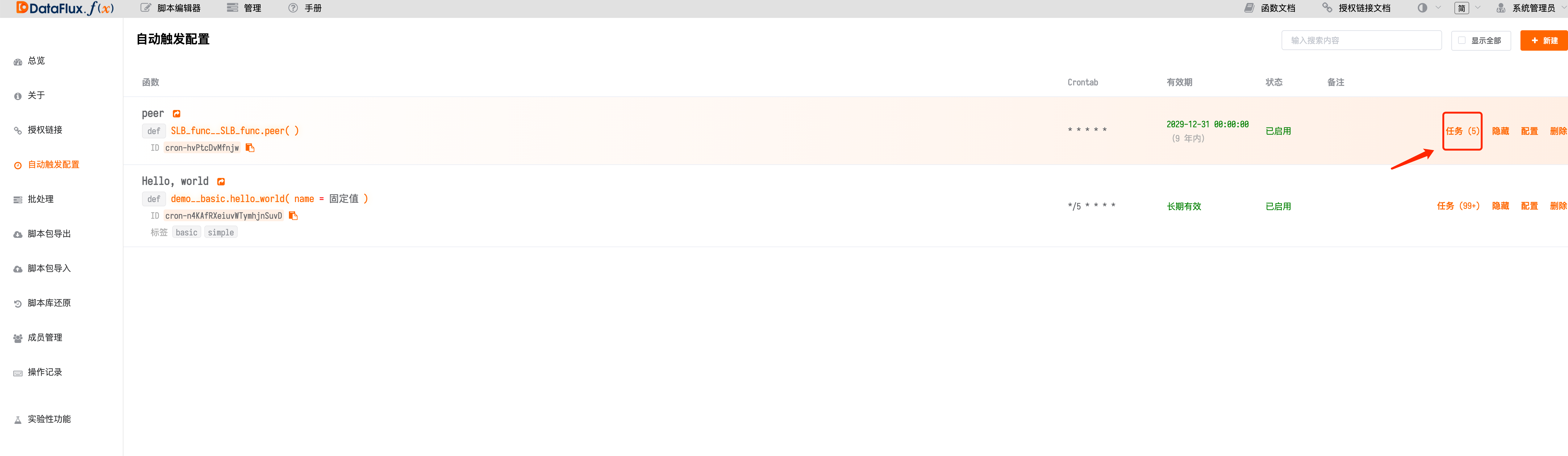
If it shows "Successfully executed", congratulations! You can now go to the workspace to view the metrics you uploaded.
Monitoring Metrics Description
1 Bee
Real-time monitoring of Harvesters across multiple hosts, with detailed analysis of the availability, status, and revenue of different Harvesters, continuously improving Chia users' control over their Harvesters.

| Metric Description | Name | Standard |
|---|---|---|
| Number of cheques received | bee.swap_cheques_received |
Revenue metric |
| Number of cheques rejected | bee.swap_cheques_rejected |
Revenue metric |
| Number of cheques sent | bee.swap_cheques_sent |
Revenue metric |
| Number of connected peers | bee.swap_peers |
Performance metric |
Number of Cheques Rejected
To ensure your daily stable income, monitor the number of cheques rejected closely. When the number of rejected cheques rises rapidly, promptly investigate the status of the bee node and network to protect your daily stable income.
Number of Connected Peers
To ensure your revenue and network stability, monitor the number of connected peers. Under normal conditions, when the network and node status are healthy, the number of connected peers remains stable within a range without drastic fluctuations. If you notice significant fluctuations, promptly investigate the bee node and network status to ensure revenue stability.
2 CPU Monitoring
CPU monitoring helps analyze CPU load peaks and identify excessive CPU usage. Through CPU monitoring metrics, you can improve CPU capacity or reduce load, identify potential issues, and avoid high costs from unnecessary upgrades. CPU monitoring metrics also help you identify unnecessary background processes currently running and determine the resource utilization of processes or applications and their impact on the entire network.

| Metric Description | Name | Standard |
|---|---|---|
| CPU load | system.load1systeml.load5system.load15 |
Resource utilization |
| CPU usage | cpu.usage_idlecpu.usage_usercpu.usage_system |
Resource utilization |
CPU Usage
CPU usage can be divided into: User Time (percentage of time executing user processes); System Time (percentage of time executing kernel processes and interrupts); Idle Time (percentage of time CPU is in idle state). For CPU performance, the run queue per CPU should not exceed 3. If the CPU is fully loaded, User Time should be between 65% and 70%, System Time between 30% and 35%, and Idle Time between 0% and 5%.
3 Memory Monitoring
Memory is one of the main factors affecting Linux performance. The sufficiency of memory resources directly impacts the performance of application systems.

| Metric Description | Name | Standard |
|---|---|---|
| Memory usage | mem.used_percent |
Resource utilization |
| Memory usage | mem.freemem.used |
Resource utilization |
| Memory cache | mem.buffered |
Resource utilization |
| Memory buffer | mem.cached |
Resource utilization |
Memory Usage
Closely monitoring available memory usage is important because contention for RAM inevitably leads to paging and performance degradation. To keep the machine running normally, ensure it has sufficient RAM for your workload. Sustained low memory availability can cause segmentation faults and other serious issues. Remediation measures include increasing the physical memory capacity in the system, or enabling memory page merging if possible.
4 Disk Monitoring

| Metric Description | Name | Standard |
|---|---|---|
| Disk health status | disk.healthdisk.pre_fail |
Availability |
| Disk space | disk.freedisk.used |
Resource utilization |
| Disk inodes | disk.inodes_freedisk.inodes_used |
Resource utilization |
| Disk read/write | diskio.read_bytesdiskio.write_bytes |
Resource utilization |
| Disk temperature | disk.temperature |
Availability |
| Disk model | disk.device_model |
Basic |
| Disk read/write time | diskio.read_timedisk.io.write_time |
Resource utilization |
Disk Space
Maintaining sufficient free disk space is necessary for any operating system. In addition to regular processes that require disk, core system processes store logs and other types of data on disk. Configure alerts to notify you when available disk space drops below 15% to ensure business continuity.
Disk Read/Write Time
This pair of metrics tracks the average time spent on disk read/write operations. Set an alert for values greater than 50 milliseconds, which indicates relatively high latency (ideally less than 10 milliseconds). It is generally recommended to reduce latency by moving business workloads to faster disks. You can set different alert thresholds based on the server's role, as acceptable thresholds vary by role.
Disk Read/Write
If your server hosts demanding applications, you will want to monitor the disk I/O rate. The disk read/write metric is the aggregate of disk-labeled read (diskio.read_bytes) and write (diskio.write_bytes) activities. Sustained high disk activity can lead to service degradation and system instability, especially when high RAM and page file usage occur simultaneously. When high disk activity occurs, consider increasing the number of disks in use (especially when you see a large number of queued operations), using faster disks, increasing the RAM reserved for the file system cache, or distributing the workload across more machines if possible.
Disk Temperature
If your business requires high disk availability, set alerts to monitor disk operating temperature at all times. Temperatures above 65°C (above 75°C for SSDs) are worth noting. If your hard drive has overheat protection or temperature control mechanisms, be cautious. If the temperature continues to rise, it may damage the hard drive and cause business data loss.
5 Network Monitoring
Your applications and infrastructure components depend on each other in increasingly complex architectures, whether you run monolithic applications or microservices, and whether deployed to cloud infrastructure, private data centers, or both. Virtualized infrastructure enables developers to respond to any scale and creates dynamic network patterns that traditional network monitoring tools do not match well. To provide visibility into every component in the environment and all connections between them, Observability Cloud introduces network performance monitoring for the cloud era.

| Metric Description | Name | Standard |
|---|---|---|
| Network traffic | net.bytes_recvnet.bytes_sent |
Resource utilization |
| Network packets | net.packets_recvnet.packets_sent |
Resource utilization |
| Retransmission count | net.tcp_retranssegs |
Availability |
Network Traffic
These two metrics together measure the total network throughput of a given network interface. For most consumer-grade hardware, the NIC transmission speed is 1 Gbps or higher, so the network is unlikely to be a bottleneck except in the most extreme cases. Set an alert when usage exceeds 80% of the interface bandwidth to prevent network saturation (for a 1 Gbps link, that is about 100 megabytes per second).
Retransmission Count
TCP retransmissions occur frequently but are not errors, although their presence may indicate a problem. Retransmissions are often the result of network congestion and are usually associated with high bandwidth consumption. You should monitor this metric because excessive retransmissions can cause significant application latency. If the sender of a retransmission does not receive acknowledgment for the sent packet, it will defer sending more packets (usually for about 1 second), increasing latency and congestion-related speed.
If not caused by network congestion, the source of retransmissions may be faulty network hardware. A small number of dropped packets and a high retransmission rate can lead to excessive buffering. Regardless of the cause, you should track this metric to understand seemingly random fluctuations in network application response times.
Conclusion
In this article, we mentioned some of the most useful metrics you can monitor to keep a tag on your mining operations. If you are conducting mining operations, monitoring the metrics in the list below will give you a good understanding of the health and availability of your mining farm:
-
Disk read/write latency
-
Disk temperature
- Network traffic
- Daily expected revenue
- Harvester initial pass rate
- Processes
Ultimately, you will recognize other metrics that are particularly relevant to your own use case. Of course, you can also learn more by visiting Guance.