IM Applications
IM applications are used to connect Lark or Tencent Meeting, providing capabilities for Incident Warroom such as creating group chats, creating meetings, and synchronizing incident information.
Members with workspace management or integration management permissions can go to Integrations > IM Applications to view and manage connected applications. The application list displays application information and connection status and supports searching by application name; click an application to view its details.
| Platform | Warroom Capabilities |
|---|---|
| Lark | Create private group chats, invite members, send and update incident cards, respond to card actions, disband group chats |
| Tencent Meeting | Create quick meetings, generate meeting numbers and join links |
Connecting Applications
Go to Integrations > IM Applications, click Connect Application, select the platform you want to connect, then follow the instructions on the page to fill in the credentials and complete the platform-side configuration.
Connecting Lark
1. Create a Lark Application
- Log in to the Lark Open Platform and create an enterprise self-built application;
- Add the Bot capability under Application Capabilities.
2. Fill in Application Parameters
Go to Integrations > IM Applications, click Connect Application, and select Lark. Fill in the application name and the following parameters:
| Field | Required | Description |
|---|---|---|
App ID |
Yes | Unique identifier of the Lark application |
App Secret |
Yes | Used to obtain application access credentials; stored encrypted and never displayed again |
Verification Token |
Yes | Used to verify that card callbacks originate from this application |
Encrypt Key |
Yes | Used to decrypt card callback requests sent by Lark |
Where to find each parameter in the Lark Open Platform:
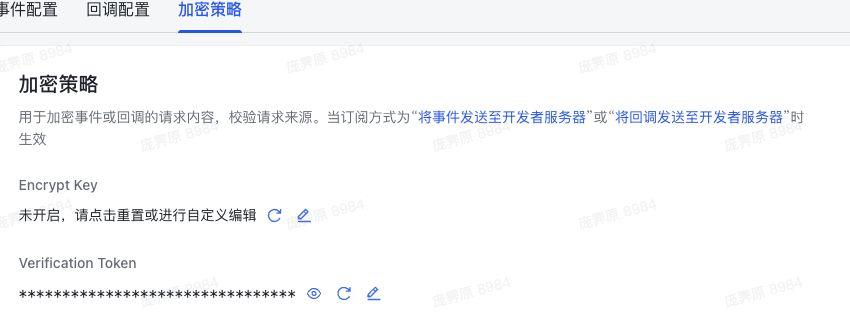
App ID,App Secret: Go to Developer Console > Select Application > Basic Information > Credentials & Basic Information;Verification Token: Go to Developer Console > Select Application > Development Configuration > Events & Callbacks > Encryption Policy, and copy the Verification Token displayed by the system;Encrypt Key: Also obtained from the Encryption Policy page. If it shows Not Enabled, click Reset or Customize to generate or set an Encrypt Key, and then fill it in on the connection page. The values on both ends must be exactly the same; otherwise, callback requests cannot be decrypted.
3. Enable Application Permissions
In Permission Management on the Lark Open Platform, enable the following permissions for the application:
| Permission | Purpose |
|---|---|
im:chat |
Create, manage, and disband warroom group chats, invite members, and generate group share links |
im:message |
Send and update incident cards |
contact:user.id:readonly |
Match Lark users by email or phone number for automatic member invitations |
Configure Contacts Data Scope
After contact:user.id:readonly is enabled, you also need to configure the contacts data scope accessible to this permission:
- Find
contact:user.id:readonlyin Permission Management, and click Accessible Data Scope > Configure; - In Contacts, select All Members, or specify the departments and members allowed to be accessed;
- Ensure the data scope includes all members who may be invited to the warroom.
The contacts data scope must cover invited members
The system can only retrieve Lark user information within the authorized scope. If a member is not within the contacts data scope of contact:user.id:readonly, the system cannot find that member by email or phone number and will not be able to invite them when creating a warroom group chat.
4. Configure Card Callbacks
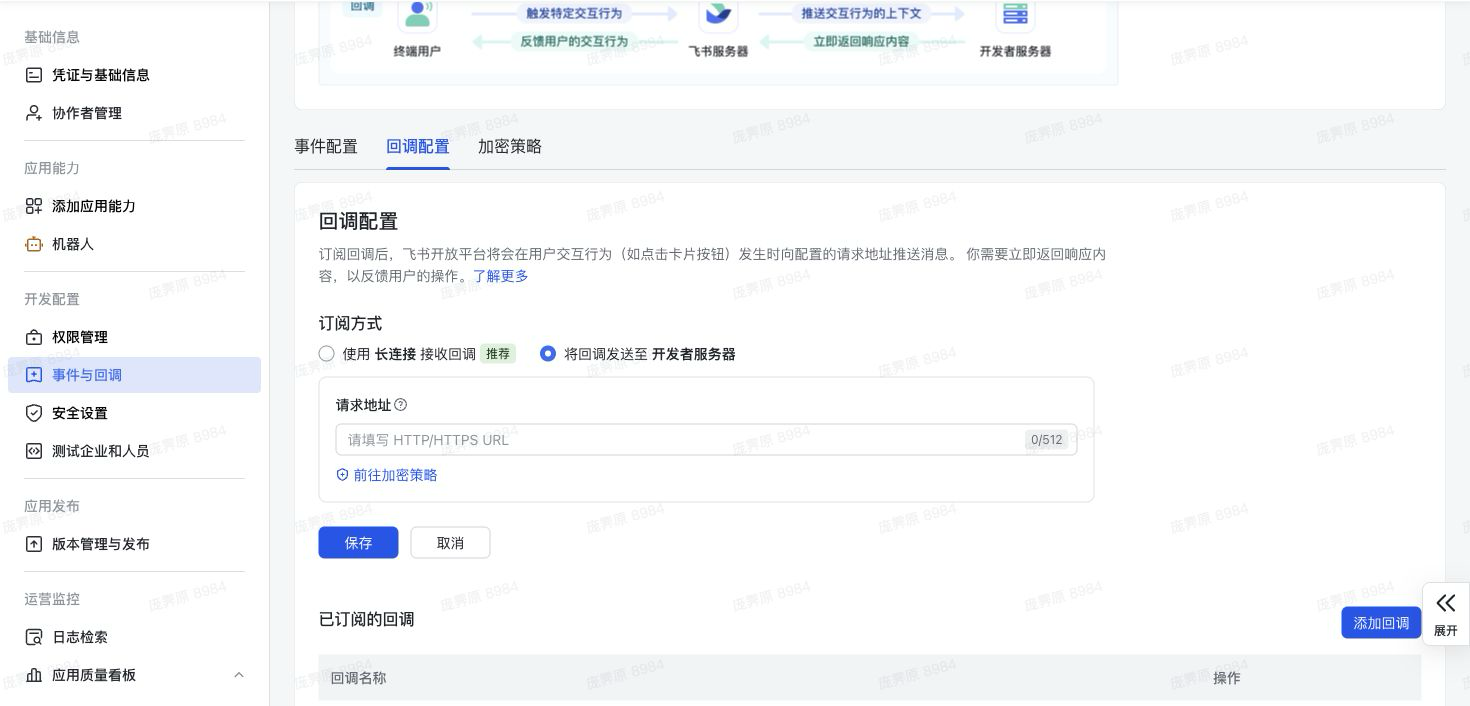
After credential validation succeeds, the third step on the connection page generates a Card Callback URL. Go to Development Configuration > Events & Callbacks > Callback Configuration in the Lark Open Platform and complete the following configuration:
- Select "Send callbacks to the developer server" and fill in the Card Callback URL generated on the connection page;
- Add the callback:
card.action.trigger.
Card callbacks can be configured later: not configuring the callbacks does not affect the application being displayed as Connected or the creation of group chats, but actions such as claiming and closing incident cards in the group are temporarily unavailable.
5. Publish the Application and Set Its Availability Scope
You must publish the application and set the availability scope correctly
Be sure to publish an application version in the Lark Open Platform and set the application availability scope to "All Members", or ensure it covers all members who may create, handle, and join warrooms. If the application is not published or the availability scope is too narrow, the system will not be able to query the Lark accounts of relevant members, causing automatic group creation to fail.
- Go to Application Publishing > Version Management & Publishing in the Lark Open Platform and click "Create Version";
- Set the application's Availability Scope to "All Members"; if you need to restrict the scope, you can also specify departments and members, but it must cover all members who may create, handle, and join warrooms;
- Submit the version and complete the publishing process.
If you select specific members or departments, adjust the availability scope in a timely manner when the warroom users change, and republish the application version.
6. Complete the Connection
After the application credential validation is complete, the application status shows "Connected". Confirm that the application permissions, card callbacks, application publishing, and availability scope have all been configured according to the steps above before using the application to create warrooms. Go to "Callback Configuration" in the application details to view the callback status or copy the callback URL.
Connecting Tencent Meeting
Version and account requirements
The connecting enterprise must use Tencent Meeting Business, Enterprise, or Education edition. Personal edition, free organizations, and free accounts under the Business, Enterprise, or Education editions cannot create enterprise self-built applications. The enterprise member used to create meetings must also have meeting creation qualifications. To check the platform support scope, see Tencent Meeting's application type introduction.
1. Create an Enterprise Self-Built Application
Follow these steps to create an enterprise self-built application:
- Log in to the Tencent Meeting official website with a Tencent Meeting enterprise administrator account;
- Click the avatar in the upper-right corner to enter User Center, and select Enterprise Management > Advanced > Enterprise Self-Built Applications;
-
Click Add Application, fill in the application name, and select the application type based on the enterprise's data access scope. Application-level applications support configuring a separate permission scope, while Enterprise-level applications can access enterprise-scope data by default and do not display the Permission Scope menu.
Whitelist configuration: To ensure that Guance can call the Tencent Meeting API properly, fill in the corresponding IP addresses in the Global Whitelist based on the site where the current workspace is located. Separate multiple IP addresses with line breaks.
Site IP Address cn147.97.178.215cn268.79.7.77cn3115.191.33.136cn4124.71.63.1cn68.217.159.66eu294.139.255.222ap13.1.104.3ap247.84.142.109eu118.157.152.101id143.129.51.192us135.164.41.209za1203.123.87.65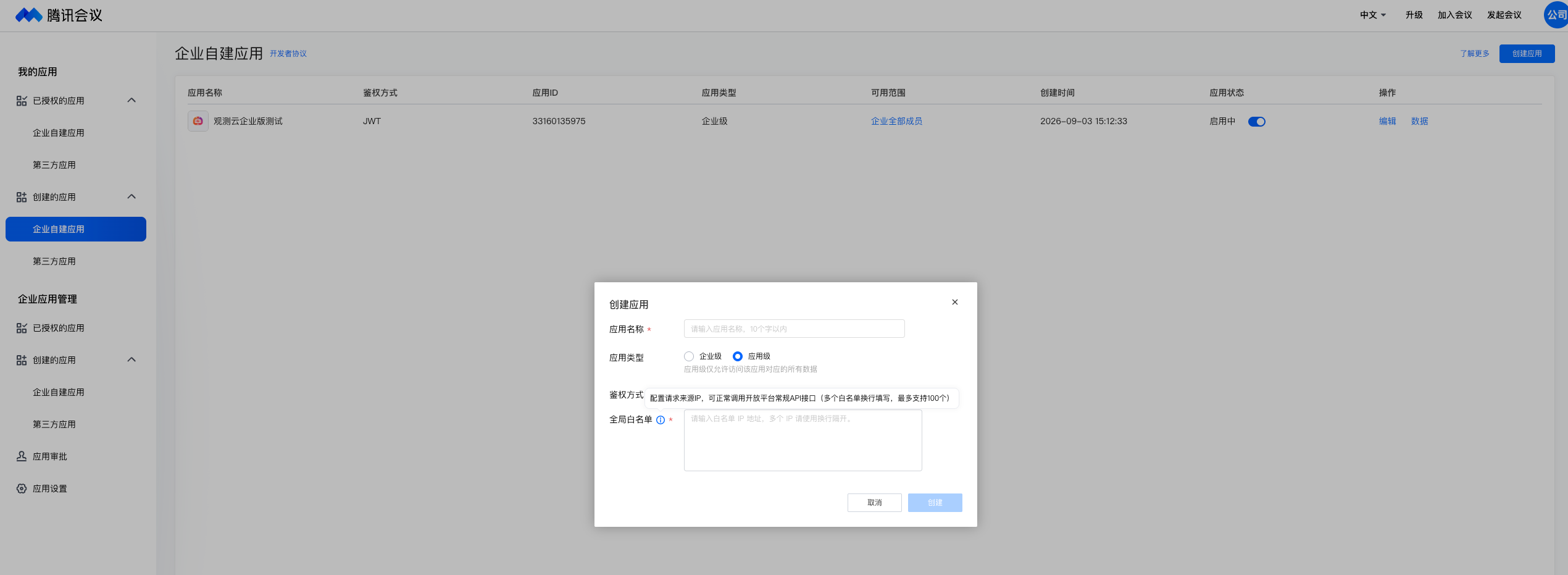
Submit the application after completing the above configuration.
-
Open the newly created application, complete the basic information, and set the application status to Enabled;
- If you created an application-level application, click the application name in the enterprise self-built application list to enter its details, select Permission Scope on the left, search for and enable the Manage enterprise meeting details permission; this permission is used to create meetings and obtain join links. If the permission requires approval, have the application administrator complete the approval. Enterprise-level applications do not need to perform this step.
You can also open the Tencent Meeting enterprise self-built application console directly. For the complete creation rules of the Tencent Meeting platform, you can view the enterprise self-built application operation guide.
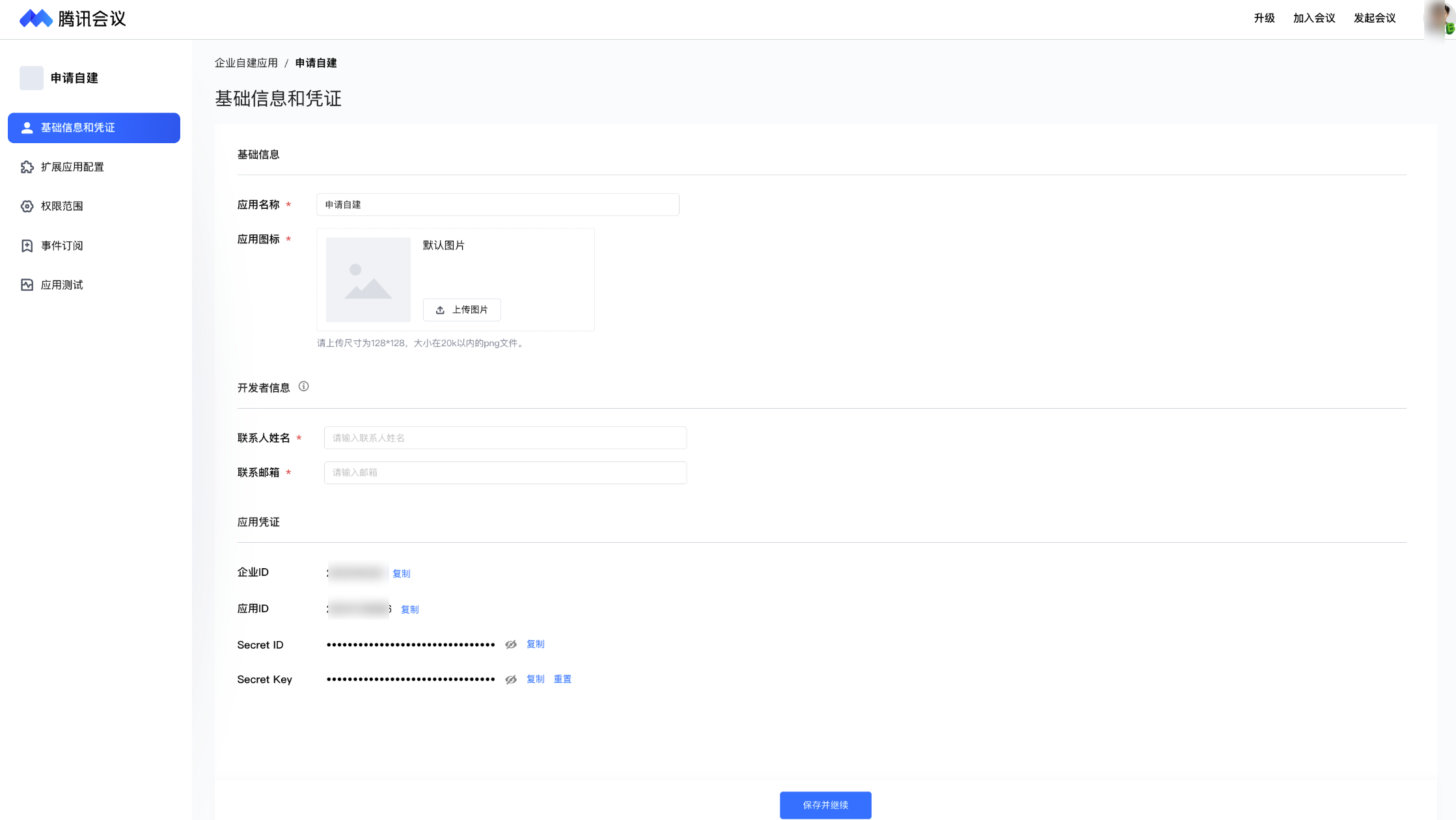
After creating the application, obtain the following parameters and click Connect Application > Tencent Meeting in Integrations > IM Applications to complete the form:
| Field | Required | Description |
|---|---|---|
App ID |
Yes | Corresponds to the Enterprise ID in the Tencent Meeting console |
Secret ID |
Yes | Authentication credential of the enterprise self-built application |
Secret Key |
Yes | Authentication secret of the enterprise self-built application |
Meeting Creator User ID |
Yes | Fixed enterprise member User ID used to create meetings |
SDK ID |
Depends on enterprise configuration | Required when Tencent Meeting has assigned an SDK ID to the application; leave blank if not assigned |
Where to find the parameters:
App ID,Secret ID,Secret Key: Go to Enterprise Management > Advanced > Enterprise Self-Built Applications, select the application, and obtain them together in Basic Information & Credentials. TheApp IDon the connection page corresponds to the Enterprise ID in the Tencent Meeting console, which can also be viewed under Enterprise Management > Account Management > Account Information;SDK ID: Also found in Basic Information & Credentials. If the page displays an SDK ID, you must fill it in; if not displayed, leave it blank;Meeting Creator User ID: Go to Enterprise Management > User Management > User List, find the enterprise member used to create meetings, and copy their UserID; if the field is not displayed in the list, you can enable it through List Field Settings. The member must be in a normal state and have permission to start meetings.
After filling in the parameters and completing credential validation, the connection is complete. When creating Tencent Meeting warrooms later, the system will use the configured enterprise member as the meeting creator.
Viewing and Managing Applications
Click an application row to enter its details, where you can view basic information, connection status, warroom capabilities, and operation records.
- Lark applications provide "Callback Configuration", which is used to view and copy the card callback URL;
- The application name, application credentials, and other information can be modified;
- You can delete applications that are no longer needed from the details page.
Only workspace administrators with IM application management permissions can view and copy the Lark card callback URL. Operations such as viewing, copying, configuration changes, and application deletion are written to audit logs.
Deleting an application requires a second confirmation. After deletion, the configuration cannot be recovered, and the application can no longer be used to create new warrooms; external group chats, meetings, and access records that have already been created are not affected.
Connection Status
| Status | Description |
|---|---|
| Pending Validation | The application credentials have not passed validation yet and cannot be used to create warrooms |
| Connected | Credentials and basic capabilities have been validated successfully and can be used to create warrooms |
| Connection Error | Credentials are invalid, permissions are insufficient, or the application on the enterprise side is unavailable; new warrooms cannot be created |
Lark applications also display a separate callback configuration status:
| Status | Description |
|---|---|
| Pending Configuration | No validated card callbacks have been received yet; group chats can still be created, but card actions are temporarily unavailable |
| Normal | Card callbacks have been received and passed source validation |
| Error | Callbacks are persistently unreachable, or signature verification or decryption fails; check the callback configuration in the Lark platform and the application details |
If an application has a connection error, check the credentials, application permissions, and application availability scope according to the prompts on the page. External group chats or meetings of existing warrooms will not be automatically closed because of this.
FAQ
Why can't the application complete the connection?
Check the following configuration according to the prompts on the page:
- Whether the application credentials are correct;
- Whether the Lark application has added the Bot capability and published an application version;
- Whether the Lark permissions, contacts data permissions, and application availability scope are fully configured;
- Whether the Tencent Meeting enterprise edition, application permissions, and the account used to create meetings meet the requirements.
Why can't a connected application create warrooms?
Only applications with the status Connected can create warrooms. Go to the application details to view the connection status and operation records, and fix the configuration according to the error prompts.
Do I need to reconfigure platform permissions after replacing the Secret?
If the application ID and the application itself have not changed, replacing only the Secret does not usually require re-enabling platform permissions or callbacks. After saving the new Secret, confirm that the application returns to the Connected status.
Why is the Lark application connected, but card actions are not working?
Go to the application details and check the callback configuration status:
- If the status is Pending Configuration: Configure the card callback URL in the Lark Open Platform and add the
card.action.triggercallback; - If the status is Error: Check the callback URL and confirm that the
Verification TokenandEncrypt Keyexactly match the configuration in the Lark Open Platform.
Until the callback returns to normal, you can still create and join Lark group chats, but you cannot process incident card actions in the group.
Why is the Tencent Meeting application connected, but meeting creation fails?
Check whether the App ID, Secret ID, and Secret Key are filled in correctly; if Tencent Meeting has assigned an SDK ID to the application, also confirm that this parameter has been filled in. Then confirm that the whitelist configuration includes the IP address of the site where the current workspace is located, that the application is enabled and the Manage enterprise meeting details permission has been granted, and that the Meeting Creator User ID corresponds to a member in the current enterprise who is in a normal state and has permission to start meetings.
Further Reading
You may also be interested in: