RUM Headless
RUM is used to collect Real User Monitoring data reported from web or mobile clients. Once RUM Headless has been activated, it can be automatically installed and deployed on the cloud host of Guance, automatically completing a series of operations such as DataKit installation and RUM collector deployment.
Note
To activate the RUM Headless platform, you must first contact the Billing Center to enable the allowlist channel. Contact your Account Manager and provide the site and ID where your Workspace is located, along with other information.
One-Click Activation
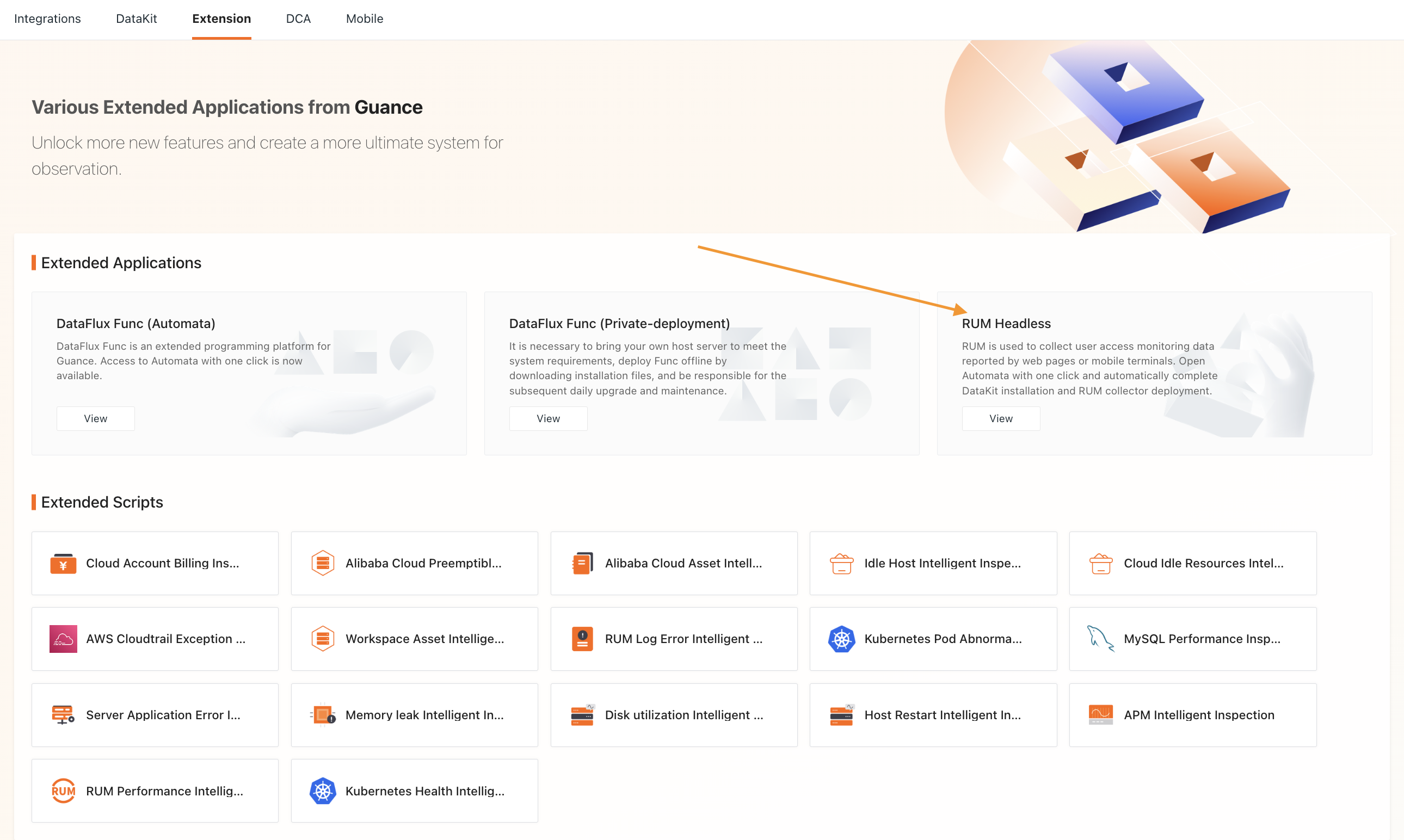
Go to Integration > RUM Headless, or Integration > Extension > RUM Headless, and click to enter the activation flow:
Permissions and Billing
- Only one RUM Headless can be activated per Workspace, and only Owner has activation and configuration permissions;
- RUM Headless is billed monthly. Once activated, one month's fee is deducted at once, and the next month's fee is automatically deducted one day before the expiration date (e.g., if activated on 04/13, the charge occurs on 04/12, again on 05/12, and so on...).
- Click Activate;
- Fill in the HTTP service address;
- Select the specifications required by the application;
- Activate now.
Note
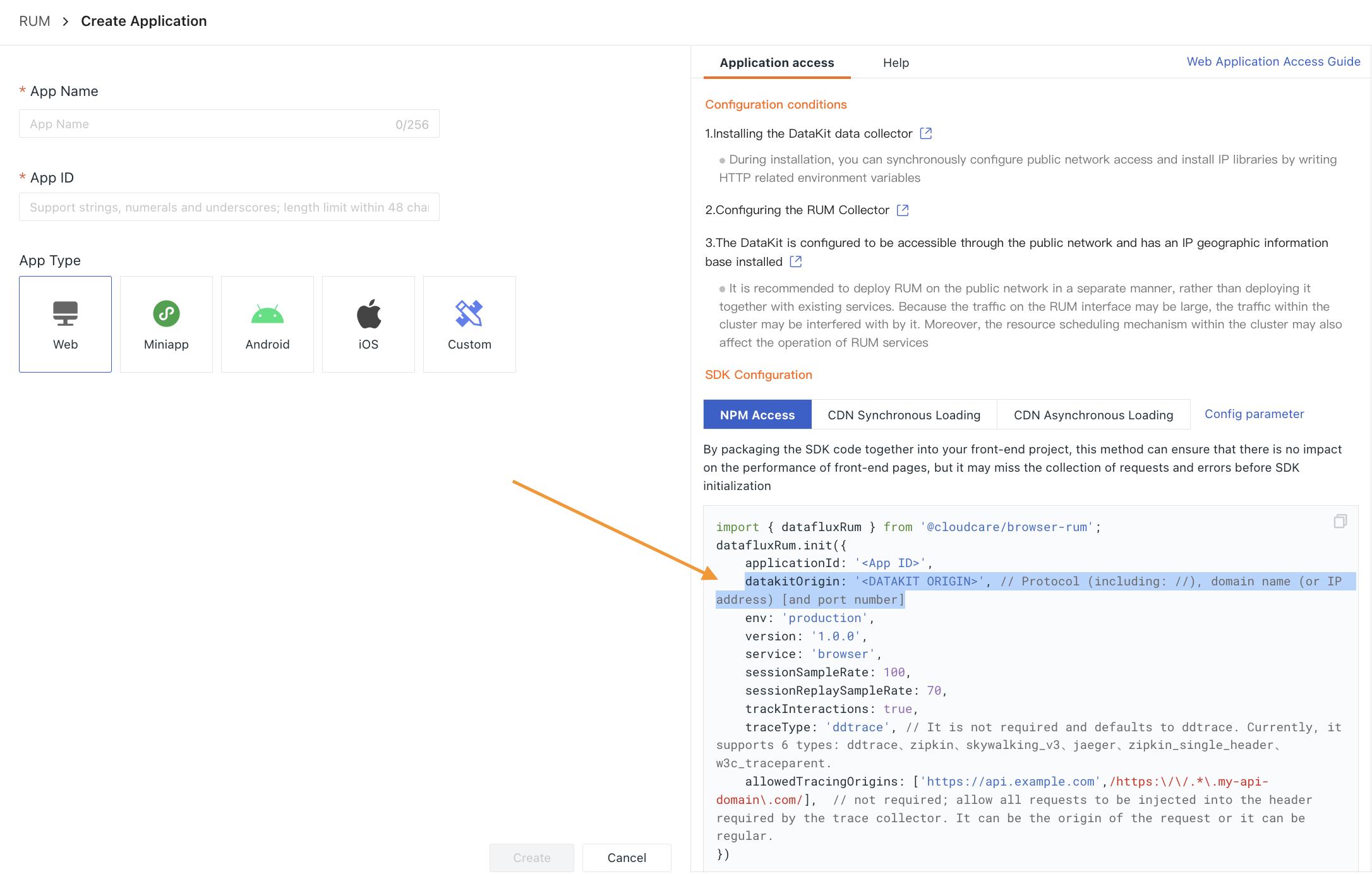
HTTP service address: This is the HTTP service address of DataKit, which is used to receive external data. You need to fill it in when integrating the application:
The automated deployment process is expected to take 10-15 minutes. Once activation is complete, you can enter the console directly from Integration > Func > Extension. Click Configuration > Overview to view RUM Headless details.
Related Configuration
After RUM Headless has been activated, refer to the following content if you need to modify configuration information.
Modify Service Address
- Click Modify;
- Obtain and enter the email verification code;
- Click OK to complete identity verification, then you can modify the current HTTP service address.
Note
The service address can be modified 3 times per day.
Modify Specifications
- Click Modify;
- Obtain and enter the email verification code;
- Click OK to complete identity verification, then you can modify the current specifications.
Note
After the specifications are modified, the change takes effect immediately on the same day, and billing starts according to the new specifications. The old specifications are discarded directly without any refund.
Sourcemap Configuration
Sourcemap (source code mapping) is used to map minified code in production back to the original source code.
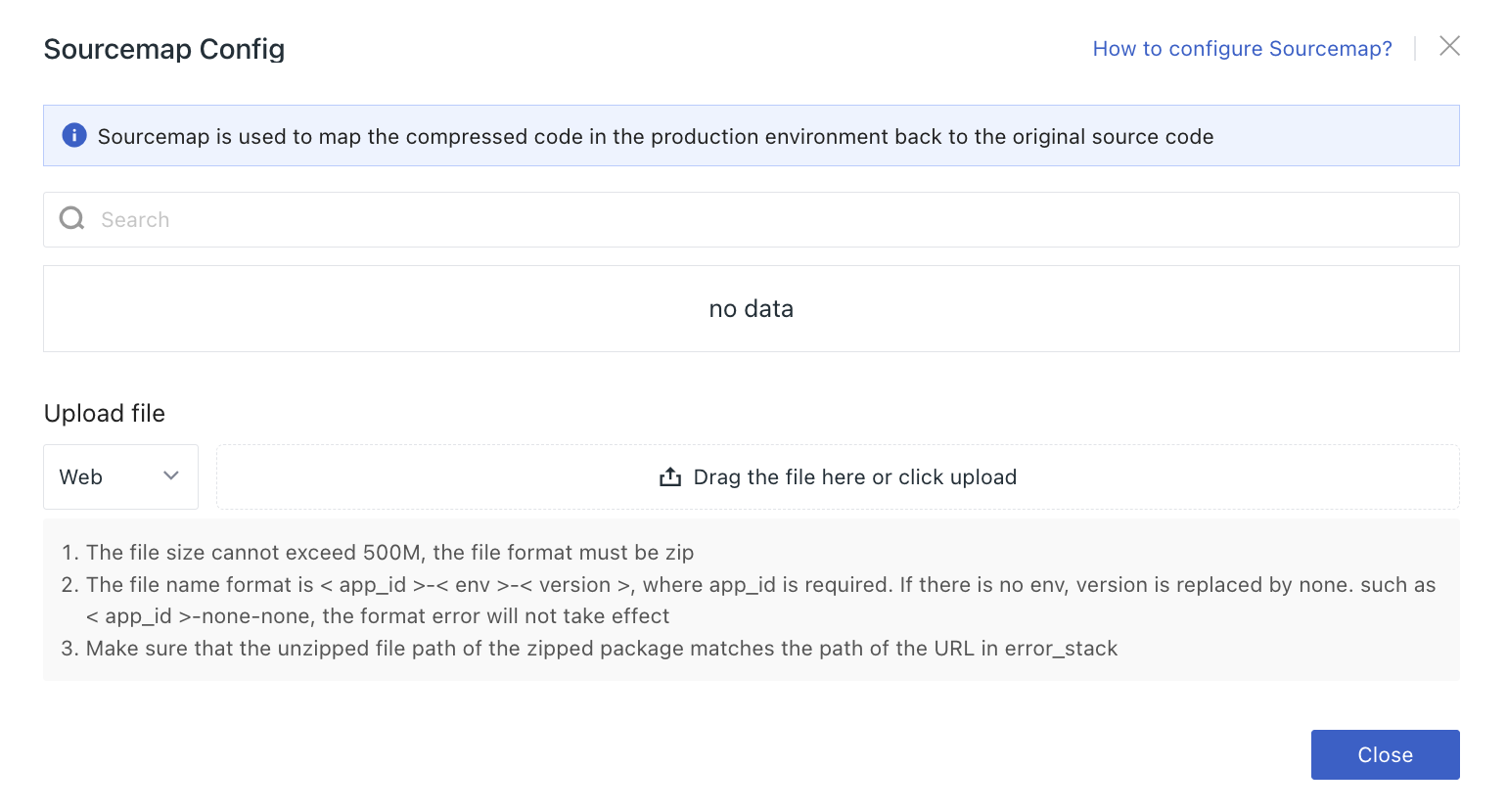
When uploading files, select the application type, and after configuring and packaging the Sourcemap, drag and drop or click to upload.
Below the 🔍 bar, you can view the uploaded file names and application types. You can enter a file name to search; click to delete the current file.
Upload Notes
- File size cannot exceed 500 MB;
- The file format must be
.zip; - The file naming format is
<app_id>-<env>-<version>, whereapp_idis required. Files with incorrect formats will not take effect; ensure that the file paths after extracting the package match the URL paths inerror_stack; - Multiple files cannot be uploaded at the same time;
- Uploading a file with the same name will prompt for overwrite; please pay attention.
Status
On the RUM Headless configuration page, you can view the current application status.
Your application may have the following five statuses:
| Status | Description |
|---|---|
| Activating | Indicates that the one-click RUM Headless activation flow is in progress. |
| Activated | Indicates that the one-click RUM Headless activation flow has been completed. |
| Plan Changing | Indicates that the service address or specifications are being modified. |
| Upgrading | Indicates that the current application service is being upgraded. |
| Operation Failed | Indicates that there are operation issues in the activation flow. You can view error feedback or directly contact us. |
Application Expiration
Three days before the application expires and the renewal fee is deducted, the system checks whether the balance is sufficient for renewal. If the balance is insufficient, the system sends an email and system notification to the Workspace Owner as a reminder.
If you have used RUM Headless before, reactivating the application before it expires restores all application data. If you fail to renew within the grace period, the data will be permanently deleted. The system retains the most recent 7 days of data for you. Within these 7 days, if you choose to activate the application again, you can choose to restore all data or not restore data.
- Restore data: Back up the previously retained data to the newly activated RUM;
- Do not restore data: Discard all previous data and reactivate the application.
Deactivate Application
If you need to deactivate the current application service, click Deactivate Application, complete identity verification, and the confirmation page opens, where you can view the application expiration date.
RUM Headless is billed monthly. Before the fee expires, you can still use RUM services and can reactivate RUM Headless as needed.