Huawei Cloud Private Network Access
Introduction
At present, the Huawei Cloud service has been launched in the cn-south-1 (Guangzhou) region. Other regions will be available soon. The architecture is as follows:
| Access Site | Region Where Your Server Is Located | Endpoint Service Name ID |
|---|---|---|
| China Region 4 (Guangzhou) | cn-south-1 |
cn-south-1.openway.af005322-387a-47cb-a21f-758b1c6c7ee7 |
VPC Endpoint Connection Service
Step 1: Authorize the Account ID
Log in to the management console.
Click My Credentials under your account.
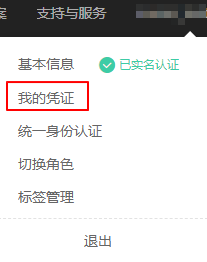
On the My Credentials page, you can view the Account ID of the current tenant, as shown below.

Copy the Account ID and provide it to your Guance account manager so it can be added to the whitelist.
Step 2: Purchase an Endpoint
Log in to the management console.
In the upper-left corner of the console, select the Guangzhou region and project.
Click Service List > Network > VPC Endpoint to open the Endpoints page.
On the Endpoints page, click Purchase Endpoint.
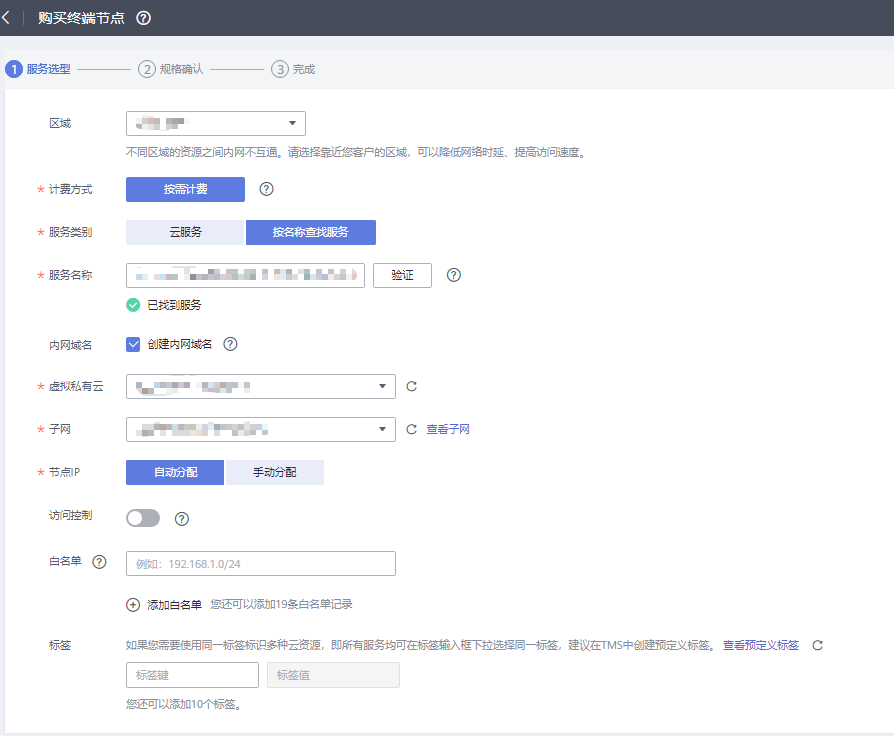
Configure the parameters as prompted. The Service Name must use the Endpoint Service Name ID from the table above.
After the parameters are configured, click Buy Now to confirm the specification.
- If the specification is correct, click Submit. The request will be submitted successfully.
- If any parameter is incorrect, click Previous, update the parameters, and then click Submit.
Request the connection:
- In the endpoint list, confirm that the endpoint status is Pending Acceptance. At this point, please notify your account manager to review the connection request.
- After the connection is accepted, return to the endpoint list and confirm that the endpoint status becomes Accepted, which indicates that the endpoint has been connected successfully to the endpoint service.
Click the endpoint ID to view the endpoint details.
- After the endpoint is created successfully, a Node IP (private IP) and an internal domain name will be generated if you selected Create Internal Domain Name when creating the endpoint.

- You can use the node IP or the internal domain name to access the endpoint service and communicate across VPCs.
Resolve the Internal Domain Name with DNS
Add a Private DNS Record
In the navigation bar, click Cloud DNS.
Select Private Zones.
Click Create Domain Name in the upper-right corner. Fill in the required information as prompted. Use the primary domain name here, and guance.com is recommended.
Fill in the VPC where the endpoint is located, as shown below:
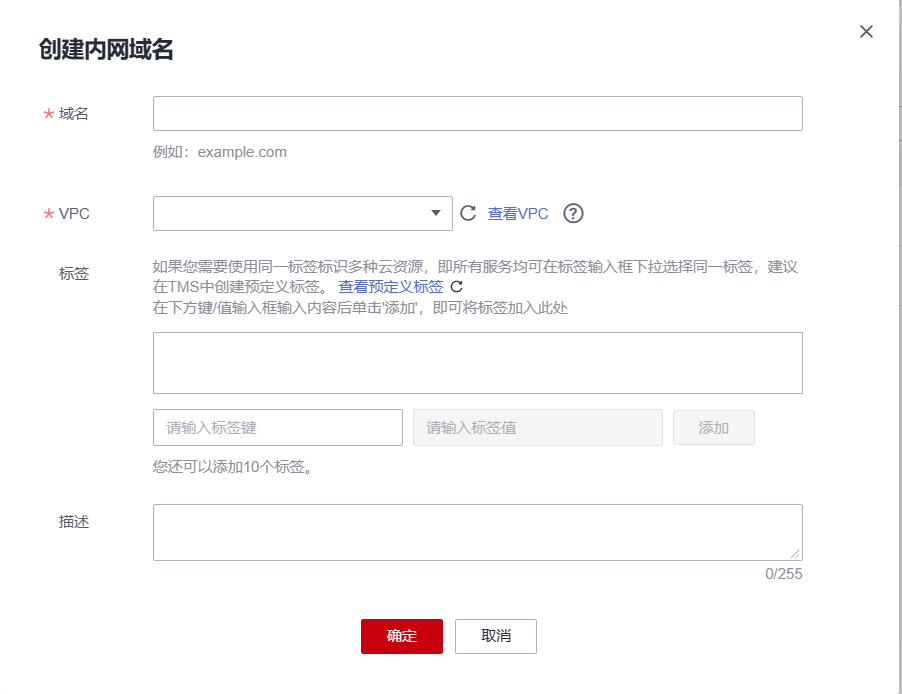
After the domain is created successfully, click Manage Records.
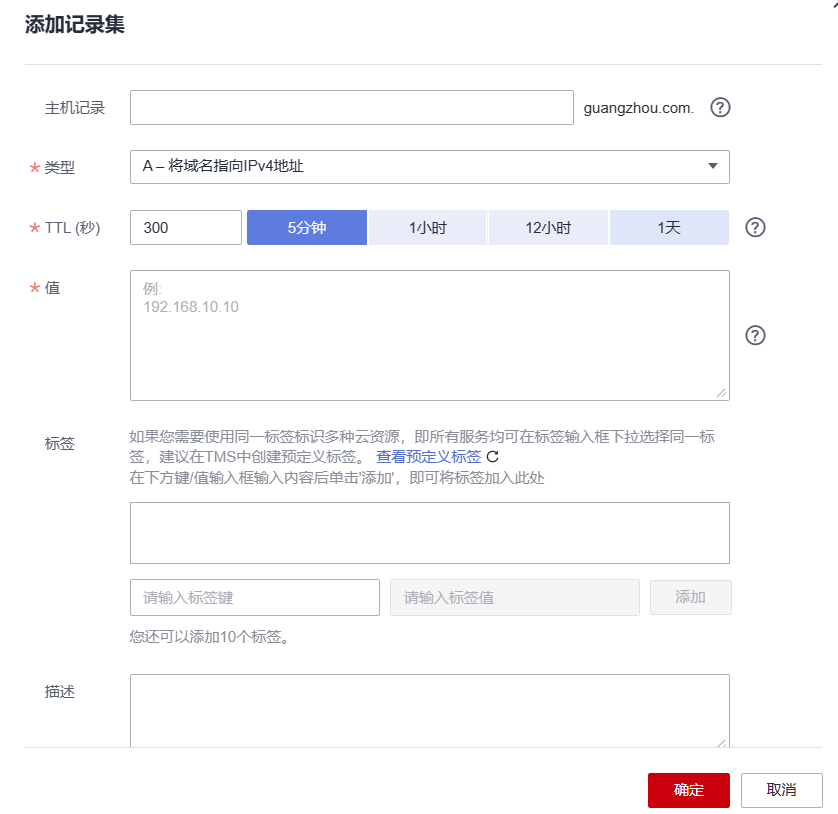
Then click Add Record Set in the upper-right corner.
- Set the host record to the service name (
cn4-openway) - Set the value to the IP address of the endpoint
Then click OK, as shown below:
Log in to any machine inside the VPC network and run the following command to verify it: