Configuring Guance IAM Policies in Huawei Cloud
Huawei Cloud's permission management policies are based on the "user group" as the basic permission unit. The process is: create a user group, associate permission sets and accounts with the user group, then add users to the user group, so that all users under the user group obtain the corresponding permissions.
- Log in to the console, hover over the account in the upper right corner, and click "Identity and Access Management".
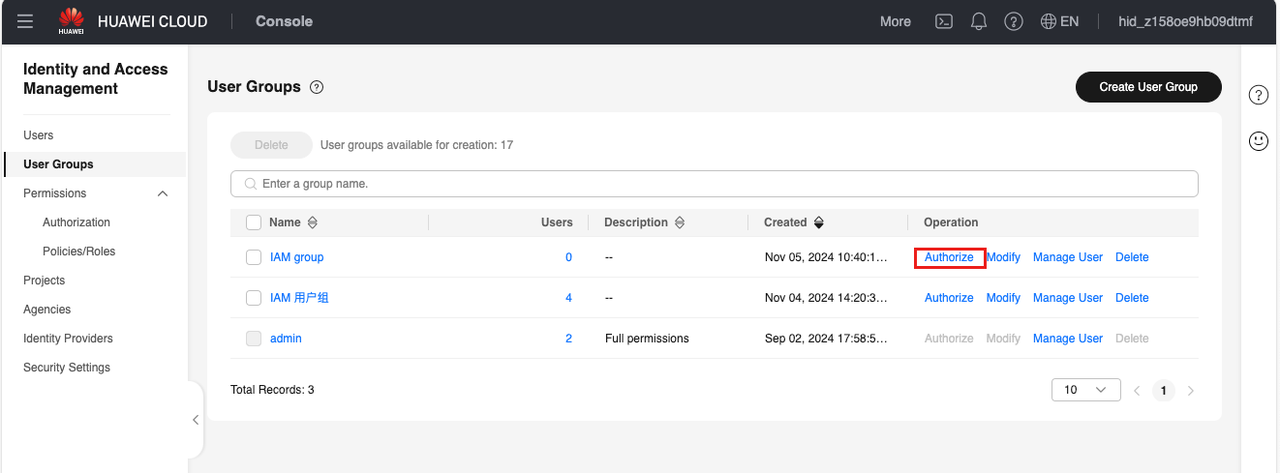
In the left menu, click "User Groups" and create a user group.

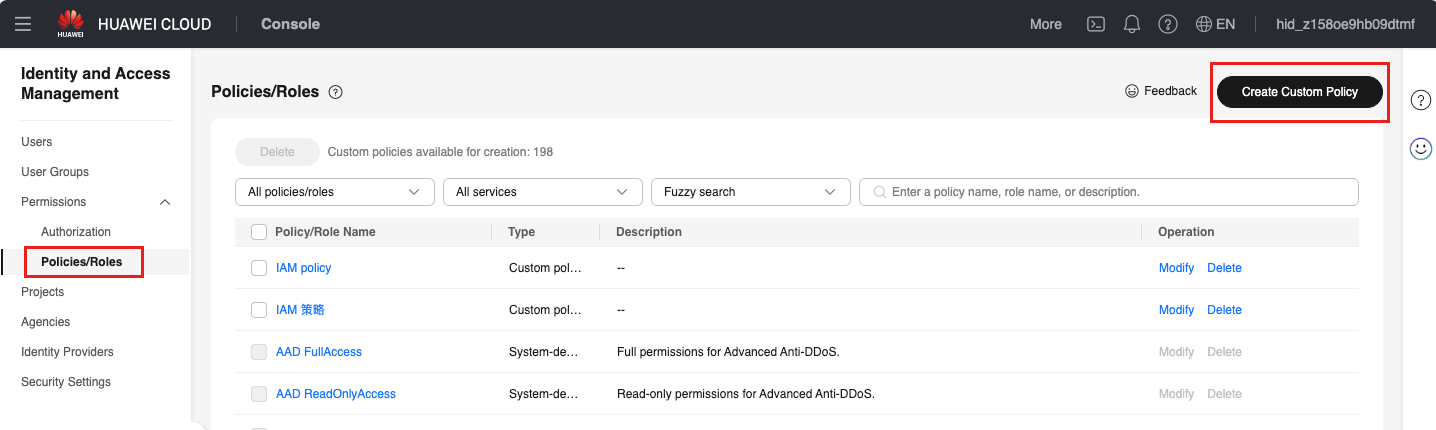
- Create a custom permission policy. Under "Permissions Management > Permissions", click "Create Custom Policy".
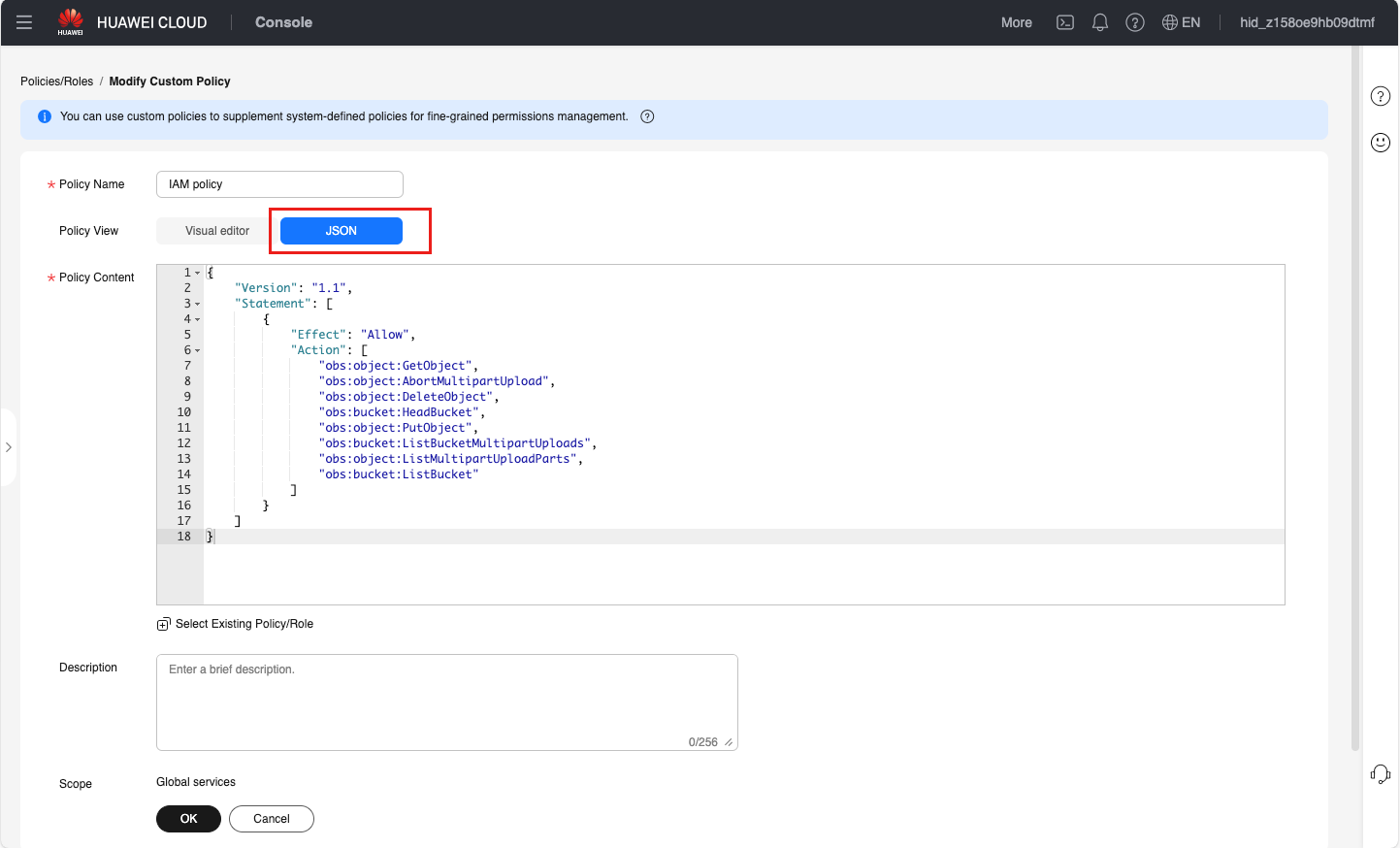
Select the JSON view configuration method and paste the JSON content provided here.
{
    "Version": "1.1",
    "Statement": [
        {
            "Effect": "Allow",
            "Action": [
                "obs:object:GetObject",
                "obs:object:AbortMultipartUpload",
                "obs:object:DeleteObject",
                "obs:bucket:HeadBucket",
                "obs:object:PutObject",
                "obs:bucket:ListBucketMultipartUploads",
                "obs:object:ListMultipartUploadParts",
                "obs:bucket:ListBucket"
            ]
        }
    ]
}
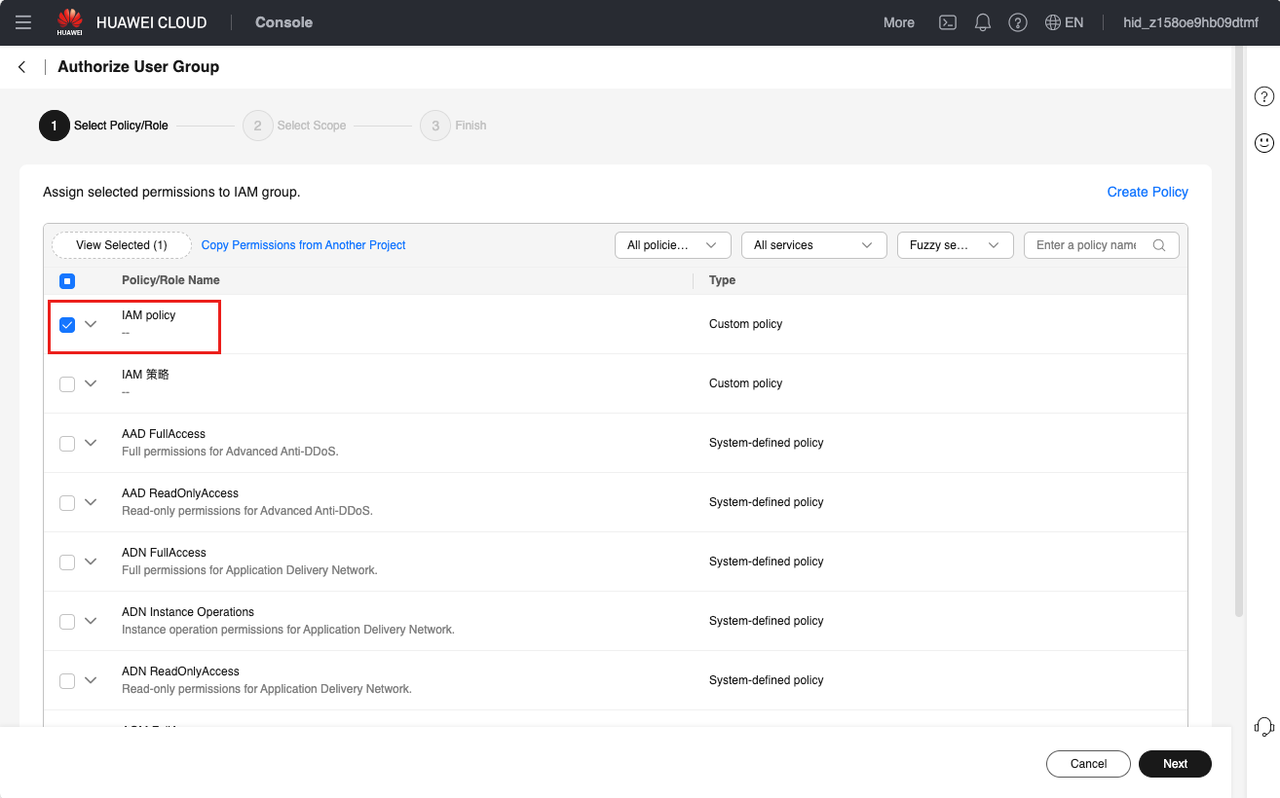
- Grant permissions to the user group by selecting the custom permission policy created in step 2.
Note: After granting permissions, you need to wait 15-30 minutes for the policy to take effect.
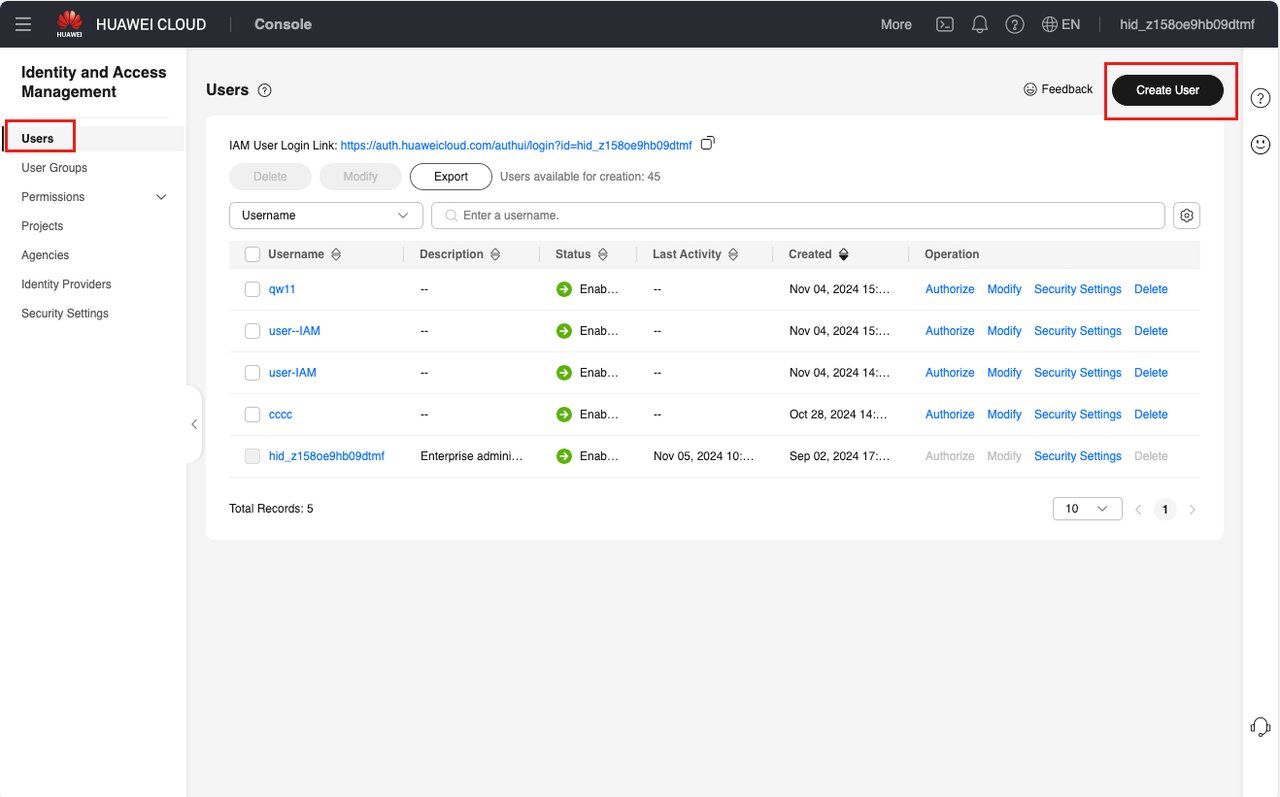
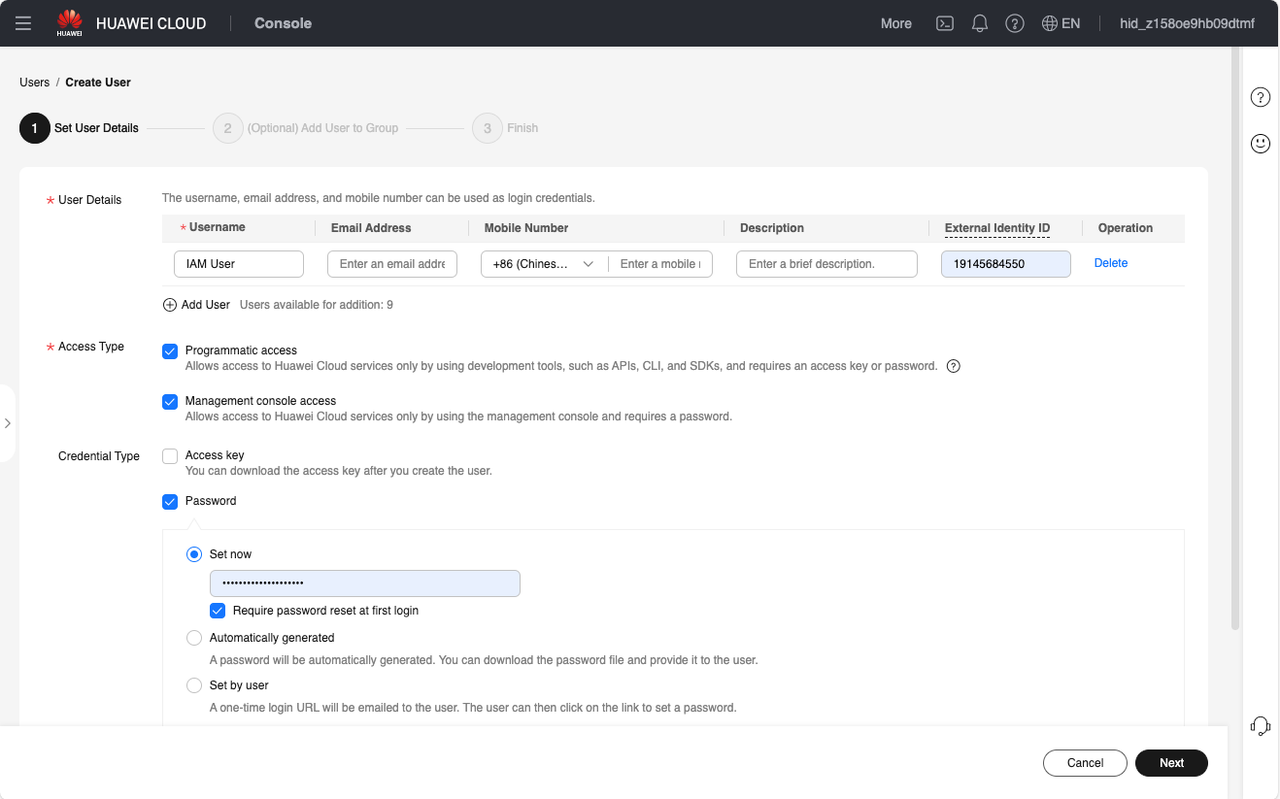
- Create a user and add this user to the corresponding user group that has the required permissions.
4.1 Fill in the user name and other required fields (must check "Access Key").
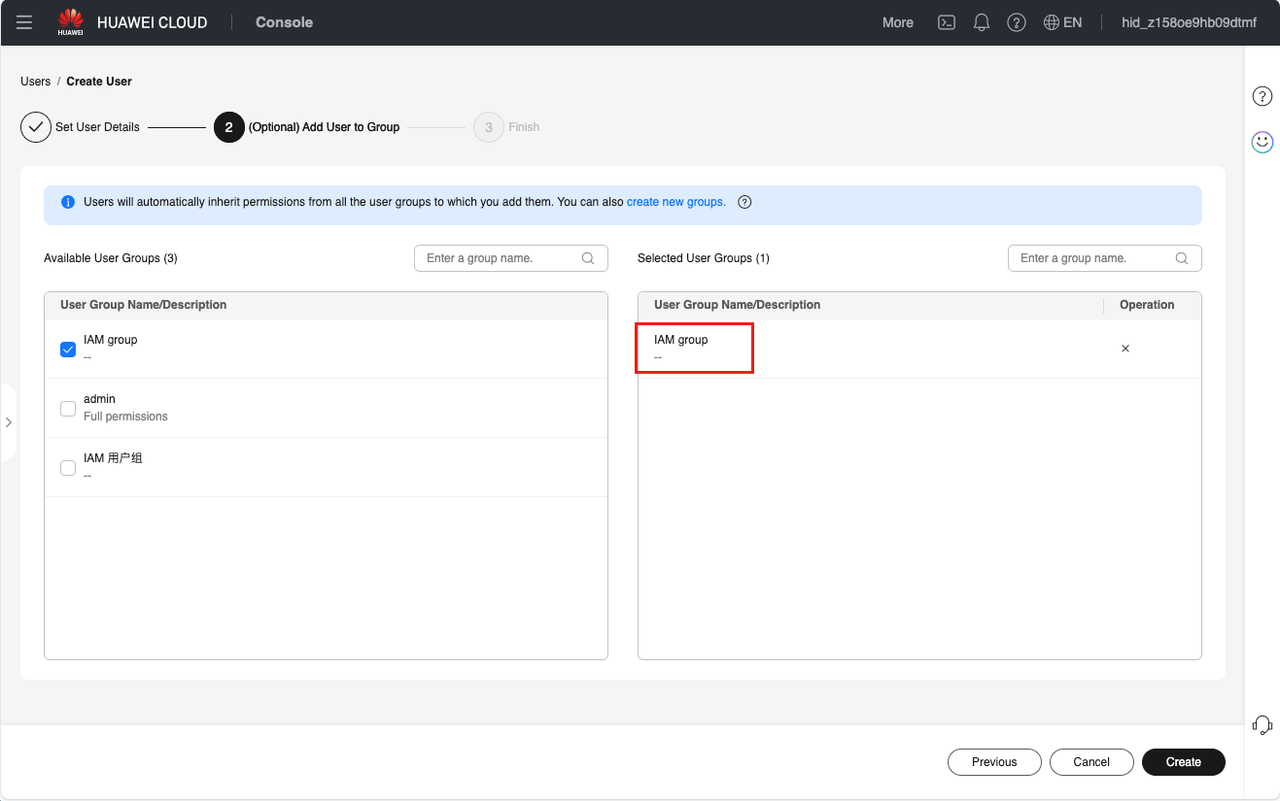
4.2 Add the user to the user group created in step 1.
Note: If a user is associated with multiple user groups, the user's permissions are the union of all user group permission policies.
4.3 After the user is created successfully, you can download the access key in the pop-up dialog.
Note: This key can only be downloaded once. If you click Cancel, you will not be able to view or download this key later. You can also set up to 2 access keys in "Users > Security Settings".
