Scheck Connecting to Alibaba Cloud Log Service
- Version: 1.0.7-7-g251eead
- Release Date: 2023-04-06 11:17:57
- Supported OS: windows/amd64, windows/386, linux/arm, linux/arm64, linux/386, linux/amd64
Prerequisites
- Possess Alibaba Cloud RAM management permissions
- scheck version greater than v1.0.1
Obtain Alibaba Cloud Log Service Access Key
Alibaba Cloud Official Documentation
- Create a User
Log in to RAM Access Control → Left sidebar [Identity Management - Users] → Create User
Create a user, set the logon name to scheck, and select Open API Call Access
Remember to save the AccessKey ID and AccessKey Secret
- Grant Permissions
Log in to RAM Access Control → Left sidebar [Permission Management - Authorization] → New Authorization
Grant the AliyunLogFullAccess permission to the scheck account.
Steps
Modify Configuration
- On Linux hosts, modify
/usr/local/scheck/scheck.conf; on Windows hosts, modifyC:\Program Files\scheck\scheck.conf
  [scoutput.alisls]
    enable = true # Enable configuration
    endpoint = "cn-hangzhou.log.aliyuncs.com" # Set Alibaba Cloud endpoint
    access_key_id = "LTAI5tHb2vMLV4axxxxxx"  # Obtained from the previous step
    access_key_secret = "FNUkk52gWsZHKauXPg24jxxxx" # Obtained from the previous step
    project_name = "zhuyun-scheck" # Customizable
    log_store_name = "scheck"      # Customizable
- Parameter Description
| Parameter Name | Example Value | Required | Description |
|---|---|---|---|
enable |
true |
Yes | Configuration switch |
endpoint |
cn-hangzhou.log.aliyuncs.com |
Yes | Alibaba Cloud region |
access_key_id |
LTAI5tHb2vMLV4axxxxxx |
Yes | Alibaba Cloud AccessKey ID (with AliyunLogFullAccess permission) |
access_key_secret |
FNUkk52gWsZHKauXPg24jxxxx |
Yes | Alibaba Cloud AccessKey Secret |
project_name |
zhuyun-scheck |
No | Project name of the Alibaba Cloud Log Service |
log_store_name |
scheck |
No | Log store name |
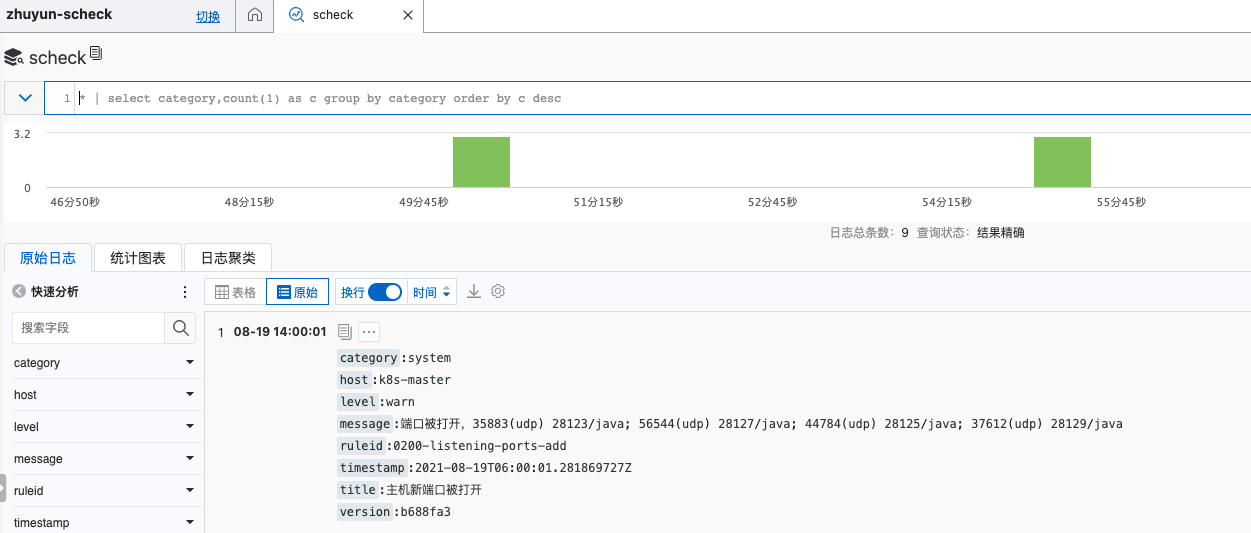
Restart and Verify Configuration
- Restart scheck
- Add a new user to test whether the configuration is successful
- Check the zhuyun-scheck project in the Alibaba Cloud Console
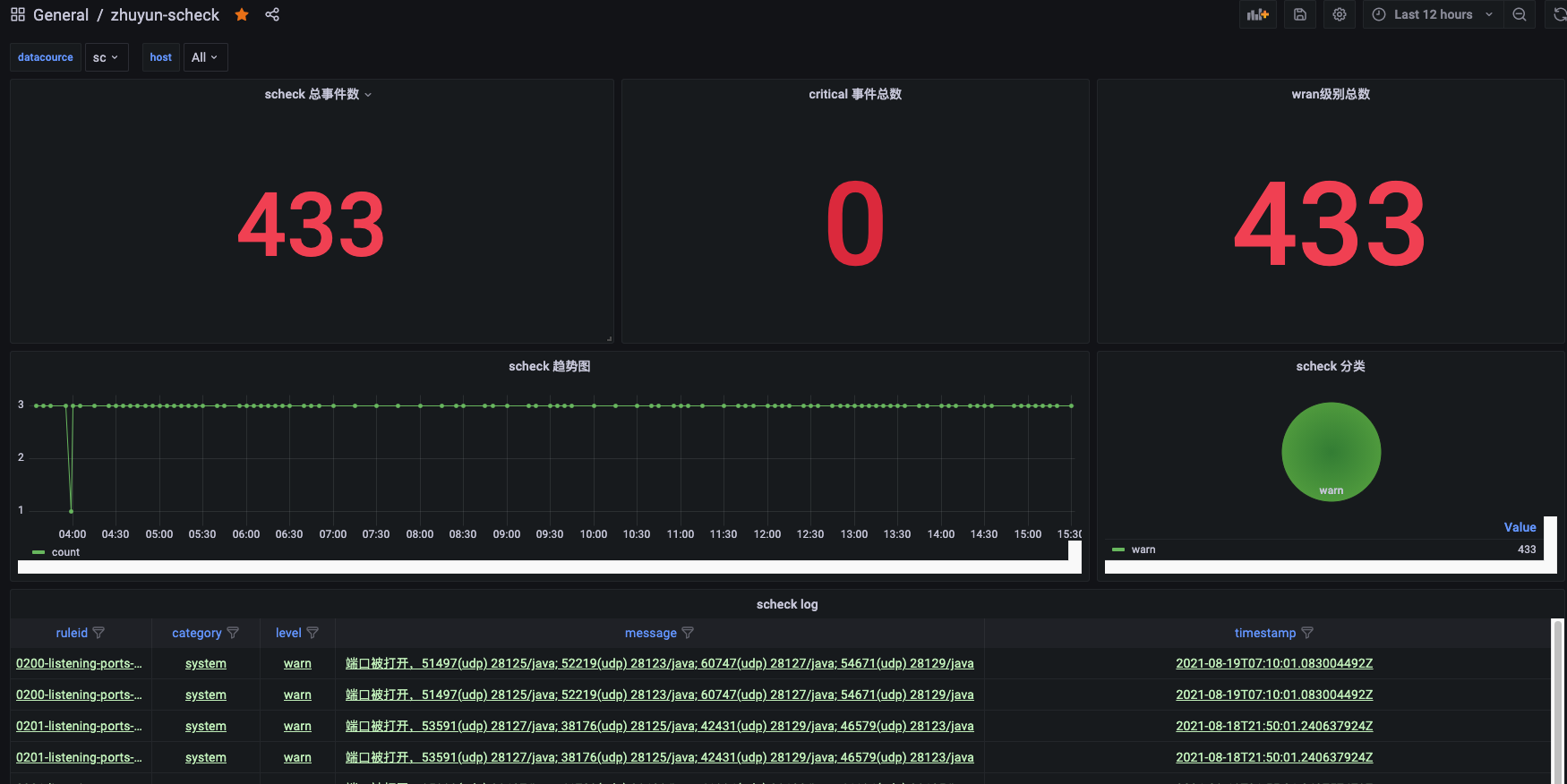
Grafana Integration with Alibaba Cloud Log Service
| Software Name | Version | Description |
|---|---|---|
| grafana | 8.0.6 | Open-source visualization tool |
| aliyun-log-grafana-datasource-plugin | 2.8 | Alibaba Cloud Log Plugin |
Install Grafana
1. Install Grafana via Docker
docker run \
    --name=grafana \
    --volume=~/grafana/data/:/var/lib/grafana \
    -p 3000:3000 \
    grafana/grafana:8.0.6
2. Install and Configure aliyun-log-grafana-datasource-plugin
~/grafana/data/ is the persistent volume path.
$ wget -o aliyun-log-grafana-datasource-plugin-master.zip https://github.com/aliyun/aliyun-log-grafana-datasource-plugin/releases/tag/2.8?spm=a2c4g.11186623.2.13.7a703e0anzkNTh&file=2.8
$ unzip 2.8.zip
$ mv aliyun-log-grafana-datasource-plugin-2.8 ~/grafana/data/plugins/aliyun-log-grafana-datasource-plugin
# Modify configuration
$ docker exec -i grafana sed -i '/;allow_loading_unsigned_plugins/i\allow_loading_unsigned_plugins \= aliyun-log-service-datasource,grafana-log-service-datasource
' /etc/grafana/grafana.ini
# Restart container
$ docker restart grafana
3. Configure Data Source
- Log in to http://127.0.0.1:3000 via browser. Username: admin, Password: admin
- Go to http://127.0.0.1:3000/datasources, add a data source, select
log-service-datasource, set Name tosc, and fill in the following information.
4. Import Scheck Dashboard Template
-
Go to http://127.0.0.1:3000/dashboard/import and upload the JSON template