Google Chat
Google Workspace Chat webhooks provide a simple way to send messages to Google Chat spaces through HTTP requests.
For more details, refer to Build Google Chat apps as webhooks.
Note
This notification target is only applicable to workspaces on the international site that have bound an international Billing Center account.
Prerequisites
Make sure you have permission to add apps in the target chat space.
Register an incoming webhook
- Go to the chat space where you want to add the webhook.
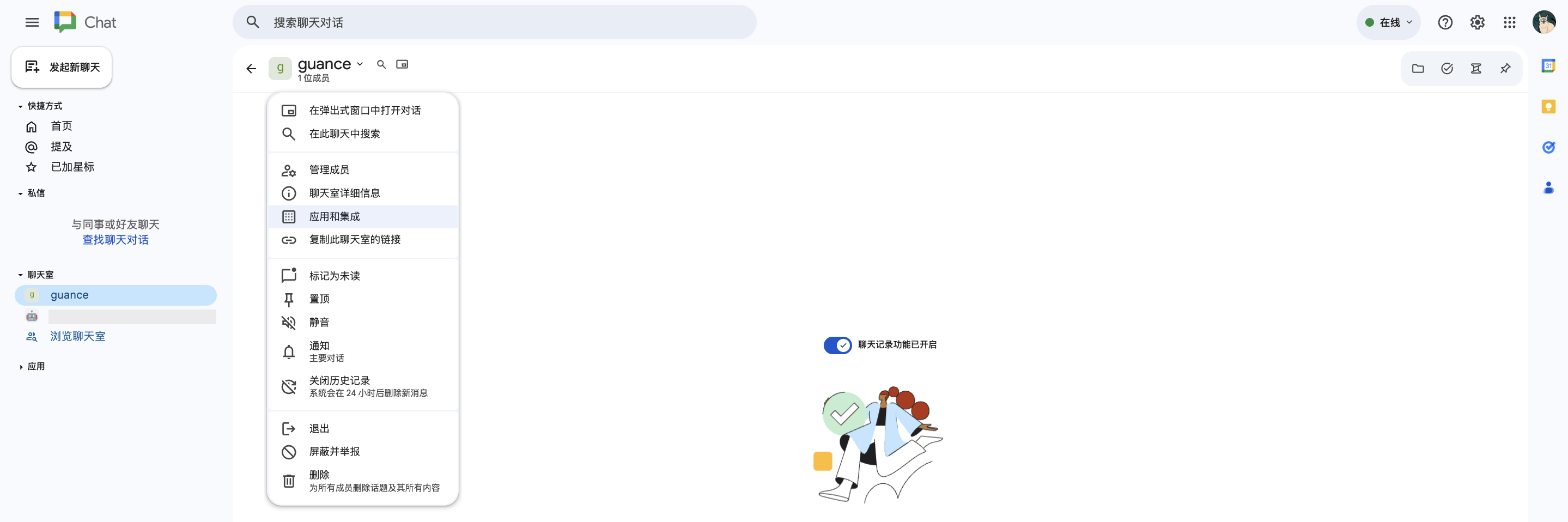
- Click the expand arrow next to the title at the top of the chat space.
- Click "Apps and integrations".
- Click "Add webhooks" (❗️ If you cannot click this button, your Google Workspace organization does not allow users to add or use webhooks. For more information, see Allow users to install Chat apps);
- Name the webhook. This name will be displayed as the sender name in Chat.
- Save.
- To copy the webhook URL, click More and then Copy link. The webhook URL contains two parameters:
key(a common value shared among webhooks) andtoken(a unique value that must be kept secret to ensure webhook security) (❗️ Do not share your webhook URL online (for example, in public code repositories), because this will compromise its security).
Configure in Guance
- Return to the page where you configure Google Chat as a notification target.
- Define the name of this notification target in Guance, which is used to identify it in the notification target list.
- Enter the webhook URL obtained in the steps above.
- Optionally test whether the notification was sent (❗️ A test message is sent to the group/channel corresponding to this webhook. Go to the corresponding notification target to check whether the test message was sent successfully).
- Configure operation permissions.
- Confirm.