Browser Testing Recording Instructions
Prerequisites
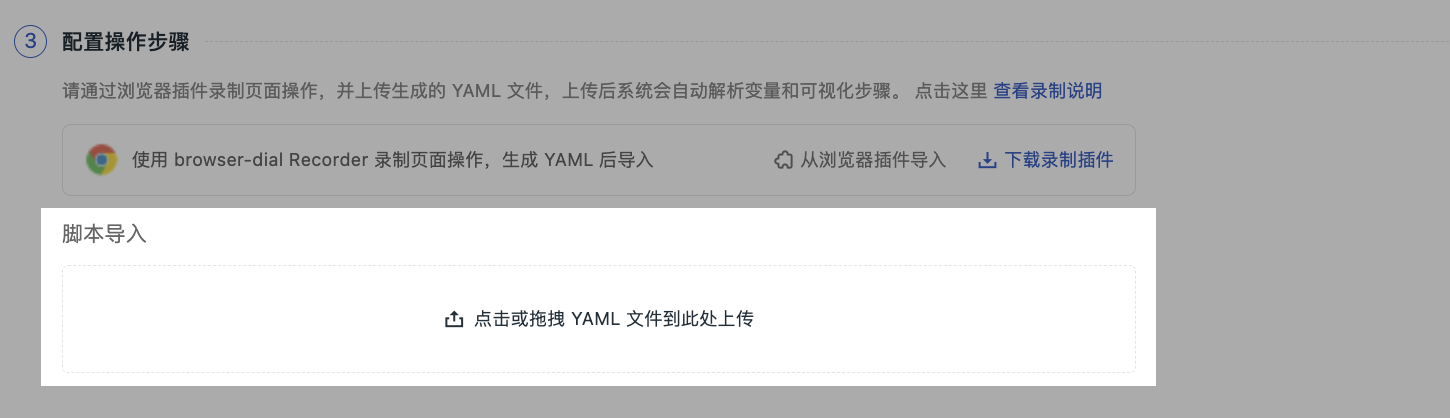
- Install the recording plugin: In the "Configuration Steps" area, click "Download Recording Plugin" to get the installation package
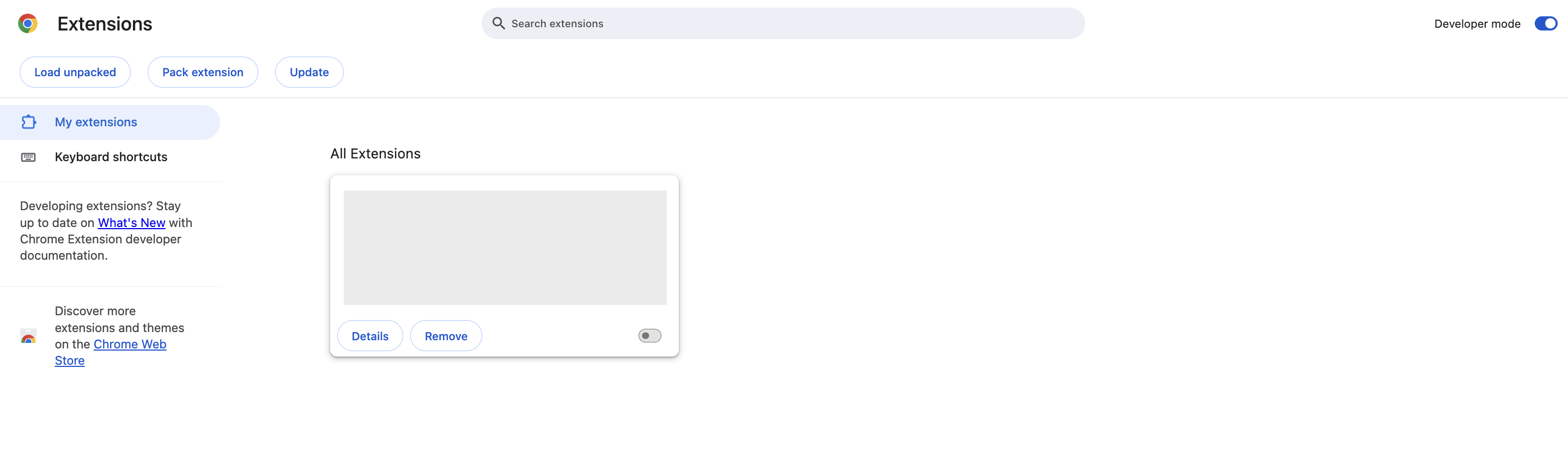
.zip. - Open Chrome browser and go to the extensions management page (
chrome://extensions). - Enable "Developer mode".
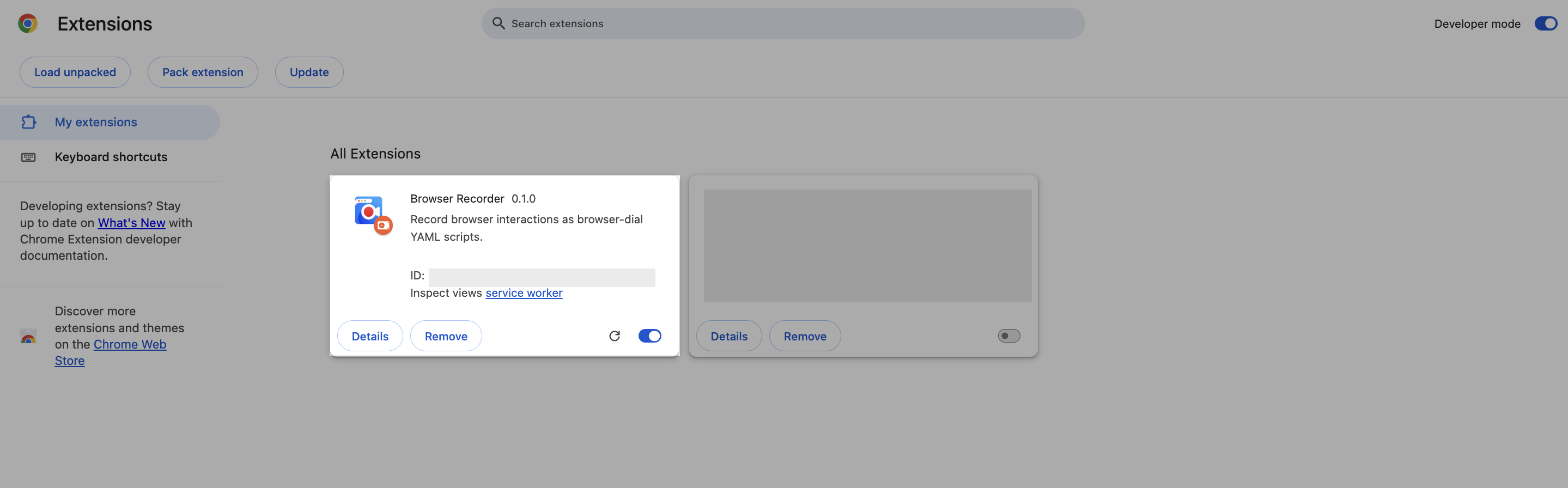
- Drag and drop the downloaded installation package onto the extensions management page, or click "Load unpacked extension" and select the extracted folder to complete the installation.
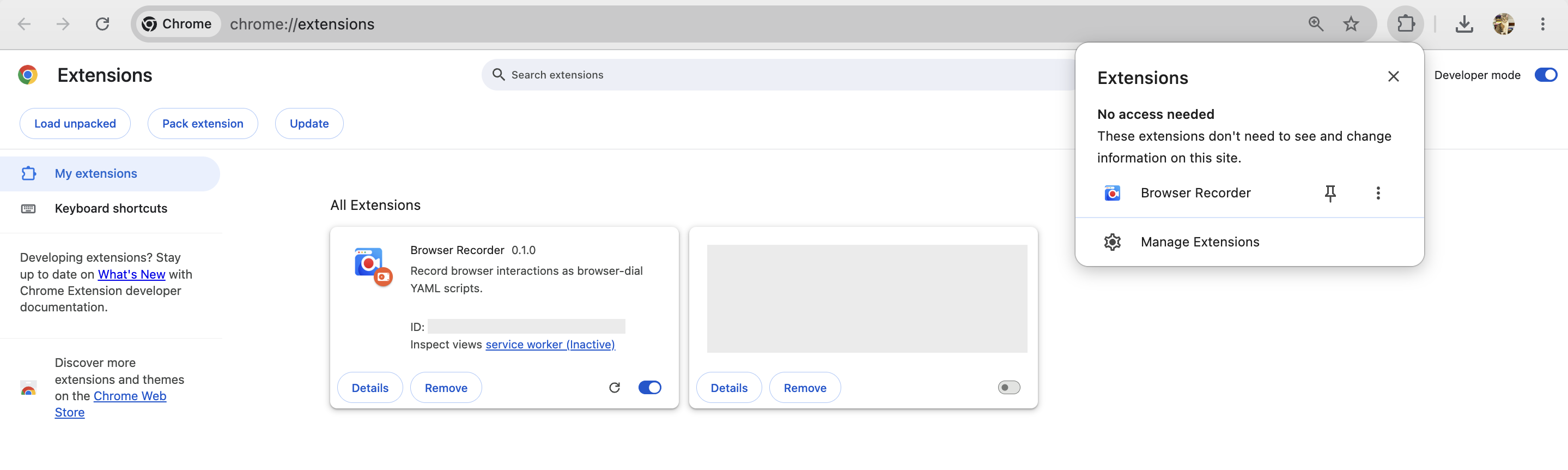
- After successful installation, the plugin icon will appear in the browser toolbar.
Open the Recording Panel
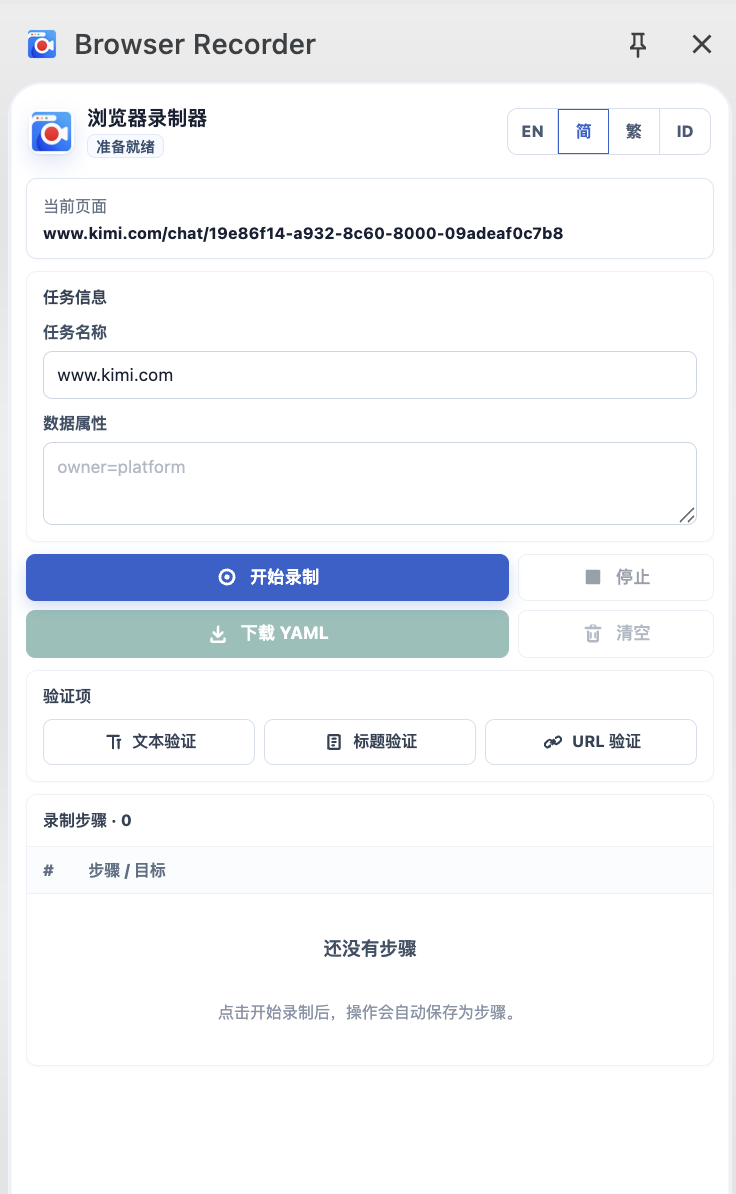
Click the Browser Recorder plugin icon in the browser toolbar to expand the recording panel on the right. The top of the panel displays the current status and the current page address, and supports switching between four languages: EN / Simplified Chinese / Traditional Chinese / ID.
Recording Workflow
-
Confirm the page: Open the target page to be recorded in the browser, ensuring the Current Page at the top of the panel displays the correct URL.
-
Fill in task information: Fill in the Task Information area
- Task Name: Enter the name of the testing task (if left blank, the current domain name will be used by default).
- Data Attributes: Add tags as needed (e.g.,
owner=platform), one key-value pair per line.
-
Start recording: Click Start Recording. The panel status changes to "Recording", and the system starts automatically capturing the page.
-
Execute business operations: Complete the user path that needs to be tested on the page, such as: clicking buttons, entering account passwords, waiting for page loads, etc. The plugin will automatically record behaviors like clicks, inputs, and page navigation.
-
Add verification items (Optional): Manually add assertions during recording:
- Text Verification: Click to enter text selection mode, then click on the target text on the page to add a text assertion.
- Title Verification: Automatically adds the current page title as an assertion.
- URL Verification: Automatically adds the current page address as an assertion.
-
Stop recording: After completing the operations, click Stop. The panel status changes to "Stopped".
-
Export YAML: Click Download YAML to save the generated script file locally. The file name format is
browser-dial-{hostname}-{timestamp}.yaml.
Import to Guance
Return to the "Create Browser Test" page and select upload in the "Configuration Steps" area.