User Analysis
User Analysis aggregates access and error data in the selected time range by user identifier, helping you locate affected users and inspect related sessions, page actions, and errors. For example, you can filter for users who encountered errors, view their recent sessions, and then drill into error details or use Session Replay to reproduce the issue.
Go to RUM > User Analysis > User Analysis, select an application and time range, then search for users, filter access environments, and continue to view sessions and events from user details.
Prerequisites and Scope
- RUM application integration is complete, and the current account has the corresponding RUM query permissions and application data access permissions.
- Data contains a non-empty user identifier
userid, corresponding to the SDK user attributeuser.id. Both SDK-generated identifiers and business-defined identifiers can be included in user statistics. For configuring business user identifiers, see Web custom user identifiers. - A single application is analyzed by default. Multiple applications or all applications can be selected for joint analysis only when applications in the same workspace use consistent user identifier rules and cross-application query is enabled.
The same user identifier is not merged across workspaces. In the same workspace, if different applications use the same ID to represent different business users, you should first unify the identifier rules or keep single-application analysis to avoid merging data from different users.
User names, email addresses, and original user IDs are displayed based on permissions. Without permission to read sensitive fields, users are displayed as "User + short identifier", and restricted identity information cannot be searched by original user ID or full email address.
User Identification Rules
User Analysis aggregates data by userid within the current workspace and the selected application scope:
- When the name or email address associated with the same
useridchanges, the data is still shown for the same user. For the name, the latest non-empty value determined by event time within the selected authorized applications is preferred. - When the same name or email address corresponds to different
useridvalues, they are shown separately. The same natural person is not inferred from name, email, device, or behavior. - The absence of a name, email, or login marker does not prevent a non-empty
useridfrom being included in statistics. Records without auseridare not included in the user list, and identifiers are not filled in using name or email. - The same natural person may correspond to multiple identifiers across different devices, browsers, or after storage is cleared. User Analysis does not automatically merge these different identifiers.
SDK-generated identifiers and business-defined identifiers use the same aggregation rules. The page does not provide identity classifications such as anonymous, identified, or unknown users.
View the User List
- Go to RUM > User Analysis > User Analysis;
- Select an application and time range for which you have access permissions;
- Within the scope of your permissions, search for users by user ID, name, or email;
- Narrow the scope using quick filters such as application, environment, version, region, OS, browser, device, whether errors or replays exist, and so on;
- Adjust displayed columns, sorting, and pagination as needed, then click a user row to view details.
The list is displayed in descending order of the most recent activity time by default. User search and environment filters work in combination. For example, when the browser is filtered to Chrome, the list metrics only count sessions and associated events that match this condition.
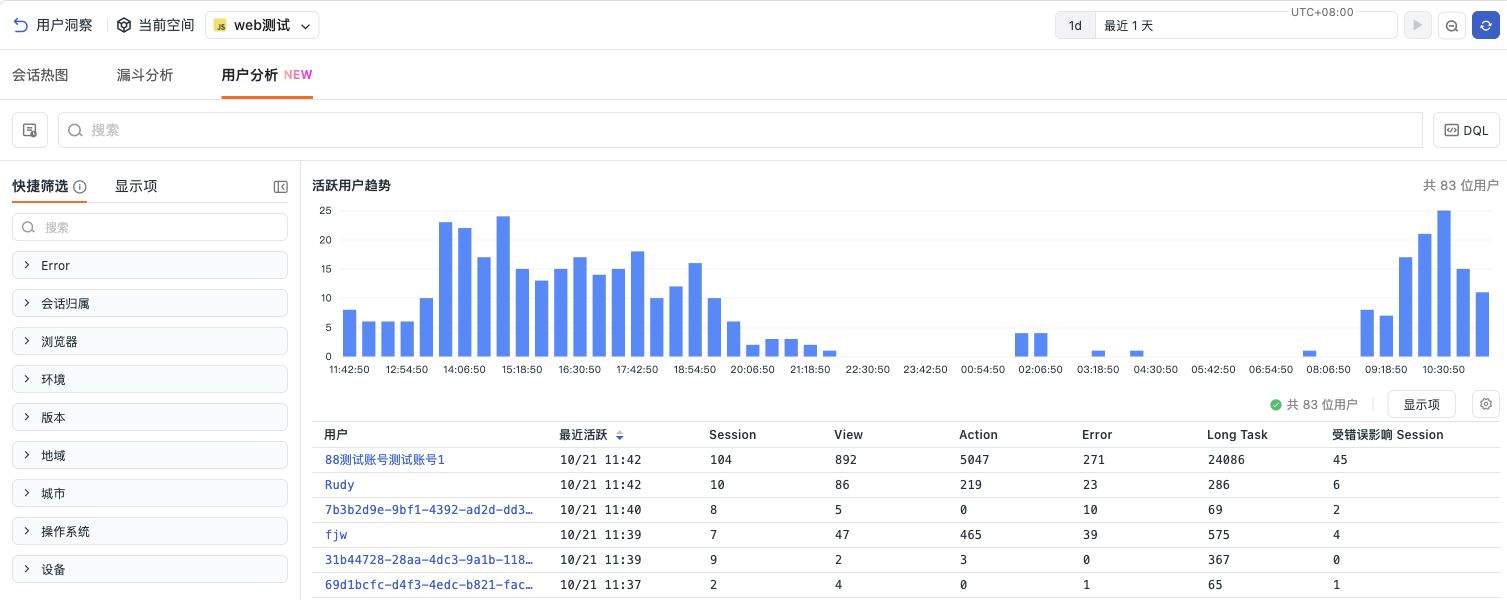
Only fields supported by the current data and query capabilities can be used for display and sorting. Sorting is based on aggregation results across the complete query scope. After conditions change, the list reloads according to the new conditions. When the page shows a "partial data" prompt or a metric is unavailable, you should evaluate the result scope based on the prompt and not treat the missing metric as zero.
After cross-application analysis is enabled, the same userid in the same workspace is merged into one row across the selected applications. Use "Involved Applications" to view the number and name summary of applications, and view the application distribution in the details. After switching the application scope, metrics and subsequent drill-down scopes are adjusted accordingly.
Metrics
All metrics are calculated based on the current application, time range, and filter conditions. User Analysis provides the following basic information and metrics; the specific displayed items depend on currently available capabilities.
| Metric | Description |
|---|---|
| Last active | The time of the last event or session end within the current query scope |
| First appeared in range | The earliest appearance time within the current query scope. It does not represent the user's first visit across the entire user lifecycle |
| Session | The number of sessions the user participated in, deduplicated by application and Session ID |
| View | The number of page records attributed to the user |
| Action | The number of action records attributed to the user |
| Error | The number of error records attributed to the user, excluding Resource Errors |
| Long Task | The number of long task records attributed to the user |
| Average session duration | The average duration of valid sessions that can be confirmed as belonging to a single user. Sessions that are mixed or have incomplete attribution are not included in the calculation. Displays empty when there are no valid samples |
| Session with replay | The number of sessions with replay data that pass checks for complete user attribution and retention period. Session Replay permission is also required to play them |
When account switching occurs within the same session, multiple users may each participate in that session. The Session count for each user can be counted once, but when aggregating the total session count, deduplication must be performed again and the numbers cannot simply be added together. Events for each user are attributed according to the user identifier at the time of collection; the event counts of an entire session are not repeatedly counted for every user.
0 is displayed only when the query succeeds and the result is indeed zero. Metrics that are not provided or unavailable are displayed as —, and partial results are indicated accordingly.
User Details and Drill-down
Click a user row to open user details. The top displays user information processed according to permissions, last active time, first appearance in the range, and the current application scope. Use the User Overview and available tabs such as Session, Error, View, and Action to view related data.
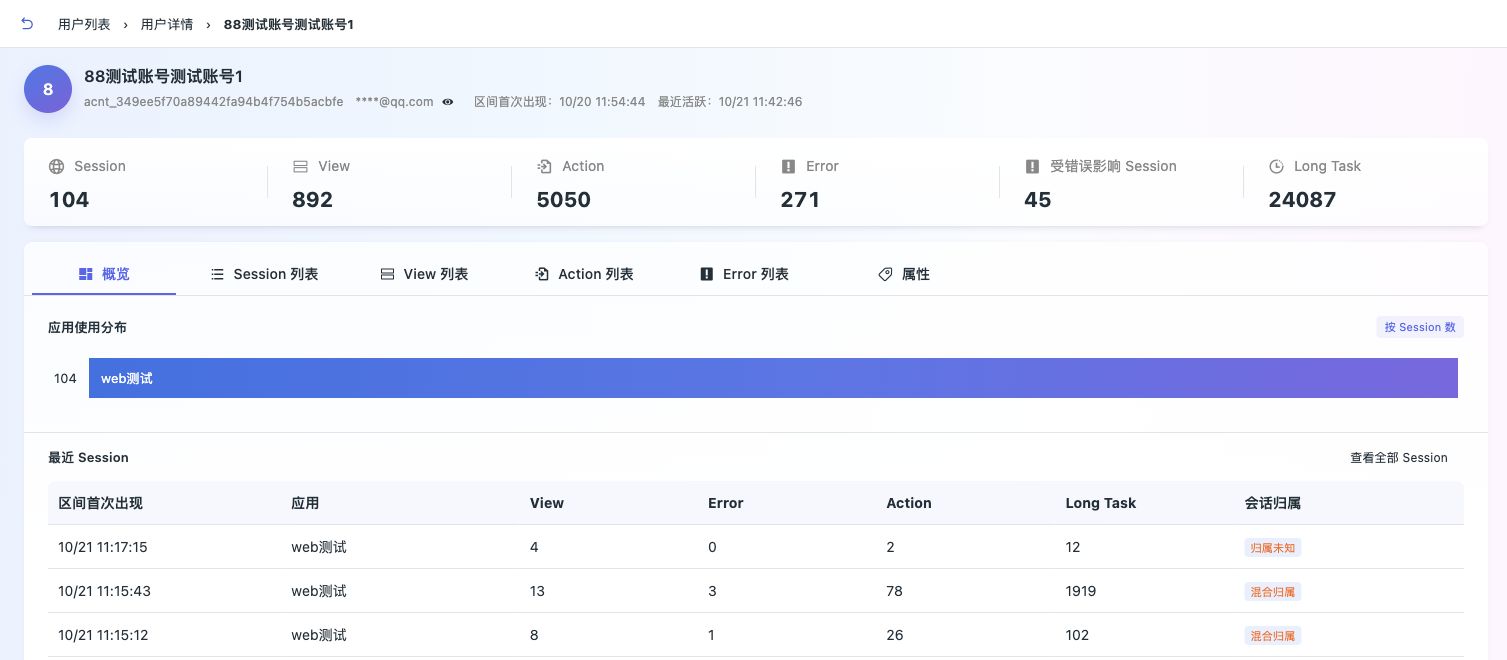
- View sessions or errors: Open the corresponding Explorer, preserving the current user, application, time, and compatible filter conditions, to continue viewing raw events.
- View application distribution: When cross-application analysis is enabled, view the metric distribution of this user across the selected applications. After selecting a specific application, details and subsequent drill-down are scoped to that application.
- Copy User ID: Available only when you have permission to read sensitive fields. It copies the user's original identifier.
- Back to list: Click the back entry at the top of the details page or "User List" to continue browsing the original list. When returning from the event Explorer, the original query, sorting, and browsing state are restored.
When there is no related data in the current scope, adjust the time range or filter conditions and query again. When user data exceeds the retention period or is inaccessible, the page shows an unavailability message and does not automatically query other users.
View Session Replay
In user details, select a specific Session and use its replay entry to view the operation process. A user row summarizes multiple sessions and cannot be played directly as a single replay.
Replay requires all of the following conditions to be met:
- The current user has Session Replay permission;
- The Session has valid, non-expired replay data;
- The complete user attribution of the Session can be confirmed.
When the same session contains multiple users or user attribution is incomplete, no replay entry is provided and the replay cannot be played via a direct replay link. Filtering for one user or narrowing the time range alone does not remove this limitation. For related operations, see Web Session Replay.
Saving Views and Sharing
You can save display columns, sorting, and compatible filter configurations specific to User Analysis, and continue analysis after reopening. User Analysis column configurations are saved separately from the original six types of event Explorers.
Sharing supports only authenticated links within the workspace. Recipients access the view with their own permissions. Sensitive search conditions and user identity information remain controlled by permissions and are not exposed to recipients through saving or sharing views.
User Analysis currently does not provide aggregation data export, detail JSON export, snapshots, chart additions, or AI context entries. The export capability of the raw event Explorer does not mean the same operation is supported for user aggregation results.
FAQ
Why is a user not found
First check the application, time range, and filter conditions, then confirm whether the data contains a non-empty userid. A missing name or email does not exclude a user. If the identifier is missing, the data has expired, or you do not have the corresponding access permissions, the user cannot be found in the current list.
Why can't a session be replayed after switching accounts
When logging in, switching accounts, or logging out, you need to create a new Session boundary after updating the user information. The Web SDK's setUser() and clearUser() methods do not create a new Session themselves. You should call startSession() in the order described in custom user identifiers.
If an existing session contains multiple users or complete user attribution cannot be confirmed, historical attribution cannot be filled in or replay restored by modifying user information afterward.
Why is multi-application selection not available
User Analysis uses a single-application scope by default. Multi-application or all-application analysis is provided only when the applications participating in the analysis in the same workspace use consistent user ID rules and cross-application query is enabled. The cross-space scope supported by the raw event Explorer does not mean User Analysis can merge users across spaces.