Configuring HTTPS for DataKit
Introduction
HTTPS is an HTTP channel with security as its goal. On top of HTTP, it ensures the security of the transmission process through transport encryption and identity authentication. For security purposes, HTTPS is often used when deploying front-end applications. For front-ends using the HTTPS protocol, when configuring Real User Monitoring (RUM), if the deployed DataKit still uses the HTTP protocol with IP + port, the browser will consider it insecure, and the application's RUM data will not be able to be reported to Guance.
This article will use Nginx's SSL to enable HTTPS on the server.
Prerequisites
- A cloud host with CentOS 7.9
- An Alibaba Cloud domain name, with the domain name resolved to port 80 of the cloud host
- DataKit has been <installed> on the cloud host
Configuration Steps
Warning
The current case uses DataKit version 1.4.20 (latest version) and Nginx version 1.22.1 for testing.
1 Install Nginx
1.1 Install the yum-utils package
Log in to the cloud host and execute the following command.
1.2 Create nginx.repo
Create the file /etc/yum.repos.d/nginx.repo with the following content.
[nginx-stable]
name=nginx stable repo
baseurl=http://nginx.org/packages/centos/\$releasever/\$basearch/
gpgcheck=1
enabled=1
gpgkey=https://nginx.org/keys/nginx_signing.key

[nginx-mainline]
name=nginx mainline repo
baseurl=http://nginx.org/packages/mainline/centos/\$releasever/\$basearch/
gpgcheck=1
enabled=0
gpgkey=https://nginx.org/keys/nginx_signing.key
1.3 Execute the installation command
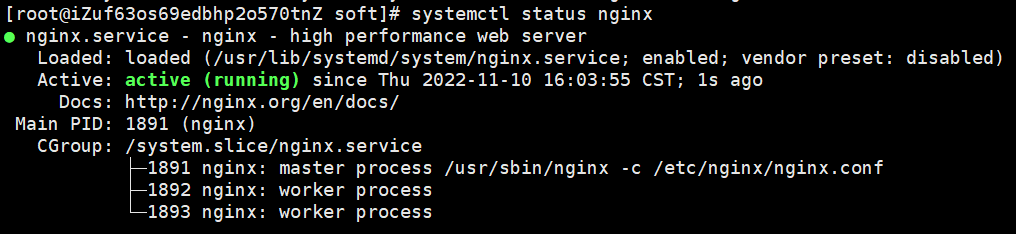
When you see "running", Nginx is installed successfully.
1.4 Check the SSL module
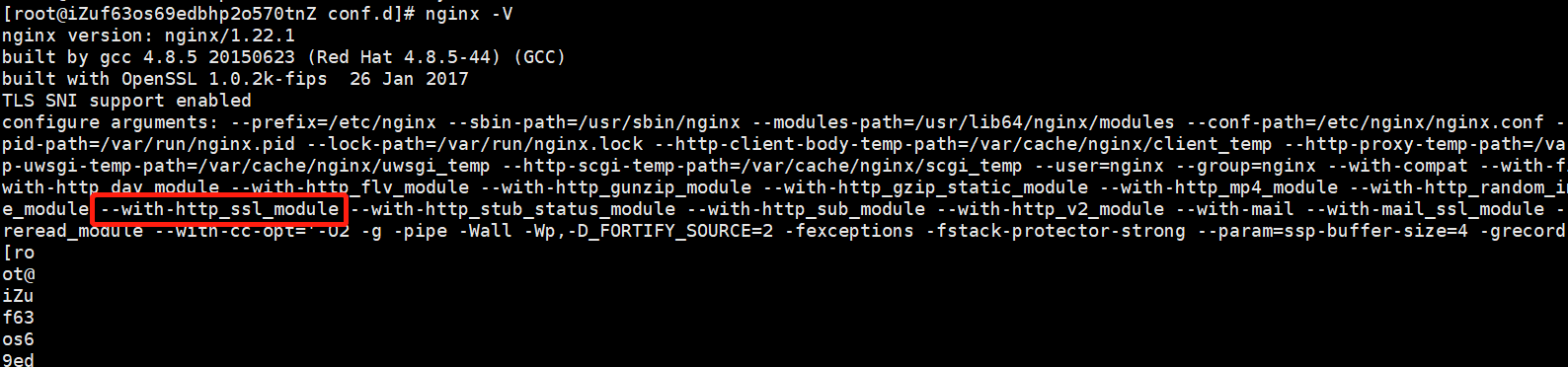
Enter nginx -V. If the output contains --with-http_ssl_module, the SSL module is installed.
2 Download the Certificate
2.1 Download the SSL Certificate
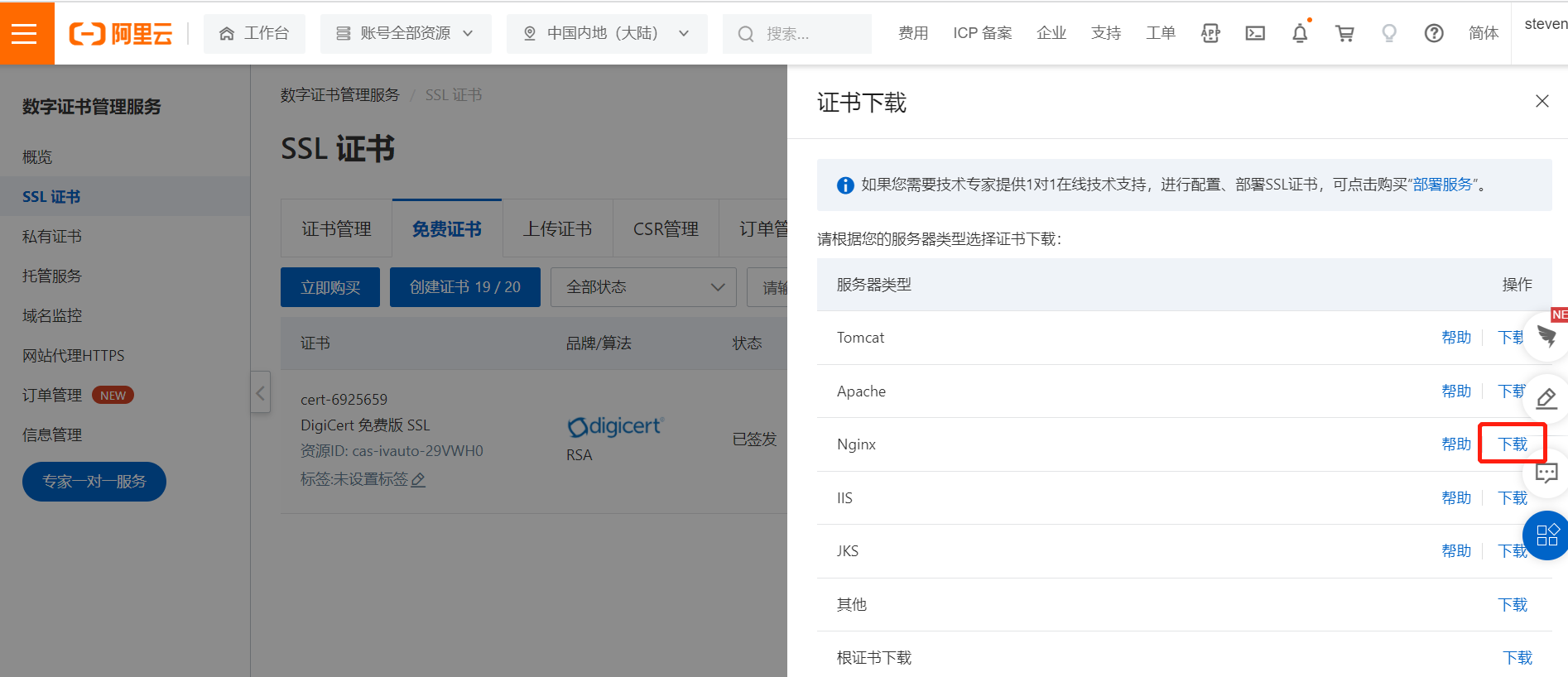
Log in to the "Alibaba Cloud" - "Digital Certificate Management Service" - "SSL Certificates" to create a free certificate.
After the certificate is created successfully, find "Nginx" and click "Download".
2.2 Upload the Certificate
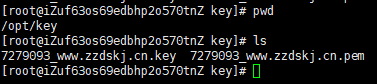
Unzip the SSL certificate, and upload 7279093\_www.zzdskj.cn.key and 7279093\_www.zzdskj.cn.pem to the /opt/key directory on the cloud host.
2.3 Modify the Nginx Configuration File
Edit the file /etc/nginx/conf.d/default.conf and enter the following content.
Port 443 will be redirected to DataKit's port 9529.
server {
    listen       80;
    server_name  localhost;

    #access_log  /var/log/nginx/host.access.log  main;
    rewrite ^(.*)$ https://$host$1 permanent;
}

   server {
        listen       443 ssl http2;
        server_name  zzdskj.cn;
        ssl_certificate        /opt/key/7279093_www.zzdskj.cn.pem;
        ssl_certificate_key    /opt/key/7279093_www.zzdskj.cn.key;


        location / {
            proxy_set_header Host $http_host;
            proxy_set_header X-Real-IP $remote_addr;
            proxy_set_header REMOTE-HOST $remote_addr;
            proxy_set_header X-Forwarded-For $proxy_add_x_forwarded_for;
            proxy_pass http://localhost:9529/;
        }


        error_page 404 /404.html;
            location = /40x.html {
        }

        error_page 500 502 503 504 /50x.html;
            location = /50x.html {
        }
    }
2.4 Reload the Configuration
Execute the following command.
3 Verification
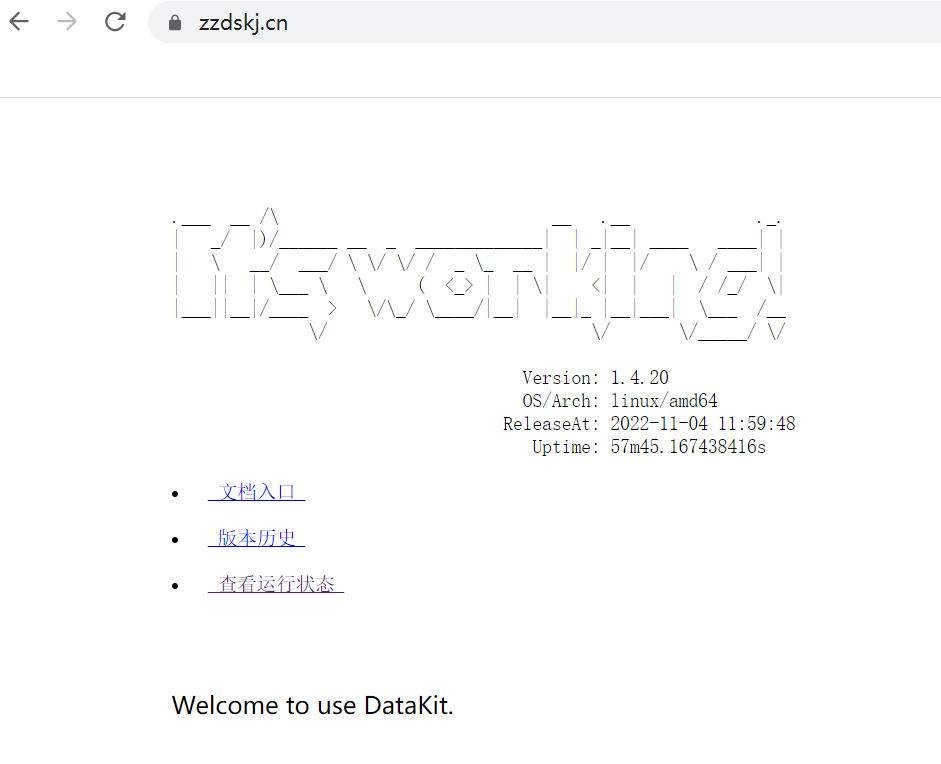
Enter the HTTPS domain name in the browser. If you see the following page, the configuration is successful.