Forward Data to LogBamboo
LogBamboo supports retaining data locally or in your own cloud environment. After forwarding logs, metrics, traces, and other data to LogBamboo, you can query historical records through the console for troubleshooting and business reviews.
Prerequisites
Before you begin configuration, confirm the following:
- You have deployed LogBamboo and created a target index to receive data;
- You have obtained the service address and write Token. To query historical data in the console, you also need to obtain a separate query Token;
- You have asked the deployment administrator to confirm that the forwarding service can access LogBamboo;
- You have completed the settings for rule name and filter conditions.
Obtain the service address, Token, and required certificates from the LogBamboo administrator. For details, see Prepare Connection Information. To learn about deployment and onboarding options, contact sales.
Configure
Step 1: Select the Forwarding Destination
In Select Forwarding Destination, select LogBamboo.
After selecting it, enter the service connection information. The storage configuration for LogBamboo is maintained by its administrator; you do not need to specify a bucket or select a storage format in the forwarding rule.
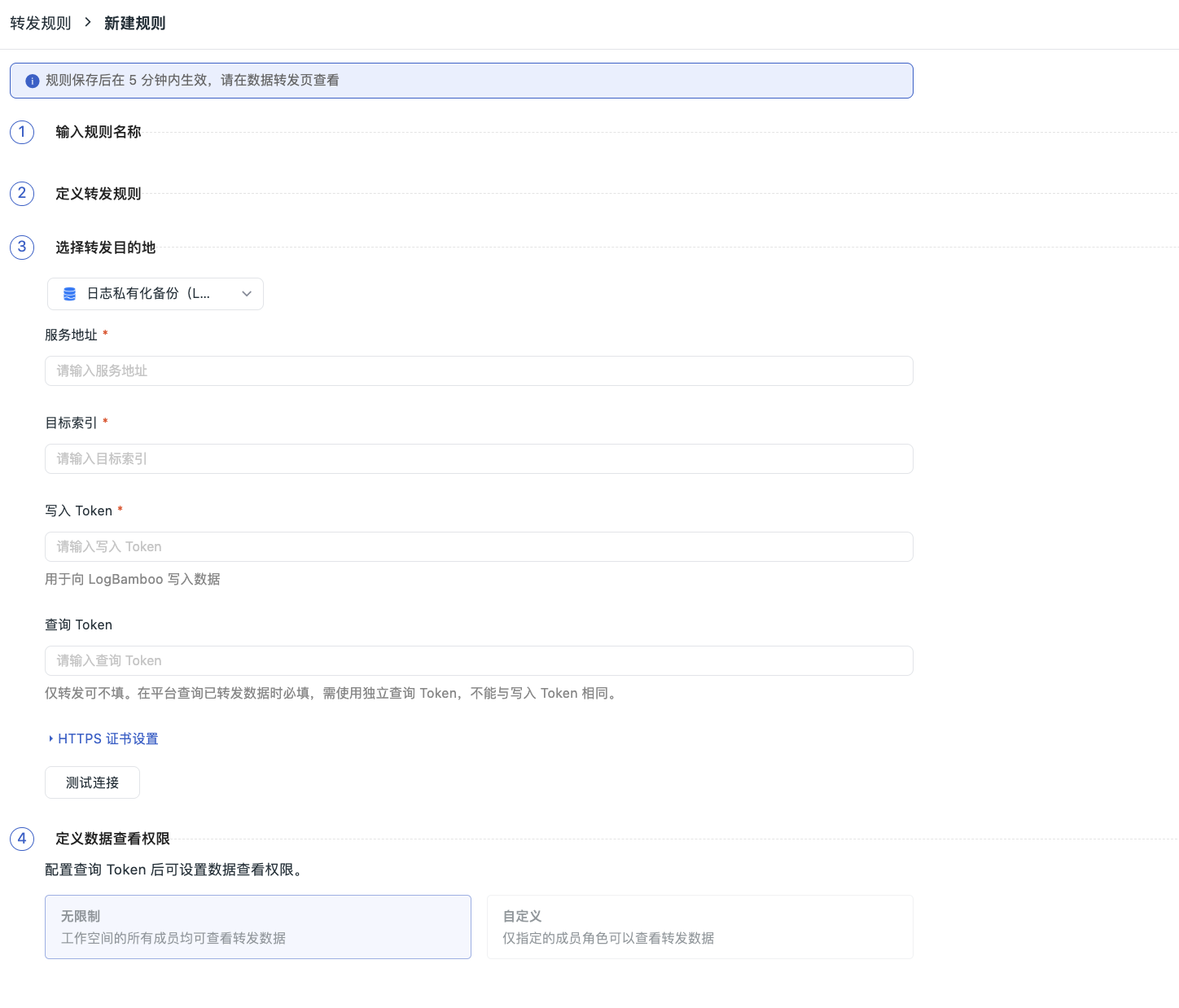
Step 2: Enter Connection Information
| Configuration Item | Required | Description |
|---|---|---|
| Service Address | Yes | LogBamboo service address, for example https://logbamboo.example.com:8080. Enter only the root address without appending the write endpoint path |
| Target Index | Yes | Enter the name of an existing index in LogBamboo. The name must be 1–128 characters and can contain letters, digits, and ., _, and -; it cannot be only . or .. |
| Write Token | Yes | Used to write data to LogBamboo. The plaintext is not displayed after saving |
| Query Token | Required for querying | Used to query forwarded data in the console. You can leave it blank if you only forward data, and it must be different from the write Token |
| Trusted Certificate | No | If the deployment administrator requires a trusted certificate, expand HTTPS Certificate Settings and enter the PEM-format certificate content provided by the administrator |
Use the Token provided by the LogBamboo administrator. Do not enter a Workspace Token or login password.
Step 3: Test Connection
Click Test Connection. If the check fails, verify the service address, Token, and target index according to the page prompts.
After the check passes, continue to save the rule, and then follow Verify Forwarding Results to confirm whether data is being forwarded properly.
Step 4: Set Data Viewing Permissions and Save
If you need to query data in the console, enter the query Token and set the viewing scope within the Workspace according to Data Viewing Permissions:
- Unlimited: All Workspace members can view data forwarded by this rule;
- Custom: Only members with specified roles can view it.
After completing the configuration, save the rule and confirm that it is enabled. Subsequent data that meets the conditions will be forwarded according to the rule.
Verify Forwarding Results
- Confirm that data meeting the forwarding conditions exists and that the rule is enabled;
- Wait for LogBamboo to complete data processing;
- Go to Data Forwarding > Data Viewing and select the corresponding rule;
- Select the query range by the time when LogBamboo received the data, and enter keywords to query;
- Check whether the results contain the expected data. If no data is found, refer to the explanation below and FAQ for troubleshooting.
When Data Becomes Queryable
After data is forwarded, you must wait for LogBamboo to finish processing before you can query it. Under the default production configuration, when the data volume is small, it may take about an hour or longer; the actual processing cycle of the deployment prevails.
If recently forwarded data cannot be found temporarily, first confirm the query rule and time range, and try again later. Do not send the same batch of data repeatedly just because it cannot be found temporarily.
Which Query Time to Select
Query by the time when LogBamboo received the data, not by the time when the original data occurred.
For example, if data generated yesterday is forwarded to LogBamboo today, select today's reception time for the query. The original occurrence time can still be viewed in the data content.
If the page indicates that you can continue querying, continue to retrieve subsequent results.
Capacity and Purchase
The Community Edition provides 5 TB of data retention capacity by default, calculated based on uncompressed content. When the capacity limit is reached, older data is automatically cleared. Before use, confirm the storage capacity and retention policy with the administrator.
If you need more capacity, contact sales to learn about commercial licensing and purchasing options. For licensing fee details, see Data Forwarding FAQ.
FAQ
| Symptom | Troubleshooting Direction |
|---|---|
| Service address unreachable | Verify the service address and port, and ask the administrator to confirm that the forwarding service can access LogBamboo |
| Authentication failed | Confirm that the Token is correct. If the administrator has changed the Token, edit the forwarding rule accordingly |
| Target index unavailable | Ask the administrator to confirm that the index has been created and that the current Token has permission to access it |
| Certificate verification failed | Ask the administrator to check the HTTPS certificate; if a trusted certificate needs to be configured, enter the certificate content provided by the administrator |
| Test connection passes but no data is found | Confirm that the rule is enabled, data meeting the conditions exists, the query Token has been entered, and the query is based on the reception time; for recently forwarded data, try again later |
| Query indicates waiting for recovery | Wait for data recovery to complete as prompted, and then query again |
| Insufficient capacity or licensing exception | Ask the administrator to check the available capacity, retention policy, and license status |
Modify and Disable Rules
- After the administrator changes the Token, update the corresponding Token in the forwarding rule accordingly;
- After you modify the rule name or forwarding target, data from before the modification is not automatically queried. Before modifying, confirm how the old data will be queried;
- Disabling or deleting a rule does not clear historical data already saved in LogBamboo. Data retention and cleanup are maintained by the LogBamboo administrator.