Log Index
The system automatically archives log data into corresponding indexes based on the configured filter conditions. By creating multiple log indexes, you can:
- Isolate log data by business line, environment, or project
- Configure differentiated storage policies for different indexes
- Optimize query performance by reducing scanning of irrelevant data
Note
❗️ By default, new log indexes cannot be created. Contact your Account Manager to enable this feature.
Create
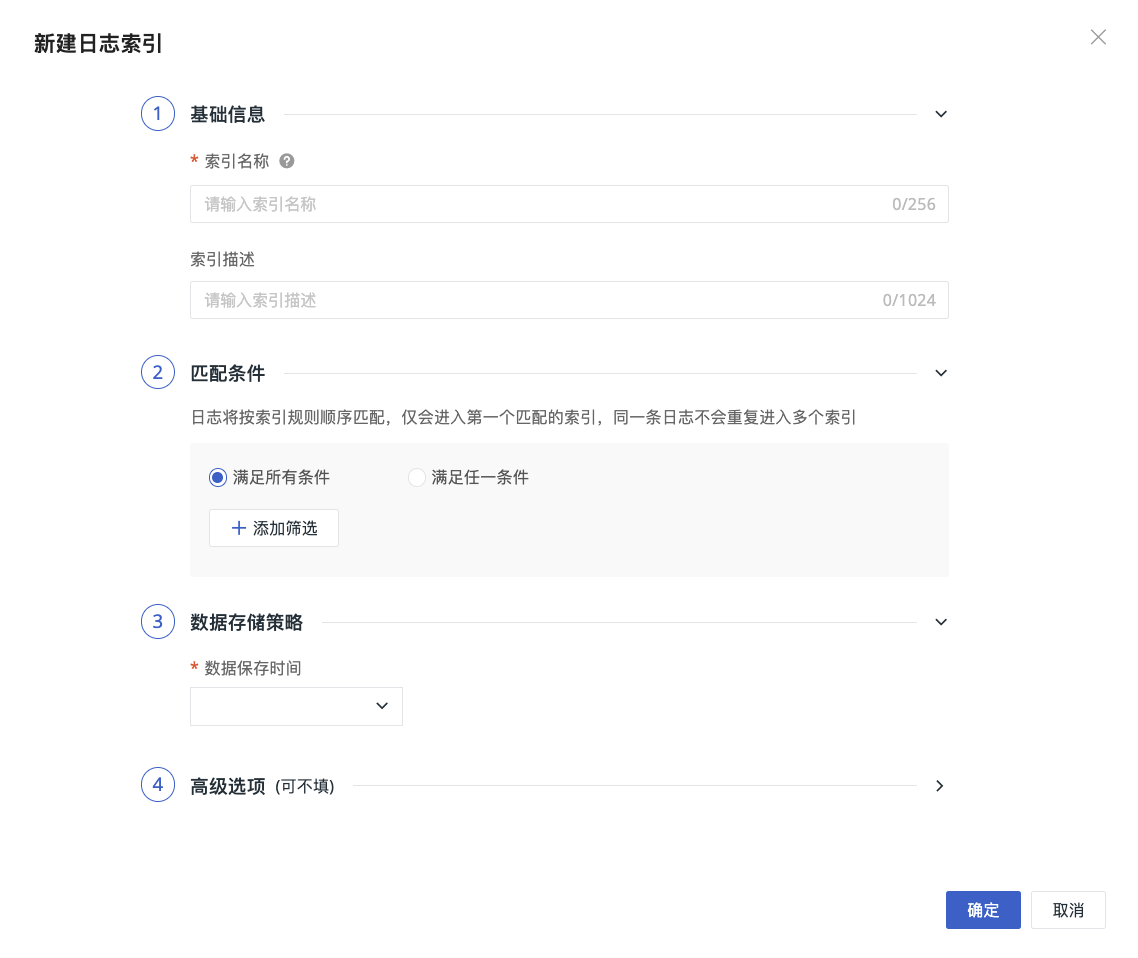
- Go to Create > Log Index;
- Enter a custom index name;
- Add a description as needed;
- Add filter conditions;
-
Configure the data storage policy: select the log retention period; logs are automatically cleared after it expires;
- Deployment Plan users can customize the storage duration, ranging from 1d to 1,800d
-
Configure a clone index as needed;
- The clone configuration includes the name, retention period, and clone conditions.
-
Configure advanced options as needed;
- Confirm.
Filter Conditions
Filter conditions define the rules for routing logs to the current index. Two configuration modes are supported: Standard Matching and Advanced Matching.
Standard Matching
Standard matching follows the original configuration method and is suitable for scenarios with relatively simple filtering logic.
-
Select the condition relationship:
- Match all conditions: the log must satisfy all filter conditions before it is routed to the current index;
- Match any condition: the log is routed to the current index if it satisfies any of the filter conditions.
-
Add a filter condition:
- Field name: select a log field, such as
source,service,host, etc.; - Operator: select the matching method;
- Match value: enter the field value; separate multiple values with commas.
- Field name: select a log field, such as
Standard matching is suitable for quickly configuring index routing based on fixed fields.
Advanced Matching
Advanced matching is suitable for scenarios that require more flexible combinations of matching rules. After advanced matching is enabled, log data is sent to the Pipeline for matching evaluation, and corresponding charges will apply.
In advanced matching, you can configure multiple filter conditions, each containing:
- Field name: enter the log field to evaluate;
- Matching method: supports
=,!=,in,not in,match,not match,wildcard, andnot wildcard; - Match value: enter the value corresponding to the field.
Click Add Filter to continue adding conditions; click Clear All Conditions to remove all currently configured conditions.
The Expression Preview at the bottom of the page shows the final matching expression generated from the current filter conditions. If the conditions are incomplete or the expression is invalid, the page prompts "Please complete or correct the filter conditions." In this case, complete the field name, matching method, or match value before saving.
Note
Logs are matched in the order of the index list and, during the regular index matching stage, are written only to the first matching regular index. If that regular index has clone rules configured and the log meets the clone conditions, the system additionally makes an asynchronous copy to the corresponding clone index.
Advanced Options
Advanced options are expanded by default, where you can view or select full-text index fields.
Full-Text Index Fields
-
Full-Line Index (default for new indexes): Full-text search matches all business fields in the logs, excluding system fields. The system writes business fields uniformly to
variantand creates a full-text index only forvariant; -
Index only the
messagefield (legacy compatibility): Full-text search matches only the originalmessagefield, and the system creates a full-text index formessage.
New log indexes use the full-line index by default. Existing log indexes that already use the message index field can continue to use it or switch to the full-line index. This switch is one-way: after switching to the full-line index, you cannot restore a message-only index.
Reconfigure JSON Path Query Acceleration
If the original index has query acceleration configured for JSON Paths in the message field, you need to reconfigure query acceleration for these JSON Paths after switching to the full-line index. For the configuration method, see JSON Path Embedded Field Query Acceleration.
When a full-line index log contains message, the system does not delete this field but writes it to variant as a regular business field. The system does not create two full-text indexes for both message and variant, avoiding the extra storage cost of duplicate indexing.
How the Full-Line Index Processes Data
No message:
Business fields → variant → Full-text index

message present:
message + other business fields → variant → Full-text index
Whether message exists depends on the actual processing result of the client or Pipeline. The same log index can contain both logs with message and logs without it.
To configure DataKit JSON field extraction, or to delete the original message after the Pipeline extracts fields, see Full-Line Index.
The original "Service Matching" capability has been migrated to Log Index Mapping.
Clone Index
A clone index is used to further filter and copy part of the log data from a regular log index. For logs that are queried frequently and have a well-defined data scope, you can copy them to a dedicated clone index to reduce the amount of data scanned during queries and improve log retrieval efficiency.
Logs are first matched against regular indexes in their configured order and written to the first matching regular index. After the write is complete, the system asynchronously determines, based on the clone conditions configured on that index, whether the logs need to be copied to the clone index.
Logs reported
   ↓
Match regular indexes in order
   ↓
Write to the first matching regular index
   ↓
Check whether clone rules are configured
   ↓
Clone conditions met ──→ Copy to clone index asynchronously
Conditions not met   ──→ No clone operation
Clone tasks run asynchronously. Even if a clone fails, writing logs to the source index is not affected.
Use Cases
Clone indexes are suitable for the following scenarios:
- High-frequency queries focus on only part of the logs in a regular index;
- The query scope needs to be narrowed by conditions such as service, environment, status, and business type;
- The regular index contains a large amount of data, and you want to reduce the scan volume of common queries;
- You want to configure a shorter retention period for frequently queried data;
- You want to keep the complete logs in the source index while creating a leaner dataset better suited to daily troubleshooting.
For example, the regular index application stores all application logs, while daily troubleshooting focuses mainly on error logs in the production environment. In this case, you can configure the clone index application_error for application and set the following clone conditions:
New logs that meet the conditions are stored in both:
- Source index:
application - Clone index:
application_error
When querying error logs in the production environment, you can select application_error directly to reduce the scan of the full application dataset.
Configuring a Clone Index
When creating or editing a regular log index, you can configure a clone index as needed:
- Go to Logs > Indexes;
- Create a log index, or edit an existing regular log index;
- Locate the Clone Index configuration;
- Enable the clone index;
- Enter the clone index name;
- Set the data retention period for the clone index;
- Add clone conditions;
- Save the index configuration.
Each regular index can have at most one clone index.
Clone Index Name
The clone index name is used to identify the index in the index list and the Log Explorer.
Note the following when configuring the name:
- The clone index name must be unique within the current workspace;
- The clone index cannot have the same name as an existing regular index, native direct-write index, external index, or other clone index;
- After creation, the clone index is displayed as a second-level row under the source index;
- A clone index cannot serve as the source of another clone index.
Retention Period
A clone index can have an independent data retention period, but it cannot exceed the retention period of the source index.
| Source index retention period | Retention period allowed for the clone index |
|---|---|
| 7 days | No more than 7 days |
| 14 days | No more than 14 days |
| 30 days | No more than 30 days |
If you change the source index retention period, make sure the clone index retention period still meets the restriction.
Logs in the clone index are automatically cleaned up once they reach the retention period, without affecting the original logs in the source index.
Clone Conditions
Clone conditions are used to determine whether logs in the source index need to be copied to the clone index.
You can set filter rules based on log fields, for example:
sourceserviceenvstatushost- Other log fields
Only logs that meet all of the following conditions can be routed to the clone index:
- The log has been successfully written to the source regular index;
- The log satisfies the currently configured clone conditions;
- The clone rule took effect before the log was written.
Logs that do not meet the clone conditions are still saved normally in the source index but are not copied to the clone index.
Data Content
The clone index fully retains the fields and tags of the source logs; it does not retain only the fields used in the clone conditions.
The copied logs include:
- The business fields of the original log;
- The tags of the original log;
- The
messagefield present in the original log; - Related information required for querying and displaying logs.
The clone operation does not modify or delete logs in the source index.
Effective Scope
Clone rules process only logs newly written to the source index after the rule takes effect.
After any of the following operations is completed, the system processes subsequent logs starting from the time the operation takes effect:
- Create a clone rule;
- Enable a clone rule;
- Modify clone conditions;
- Modify clone index-related configuration.
The system does not automatically scan the source index or backfill historical data. Therefore, logs already written to the source index before the rule takes effect are not automatically copied to the clone index.
For example, enable a clone rule at 2026-08-19 10:00:00:
- Logs newly written after
10:00:00that meet the conditions can be routed to the clone index; - Historical logs that already existed before
10:00:00are not automatically backfilled.
Viewing and Querying Clone Indexes
Clone indexes are displayed as child nodes of the source index. The source index is the parent node, and the clone index is the child node. When clone indexes exist, the index tree is expanded by default.
Clone indexes display a dedicated icon or indicator to distinguish them from regular indexes.
When searching for indexes:
- Searching for a source index name displays both that source index and its clone index;
- Searching for a clone index name keeps the corresponding source index as the parent node, making it easier to confirm the index relationship.
Note the following when querying:
- The source index and the clone index cannot be selected at the same time;
- Selecting the source index does not automatically query its clone index;
- Selecting a clone index queries only the data in that clone index;
- The wildcard
*includes the default index and all regular indexes, but does not include clone indexes; - To query a clone index, you need to explicitly select the corresponding clone index.
Clone indexes can be selected in the following query entry points:
- Log Explorer;
- Metrics Analysis;
- The log DQL editor in scene charts and dashboards;
- Dashboard log view variables;
- Log Monitor queries.
Clone indexes do not appear as independent indexes in the following configuration entry points:
- Index configuration;
- Pipeline;
- Field mapping;
- Data routing;
- Data Access rules;
- Log sorting;
- Data source index selector.
Editing and Enabling/Disabling
When editing a regular index, you can modify the corresponding clone rules.
After modifying or re-enabling clone rules:
- The new rule applies only to logs newly written after the effective time;
- Historical logs already written to the clone index are not re-processed under the new rule;
- Historical logs already written to the source index are not automatically backfilled;
- Modifying rules does not change the original log data in the source index.
After a clone rule is disabled, subsequent logs are no longer copied to the clone index. Historical logs in the clone index that are still within the retention period can still be queried.
Limitations
| Limitation | Description |
|---|---|
| Source index | Only regular log indexes can have clone indexes |
| Number of clones | Each regular index can have at most one clone index |
| Clone hierarchy | A clone index cannot have its own clone index |
| Retention period | The clone index retention period cannot exceed that of the source index |
| Data scope | Only logs newly written after the clone rule takes effect are processed |
| Historical data | Historical logs in the source index are not automatically backfilled |
| Data content | All fields and tags of the original logs are fully retained |
| Exception handling | A clone failure does not affect writes to the source index |
| List ordering | Clone indexes are not included in regular index sorting or pagination |
| Explorer queries | "All Logs" does not automatically include clone indexes; you need to select them explicitly |
Note
- Clone indexes are used to narrow the data scope of high-frequency queries and do not replace the source regular index;
- The same log can exist in both the source index and the clone index;
- Modifying clone conditions does not re-process historical logs that have already been written;
- When querying clone data, explicitly select the corresponding clone index in the Log Explorer.
Index Limits
| Limitation | Description |
|---|---|
| Total limit | 6 (including the default index), that is, up to 5 custom indexes |
| Matching mechanism | Sequential matching; the first matching index takes effect, and subsequent indexes are not matched |
| Storage duration | Deployment Plan supports 1d ~ 1,800d; for SaaS, refer to the range selectable on the page |
| Clone index | A single regular index supports at most 1 clone index; clone hierarchy is limited to 1 level; the clone retention period cannot exceed that of the source index; changing matching conditions does not backfill historical data |